Skip to content
| User Manuals
| User Manuals

en_US English
en_US English ar Arabic fr_FR French

| User Manuals
| User Manuals
Popular Search reportreport cardBehaviorالمالت

Teacher Account

  • Logging in to the Platform 
  • Professional Development Hub
    • Intel’s Skills for Innovation
  • Motivation
    • The New Way of Learning
    • C-Inspire
    • My Score
  • Important Links
    • Important Links 
  • Home Page
    • Homepage
    • Personal Menu
    • PUBLIC PROFILE 
    • Edit Profile
    • Chat
    • Clubs Courses
  • Show all courses
    • COURSES
      • Charts and Behavior Analysis
      • Tab 1
        • Excel Sheet Grades Import
        • Manage Students Groups
        • Managing Content
        • Lecture Management
        • Grade Management edit –
        • Students List
        • Students’ Report Summary
      • Tab 2
        • Course Materials
        • Video Lectures
      • Tab 3
        • In-Class Activity
        • Assignments, Exams
        • Assignment Actions
        • Assignment Sections
        • Assignment Questions
        • Exams
        • Exam Styles
        • Exam Sections
        • Assignment settings
        • Exam Settings
        • Exam Settings | More options
      • Tab 4
        • Digital Libraries
        • Weekly Study Plan
        • Semester Plan
        • Course Preparations
      • Tab 5
        • Management of Timetable 
  • Books
    • Books
  • Activities
    • Summer Clubs
    • Contests
  • Classroom Attention Indicator
    • Classroom Attention Indicator –
  • Training Courses
    • Adding Trainees
  • Mailbox
    • Sent Messages
    • Draft Messages
    • Archived Messages
    • Compose
    • Trash
  • Appointments
    • Appointment Scheduling
    • Reserve Appointment
    • Appointments 
  • Grade Management
    • Grade Management
  • Discussions
    • Discussion Rooms
    • Discussion Rooms Main Page
    • Adding New Discussion Rooms
    • Adding New Posts
    • Comments Management
  • Central Exam Report
    • Central Exam Report
  • Questions Banks
    • Add Questions from Q-Banks
    • Exam Questions
    • Add Bulk Questions
  • My Schedule
    • Schedule
    • Exams Schedule
    • Calendar
      • Calendar
      • Editing Events
      • Adding Events
  • Virtual Classes
    • Virtual Classrooms
    • MS Teams Classroom
      • Adding Virtual Classrooms Using MS Teams
      • Using MS Teams Web Application
      • Joining the Classroom
      • MS Teams Classroom Main Screen
      • Manage Permissions
      • Classroom Participants
      • Classroom Conversation
      • Share Screen
      • More Actions
      • Meeting Info
    • Zoom Classrooms
      • Zoom Classroom Main Screen
      • Adding New Zoom Meeting Rooms
  • teacher Library
    • PUBLIC LIBRARY
    • VIRTUAL LABS 
    • My Files
  • Absence Report
    • Absence Report
  • E-Portfolios
    • E-Portfolios
    • Adding E-Portfolios
    • Editing E-Portfolios
    • Viewing EPortfolios
    • Reviewing Students E-Portfolios
    • Previewing Your Public Portfolios
  • Certificates | Letters
    • Issued Certificates | Letters
    • Certificates | Letters
    • My Certificates
    • Sign Multiple Certificates
    • My Letters
    • Issue Certificates
  • Parents student's requests
    • Parents students requests
  • Contents Reports
    • Contents Reports
  • Education Partners
    • Education Partners
  • My Behaviors
    • My Behaviors
  • Evaluation Tools
    • Forms
    • Evaluations | Surveys
  • Share Your Ideas
    • Share Your Ideas
  • Intel’s Skills for Innovation
    • Intel’s Skills for Innovation

Parent account

  • Logging in to the Platform
  • C-Inspire Awards
    •  C-Inspire Awards
  • Important Links
    • Important Links –
  • Homepage
    • Student Accounts
    • Edit Profile
    • Personal Menu
    • Personal Profile
    • Homepage
  • Student Contracts
    • Student Contracts
  • Call Student
    • Call Student
  • Mailbox
    • Trash
    • Archived Messages
    • Compose
    • Sent Messages
  • Appointments
    • Reserve Appointment 
    • Appointments 
  • Public Library
    • Custom Library
    • My Files
    • All
  • C-Pay
    • CPay for Online Payments (KSA)
    • CPay for Online Payments (Egypt)
  • Personal Drivers
    • Personal Driver 
    • Link Drivers With Students
    • Students Drivers List
  • Share Your Ideas
    • Share Your Ideas
  • Canteens
    • Delivered Orders
    • Canteens
  • Events
    • Events
  • Contests & Activities
    • Contests & Activities
  • Virtual Meetings
    • Virtual Meetings
  • Training Courses
    • Training Courses
  • School Clinic
    • Medical Records
    • Clinic Transfer Requests/ Diagnosis
  • Education Partners
    • Education Partners
  • Bus Trips 
    • Bus Trips 
  • Evaluations | Surveys
    • Forms
    • Evaluations | Surveys
  • Admission Exams Schedules
    • Admission Exams Schedules

Student account

  • Logging in to the Platform
  •  Awards and Scores
    • The New Way of Learning
    • C-Inspire
    • My Score
    • My Awards
  • Important Links
    • Important Links
  • Home Page
    • Homepage
    • Personal Menu
    • Personal Profile
    • Edit Profile
    • Chat
  • Courses
    • Clubs Courses
    • Courses—
    • Course Materials
    • Video Lectures
    • Discussion Rooms
    • Online Assignments 
    • Exams
    • Training Courses 
  • Previous Course Contents
    • Previous Course Contents
  • Book
    • books
  • My Schedule
    • Elective Subject
    • Schedule Journal
    • Schedule
    • Weekly Study Plan
    • Exam Schedule 
    • Calendar
      • Calendar
      • Adding Events
      • Editing Events
  • Digital Library
    • Digital Library 
    • Courses Library
    • Public Library
    • Custom Libraries
    • Virtual Labs 
    • My files
  • Evaluation Tools
    • Evaluation
    • form
  • Virtual Classes
    • Virtual Classrooms
    • MS Teams Classroom
      • Background Effects
      • Joining Classrooms Using MS Teams Desktop Application
      • Joining Classrooms Using MS Teams Web Application
      • Viewing Old Smart Classrooms (Recorded)
      • MS Teams Classroom Main Screen
      • MS Teams Classroom Main Screen
      • Choosing Your Video and Audio Options
      • Classroom Participants
      • Share Screen
      • Background Effects
      • Meeting Info
      • Classroom Conversation
      • More Actions
      • Meeting Notes
    • Zoom Meeting
      • Joining Zoom Virtual Classrooms
      • Joining Classrooms Using Zoom Application
      • Zoom Classroom Main Screen
  • Education Partners
    • Education Partners
  • Contests
    • Contests
  • canteens
    • School Canteen/Restaurant 
  • Mailbox
    • Draft Messages
    • Mailbox
    • Compose
    • Inbox
    • Sent Messages
    • Archived Messages
    • Trash
  • Attendance
    • Daily Lateness
    • Course Absences
    • Daily Absences
    • Course Absences Summary
    • Course Lateness
    • Absences Summary
  • Certificates | Letters
    • Certificates | Letters
  • My Profile
    • E-Portfolios
    • Adding E-Portfolios
    • Editing E-Portfolios
    • Viewing E-Portfolios
    • Previewing Your Public Portfolios
  • Bus Trips
    • Bus Trips
  • Other Services
    • Share Your Ideas 
  • Canteens
    •  Canteens
  • Contents Reports
    • Contents Reports

School Accountant

  • Add Expiry Date to a Financial Claim
  • Claims Report
  • Logging in to the Platform 
  • CPay Installment Plans Facility
  • CPay Finance Requests

Teacher Supervisor Account

  • Logging in to the Platform
  • Homepage
    • Homepage
    • Personal Menu
    • Edit profile
    • PUBLIC PROFILE 
  • Contents Reports
    • Contents Reports
  • Appointments
    • Reserve Appointment
    • Appointments 
  • Behaviors Report
    • Behaviors Report
  • Calendar
    • Calendar
    • Editing Events
    • Adding Events
  • Certificates | Letters
    • Issue Certificates
    • Certificates | Letters
    • My Letters
    • My Certificates
    • Issued Certificates | Letters
  • Class Visits
    • Copy from Template
    • Adding New Class Visits
    • Class Visits
  • Contests
    • Contests
  • Education Partners
    • Education Partners
  • EPortfolios
    • Previewing Your Public Portfolios
    • Viewing EPortfolios
    • Editing EPortfolios
    • Adding E-Portfolios
    • EPortfolios
  • Evaluations | Surveys
    • Forms
    • Evaluation | Surveys
  • Grade Management
    • Insertions Report
    • Combined Reports
    • Analysis
    • Grade Management
  • Mailbox
    • Compose
    • Trash
    • Archived Messages
    • Mailbox
    • Sent Messages
  • Management Reports
    • Management Reports
  • Public Library
    • Public Library/Digital Content
  • Questions Banks
    • Questions Banks
  • Share Your Ideas
    • Share Your Ideas
  • SMS
    • SMS
  • Teachers list
    • Exams/Homework Without Questions
    • Teachers’ List
  • Training Courses
    • Training Courses
  • Virtual Classrooms
    • Adding Users to Meetings
    • Joining Zoom Virtual Meeting Rooms
    • Adding New Zoom Meeting Rooms
    • Zoom Meeting Room Main Screen
    • Virtual Meetings
    • Upcoming Smart Classes
    • MS Teams Meeting Room Main Screen
    • Joining MS Teams Meeting Rooms
    • Adding Virtual Meetings Using MS Teams
    • All Smart Classes
    • Recorded Smart Classes
    • Virtual Classrooms
  • Weekly Plan
    • Weekly Plan
  • C-Inspire Awards
    • C-Inspire Awards
  • chat
    • Chat
  • Question Banks
    • Question Banks
  • Teachers' Statistics
    • Teachers’ Statistics
  • Teachers' Attendance Report
    • Teachers’ Attendance Report
  • Central Exams Comprehensive Report
    • Central Exams Comprehensive Report

Administrator Account

  • LOGGING IN TO platform
  • Dashboard/Realtime Overview
    • Teachers Attendance Report
    • Teachers’ Preparations Report
    • Students’ Scores
    • Most Active Teachers in the Group
    • Online Users
    • Dashboard/Realtime Overview
  • C-Inspire Awards
    •  C-Inspire Awards
  • important links
    • IMPORTANT LINKS 
  • Homepage
    • Edit Profile
    • Personal Menu
    • Homepage
    • Public Profile 
  • Support / Request
    • Transfer All School Guardians
    • Activation Ticket Resolution Report
    • Transfer Student
    • Fix Score
    • User Information
    • Guardian Transfer
    • New Feature Requests
    • Contents Reports
    • LMS Support
    • Activation Ticket Resolution 
    • Internal Support
    • FAQs
  • Users
    • Manage Badge
    • Enhancements to User Management Filters
    • Users / Students
    • Student’s /Adding
    • Students Without Sections
    • Excel Import- Bulk Students
    • Update Student’s Status
    • Student / Action
    • More Actions
    • Guardians
    • Teachers
    • Teacher’s Statistics
    • Supervisors
    • Management
    • Management / Option
    • Kagan Coaches
  • Weekly Plan
    • Weekly Plan /Dynamic weekly
    • weekly plan / Static
  • Courses Management
    • Questions Banks
    • Schedule Journal
    • Courses Management
    • Courses
    • Adding Courses
    • Course Templates
    • Trees
    • Areas
    • Areas – Adding Criteria
    • Exams Schedule
    • Exams Mark Comparison
    • Full Schedule
    • lectures
      • Lectures/ Schedules 
      • Lectures – Students List
      • Adding Lectures
      • Lectures/Manage Halls and Manage Medals 
      • Alternative Teacher
      • Lectures
      • Managing Timeslots
      • Adding Bulk Lectures
  • Settings
    • Enable PDF Conversion
    • Closure Management
    • Approval Flows
    • System Settings
    • Settings /part one
    • System Settings – part Two
    • System Settings / part three
    • System Settings—Part Four
    • Stages
    • Years
    • Years/Adding a Semester Plan
    • Years – Copy to Semester
    • Review Students E-Portfolios
    • E-Portfolios
  • Registration
    • Registration Settings
    • Registration Forms
  • Behaviors & Advising
    • Behaviors Report
    • Behavior Degree
    • Advising Programs
    • Behavior Actions
    • Behavior Groups
    • Behaviors
  • Calendar
    • Adding Tasks to Calendar
    • Editing Events
    • Adding Events
    • Calendar
  • Mailbox
    • Archived Messages
    • Inbox
    • Trash
    • Sent Messages
    • Compose
  • Appointments
    • Reserve Appointment
    • Appointments 
  • Announcements
    • Announcements
  • Report
    • Training Courses Report
    • EduMall Products Report
    • EduMall Purchases Report
    • Custom Reports
    • Reports
    • Management Reports
    • Admissions Request Report
    • C-Inspire Reports
    • Redemption Statistics
    • Schools: C-Inspire Report
    • Students Badge Report
    • Medals Report
    • Files Log
    • School Group Absences
    • Full Day Absences Detailed Report
    • Lectures Absences Detailed Report
    • Export User Accounts
    • Activity Log
    • Messages Log
    • Score Drop
    • Staff Behavior Report
    • VCR Activation Report
    • Modules Activation Report
    • Financial Claims Report
    • Students Accounts Log
  • Grade Management
    • Mark Scheme Analysis
    • Lectures/ Schedules 
    • Grade Report Comparison 
    • Equations
    • Central Exam Report
    • More Action
    • Show student grade
    • Report card / Action
    • Grade Management
  • Training Courses
    • Courses Status
    • Training Courses Schedule
    • Training Courses
    • School Locations
    • Training Courses Definition
    • My Training Courses
  • SMS
    • Send SMS from Excel
    • SMS Templates
    • Sending SMS
    • SMS
  • Certificates | Letters
    • Certificates | Letters
  • Forms and Assessments
    • Forms and Assessments
    • Forms
    • Evaluations
    • Assessments
  • Virtual Classrooms
    • Manage Users
    • Adding Virtual Meetings Using MS Teams
    • Adding New Zoom Meeting Rooms
    • Virtual Classrooms
  • Education Partners
    • Education Partners
  • Education Partners Setup
    • Customize Schools Education Partners
    • Education Partners Setup
  • Activities
    • contests
    • Summer Clubs
  • Students requests settings
    • Requests log
    • Active requests
    • Students requests settings
  • School Clinics
    • School Clinic
    • Medical Records
    • Clinics Officers
    • Clinics
    • Diseases
    • Diagnoses List
    • Medication
    • Inoculations
  • Canteens
    • Creating Canteens
    • Assign Users /Restaurant Report  
  • SHARE YOUR IDEAS
    • Share Your Ideas
  • Bus Tracking 
    • Export Bus Cards
    • Bus Supervisors
    • Trips
    • Bus Tracking 
  • Public library
    • Custom Libraries

Manager Account

  • Logging in To platform
  • C-Inspire Awards
    • C-Inspire Awards 
  • Important Links
    • Important Links 
  • Homepage
    • Homepage
    • Personal Menu
    • Personal Profile
    • Edit Profile
    • Realtime Overview
    • Students’ Scores
    • Teachers’ Attendance Report
    • Teachers’ Preparations Report
  • Students
    • Daily Lateness
    • Daily Absences
    • Students’ Numbers Report
    • Registration Approval
    • Absences and Behaviors Reports
    • Students
  • Teachers
    • Daily Absences
    • Conditional Course Absences Summary
    • Course Absences Summary
    • Course Absences
    • Lectures Absences
    • School Schedule
    • Teachers Timeslots
    • Workload Report
    • Teachers
  • Guardians
    • Parents/Guardians
  • Messages Log
    • Messages Log
  • Class Visits
    • Class Visits
    • Adding New Class Visits
    • Copy from Template
  • Advising Programs
    • Advising Programs
  • Absences
    • Full Day Absences Detailed Report
    • Lectures Absences Detailed Report
  • Announcements
    • Announcement
    • Add Announcements
  • Stages
    • Stages
  • Report Cards
    • Report Cards
  • Mailbox
    • Archived Messages
    • Trash
    • Sent Messages
    • Mailbox –
    • Inbox –
    • Compose
    • Draft Messages
  • Calendar
    • Select Calendar Owner
    • Adding Tasks to Calendar
    • Editing Events
    • Adding Events
    • Calendar
  • Appointments
    • Reserve Appointment
    • My Appointments
  • SMS
    • Recharge Balance
    • Send SMS from Excel
    • Send SMS
    • SMS Report
  • Management Reports
    • Management Reports
  • VCR Activation Report
    • VCR Activation Report
  • My Schedule
    • Weekly Plan
    • Exams Schedule
  • Public Library
    • My Files
    • Custom Libraries
    • Public Library (All)
  • Evaluations | Surveys
    • Evaluation stages report
    • Adding Surveys
    • Evaluations and Surveys
  • Forms
    • Forms
  • Certificates | Letters
    • Create New Templates
    • Manage Layouts
    • Create New Layout
    • My Signature
    • My Letters
    • My Certificates
    • Manage Templates
    • Issue Certificates | Letters
    • Certificates | Letters
  • E-portfolios 
    • Adding E-Portfolios
    • E-portfolios 
  • Virtual Classrooms
    • Virtual Meetings
      • Virtual Meetings
      • Virtual Meetings
        • MS Teams
          • MS Teams Meeting Room Main Screen
          • Joining MS Teams Meeting Rooms
          • Adding Virtual Meetings Using MS Teams
        • Zoom Meeting
          • Zoom Meeting Room Main Screen
          • Adding New Zoom Meeting Rooms
          • Joining Zoom Virtual Meeting Room
  • School Clinic
    • Medical Records
    • Clinic Transfer Requests
    • School Clinic
  • Contents Reports
    • Contents Reports
  • Education Partners
    • Education Partners
  • Contests
    • Contests
  • School Clubs
    • School Clubs
  • parents students requests
    • Parents student’s requests
  • Behavior Degree
    • Behavior Degree
  • Staff Behaviors
    • Staff Behaviors
  • staff Behavior report
    • Staff Behavior Report
  • Human Resources
    • Human Resources
  • School Invoices
    • School Invoices
  • Share Your Ideas
    • Share Your Ideas
  • Behaviors Report
    • Behaviors Report
  • Statistics
    • Communication Statistics
  • Activation Reports
    • Activation Reports
  • Stats
    • General Statistics
    • Stats
    • Statistics with Interaction
  • Training Courses
    • Training Courses
  • Accr. Evidences pool
    • Accr. Evidence Pool
  • Full Schedule
    • Full Schedule
  • My Approvals
    • Approval Review
    • My Approvals

Adviser Account

  • Logging in to the Platform 
  • Main Menu
    • Main screen
    • Edit profile
    • Personal Profile
  • HOME
    • Preview your public portfolios
    • EPortfolios
    • Chat
  • C-Inspire Awards
    • C-Inspire
  • Important Links
    • Important Links
  • Students List
    • Conditional Courses Absences
    • VCR Activation Report
    • Behaviors Report
    • Student Affairs Summary
    • Full day Absences Detailed Report
    • Student list
    • Course Absences Summary
    • Absences Summary
    • Course Absences
    • Daily Absences
    • Students List
  • Parents List
    • Parents List
  • Calendar
    • Edit Event
    • Adding Event
    • Calendar
  • Advising Programs
    • Advising Programs
  • Full Schedule
    • Full Schedule
  • Schedule Journal Requests
    • Schedule Journal Requests
  • Mailbox
    • Inbox
    • Draft Messages
    • compose
    • Trash
    •  Sent Messages
  • Appointments
    • Appointments 
    • Reserve Appointment
  • Send SMS
    • Send SMS from Excel
    • SMS Report
    • Send SMS
  • Announcements
    • Add Announcements
    • Announcements
  • Public Library
    • Public Library (All)
    • Custom Libraries
  • Training Courses
    • Training Courses
  • Certificates | Letters
    • Issue Certificates
    • My Letters
    • My Certificates
    • Certificates | Letters
  • School Clinic
    • Medical Records
    • Diagnosis
    • Clinic Transfer Requests
    • School Clinic
  • Virtual Meetings
    • Virtual meetings control
    • Add new Zoom meeting room
    • Select virtual meeting vendor
    • Virtual Meetings
  • Virtual Classrooms
    • Add users to the meeting
    • Manage users
    • Teams vendor
    • Choose vendor
    • Add new Teams meeting room
    • Zoom vendor
  • Management Reports
    • Management Reports
  • Contents Reports
    • Contents Reports
  • Education Partners
    • Education Partners
  • Evaluations | Surveys
    • Evaluations | Surveys
  • Forms
    • Forms
  • Contests
    • Contests
  • Summer CLUBS
    • School Clubs
  • Parents student's requests
    • Parents students requests
  • Behavior Degree
    • Behavior Degree
  • Human Resources
    • Human Resources
  • Share Your Ideas
    • Share Your Ideas

Activity Officer

  • Logging in to the Platform 
  • Announcements
    • Announcements
  • Appointments
    • Appointments
  • C-Inspire Awards
    • C-Inspire Awards
  • Calendar
    • Select Calendar Owner
    • Adding Tasks to Calendar
    • Add Events
    • Calendar
  • Contests & Activities
    • Contests & Activities
  • Discussions
    • Discussions
  • Full Schedule
    • Full Schedule
  • Human Resources
    • Human Resources
  • Important Links
    • Important Links
  • Mailbox
    •  Sent Messages
    • Inbox Options:
    • Trash
    • Archived Messages
    • Draft Messages
    • Compose
    • Mailbox
  • My Card
    • My Card
  • Public Library
    • Public Library (All)
  • Share Your Ideas
    • Share Your Ideas
  • SMS
    • SMS Report
    • Send SMS
  • Students List
    • Students List
  • Summer Clubs
    • Summer Clubs
  • Virtual Meetings
    • Adding a New Zoom Meeting Room
    • Adding MS Teams Virtual Meeting
    • Virtual Meetings

floor supervisor

  • Logging in to the Platform 
  • Absences
    • Teachers Attendance Report
    • Full Day Absences Detailed Report
  • C-Inspire Awards
    •  C-Inspire Awards
  • Google Drive
    • Google Drive
  • Important Links
    • Important Links
  • Public Library
    • Public Library
  • Students List
    • Students List
  • Training Courses
    • Training Courses
  • Announcements
    • Announcements
  • Send SMS
    • SMS Report
    • Send SMS
  • Evaluations | Surveys
    • Evaluations | Surveys
  • Mailbox
    • Inbox
    • Trash
    • Sent Messages
    • Archived Messages
    • Draft Messages
    • Compose
    • Mailbox
  • My Card
    • My Card
  • My Schedule
    • My Schedule
  • School Clinic
    • School Clinic
  • Share Your Ideas
    • Share Your Ideas
  • Virtual Classrooms
    • Virtual Classrooms
  • Virtual Meetings
    • Virtual Meetings
  • Contests
    • Contests
  • Education Partners
    • Education Partners
  • Human Resources
    • Human Resources
  • Students requests
    • Students requests

Exam supervisor

  • Logging in to the Platform 
  • Central Exams
    • Central Exams
  • Education Partners
    •  Education Partners
  • Mailbox
    • Compose
    • Inbox
    • Trash
    • Sent Messages
    • Archived Messages
    • Draft Messages
    • Mailbox
  • Questions Banks
    • Questions Banks
  • Share Your Ideas
    • Share Your Ideas

Bus Supervisor

  • Logging in to the Platform 
  • Home
    • Home
  • Important Links
    • Important Links
  • Mailbox
    • Inbox
    • Trash
    • Sent Messages
    • Archived Messages
    • Draft Messages
    • Mailbox
    • Compose
  • Share Your Ideas
    • Share Your Ideas
  • Trips
    • Today Trips
    • Trips

Canteen Officer

  • Logging in to the Platform 
  • Canteen Settings
    • Canteen Settings
  • Mailbox
    •  Sent Messages
    • Compose
    • Inbox
    • Trash
    • Archived Messages
    • Draft Messages
    • Mailbox
  • Purchase at Canteen
    • Orders
    • Purchase at Canteen
  • Appointments
    • Reserve Appointment
    • Appointments
  • Share Your Ideas
    • Share Your Ideas

Clinic Officer

  • Update Chronic Diseases
  • Logging in to the Platform 
  • Important Links
    • Important Links
  • Home
    • Home
  • Diagnosis
    • Diagnosis Types List
    • Emergency cases
    • Diagnosis
  • Diseases and Medications
    • Inoculations
    • Medications
    • Diseases
  • Appointments
    • Reserve Appointments
    • Appointments
  • Mailbox
    • Compose
    • Inbox
    • Trash
    • Sent Messages
    • Archived Messages
    • Draft Messages
    • Mailbox
  • Medical Records
    • Medical Records
  • Share Your Ideas
    • Share Your Ideas
  • SMS Report
    • SMS Report
  • Students
    • Creating a New Medical Record
    • Students
  • Purchase Report
    • Purchase Report

Control Admin

  • Logging in to the Platform 
  • Committees Management
    • Committees Summary
    • Committee Management
  • Important Links
    • Important Links
  • Mailbox
    • Compose
    • Inbox
    • Trash
    • Archived Messages
    • Draft Messages
    • Sent Messages
    • Mailbox

admission Account

  • Students ePortfolios
  • Logging in to the Platform 
  • Registration Approval
    • Registration Approval
  • Admissions Request Reports
    • Admissions Request Reports
  • Students List
    • Students List
  • Student Contracts
    • Student Contracts
  • Messages
    • Mailbox
    • Draft Messages
    • Trash
    • Archived Messages
    • Compose
    • Inbox
    • Sent Messages
  • SMS
    • send SMS
    • SMS Report
    • Send SMS from Excel
  • Appointments
    • Reserve Appointment
    • Appointments
  • Admission Exams
    • Admission Exams
  • Registration Events
    • Registration Events
  • Registration
    • Registration Settings / More options
    • Registration Status Change Logs
    • Registration Settings
    • Registration Forms
  • My Card
    • My Card
  • Forms
    • Forms
  • Support / Request
    • Support / Request
  • Human Resources
    • Human Resources
  • Share Your Ideas
    • Share Your Ideas
  • Important Links 
    • Important Links 

system Updates

  • Classera V15 AI Updates 
  • Classera-15 Overview
  • system Updates September 2024
  • Classera Updates | Feb – Apr 2025
    • Various Reports
    • Account Clinic officer
    • Account Admission officer
    • Account Parent / student
    • Account Admin
    • Account Teacher
  • System Update| September 2025
    • Guardian
    • Bus Supervisor
    • Clinic Officer
    • supervisor Account
    • Accountant Account
    • Manger Account
    • Admission Officer
    • Teacher Account
    • Admin Account
  • System Update December -2025
    • Exam Supervisor.
    • Clinic Officer Account.
    • Bus Supervisor Account.
    • Teacher Account.
    • Admission Officer Account.
    • Guardian Account.
    • Accountant Account.
    • Teacher Supervisor Account.
    • Manager Account
    • Floor Supervisor Account
    • Admin Account
  • System Updates | Jan– Mar 2026
    • Admin Account
    • Teacher Account
    • Teacher Supervisor Account
    • Floor Supervisor Account
    • Admission Officer Account

School Owner

  • E-Portfolios
    •  E-portfolios 
  • important links
    • Important Links 
  • Calendar
    • Calendar
  • Homepage
    • chat
    • Edit Profile
    • Public Profile 
    • Personal Menu
  • Support / Request
    • Classera Support
    • New Feature Requests
    • FAQs
  • Mailbox
    • Trash
    • Archived Messages
    • Draft Messages
    •  Sent Messages
    • Compose
  • Users
    • Management
    • Supervisors
    • Guardians
    • Teachers
    • Students
  • SMS
    • SMS Report
    • Send SMS from Excel
    • Send SMS
  • Report
    • EduMall Products Report
    • EduMall Purchases Report
    • VCR Activation Report
    • Files Log
    • Messages Log
    • Activity Log
    • Lectures absences detailed report
    • Absences detailed report
    • Activation Reports (Beta)
    • Management Reports
    • Approvals
      • Approval Request
      • My Approvals
  • Survey and Forms
    • Forms
    • My Evaluation
    • Evaluations
  • Virtual Classrooms
    • All Smart Classes
    • Recorded Smart Classes
    • Upcoming Smart Classes
    • Virtual Meetings
  • Education Partners
    • Education Partners
  • Success Partners
    •  Success Partners
  • Appointment
    • My Appointments
    • Reserve Appointment
View Categories
  • Home
  • Docs
  • system Updates
  • System Updates | Jan– Mar 2026
  • Admin Account

Admin Account

1) Approval Flows “How to add a Multi-Campus Setup”  #

This feature enables parent school administrators to centrally manage approval flows by creating and assigning a single workflow to multiple campuses in one step. It enhances governance and prevents redundancy by allowing only one active flow per module for each school, while ensuring consistency by giving parent-level settings priority, appearing as read-only in child schools to prevent unauthorized changes.  

This feature is only available to parent school administrators. Child school administrators do not have. 

Adding a New Approval Flow  #
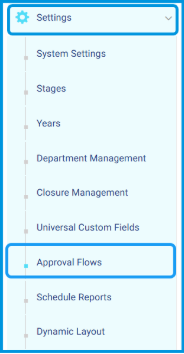
To create a new approval flow, follow these steps: 

  1. Go to the side menu and select Settings. 
  1. Click Approval Flows. 
  1. Click + Add New Flow to create and save a new approval workflow. 

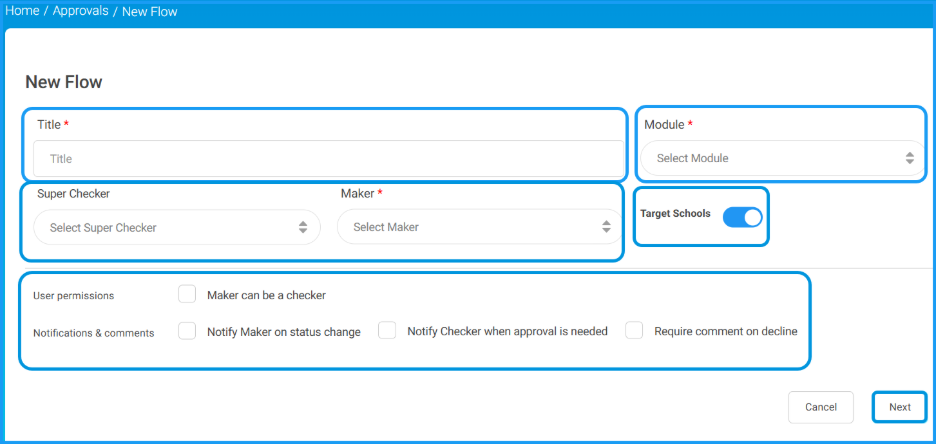
  1. Enter the flow title and select the module. 
  1. Select the Maker and the Super Checker. 
  1. Enable the Target Schools toggle to assign this flow to multiple schools. If you leave the toggle off, the flow will apply to one school only and the school selection step will be skipped. 

Note: The Target Schools toggle only appears in the parent school admin account. If the parent admin has no assigned roles or access on any child schools, the toggle will be disabled and the multi-campus flow cannot be created. 

  1. Set the user permissions and notification preferences as needed. 
  1. Click Next. 
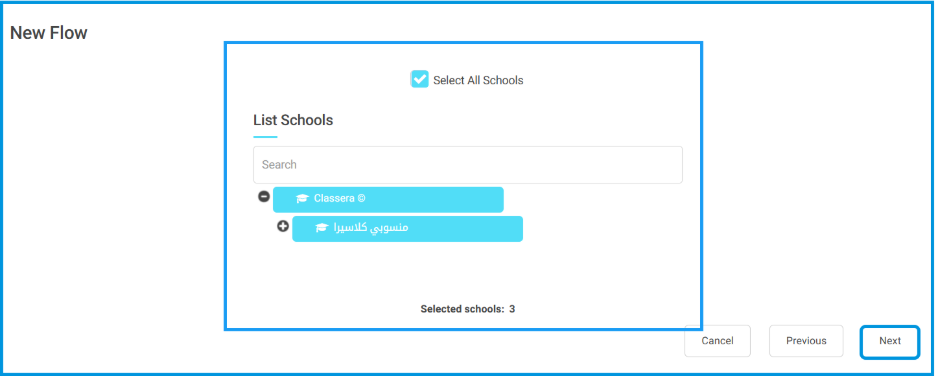
  1. The school selection page appears. Use the school tree to select your target schools. You can use Search to find a specific school, Select All to choose all available schools, or Clear to reset your selection. A counter at the bottom shows the total number of schools selected. 

Note: The Target Schools toggle only appears in the parent school admin account. If the parent admin has no assigned roles or access on any child schools, the toggle will be disabled and the multi-campus flow cannot be created. 

  1. Click Next.
  1. Define the approval levels and assign checkers for each level, and targeted action. 
  1. Click Save Approval Flow.

Note: You can add multiple approval flows for the same module if different roles or scenarios require distinct workflows. 

Note for Child School Admins: The Target Schools toggle and the school selection page are not available in the child school admin account. When you create a new flow, the system automatically assigns your own school as the target. You do not need to select a school. If you attempt to access the school selection page directly through a URL, the system will block access and show an error. 

Also note that any approval flow created by a parent school admin that applies to your school will appear in your Approval Flows list as read-only. You will not be able to edit or delete it. 

Important Notes: 

These rules apply whenever a parent school admin creates or manages a flow that covers child schools. 

  1. Only one active workflow is allowed per module per school at any time. 
  1. When a parent school admin creates a flow assigned to a child school, the system automatically overrides and removes any existing workflow that was previously set at the child school level for the same module. 
  1. Deleting a parent-level workflow does not restore the previous child school workflow. Any workflow that was removed when the parent flow was created will not be recovered. 
  1. Workflows created at the parent school level appear in child school accounts as read-only. They cannot be edited or deleted from the child school account. 

2) Managing Guardian Relationships  #

This feature ensures seamless data synchronization between the Learning Management System (LMS) and C-smarx by resolving any data conflicts. It aims to tighten administrative control by restricting each student to only one “Father” and one “Mother” to prevent duplicate or inaccurate parent profiles, while directing SMS messages only to the correctly designated parent to ensure precise communication and prevent duplicate notifications. Additionally, it provides administrative tools to review and correct legacy data, ensuring that important messages—such as absences summaries—reach the intended parents accurately. 

This feature is available to System Administrators and relevant administrative roles (Manager, Adviser, Supervisor, Student Affairs Officer, School Leader, and School Owner). 

Managing Guardian Relationships  #

To manage and validate guardian data, follow these steps: 

1. Adding or Editing Students Manually  #
  1. Go to the side menu and select Users. 
  1. Click Students. 
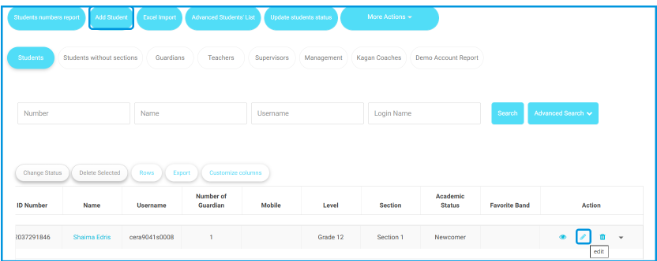
  1. Click Add/Edit Student. 
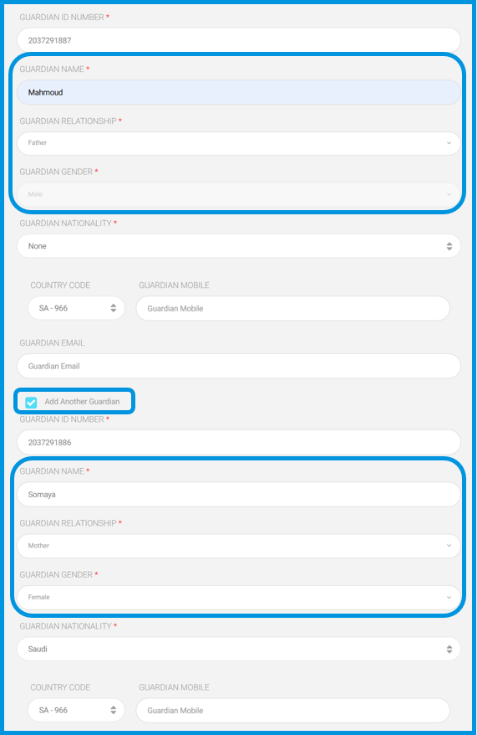
  1. Assign a guardian as Father or Mother. 

(Note: You will not be able to select another guardian for the same parent type). 

  1. Observe that the system automatically hides the selected parent type from further options to prevent duplicates. 
2. Importing Data via Excel  #
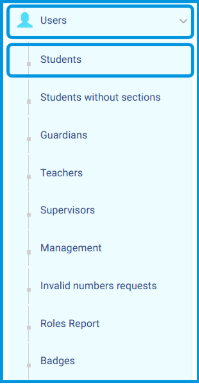
  1. Go to the side menu and select Users. 
  1. Click Students. 
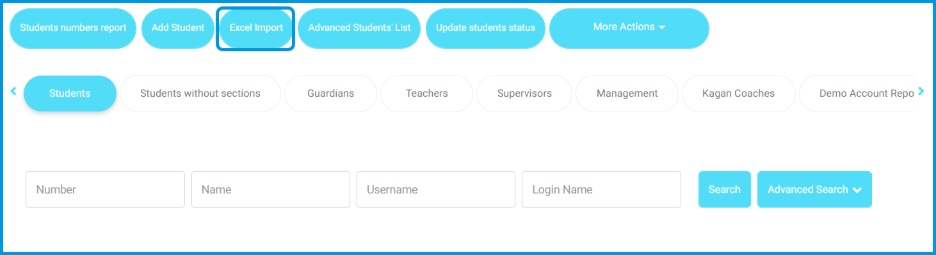
  1. Click Excel Import. 
  1. Upload your file containing student and guardian data. 
  1. If you attempt to assign more than one father/mother or use an invalid relationship value, the import will be blocked. 
  1. Review the log for the validation message: “Invalid guardian relationship / علاقة ولي الأمر بالطالب غير موجودة.” 
3. Resolving Legacy Data  #
  1. Go to the side menu and select Users, then Students. 
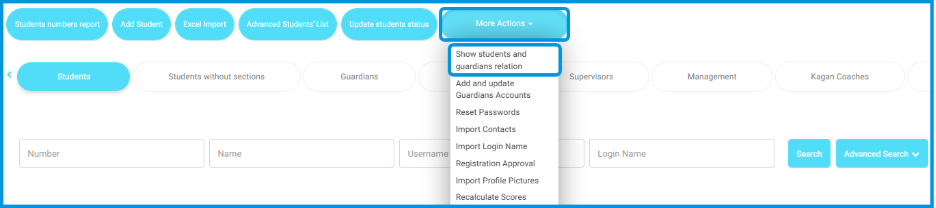
  1. Click More Actions and select Show students and guardians relation.  
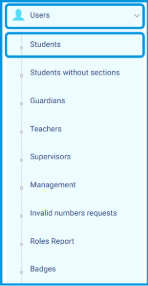
  1. Alternatively, go to the side menu, select Users, then Guardians, and click Guardians Students Link. 
  1. A new tab “Customize Guardians Relationships” will appear. 
  1. Review students with multiple fathers/mothers; the system retains the earliest added record and reassigns others to “Undefined”. 
  1. Use the dropdown menu to edit and correct these relationships (e.g., Father, Mother, Uncle, etc.). 
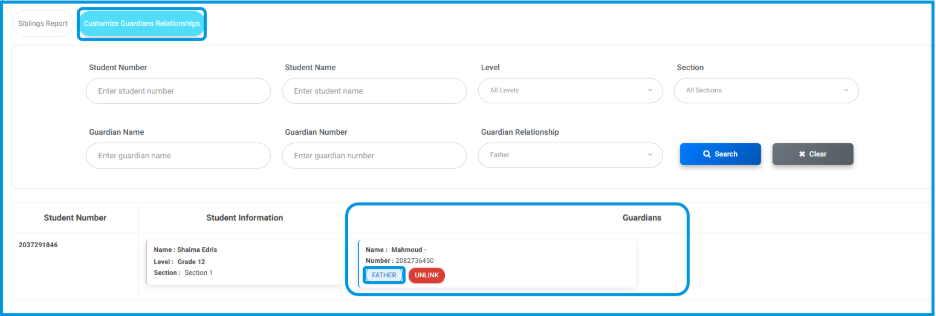
Note: That the system prevents assigning more than one father or mother for the same student, even within this interface. 


3) Report Card Acknowledgment: Adding the “Watcher” Column  #

This feature allows administrators and teachers to monitor parent engagement by tracking viewing activity for student report cards. It provides real-time statistics, including the initial view time and total view count per student. By offering a detailed inspection of individual viewing habits through an interactive popup, the system ensures that schools can verify consistent communication and oversight. 

This feature is available to System Administrators and Teachers. 

Accessing the Watcher Report Card  #
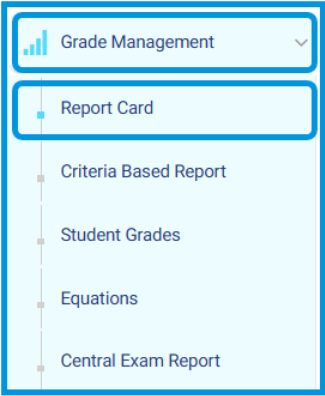
To view the acknowledgment statistics, follow these steps: 

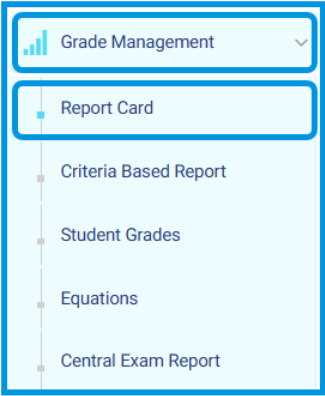
  1. Go to the side menu and select Grade Management. 
  1. Click on Report Cards. 
  1. Locate the specific report card, click More Options (the dropdown arrow), and select Review Grades. 
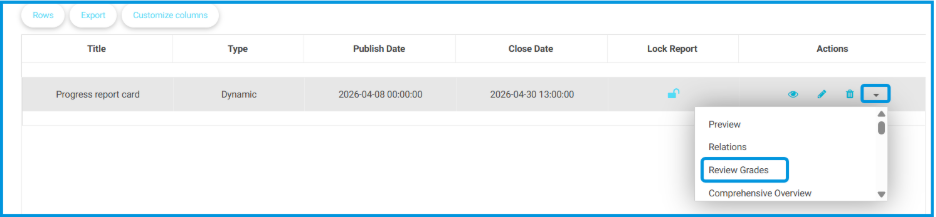
  1. On the Review Grades page, locate the Watcher Report Card column. 
  1. Review the summary data in the cell: 
  1. First Seen: | Views: <total_count> 
  1. If the report has not been opened, the cell will display Not Viewed Yet. 
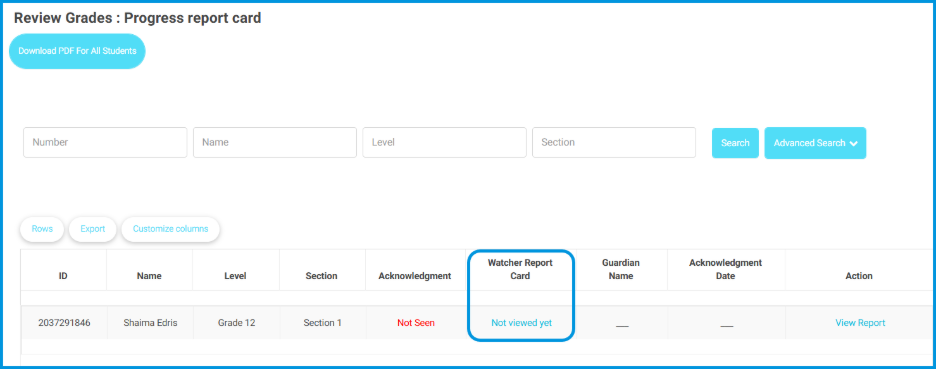
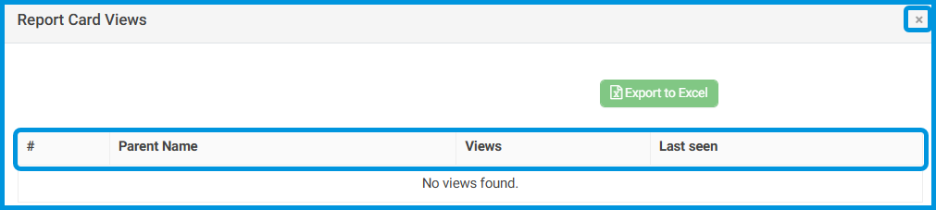
  1. Click on any active cell in this column to open a detailed popup. 
  1. Within the popup, you can view: 
  1. Each parent’s name. 
  1. The number of times that specific parent opened the report. 
  1. The Last seen timestamp for each parent. 
  1. To exit the detailed view, click the X icon or click anywhere outside the modal. 
4) Management Reports: Adding Date & Time Filters  #

This update enhances the precision of all management reports by allowing users to filter data using specific time ranges in addition to dates. By providing granular control over the report generation process, this feature improves the accuracy and consistency of administrative data analysis. For security and auditing, all applied filter parameters are logged by the system. 

This feature is available to all Management roles, including System Administrators. 

Using the Date & Time Filter  #

To generate a report with specific time parameters, follow these steps: 
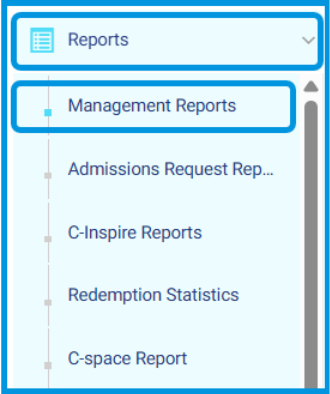
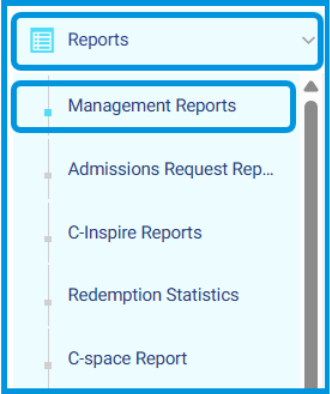
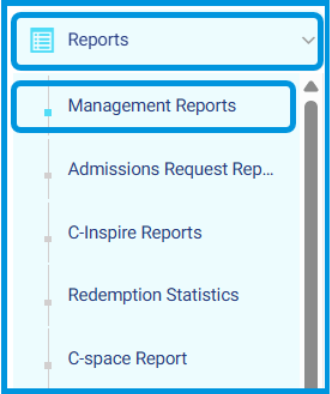
  1. Navigate to Reports via the side menu. 
  1. Select Management Reports. 
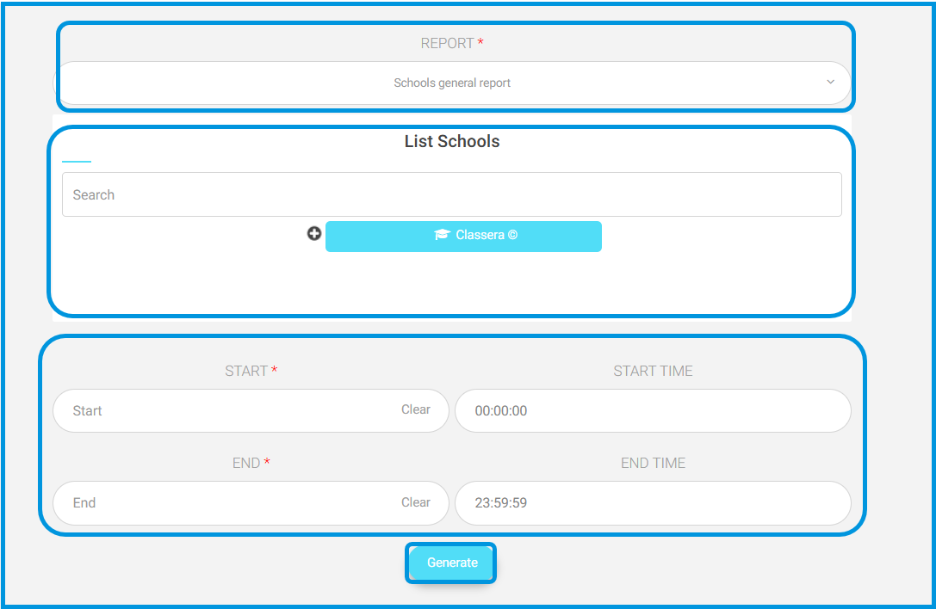
  1. Select the desired report (e.g., Schools General Report), and select the school. 
  1. Locate the Date & Time filter fields at the top of the report configuration page. 
  1. By default, the system covers the full 24-hour period (00:00:00 – 23:59:59). 
  1. Adjust the Start Date/Time and End Date/Time fields to define your custom range. 
  1. Click the Generate button to apply the filter. 
  1. The report will update to display data only for the selected period. 
 Note: If an invalid range is entered (e.g., the end time is set earlier than the start time), the system will display an error message and block the report generation until the values are corrected. 


5) Announcement Thumbnails  #

This feature allows authorized users to add and display thumbnails for announcements, significantly enhancing visual appeal and clarity. By providing a dedicated image space, announcements become more engaging on both the platform’s home page and within individual announcement detail pages. 

This feature is available to Admins, Managers, Advisers, Floor Supervisors, Activity Officers, School Leaders, and Student Affairs Officers. 

Adding and Displaying Thumbnails  #

To include a thumbnail in your announcement, follow these steps: 

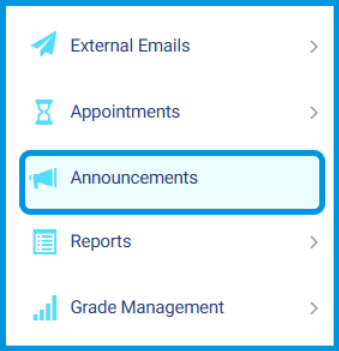
  1. Navigate to the side menu and select Announcements. 
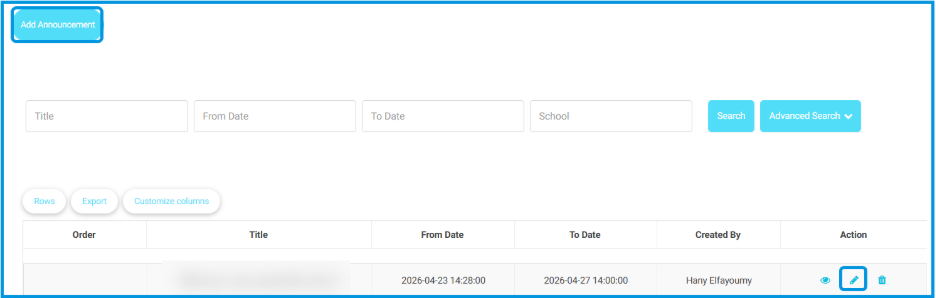
  1. Click to Add Announcment or Edit an existing one. 
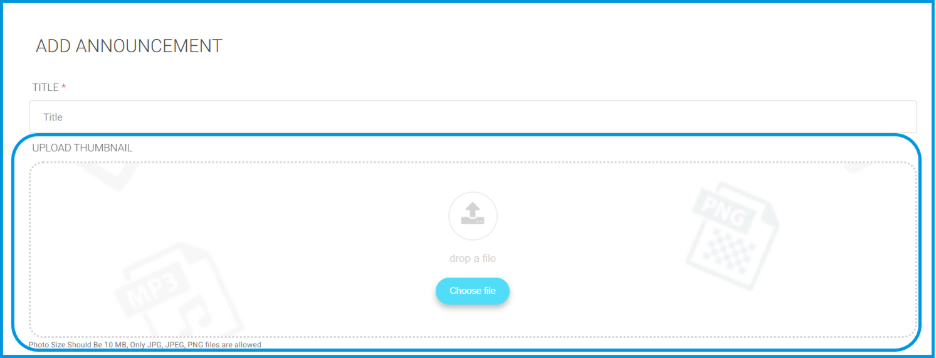
  1. Locate the Upload Thumbnail section, which appears immediately after the title field. 
  1. Upload a single image file in JPG, JPEG, or PNG format. 
  1. Note: Ensure you follow the recommended banner size displayed in the upload area for the best visual result. 
  1. Save your changes. 

Note: The thumbnail is optional. If you do not upload one, the system may automatically display an image from the announcement’s description on the home page instead. 

How Thumbnails Appear 

Once uploaded, the thumbnail will be displayed in two key areas: 

  • New Home Page: The thumbnail appears directly next to the announcement text for a quick visual preview. 

Details Page: The thumbnail is showcased as a prominent banner located above the announcement title.


 6) Teachers General Report: Adding Participating Students Count  #

This feature enhances report accuracy by displaying the actual number of students who engaged with an exam or activity. By basing percentages on real participation—tracking those who opened or attempted to submit—it provides administrators and supervisors with more credible data for any decision-making. 

This feature is available to School Admins and Teacher Supervisors. 

Viewing Participation Data  #
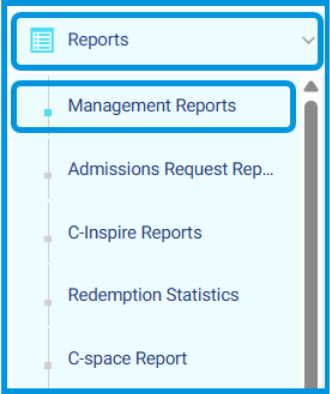
To monitor actual student engagement within the report, follow these steps: 

  1. Navigate to the side menu and select Reports, then click Management Reports. 
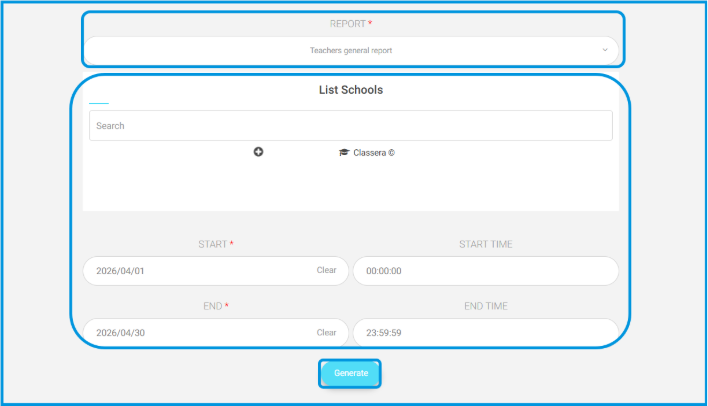
  1.  Select Teachers General Report as the report. 
  1. Choose the desired school and set your date/time parameters, then click Generate. 
  1. Locate the new columns: Exam Participating Students Count and Homework Participating Students Count. 
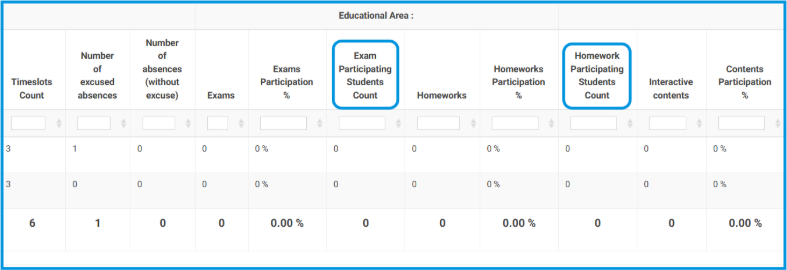
  1. Review the figures, which specifically count students who either opened the item or attempted to solve it. 
  • Observe that all participation percentages in the report are now automatically updated based on these actual participation numbers. 

7) Students General Report: Enhanced PDF Export Formatting  #

This update improves the layout and readability of the Students General Report when exported to PDF. It ensures professional presentation through proper column alignment, consistent spacing, and full text visibility without truncation. Additionally, exported reports now feature clear headers and footers that include the school’s name and the generation date. 

This feature is available to System Administrators. 

Exporting the Enhanced Report  #

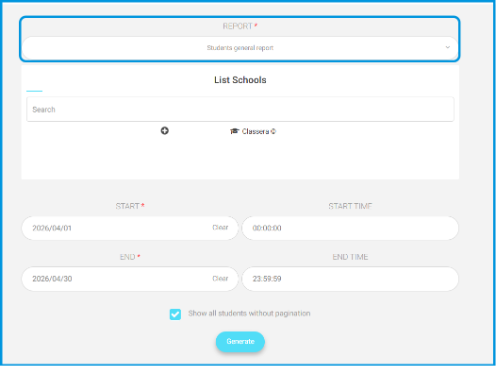
To generate the Students General Report with improved formatting, follow these steps: 

  1. Navigate to the Reports section in the side menu. 
  1. Select Management Reports. 
  1. Click on Student General Report. 
  1. Choose the desired school and define your date/time range, then click Generate. 
  1. Click the Export to PDF button to download the report with the enhanced formatting. 
8) Daily Attendance Report  #

This update significantly improves the Daily Attendance Report by adding new columns, clear status indicators, advanced filters, and visual charts. These changes enhance the school’s oversight by allowing administrators to immediately identify if attendance has been registered by floor supervisors. 

This feature is available to System Administrators. 

Reviewing Daily Attendance Data  #
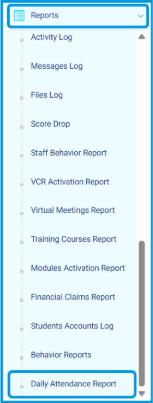
To monitor and filter attendance statuses, follow these steps: 

  1. Go to the side menu and select Reports. 
  1. Click on Daily Attendance Report. 
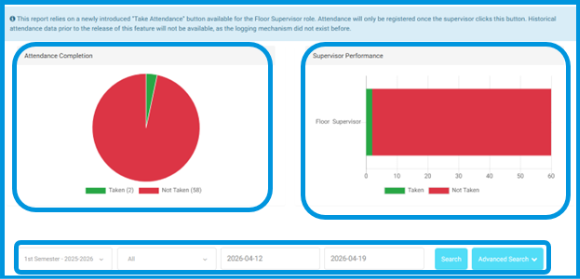
  1. Use the filters at the top to refine your view: 

a. Term (e.g., 1st Semester). 

b. Level (All or specific levels). 

c. Date Range (Start and End dates). 

  1. Review the visual charts at the top of the page for quick monitoring: 

a. Attendance Completion: Displays the overall percentage of classes where attendance was taken vs. not taken. 

b. Supervisor Performance: Shows a direct comparison of floor supervisor actions. 
  1. In the data table below the charts, review the newly added columns: 
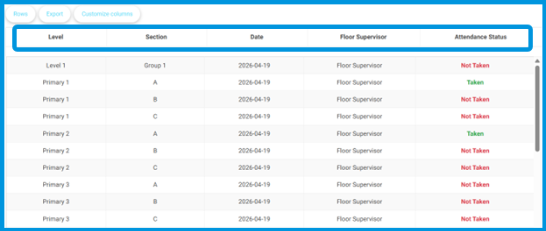
a. Level  

b. Section  

c. Date  

d. Floor Supervisor  

e. Attendance Status  – marked clearly as Taken or Not Taken. 

 Note: This report relies on a newly introduced “Take Attendance” button available to the Floor Supervisor role. Attendance will only be registered once the supervisor clicks this button. Historical attendance data prior to the release of this feature will not be available. 


9) Forms and Assessments: Predefined Comments Groups  #

This feature streamlines the student evaluation process by allowing administrators to link predefined Comments Groups directly to assessments. Instead of typing feedback manually, teachers and supervisors can select from a standardized list of comments. This ensures consistency in grading, saves time, and allows schools to reuse comment workflows already established in the report cards module. 

This feature is available to System Administrators, Teachers, and Supervisors. 

Creating and Linking Comments Groups  #

To set up and use predefined comments groups, follow these steps: 

1. Creating a Comments Group (Admin)  #
  1. Go to the side menu and select Grade Management. 
  1. Click on Report Cards. 
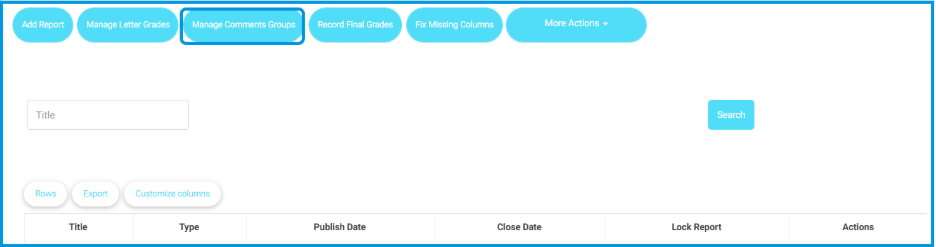
  1. Click the Manage Comments Groups  button at the top of the page. 
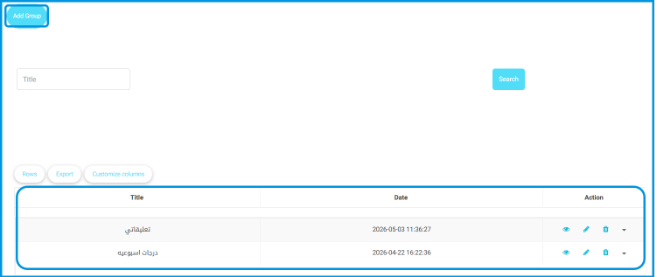
  1. Click on  Add Group to create a new group or manage an existing one. 
2. Linking the Group to an Assessment (Admin)  #
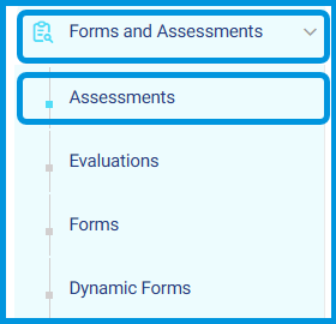
  1. Go to the side menu and select Forms and Assessments. 
  1. Click Assessments. 
  1. Click on New assessment or Edit an existing one. 
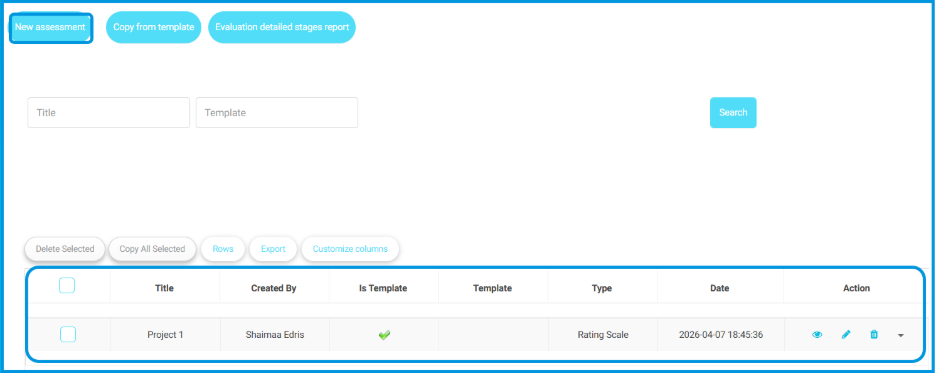
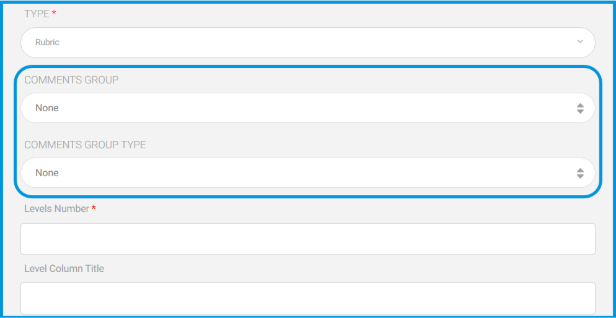
  1. In the assessment configuration page, locate the Comments Group and Comments Group Type fields. 
  1. Select the desired comments group from the dropdown menu to link it. 
3. Evaluating Students Using Predefined Comments (Teacher/Supervisor) 

  1. Navigate to your teacher dashboard and select the relevant Course box. 
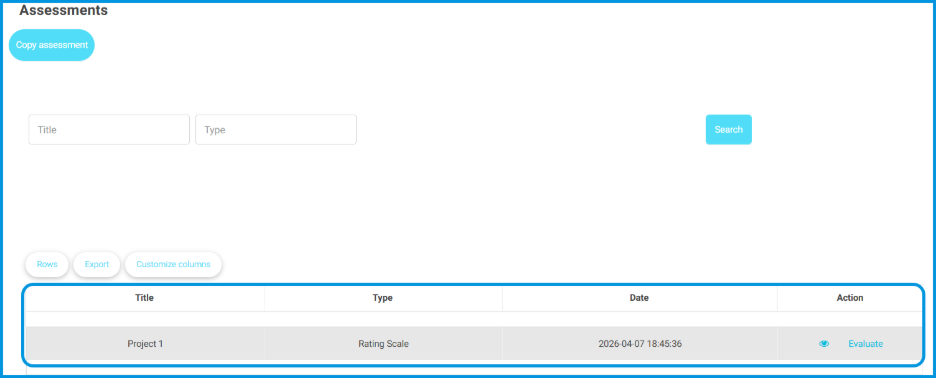
  1. Click on Assessments and select the specific assessment to evaluate. 
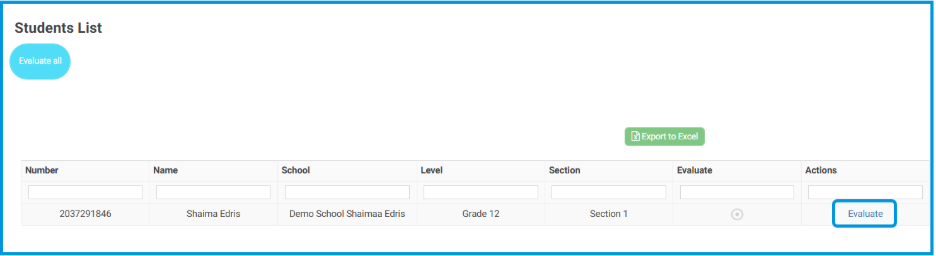
  1. Click Evaluate next to the student’s name. 
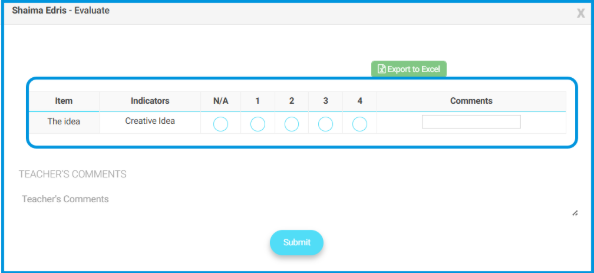
  1. Use the dropdown menu in the evaluation interface to select a predefined comment from the linked group instead of typing manually. 
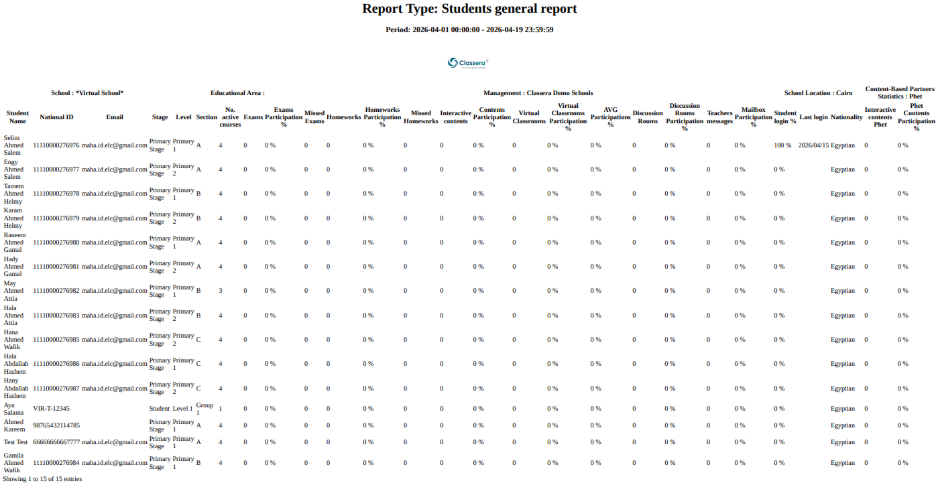
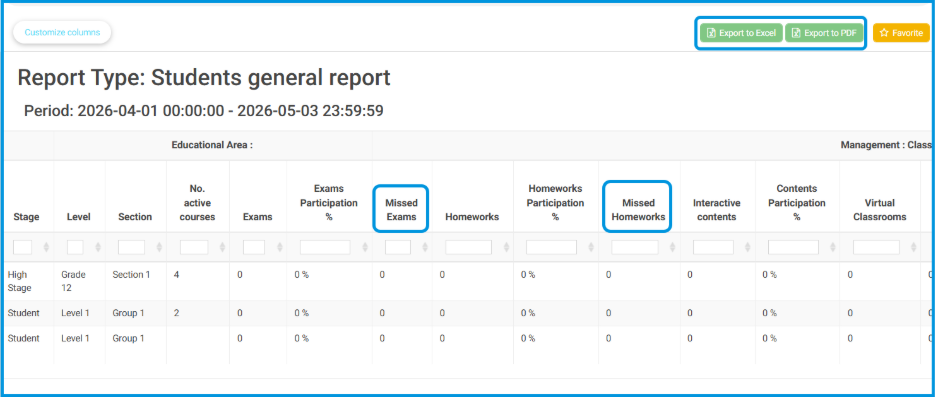
10) Students General Report: Tracking Missed Tasks  #

This update enhances the Students General Report by providing clear visibility into missed homework’s or exams. By introducing dedicated tracking columns, school administrators and supervisors can instantly identify disengaged students, streamline follow-ups, and generate accurate reports for parents and leadership. 

This feature is available to School Administrators and Supervisors. 

Reviewing Missed Assignments and Exams  #

To monitor student completion rates and identify missed tasks, follow these steps: 

  1. Navigate to the side menu and select Reports. 
  1. Click on Management Reports. 
  1. Select Students General Report. 
  1. Choose the target school and configure the date and time filters. 
  1. Click Generate to generate the data table. 
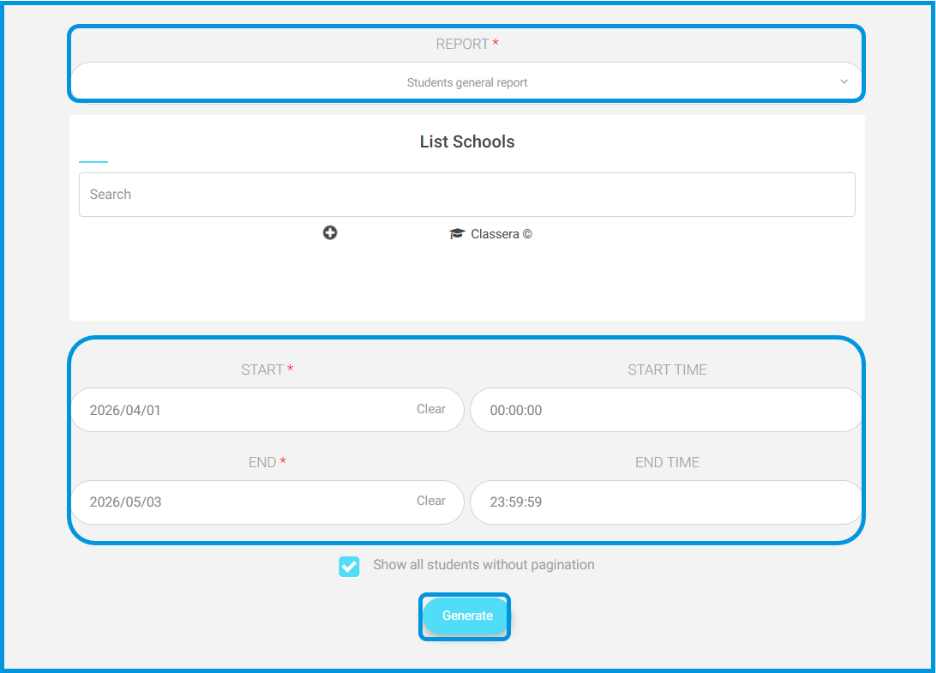
  1. In the generated report table, review the newly added columns: 
  1. Missed Exams  
  1. Missed Homeworks 
  1. Use the values in these columns to pinpoint students who have incomplete assessments or coursework. 
  1. Click Export to Excel or Export to PDF if you need to download and share these insights with parents or administration. 
What are your Feelings

Share This Article :

  • Facebook
  • X
  • LinkedIn
  • Pinterest
Admission Officer AccountTeacher Account
Table of Contents
  • 1) Approval Flows “How to add a Multi-Campus Setup” 
    • Adding a New Approval Flow 
  • 2) Managing Guardian Relationships 
    • Managing Guardian Relationships 
    • 1. Adding or Editing Students Manually 
    • 2. Importing Data via Excel 
    • 3. Resolving Legacy Data 
  • 3) Report Card Acknowledgment: Adding the "Watcher" Column 
    • Accessing the Watcher Report Card 
  • 4) Management Reports: Adding Date & Time Filters 
    • Using the Date & Time Filter 
  • 5) Announcement Thumbnails 
    • Adding and Displaying Thumbnails 
  •  6) Teachers General Report: Adding Participating Students Count 
    • Viewing Participation Data 
  • 7) Students General Report: Enhanced PDF Export Formatting 
    • Exporting the Enhanced Report 
  • 8) Daily Attendance Report 
    • Reviewing Daily Attendance Data 
  • 9) Forms and Assessments: Predefined Comments Groups 
    • Creating and Linking Comments Groups 
    • 1. Creating a Comments Group (Admin) 
    • 2. Linking the Group to an Assessment (Admin) 
  • 10) Students General Report: Tracking Missed Tasks 
    • Reviewing Missed Assignments and Exams