
 English
  Arabic
  French
 The Homepage serves as the primary operational hub within Classera. It provides system administrators with a comprehensive, real-time look into school operations, systemic alerts, academic timelines, ongoing user workflows, and immediate management action items.
To access this section, follow these steps: #
- Log into your Classera account.
- Select the Overview tab from the top panel layout.
When you log in, the Homepage displays the following areas:
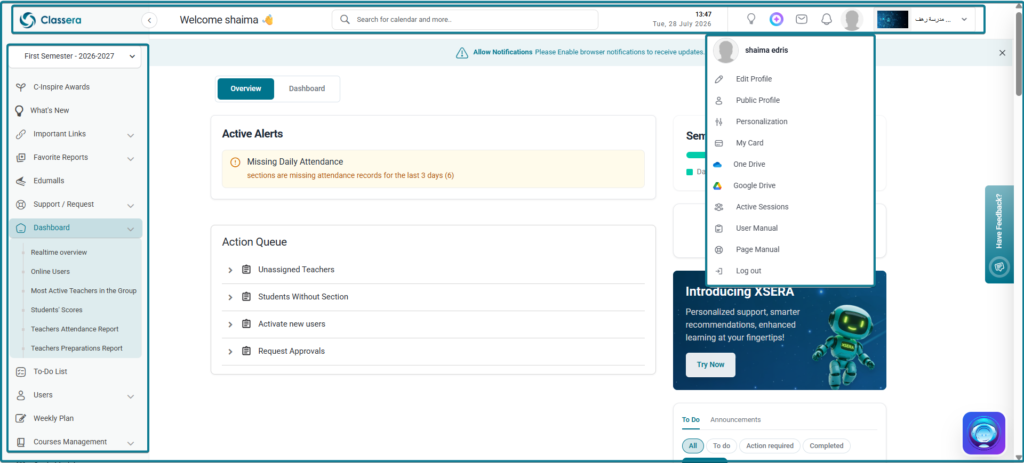
1. Side Menu #
runs along the left side of the screen and provides navigation to all system modules such as Users, Courses Management, Settings, Reports, and more.
2. Top Navigation Bar #
The horizontal header running along the top of the homepage acts as a rapid-transit command bar, allowing you to filter the entire dashboard’s data scope on the fly:
- School Switcher: Click to toggle between assigned school campuses or select a specific academic year and semester to dynamically refresh all dashboard data.
- Search Bar: Centralized text box to quickly find specific calendar records, system pages, or operational modules.
- Time & Date: Displays the active clock time and date synced directly to the core platform server.
- Whats New: Launches an interactive log summarizing newly deployed features and updates.
- XSERA AI Assistant: Opens an interactive chat window with Classera’s AI helper for guidance and training.
- Mail Threads: Provides immediate access to your internal inbox to read and manage incoming user emails.
- Notifications: Displays real-time alert logs and instant visibility for platform events.
- User Profile Menu: Opens account settings to edit profiles, register face prints, configure cloud drives, or log out.
3. Main Dashboard Area: the central area of the Homepage, which displays:
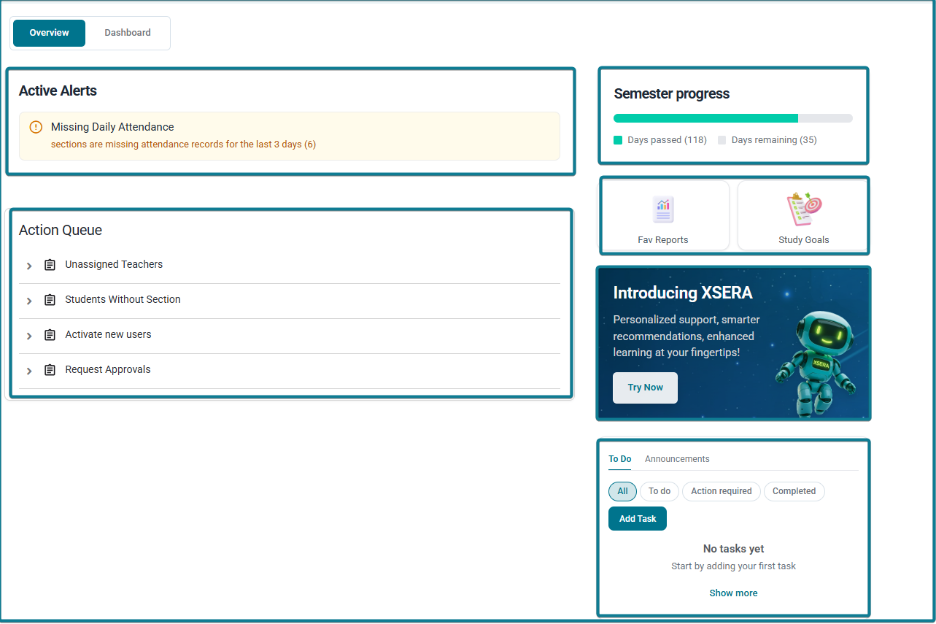
1. Active Alerts Panel #
The Active Alerts panel functions as a critical monitoring window, tracking system-wide operational thresholds across 5 to 6 distinct modules. It evaluates processing timelines over a dynamic range from 7 days up to 15 days.
Important Note: This panel displays omissions and missing data inputs from other platform roles (such as teachers, staff, or students) that require completion. It does not indicate direct administrative actions but highlights gaps in school operations, including:
- Daily Attendance: Flagging unrecorded student check-ins or missing daily attendance rosters.
- Lesson Preparation: Highlighting courses where instructors have dropped behind on weekly preparation logs.
- Registration: Tracking incomplete student enrollment cycles or missing profile data.
- Workflow Approvals: Monitoring multi-level authorization workflows stuck in the review chain .
- Mail Threads: Signaling unaddressed official system correspondence and emails.
- Gradebooks: Spotting delayed grade submissions or uncompiled master evaluation parameters.
2. Action Queue #
The Action Queue houses operations that require the System Administrator to execute the action directly. This panel surfaces functional bottlenecks that cannot resolve automatically:
- Unassigned Teachers: Profiles requiring immediate system links to courses or classes.
- Students Without Section: System placement exceptions requiring manual classroom assignment.
- Activate New Users: Provisioning queues waiting for manual profile verification and validation.
- Request Approvals: High-level administrative overrides or policy exemptions awaiting authorization.
3. Academic Metrics & Quick Links #
Located on the right side of the dashboard layout, these widgets track high-level progression metrics and provide navigation shortcuts:
- Semester Progress: Displays a visual, dynamic tracking bar charting the timeline of the current academic term. It clearly quantifies the exact balance of Days passed against the remaining Days remaining in the term.
- Fav Reports: A customizable shortcut tile that routes the administrator directly to their most frequently accessed or pinned analytics and system reports.
- Study Goals: A direct link module designed to monitor, track, or manage active institutional key performance indicators (KPIs) and targeted educational achievements.
4. Task & Notification Center (To Do / Announcements) #
This combined dual-tab widget functions as an advanced personal and cross-role productivity manager:
- To Do Tab:
- Add Task: Admins can create tasks for their own workflow or assign tasks out to specific platform roles across the school ecosystem.
- Filtering Buttons: Allows sorting through records instantly using granular status filters: All, To do, Action required, and Completed.
- Announcements Tab: Toggles the view pane to display active school-wide announcements, system broadcasts, or administrative memos pinned to the dashboard.


