
 French
  English
  Arabic
 To access the Mark Scheme Analysis feature, follow these steps:
- From the Side Menu, open Grades Management.
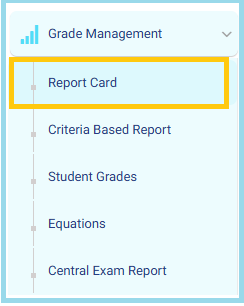
2. Click Report Card to view all available grade report records.
3. Locate the student whose report status you want to modify.
4. Click the Actions Menu dropdown list next to the student’s record.
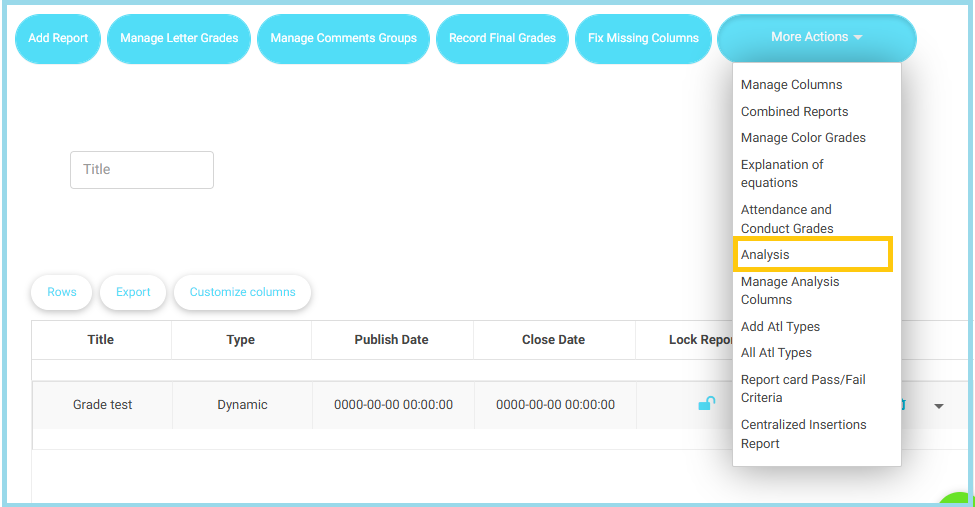
5. Click on the Analysis Button.
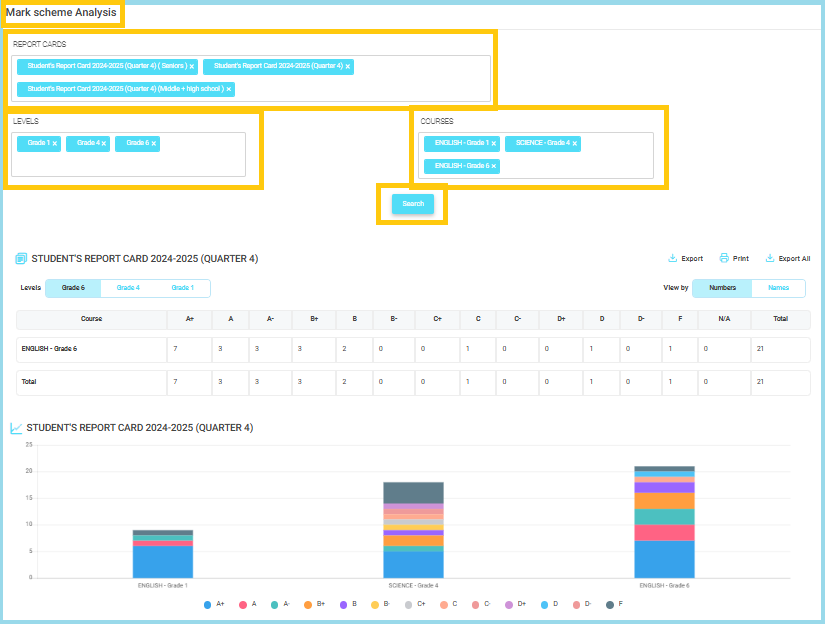
1. Report Cards Selector
- Appears at the top of the page.
- Allows you to select which Report Card (Quarter / Cycle / Grade Range) you want to analyze.
- You can select multiple reports at once.
Note: Choose the correct quarter before searching to ensure accurate results.
2. Levels Selector
- Choose the Grade Level(s) (e.g., Grade 1, Grade 4, Grade 6).
- Multiple grades can be selected to compare performance across levels.
Note: The page updates only after pressing the Search button.
3. Courses Selector
- Select the course(s) you want to analyze (e.g., English – Grade 1, Science – Grade 4).
- Supports multi-selection to generate combined statistics.
4. Search Button
- After selecting Report Card + Level(s) + Course(s), click Search.
- The system will load the grading distribution table and charts.
Tip: If data does not appear, verify that the selected level has students in the selected course.
Displayed Results
5. Grade Distribution Table
- Shows the count of students receiving each grade (A+, A, A-, B+, etc.).
- Includes totals per course and combined totals for all selected courses.
- View mode options: Numbers or Names.
Note:
- “NA” shows students with no grade submitted.
- Use this table to quickly identify grade patterns.
6. Visual Performance Charts
- Bar charts summarizing grade distribution for each selected course.
- Helps visualize overall performance at a glance.
- Colors represent grade categories (A+, A, B+, etc.).
Note: Ideal for quick comparison across levels or courses.
Additional Options
7. Export / Print Tools
- Export: Download reports in Excel or PDF format.
- Print: Generate a printer-friendly version.
- Export All: Export all selected courses and levels together.
Key Notes & Tips
- Always select Report Card + Level + Course before clicking Search.
- Multi-selection is supported across all fields (Report Cards, Levels, Courses).
- Use the View By: Numbers / Names toggle to switch between data formats.
- Perfect for academic analysis, quality checks, and understanding grade distribution trends.


