
 French
  English
  Arabic
 - 1-Customizing Columns and Exporting Management Reports from the System Administrator Account
- How to Use: Steps to Customize Columns
- 2-Enabling Filtering in Evaluations
- How to use :Steps to Use Evaluation Filters
- 3-Add Daily Attendance Monitoring for Floor Supervisors – Admin Account
- 4-New Behavior Degree Placeholder
- 5-New Attendance Days Placeholder
- 6-Vertical Average Summation Placeholde
- 7-Transcript Report Card Enhancements
- 8-Delete all grades in individual grades page
- 9- Add "Roles Report" to "Users" Section
- 10-Students general report pagination
- 11- Disable YouTube upload for teachers
1-Customizing Columns and Exporting Management Reports from the System Administrator Account #
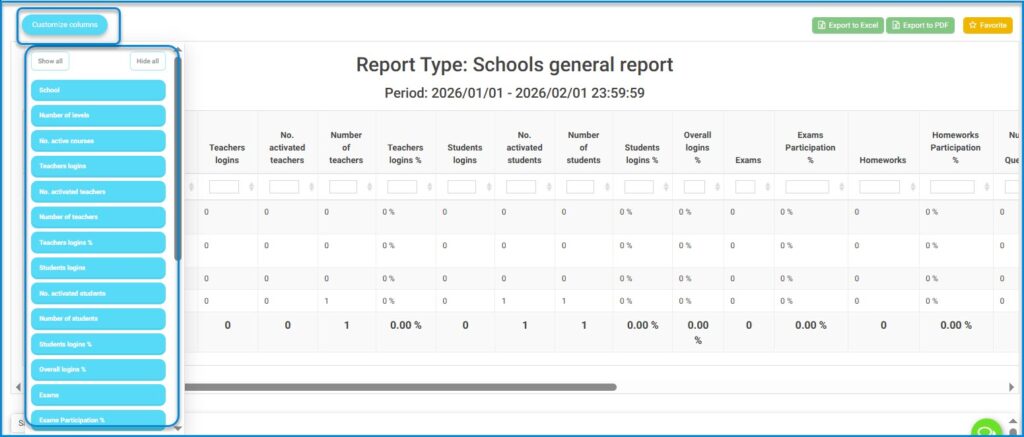
The system allows users to customize columns within the Management Reports module, enabling them to show or hide data as needed, such as:
- Number of classes
- Number of activated subjects
- Number of teachers
- Number of Student
- Teacher login rate
- Student login rate
Access Path
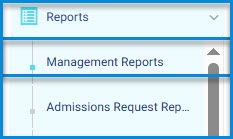
Side Menu → Reports → Management Reports
How to Use: Steps to Customize Columns #
- Navigate to Management Reports
- Click on the Customize Columns button.
- A list of all available report columns will appear, selected by default (enabled).
- To hide any column, simply uncheck its name from the list.
- The report view will be automatically updated based on the selected column
Note Authorized Users
This feature can be accessed through the following accounts:
Student Affairs Officer – Teachers Supervisor- School Owner – Adviser -Manager – Director of Supervision Office – School Leader
ــــــــــــــــــــــــــــــــــــــــــــــــــــــــــــــــــــــــــــــــــــــــــــــــــــــــــــــــــــــــــــــــــــــــــــــــــــــــــــــــــــــــــــــــــــــــــــــــــــــــــــــــــــــــــــــــــــــــــــــــــــــــ
2-Enabling Filtering in Evaluations #
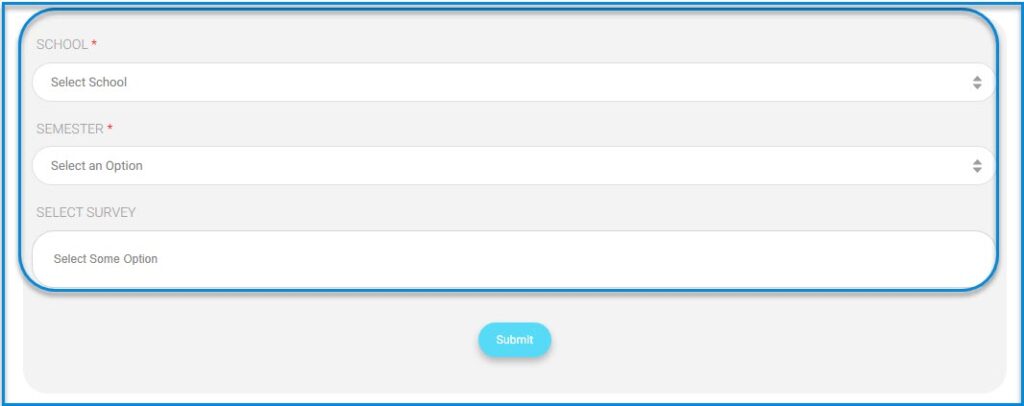
The system allows users to filter evaluations using a set of filters such as School Name, Semester , and Evaluation/Survey, enabling easy and accurate identification of evaluations associated with a specific academic term.
Access Path
From the School admin account:
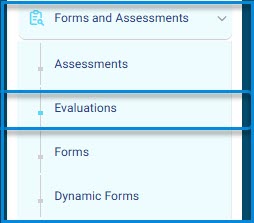
Side Menu → Forms & Assessments→ Evaluations →
Evaluation Stages Report or Evaluation detailed stages report

How to use :Steps to Use Evaluation Filters #
- Navigate to one of the evaluation reports (Evaluation Stages Report orEvaluation detailed stages report ).
- Use the School Name filter, which displays a list of schools the user has permission to access.
- Select the Semester , and a list of available terms for the selected school will be displayed.
- Based on the selected academic term, the survey filter will display the evaluations associated with that term.
- After selecting the required filters, the report results will be automatically updated according to the selected criteria.
Note Authorized Users This feature can be accessed through the following accounts:
– Teachers Supervisor-Manager – Director of Supervision Office-Director of Supervision Office School Leader
ــــــــــــــــــــــــــــــــــــــــــــــــــــــــــــــــــــــــــــــــــــــــــــــــــــــــــــــــــــــــــــــــــــــــــــــــــــــــــــــــــــــــــــــــــــــــــــــــــــــــــــــــــــــــــــــــــــــــــــــــــــــــ
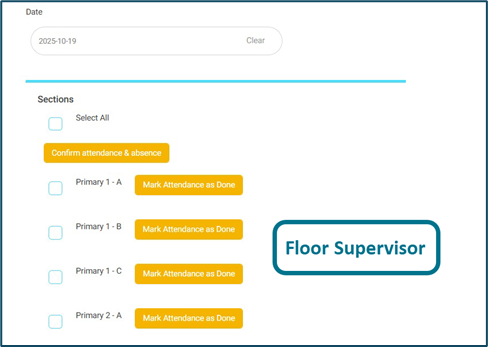
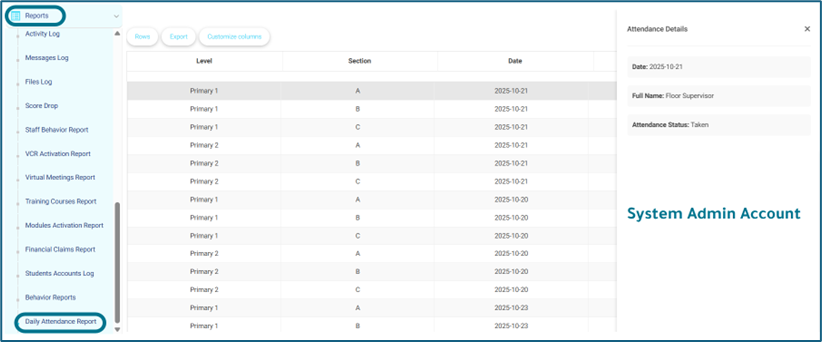
3-Add Daily Attendance Monitoring for Floor Supervisors – Admin Account #
This feature aims to give administrators a clear visual representation of attendance reporting activity, helping system admin to monitor if floor supervisors are completing their responsibilities and identify any gaps in daily attendance reports or lesson plans.
Access Path:
- Admin logs into the system.
- Navigates to: Management Report — Daily Attendance Report.
- Applies desired filters:
- From Date – To Date
- And a lot of upcoming filters.
How to Use:
- Floor Supervisor – can take the attendance through going to “Attendance leaves & Behaviors” then mark any section or all of them and click on orange button “Mark Attendance as Done“
- System Admin- Can monitor if floor supervisors take the attendance or not through going to “Reports” – “Daily Attendance Report”.
- Note: This report relies on a newly introduced “Take Attendance” button available for the Floor Supervisor role. Attendance will only be registered once the supervisor clicks this button. Historical attendance data prior to the release of this feature will not be available, as the logging mechanism did not exist before.
ــــــــــــــــــــــــــــــــــــــــــــــــــــــــــــــــــــــــــــــــــــــــــــــــــــــــــــــــــــــــــــــــــــــــــــــــــــــــــــــــــــــــــــــــــــــــــــــــــــــــــــــــــــــــــــــــــــــــــــــــــــــــ
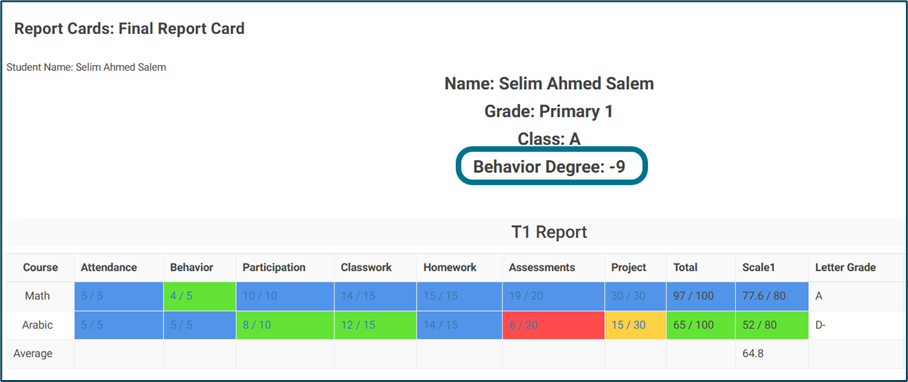
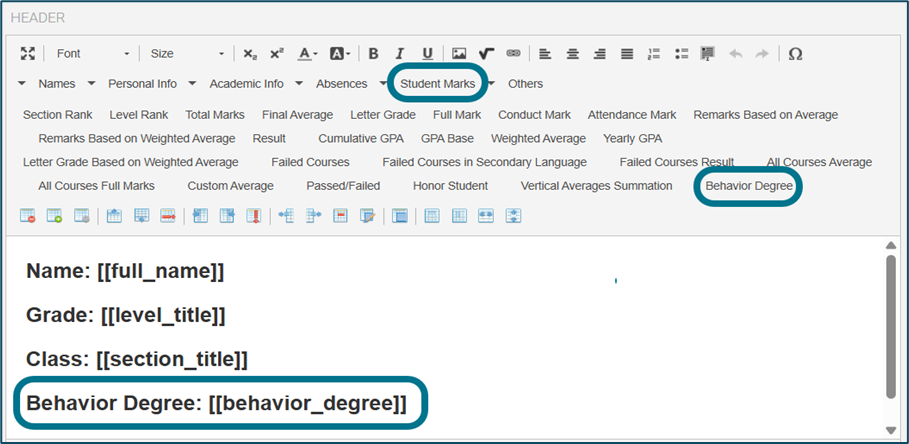
4-New Behavior Degree Placeholder #
A new placeholder called “Behavior Degree” will be added to the “marks placeholders” in the dynamic and transcript report cards header and footer.
Access Path:
- On the admin’s account — side menu — grade management — report cards — add/edit transcript or dynamic report cards — header and footer.
- This placeholder will return the value existing on the admin’s account — side menu — behaviors & advising — Behavior degree.
How to Use:
Affected accounts where the new placeholder will appear:
- Admin’s account — Grade management — Report card — actions for any report — review grades — view grades for any student.
- Student’s account –Guardian’s account – Manager & School leader accounts –
ــــــــــــــــــــــــــــــــــــــــــــــــــــــــــــــــــــــــــــــــــــــــــــــــــــــــــــــــــــــــــــــــــــــــــــــــــــــــــــــــــــــــــــــــــــــــــــــــــــــــــــــــــــــــــــــــــــــــــــــــــــــــ
5-New Attendance Days Placeholder #
As an admin
I want to add two placeholders in the Dynamic Report and Transcript Report:
Total Required Attendance Days
Number of Attended Days (
So that the system displays attendance values correctly based on the report card selected date range.
Access Path:
Grade Management — Add Report — then select Dynamic Report — go to the “Absence Report Card” and can choose “Absence by date” range.
In Dynamic Report or Transcript from “Header” click on “Absences” & choose
[number_of_attendance_days]/ [[total_required_attendance_days]]
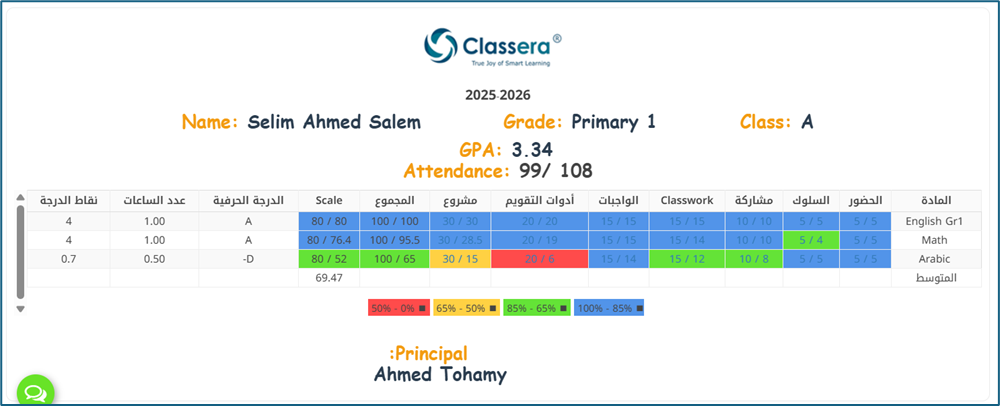
How to Use:
The calculation must use the attendance date range selected in the Report Card settings (semester or custom date range).
From the selected start and end dates, the system calculates:
Total Required Attendance Days based on school working days, from
settings– system setting — Select the working days.
The system must subtract holidays defined in the Closure module from “Setting”- Closure Management”
The same calculation logic must also apply to the Transcript Report based on the selected report card.
ــــــــــــــــــــــــــــــــــــــــــــــــــــــــــــــــــــــــــــــــــــــــــــــــــــــــــــــــــــــــــــــــــــــــــــــــــــــــــــــــــــــــــــــــــــــــــــــــــــــــــــــــــــــــــــــــــــــــــــــــــــــــ
6-Vertical Average Summation Placeholde #
- A new placeholder is to be added to the transcript report cards header and footer.
- This placeholder will be the summation of vertical averages existing on the dynamic report cards in this transcript report card.
Access Path:
- Admin’s account – side menu – grade management – report cards – add/edit – Columns tab – choosing any column – show vertical average checkbox & under it, a new checkbox will be added named with “Use This Vertical Average in The Summation Equation”.
- So, a new placeholder called “Vertical Averages Summation” will be added in “Transcript” report cards.
How to Use:
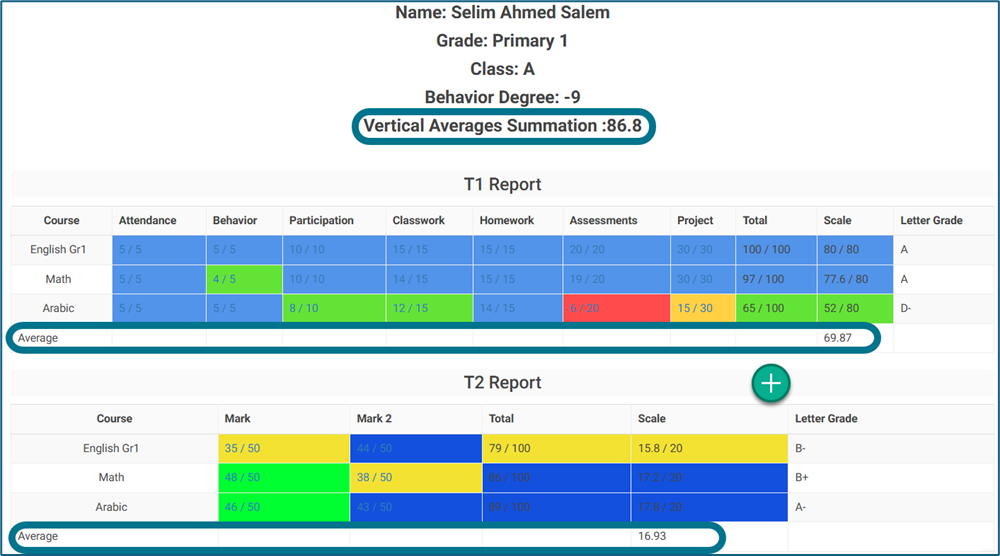
•This placeholder will sum the vertical averages existing on the dynamic report cards to be shown in the transcript report card.
•But admins can add vertical average for more than one column in the same dynamic report card.
•So, which one should be considered in the new placeholder’s equation?
•If this checkbox was checked for any column in the dynamic report card, it will become disabled for all other columns in the same report card.
•So, this vertical average will be the one used in the equation.
ــــــــــــــــــــــــــــــــــــــــــــــــــــــــــــــــــــــــــــــــــــــــــــــــــــــــــــــــــــــــــــــــــــــــــــــــــــــــــــــــــــــــــــــــــــــــــــــــــــــــــــــــــــــــــــــــــــــــــــــــــــــــ
7-Transcript Report Card Enhancements
#
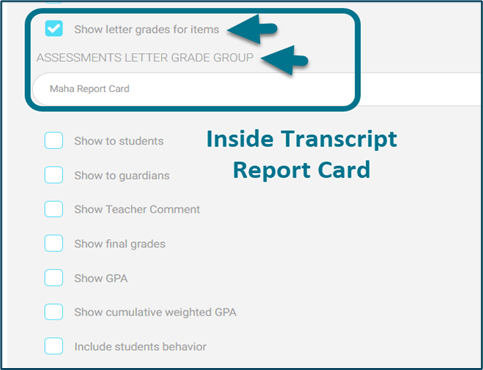
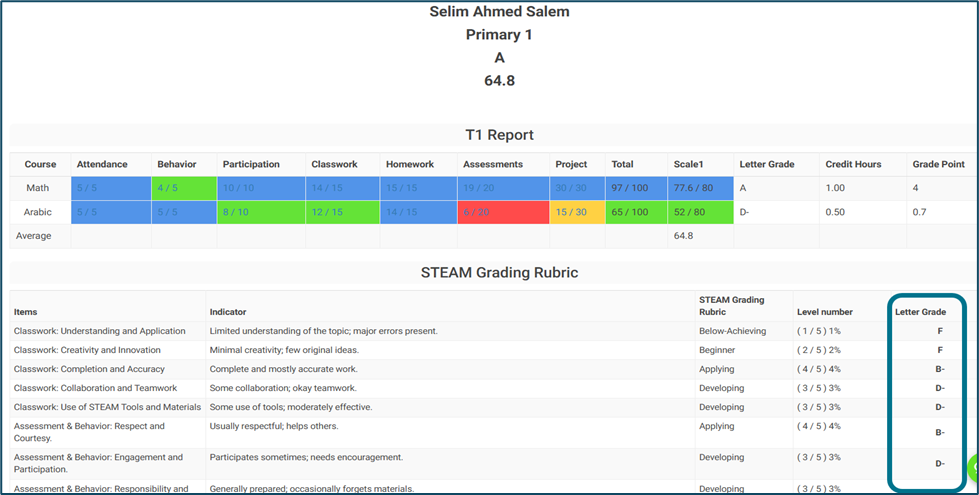
As an admin, I want to be able to link the transcript report card assessments to specific letter grade groups based on items’ indicators, in addition to hiding indicators from report cards for guardians and students.
Access Path:
From Admin account:
Go to “Transcript Report” and check on “Show letter grades for items” to select “Assessments Letter Grade Group” that you want.
Got to “Assessment” then check on “Show items’ indicators on report cards”.
How to Use:
Added new checkbox options allowing admins to:
Show or hide item indicators and their percentages from transcript report cards through Assessment option.
Display letter grades for each item based on the summation of indicators.
ــــــــــــــــــــــــــــــــــــــــــــــــــــــــــــــــــــــــــــــــــــــــــــــــــــــــــــــــــــــــــــــــــــــــــــــــــــــــــــــــــــــــــــــــــــــــــــــــــــــــــــــــــــــــــــــــــــــــــــــــــــــــ
8-Delete all grades in individual grades page
#
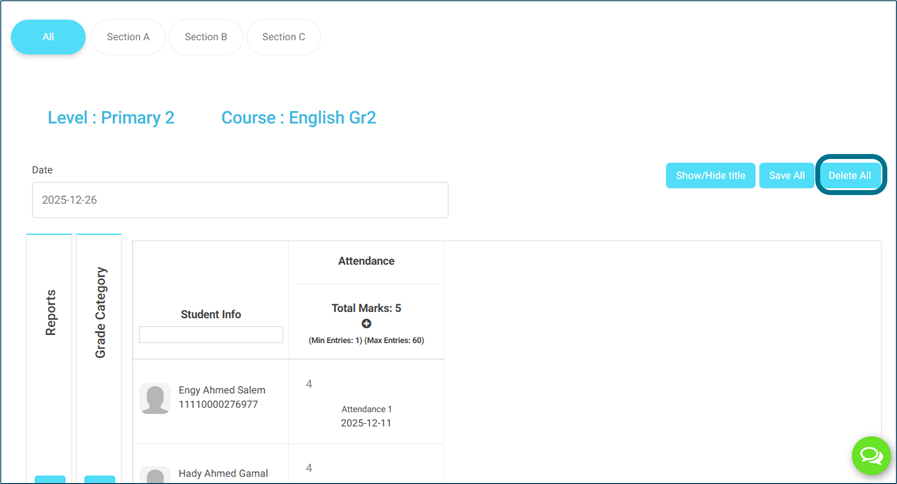
Enable users to delete all grades on the
individual grades page at once.
Access Path:
Teacher’s account — home page — any course’s card — Grade management — View all grades, –“Delete all” button.
Admin’s account — side menu — grade management — report card — more actions for any report card — view individual grades–“Delete all” button.
Teachers supervisor’s account — side menu — teachers list — more actions for any teacher — view individual grades–“Delete all” button.
How to Use:
The user should be able to delete all grades at once, without the need to delete each one separately.
So, next to the save all button, a new button called “Delete All” will be added, and its color will be red.
Once clicked, a popup saying, “Are you sure you want to delete all grades? “ will appear.
Once confirming, all inserted grades will be deleted, without the need to click the save button.
ــــــــــــــــــــــــــــــــــــــــــــــــــــــــــــــــــــــــــــــــــــــــــــــــــــــــــــــــــــــــــــــــــــــــــــــــــــــــــــــــــــــــــــــــــــــــــــــــــــــــــــــــــــــــــــــــــــــــــــــــــــــــ
9- Add “Roles Report” to “Users” Section
#
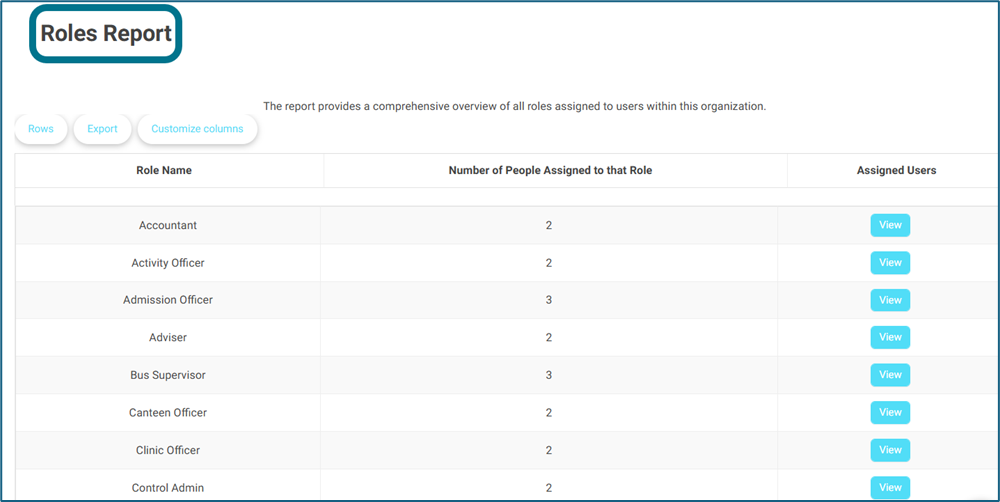
As an Admin, I want to have a new report gather all roles numbers in my school, so you can find in the “Users” section called “Roles Report,” which includes the following columns:
Role Name
Number of People Assigned to that Role
Assigned Users (with clickable view list)
Access Path:
The admin navigates to the “Users” section & selects the “Roles Report”.
The report appears with the columns: Role Name, Assigned User Count, and Assigned Users List.
Admin clicks on an assigned user, triggering a side popup with the sub-report.
Admin can perform various actions on the user via the side popup (e.g., View User, Edit User, Login as this user, etc.).
How to Use:
The “Roles Report” should be accessible only by Admin users & super admin.
The report must display accurate role assignments for each user.
The report will pull data from the user management module & dynamically updated.
ــــــــــــــــــــــــــــــــــــــــــــــــــــــــــــــــــــــــــــــــــــــــــــــــــــــــــــــــــــــــــــــــــــــــــــــــــــــــــــــــــــــــــــــــــــــــــــــــــــــــــــــــــــــــــــــــــــــــــــــــــــــــ
10-Students general report pagination
#
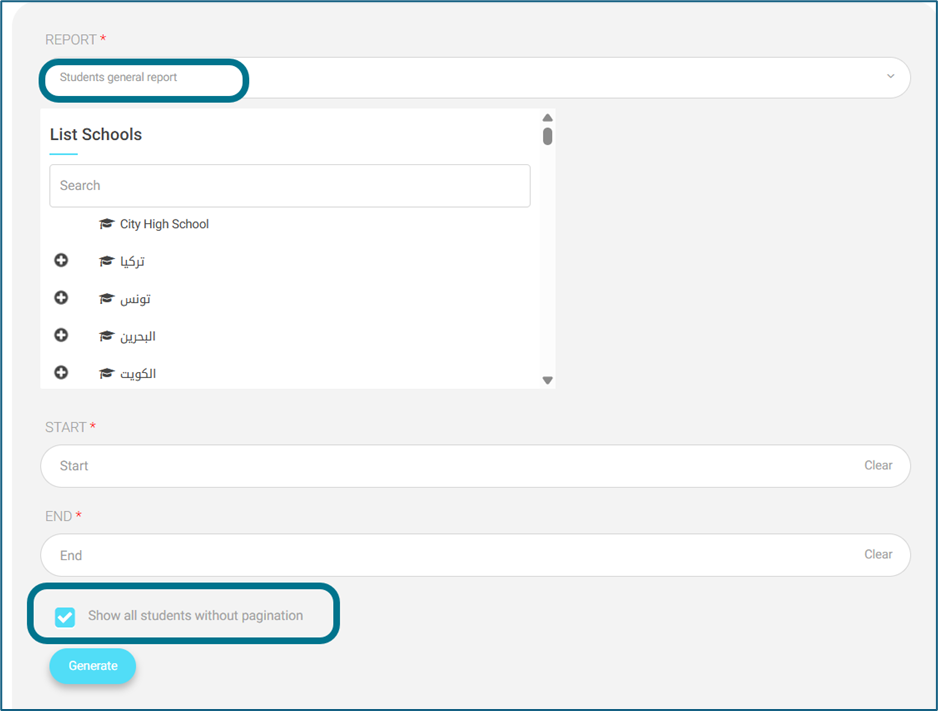
Currently, “Students general report” doesn’t load if the number of students is huge, So, we will add pagination to it.
Access Path:
On the:
Admin & Teachers supervisor School leader account — side menu — reports — management reports — students general report.
Manager, Adviser, Director of Supervision Office, Student affairs officer & School owner — side menu — management reports — students general report.
How to Use:
Admin & Teachers supervisor School leader account — side menu — reports — management reports — students general report.
There will be a “Show All students without pagination” option, which when clicked, all students names on the school will appear without pagination & vice versa.
In this phase, the export to Excel and PDF options will show only students in the paginated page.
ــــــــــــــــــــــــــــــــــــــــــــــــــــــــــــــــــــــــــــــــــــــــــــــــــــــــــــــــــــــــــــــــــــــــــــــــــــــــــــــــــــــــــــــــــــــــــــــــــــــــــــــــــــــــــــــــــــــــــــــــــــــــ
11- Disable YouTube upload for teachers
#
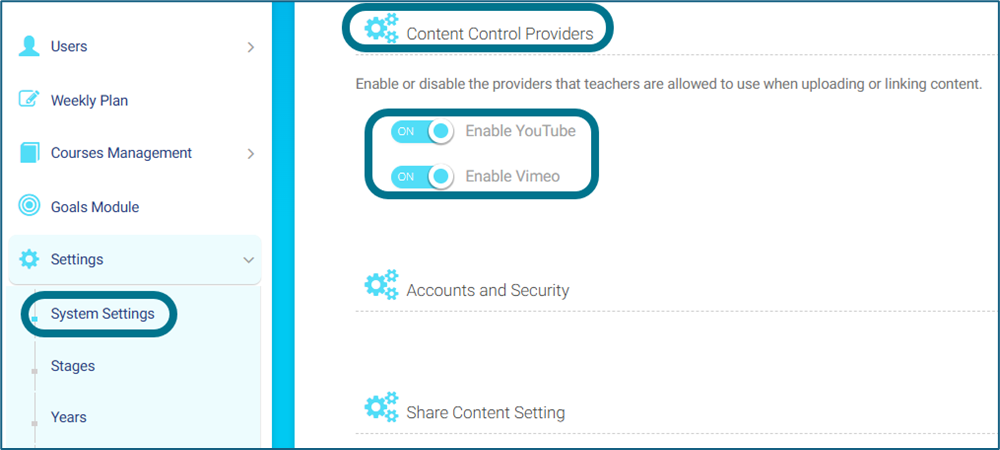
As a school admin, I want a Content Control Providers setting at the school level so I can enable/disable specific providers that teachers can use while uploading or linking content.
Access Path:
Process Flow
Admin navigates to “School Settings” – “Content Control Providers”.
Admin toggles providers (YouTube / Vimeo) and clicks Save.
Teacher opens any affected area to upload or link content.
UI loads allow providers:
If provider enabled — option visible/allowed.
If provider disabled — option hidden; or validation blocks submission with error if generic input.
Action proceeds only when all linked providers in submission are allowed.
How to Use:
The setting applies per provider (e.g., YouTube, Vimeo).
If a provider is disabled, teacher UI must hide or block that provider in all affected areas.
Error Messages (English UI)
EN: “This provider is not allowed by the school setting.”
EN: “Invalid provider type.”
EN: “Unable to load content providers. Please try again.”


