
 Arabic
  English
  French
 تحضير الدروس: الموافقة على التحضيرات دفعة واحدة #
تعمل هذه الميزة على تبسيط سير عمل متابعة الدروس من خلال تمكين مشرفي المعلمين من اعتماد عدة تحضيرات (أو جميعها) في وقت واحد. وبدلاً من مراجعة والموافقة على كل تحضير بشكل فردي، يمكن للمشرفين إجراء اعتماد جماعي، مما يوفر الكثير من الوقت والجهد الإداري.
تتوفر هذه الميزة لـ مشرفي المعلمين.
ملاحظة: تتوفر هذه الميزة فقط في حال تفعيل خيار "موافقة مشرف المعلم على التحضيرات قبل نشرها" من قبل مدير النظام.
خطوات اعتماد التحضيرات دفعة واحدة #
لاعتماد التحضيرات بشكل جماعي، اتبع الخطوات التالية:
- Navigate to your Teacher supervisor dashboard.
- اختر المعلم المستهدف من قائمة المعلمين لديك.
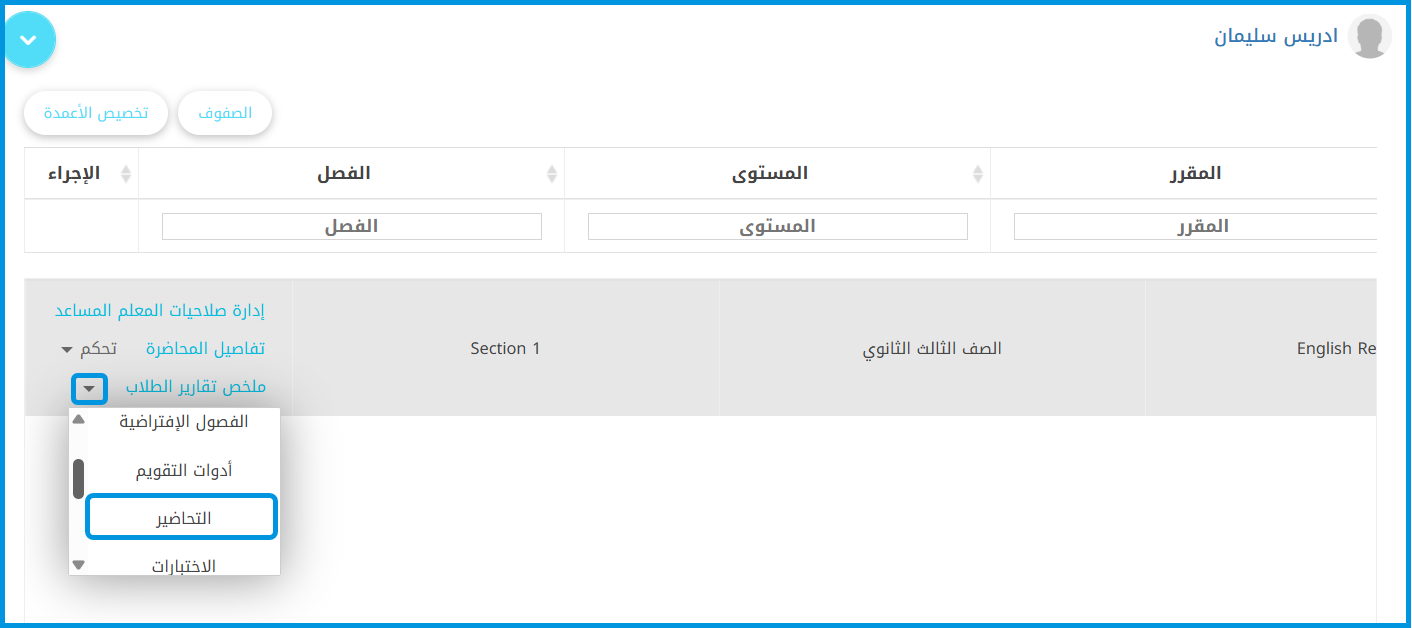
- Click on the More Actions dropdown menu and select Preparations.
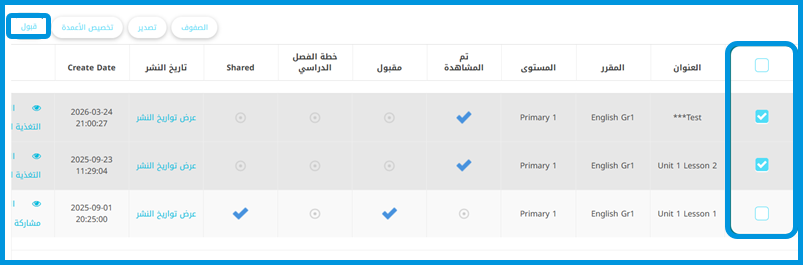
- راجع تحاضير الدروس المعروضة في جدول البيانات.
- لاحظ وجود عمود مربعات اختيار (Checkboxes) جديد مضاف في بداية الجدول.
- Check the boxes next to the specific preparations you wish to approve, or click the top checkbox to Select All.
- Click the Approve button located directly next to the Customize Columns button.
- The system will immediately update and approve all selected preparations at once.
سير عمل البريد: اعتماد رسائل البريد الخاصة بالمعلمين من مشرف المعلمين #
تضمن هذه الميزة مراجعة كافة الرسائل الصادرة من المعلمين والموجهة إلى الطلاب أو أولياء الأمور بشكل دقيق من قبل مشرف المعلمين قبل إرسالها فعلياً، حيث يمكنه قبولها أو رفضها. يساهم ذلك في إحكام الرقابة وضمان توافق الرسائل الموجهة مع المعايير والسياسات المعتمدة للمدرسة.
تتوفر هذه الميزة لـ مديري النظام ومشرفي المعلمين.
كيفية إعداد واستخدام سير اعتماد البريد #
لإنشاء وإدارة عملية مراجعة البريد، اتبع الخطوات التالية:
1. إعداد مسار الاعتماد (مدير النظام) #
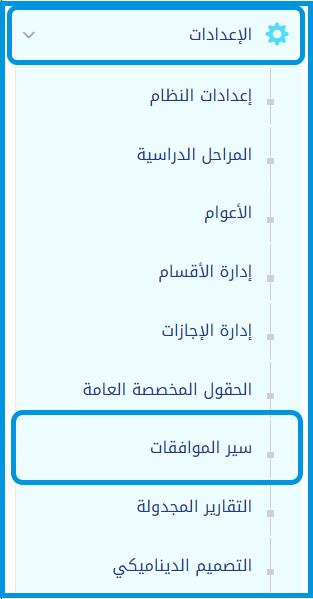
- Go to the side menu and select Settings.
- Click on Approval Flows.
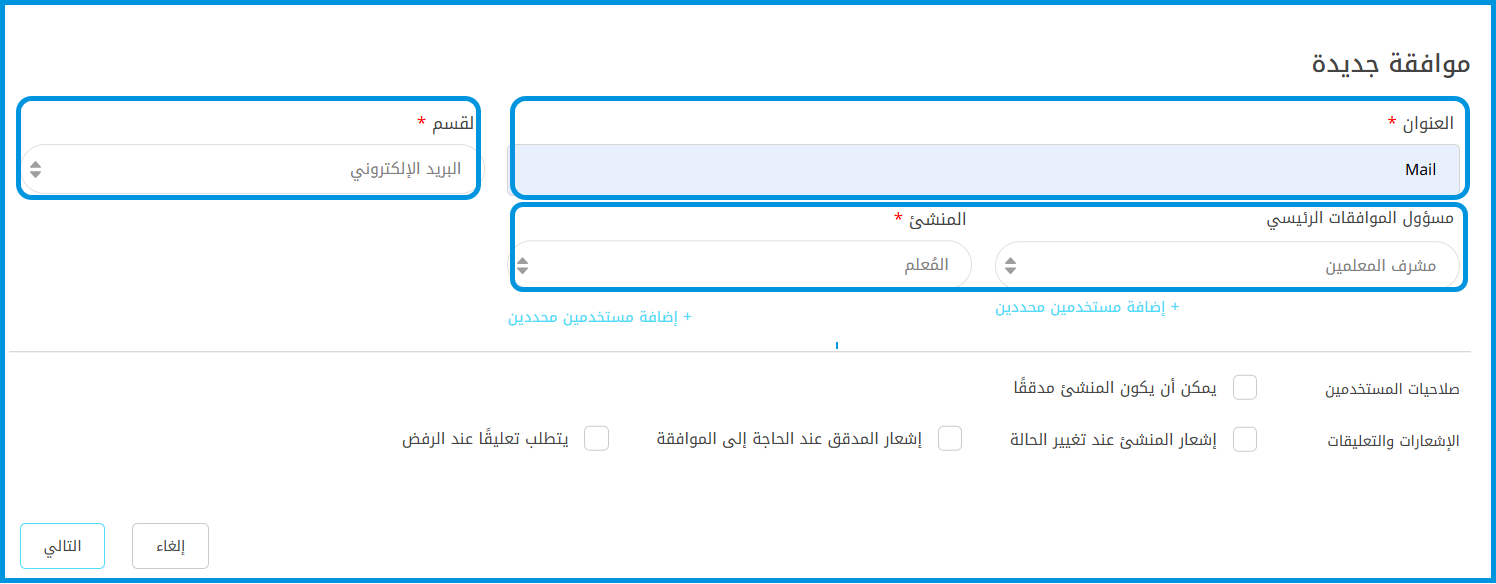
- Click + Add New Flow.

- Select Mailbox from the Module dropdown menu.
- Set the Teacher as the Maker, and assign the Teacher Supervisor as the Checker.
- حدد نوع الإجراء المستهدف:
a.إرسال رسائل إلى الطلاب، أو
b. Sending mails to guardians.
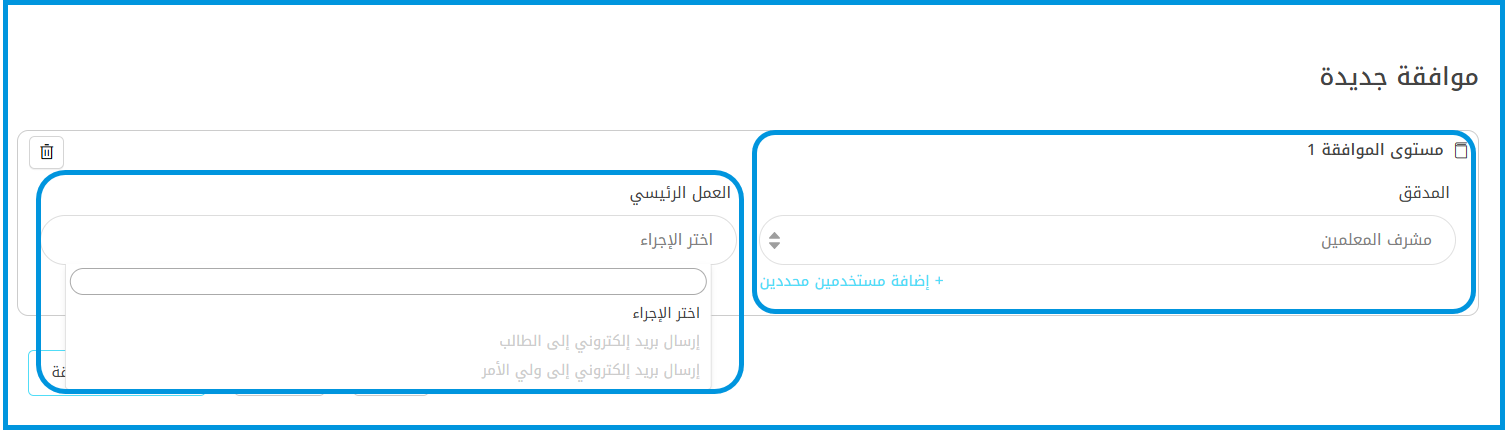
ملاحظة: لا يمكن الجمع بين الإجراءين المستهدفين (الطلاب وأولياء الأمور) في نفس مسار سير الموافقات.
2. مراجعة واتخاذ القرار (مشرف المعلمين) #
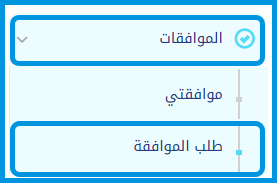
- Go to the side menu and select Approvals.
- Click Approval Request .
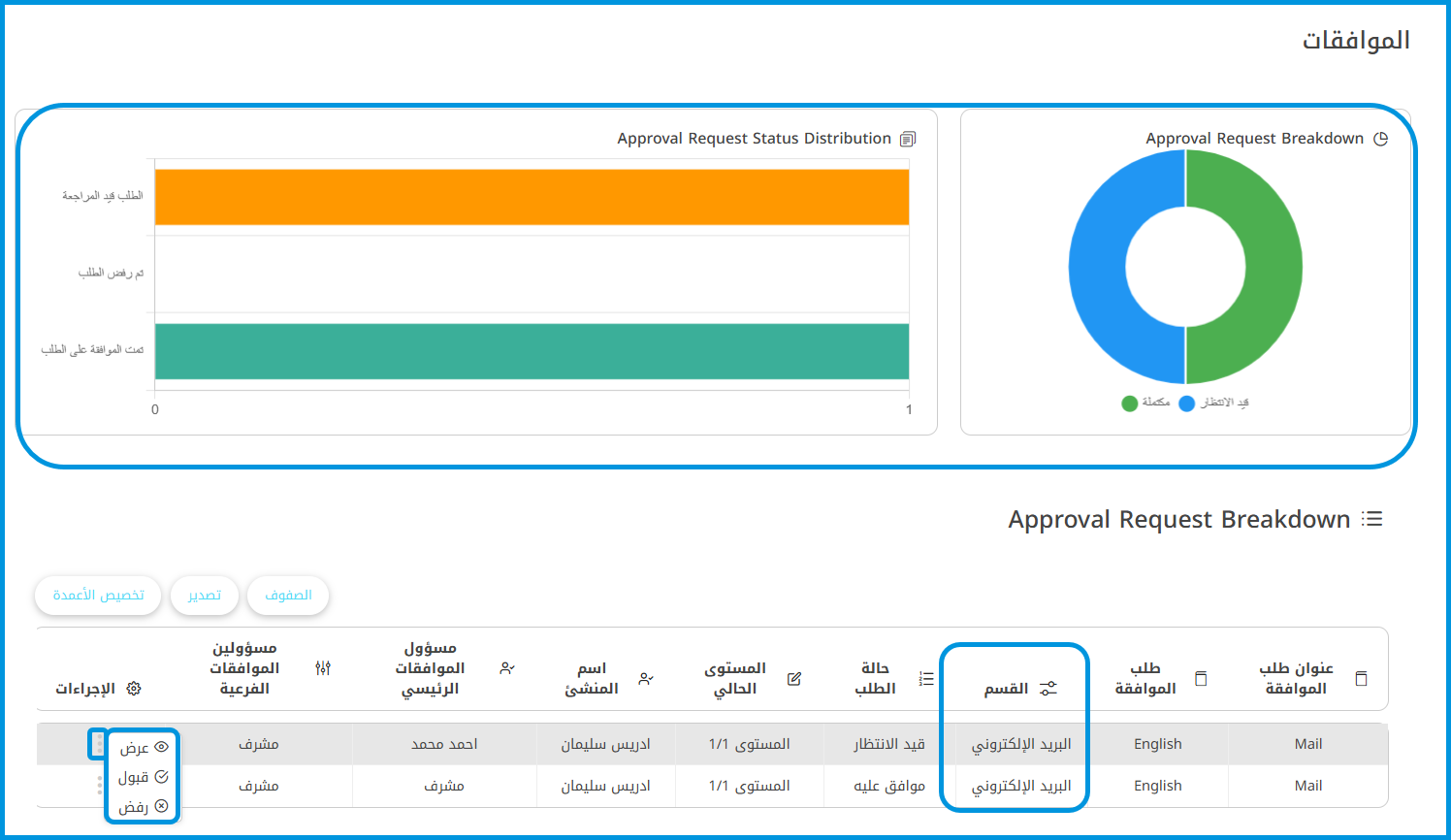
- يمكنك الاطلاع على الرسوم البيانية في أعلى الصفحة للمتابعة السريعة:
a. Approval Request Breakdown: Displays the total ratio of Completed vs. Pending requests.
b. Approval Request Status Distribution: Shows the count of requests categorized by status (In Review, Declined, or Approved).
- Scroll to the Approval Request Breakdown table below the charts.
- Locate the message request, click the Actions menu (the three dots), and select from the available options:
a. View: Opens a side popup detailing the email content.
b. Approve: Authorizes the email for immediate delivery.
c. Decline: Rejects the email and prevents it from being sent.
نتائج الاعتماد وسلوك النظام
- In case of Approval: The message is officially sent. The exact date and time of the email dispatch are recorded as the moment the supervisor approved it.
- In case of Decline: The message is blocked. The email will not be sent to the recipients and will not appear in the teacher’s sent mailbox.


