
 French
  English
  Arabic
 The Teacher Homepage serves as the primary operational hub within Classera for educators. It provides teachers with a streamlined, real-time interface to manage daily task workflows, quick course operations, gamification rewards, and school-wide announcements.
To access this section:
- Log into your Classera Teacher account.
- You will land directly on the Dashboard Overview page.
Key Areas of the Teacher Homepage #
When you log in, the Homepage displays the following main areas:
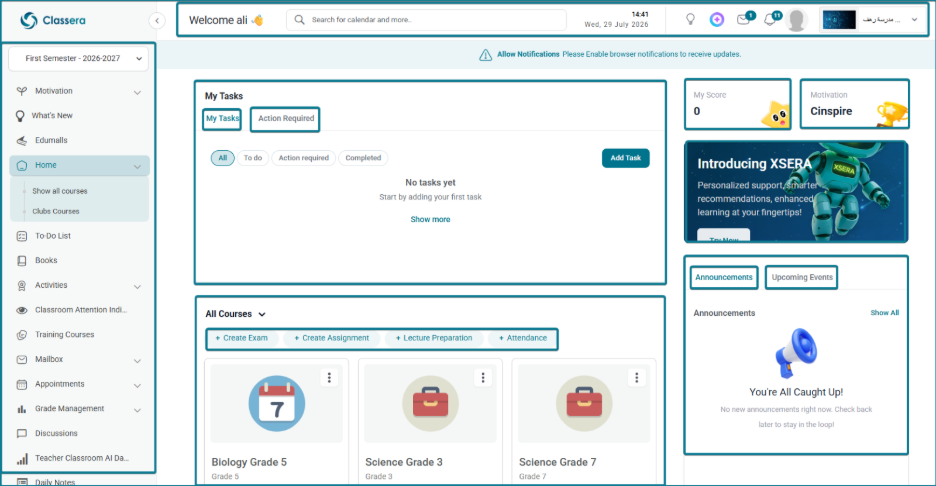
1. Side Menu #
Runs along the left side of the screen and provides navigation to essential teacher modules, such as Weekly Plan, Courses Management, Question Banks, Gradebooks, Calendar, and more.
2. Top Navigation Bar #
The horizontal header running along the top acts as a rapid command bar:
- Search Bar: Centralized search field to quickly locate calendar records, pages, or system tools.
- Time & Date: Displays the active clock time and server date.
- What’s New: Summarizes newly deployed features and system updates.
- XSERA AI Assistant: Launches the interactive AI helper for personalized support and smart recommendations.
- Mail Threads: Provides direct access to internal messages and correspondence.
- Notifications: Displays real-time platform event alerts.
- User Profile Menu & School Switcher: Shows user details, assigned school campus, and account settings.
3. Main Dashboard Area #
The central area of the Teacher Homepage is organized into distinct functional panels:
1. My Tasks Panel #
Located at the top-left of the main dashboard, this combined dual-tab panel helps teachers manage personal to-do lists alongside critical operational pending items:
- My Tasks Tab:
- Add Task Button: Teachers can create custom personal tasks to track their daily teaching workflow.
- Status Filter Pills: Instantly sort personal tasks using All, To do, Action required, and Completed.
- Action Required Tab:
- Displays urgent, system-generated operational alerts that require immediate teacher action across three main areas:
- Attendance: Highlights missing or pending student attendance rosters for specific classes (e.g., Biology Grade 5 — attendance not taken) along with the scheduled session time and a direct Take attendance > action link.
- Preparation: Flags courses with missing daily or weekly lesson preparations (e.g., Biology Grade 5 — 1 item(s) pending) along with a direct Add preparation > action link.
- Grades: Surfacing pending evaluation items, unsubmitted assignment marks, or uncompiled gradebook parameters that require immediate teacher input.
2. All Courses & Quick Actions Panel #
Located directly beneath My Tasks, this section houses quick action shortcuts and course cards:
- Quick Action Buttons: Direct shortcuts at the top of the panel to perform immediate actions across courses:
- + Create Exam: Launches the exam creation wizard.
- + Create Assignment: Opens the assignment creation tool.
- + Lecture Preparation: Direct link to create and publish daily lesson plans.
- + Attendance: Launches the student attendance registration sheet.
- Course Cards Grid: Displays active course cards (e.g., Biology Grade 5, Science Grade 3, Science Grade 7) showing the grade level along with counts for total Lessons and Exams.
3. Motivation & Gamification Widgets #
- My Score: Tracks total reward points accumulated by the teacher.
- Motivation / Cinspire: Displays teacher awards, badges, and recognition achievements.
4. Introducing XSERA AI Banner #
A featured promotional banner introducing Classera’s AI assistant (Try Now) for smart learning support and automated recommendations.
5. Announcements & Upcoming Events Center #
A dual-tab widget keeping teachers informed on school events:
- Announcements Tab: Displays active school broadcasts, administrative memos, and pinned news.
- Upcoming Events Tab (Teacher Schedule): Functions as an interactive timetable and calendar planner for the teacher’s scheduled classes and events.


