
 French
  English
  Arabic
 The Personal Menu V17 provides quick access to your account personalization settings, digital ID card, cloud storage connections, active session monitoring, and system guides, all accessible from your profile picture in the top navigation bar.
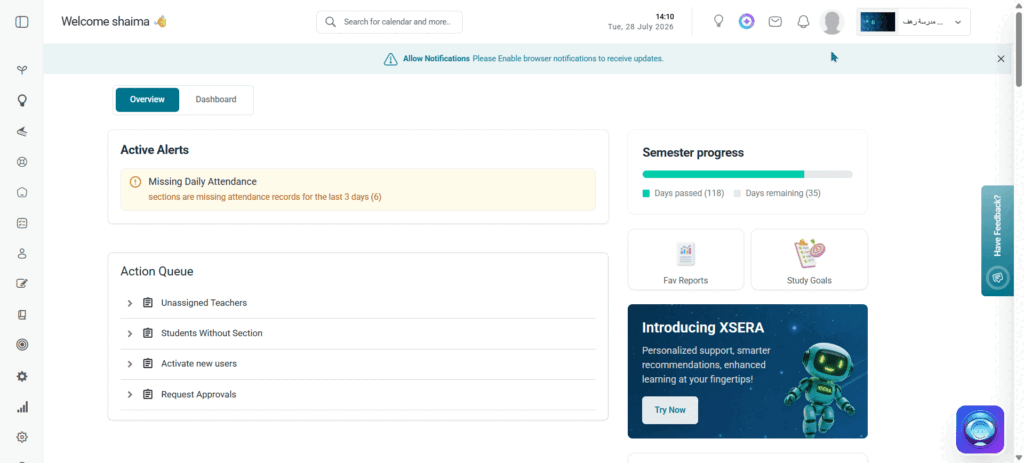
Accessing the Personal Menu #
To access the Personal Menu, follow these steps:
- Click your profile picture in the top right corner of the top navigation bar.
- The Personal Menu opens, displaying your name, email address, and all available options.
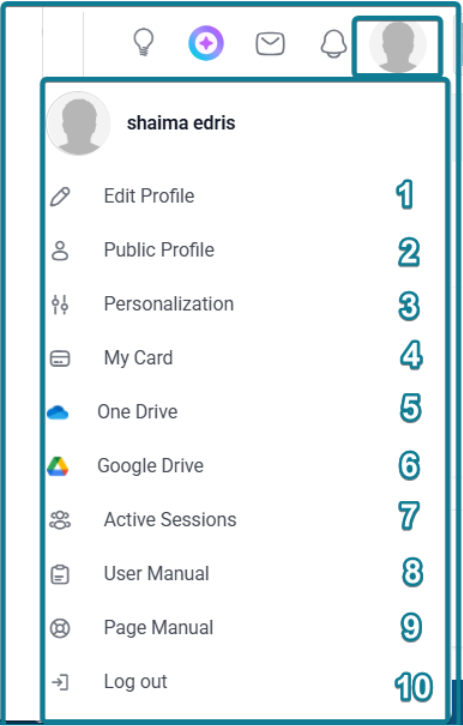
Modifier le profil #
- Redirects you to the profile management interface where you can update your account settings, personal details, contact nodes, skills, education, and work history.
Public Profile #
- Launches your public-facing page to view exactly how your professional background, shared information, and active credentials appear to other users across the system.
Personalization #
Personalization allows you to control the visual appearance and language settings of the system for your account.
To personalise your view, follow these steps:
- Theme: Toggle between Light Mode (light background) and Dark Mode (dark background).
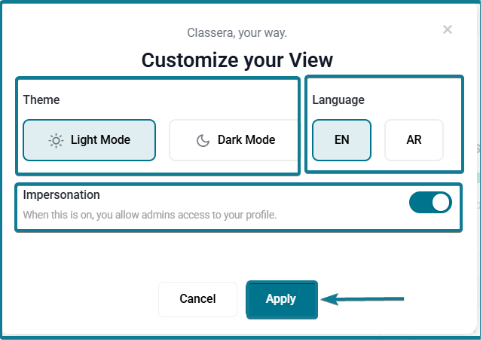
- Language: Switch the system language interface between EN (English) and AR (Arabic).
- Impersonation: Toggle administrative entry authorization (On to grant access / Off to restrict it).
- Click Apply to save choices or Cancel to discard.
Note: The Impersonation toggle grants administrators access to your profile. Enable it only when required, such as when receiving technical support from a system administrator.
My Card #
My Card displays your digital ID card as registered in the system.
To view your digital ID card, follow these steps:
- Click My Card from the Personal Menu.
- Your digital ID card opens, displaying your registered profile information and identification details.
One Drive #
The OneDrive option allows you to link your Microsoft OneDrive account to Classera for seamless access to your external files.
To connect your OneDrive account, follow these steps:
- Click One Drive from the Personal Menu.
- Follow the on-screen prompts to sign in to your Microsoft account.
- Once connected, your OneDrive files become accessible within the Classera system.
Google Drive #
The Google Drive option allows you to link your Google Drive account to Classera for seamless access to your external files.
To connect your Google Drive account, follow these steps:
- Click Google Drive from the Personal Menu.
- Follow the on-screen prompts to sign in to your Google account.
- Once connected, your Google Drive files become accessible within the Classera system.
Active Sessions #
Active Sessions allows you to monitor all devices currently logged in to Classera account, giving you visibility and control over your account security.
To review your active sessions, follow these steps:
- Click Active Sessions from the Personal Menu.
- The Active Sessions page opens, listing all devices currently logged in to your account.
- Review the list and identify any session you do not recognise.
- Click End Session next to any unrecognised device to log it out immediately.
Note: It is recommended to review your Active Sessions regularly, especially if you access Classera from multiple devices or shared computers.
User Manual #
The User Manual provides the full system documentation guide for Classera.
To open the User Manual, follow these steps:
- Click User Manual from the Personal Menu.
- The full User Manual opens in a new view.
- Browse or search the manual for guidance on any system feature.
Page Manual #
The Page Manual launches you to the user manual article dedicated to the page you are in.
Log Out #
Log Out ends your current Classera session and returns you to the login screen.


