
 French
  English
  Arabic
 The Student Homepage serves as the primary operational hub within Classera for learners. It provides students with a real-time view of their enrolled courses, daily class schedule, upcoming assessments, gamification achievements, and recent school announcements.
To access this section:
- Log into your Classera Student account.
- You will land directly on the Dashboard Overview page.
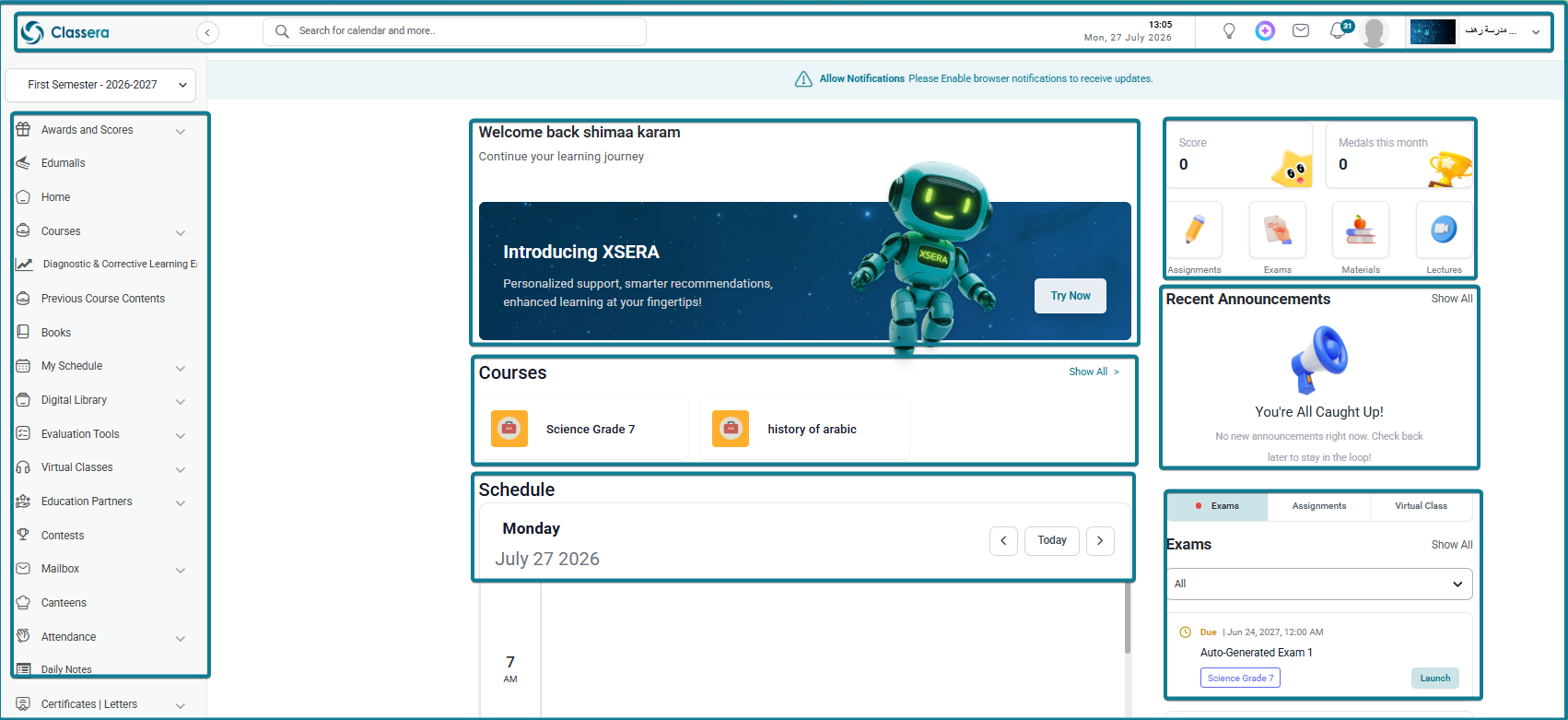
Key Areas of the Student Homepage #
When you log in, the Homepage displays the following main areas:
1. Side Menu #
Runs along the left side of the screen and provides navigation to essential student modules, such as Courses, Assignments, Exams, Gradebook, Virtual Classes, Calendar, and more.
2. Top Navigation Bar #
The horizontal header running along the top acts as a rapid command bar:
- Search Bar: Centralized text box to quickly search for calendar records, pages, or tools.
- Time & Date: Displays the active clock time and server date.
- What’s New: Summarizes newly deployed features and system updates.
- XSERA AI Assistant: Launches the interactive AI helper for personalized learning support.
- Mail Threads: Provides direct access to internal messages.
- Notifications: Displays real-time platform event alerts.
- User Profile Menu & School Switcher: Shows student details, assigned school campus, and account settings.
3. Main Dashboard Area #
The central area of the Student Homepage is organized into distinct functional panels:
1. Introducing XSERA AI Banner #
A featured promotional banner at the top (Welcome back [Student Name]) introducing Classera’s AI assistant (Try Now) for personalized support and smart learning recommendations.
2. Gamification & Quick Launch Hub #
Located at the top right of the dashboard layout:
- Score: Displays total learning reward points accumulated by the student.
- Medals this month: Tracks earned badges and recognition achievements for the current month.
- Quick Launch Shortcuts: Direct circular icon shortcuts to core student deliverables:
- Assignments: Direct link to pending online assignments.
- Exams: Direct link to quizzes and examinations.
- Materials: Direct access to course attachments, e-books, and media.
- Lectures: Direct link to scheduled video classes and recorded sessions.
3. Enrolled Courses Panel #
Located under the XSERA banner, displaying enrolled subjects:
- Displays active course cards for quick access.
- Show All Link: Allows students to open their full list of enrolled subjects.
4. Schedule Panel (Student Classes & Timetable) #
Located beneath the Courses panel, this widget tracks the student’s daily timetable and class schedule:
- Header Controls: Displays the active day and full date (e.g., Tuesday, July 21 2026) along with navigation arrows (< >) and a Today button to switch days.
- Timetable Grid: Displays hourly time slots (e.g., 7 AM, 8 AM) plotting scheduled classes, virtual sessions, and live timing slots.
5. Recent Announcements #
Positioned on the right pane below the Quick Launch Hub:
- Displays active school broadcasts, administrative memos, and pinned announcements.
- Includes a Show All link to open the full announcements repository.
6. Assessments & Deliverables Center (Exams / Assignments / Virtual Class) #
Located at the homepage, this interactive multi-tab panel tracks due and pending learning tasks:
- Filter Tabs: Toggle between Exams, Assignments, and Virtual Class.
- Status Filter Dropdown: Filter assessment records using the dropdown menu by selecting All, Due, Missed, Graded, or Submitted.
- Assessment Cards: Displays individual task cards showing status, deadline, subject tag, and actions. Assessment cards feature a Launch button to directly open active exams or a disabled Missed badge indicating the submission deadline has passed.
- Pagination Controls: Navigate through additional pages using the numbered indicators (1, 2) or directional arrows (< >).


