
 French
  English
  Arabic
 The Guardian Dashboard serves as the central command hub for parents in Classera. It provides a unified portal to track academic progress across multiple children, review individual schedules, access direct child interaction services, and monitor targeted school announcements.
Dashboard Accounts & Profile Switching #
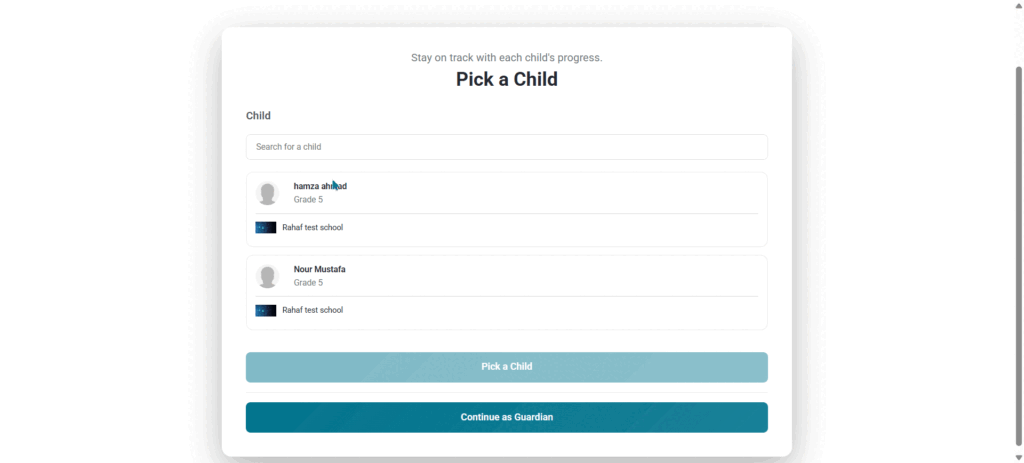
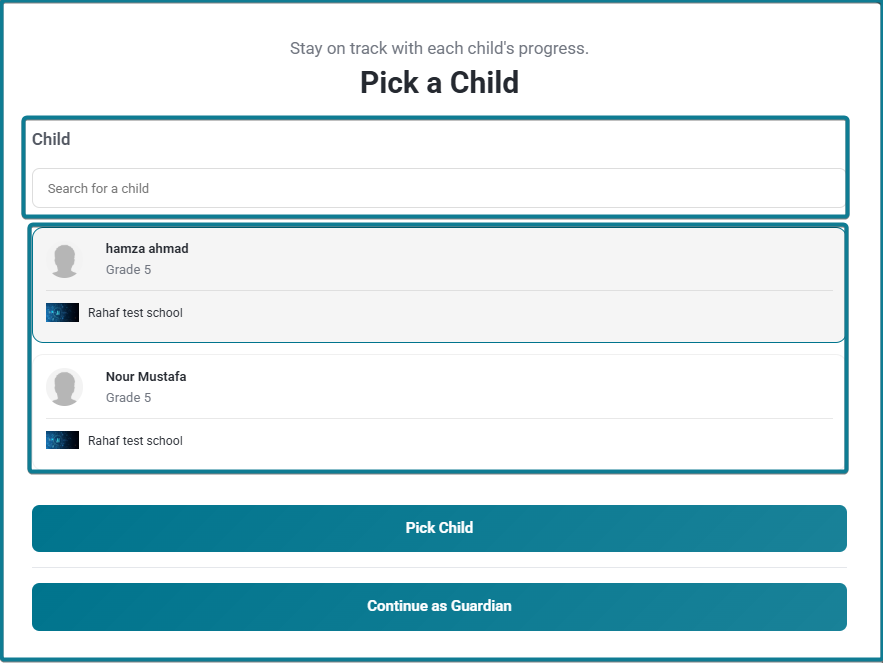
Initial Profile Selection Modal (“Pick a Child”) #
- When logging in or accessing student views, a Pick a Child window displays listed children (e.g., hamza ahmad, Nour Mustafa) along with their assigned grade levels and schools.
- Use the search box to filter through multiple children by name.
- To Switch to a Child’s View: Select a child from the list and click Pick Child.
- To Access Guardian Overview: Click Continue as Guardian to stay in the primary parent overview workspace.
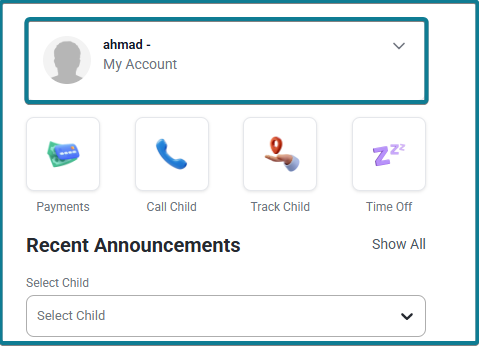
Header Profile Switcher #
- Located at the top right corner of the main header bar.
- Click the profile dropdown menu to display all linked accounts:
- Switching to Student View: Select a specific child’s name from the list to leave the Guardian view and navigate directly into that student’s dedicated course workspace, grades, and personal dashboard.
- Returning to Guardian View: Select your parent account profile from the list (or click Back to Admin Account) to return to the centralized Guardian Dashboard.
Services & Quick Actions Bar #
The top section of the Guardian Dashboard provides direct access to essential services and quick action controls:
Services Panel #
Access key administrative and school services directly from shortcut tiles:
- Mailbox: Check personal messages and school communications.
- Bus Trips: Track school transportation status and bus routes.
- Appointments: Schedule or view meetings with teachers and school staff.
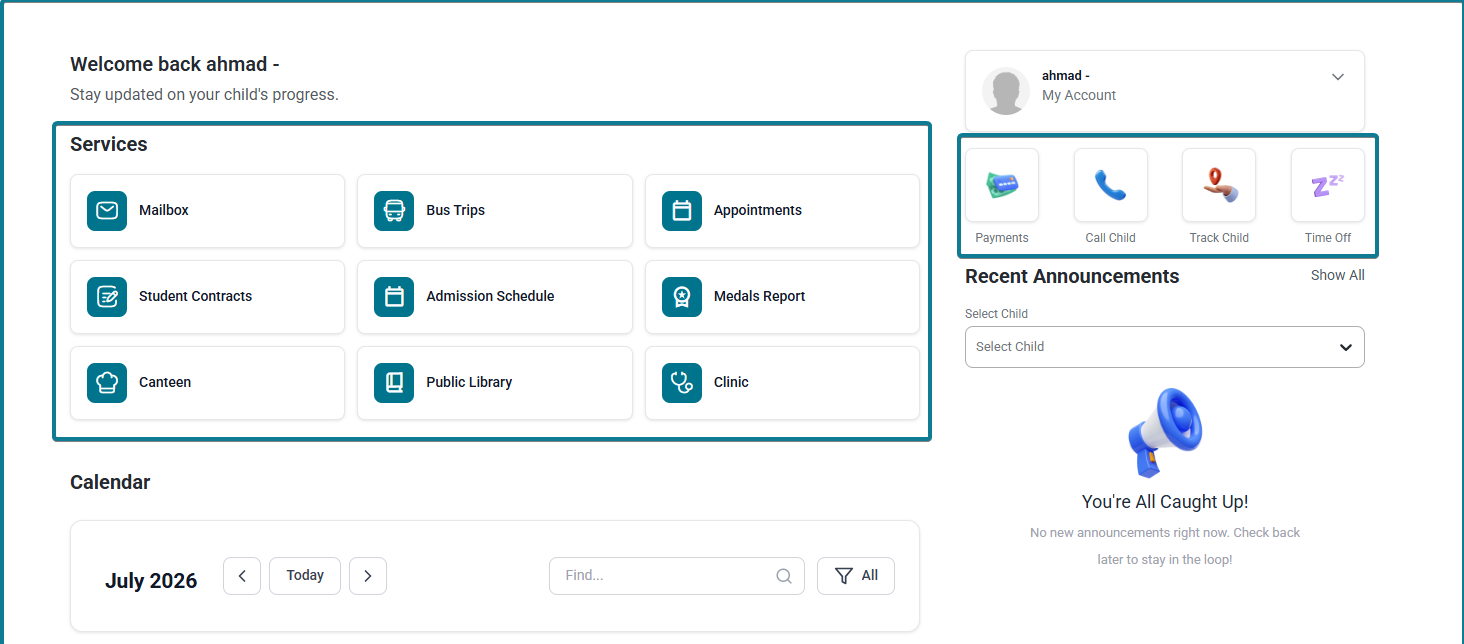
- Student Contracts: View and manage financial or academic contracts.
- Admission Schedule: Monitor admission tests and enrollment timelines.
- Medals Report: Review gamification rewards and badges earned by your children.
- Canteen: Manage food allowances and canteen orders.
- Public Library: Access digital learning assets and e-books.
- Clinic: Review health and medical records.
Child Interaction Quick Buttons #
Located under the profile panel on the right side:
- Payments: Direct access to fee payments and financial statements.
- Call Child: Initiate direct communication or notification requests for the student.
- Track Child: Monitor physical attendance or transportation tracking.
- Time Off: Submit absence requests or leave notifications to the school administration.
Filterable Calendar (Child-Specific Schedules) #
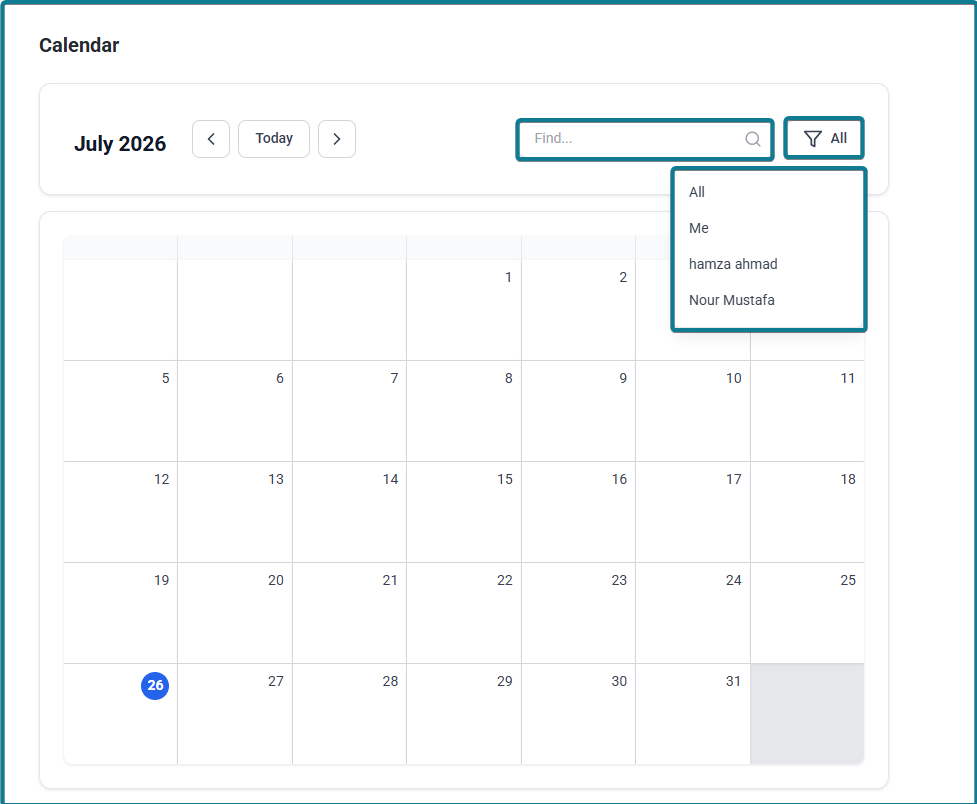
The Calendar widget allows guardians to view consolidated or individual schedules:
- Navigating Dates: Use the arrow buttons or click Today to jump to current events. Use the search field to locate specific event titles.
- Filtering by Child: Click the filter button (funnel icon labeled All) at the top right of the calendar toolbar to open the selection dropdown:
- All: Displays combined calendar events for all children and guardian activities.
- Me: Filters the calendar to display events and reminders specific to the guardian.
- Individual Child Name: Select a specific child (e.g., hamza ahmad or Nour Mustafa) to display only their classes, exams, and scheduled events.
Recent Announcements #
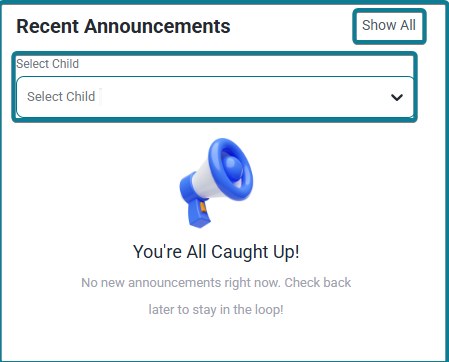
The Recent Announcements panel keeps guardians informed about critical school updates:
- Filtering Announcements: Use the Select Child dropdown menu within the panel to filter announcements by:
- All: Shows all broadcasts sent to the school or family.
- Me: Displays announcements targeted directly to parents.
- Individual Child Name: Displays announcements sent specifically to your child’s grade, class, or school.
- View All Link: Click Show All at the top right of the widget to open the full announcement repository.


