English
  Arabic
  French
 The Announcements & Upcoming Events widget serves as an essential communication and schedule-tracking tool on the Teacher Homepage. It allows teachers to review official broadcasts, monitor daily class schedules, create events with custom target audiences, and navigate to full calendar management.
Accessing Announcements & Upcoming Events #
- Log into your Classera Teacher account and navigate to the Dashboard Overview.
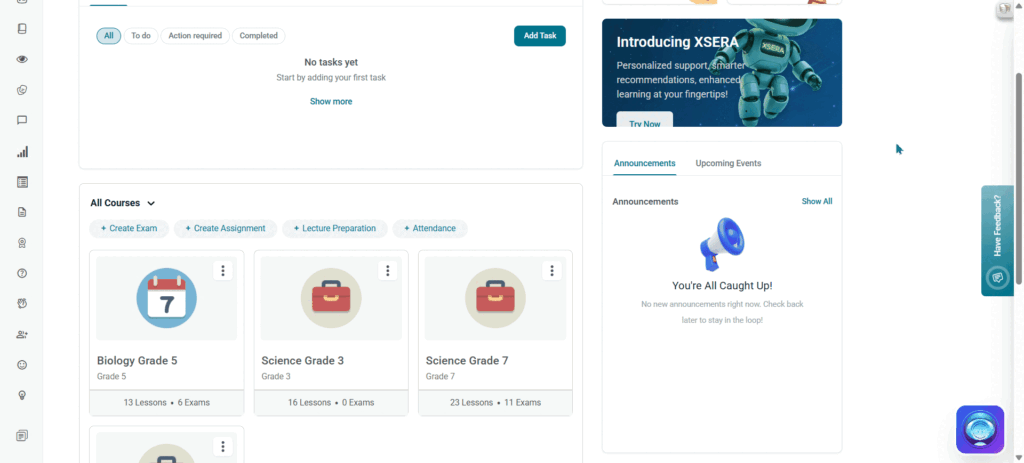
- Locate the dual-tab widget at the bottom right of the homepage layout.
- Toggle between the two main tabs: Announcements and Upcoming Events.
Tab 1: Announcements #
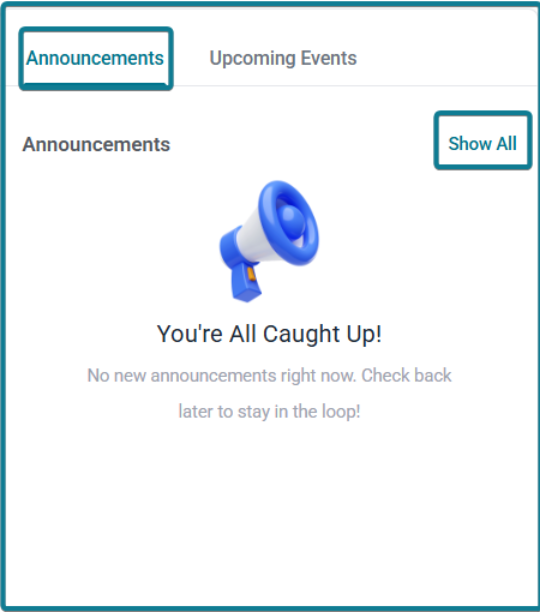
The Announcements tab keeps teachers updated on school-wide broadcasts, administrative memos, and official updates.
Widget View #
- Click View All opens the dedicated full-page announcements repository.
- Empty State: When no new announcements are published, appears with the message “You’re All Caught Up! No new announcements right now. Check back later to stay in the loop!”.
Tab 2: Upcoming Events (Teacher Schedule & Event Creation) #
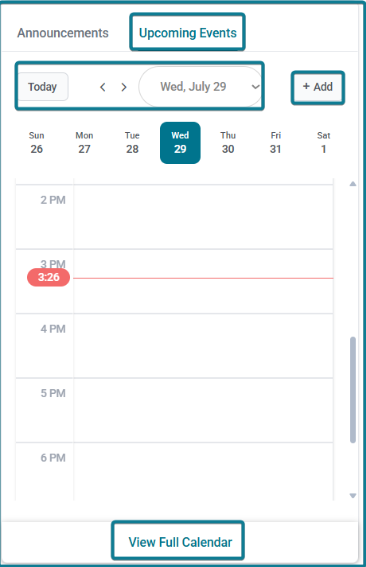
The Upcoming Events tab acts as an interactive timetable and calendar manager for the teacher’s scheduled classes and events.
1. Timetable Controls & Daily View #
- Today Button: Resets the schedule display instantly to the current day.
- Navigation Controls: Use the directional arrows (< >) or the date picker dropdown to inspect schedules across different dates.
- Weekly Strip: Displays active day pills for the current week (e.g., Sun 19, Mon 20, Tue 21, Wed 22, Thu 23, Fri 24, Sat 25) for quick day switching.
- Timeline Grid: Displays hourly time slots alongside a real-time red line indicator showing the current server time. Scheduled classes appear as color-coded blocks showing subject title, grade level, and time duration (e.g., Biology Grade 5 — Grade 5 — 3:17 PM – 4:17 PM).
- View Full Calendar: Link at the bottom of the widget that opens the full-screen calendar module (Home / Events).
2. Creating an Event (+ Add Button) #
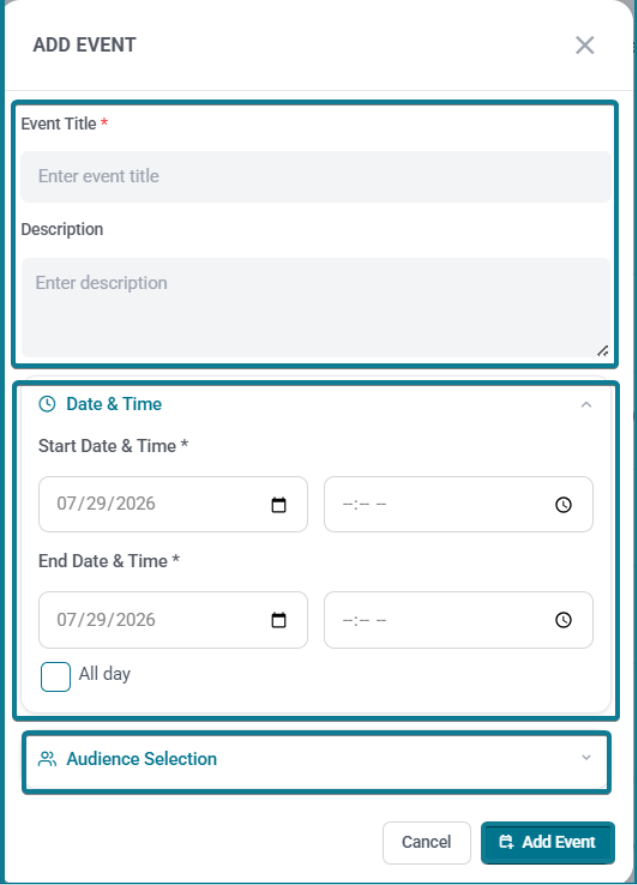
Teachers can add personal reminders or school events directly from the dashboard:
- Click the + Add button at the top of the Upcoming Events tab.
- The Add Event modal window opens with the following fields:
- Event Title (Required): Enter a descriptive name for the event.
- Description (Optional): Add detailed notes or event context.
- Date and Time Section:
- Start Date & Time: Select the start date and time.
- End Date & Time: Select the completion date and time.
- All Day Checkbox: Check to mark the event as an all-day entry.
- Audience Selection:
- All Users Checkbox: Check to broadcast the event to the entire school community.
- Granular Tabs: Select targeted audiences by Stage, Sections, or Students using dropdown selectors for Stage, Grade, and Class.
- Click Add Event to save and publish, or Cancel to discard.
3. Full Calendar Workspace (Home / Events) #
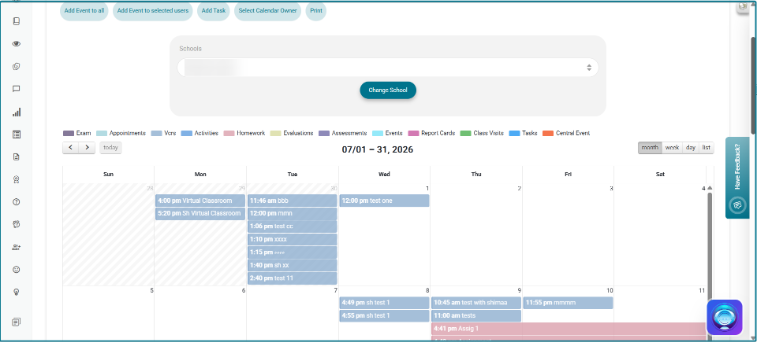
Clicking View Full Calendar opens the comprehensive event management page, providing advanced planning options:
- School Filter: Switch between assigned school campuses.
- View Modes: Toggle schedule views by Agenda, Day, Week, or Month.
- Categorized Event Legends: Displays color-coded indicators for Exams, Appointments, VCRs, Activities, Assignments, Assessments, Gradebook Reports, Events, Class Visits, Tasks, and Central Events.
- Top Command Actions:
- Add Event for All: Publish broadcasts across the school.
- Add Event to selected users: Target select users or classes.
- Add Task: Create administrative to-do items.
- Set Calendar Owner: Manage calendar permissions.
- Print: Export or print the active calendar schedule.