
 English
  Arabic
  French
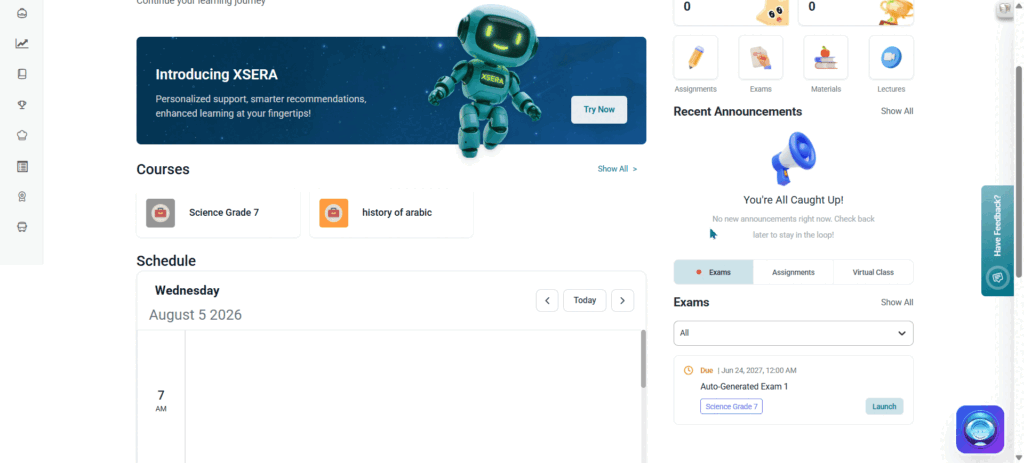
 The Quick Access widget on the Student Homepage provides learners with a centralized hub to track and launch essential academic deliverables across three primary tabs: Exams, Assignments, and Virtual Class.
Accessing Quick Access #
- Log into your Classera Student account and navigate to the Dashboard Overview.
- Locate the multi-tab widget in the bottom right section of the homepage layout.
- Toggle between the three primary tabs: Exams, Assignments, and Virtual Class.
Tab 1: Exams #
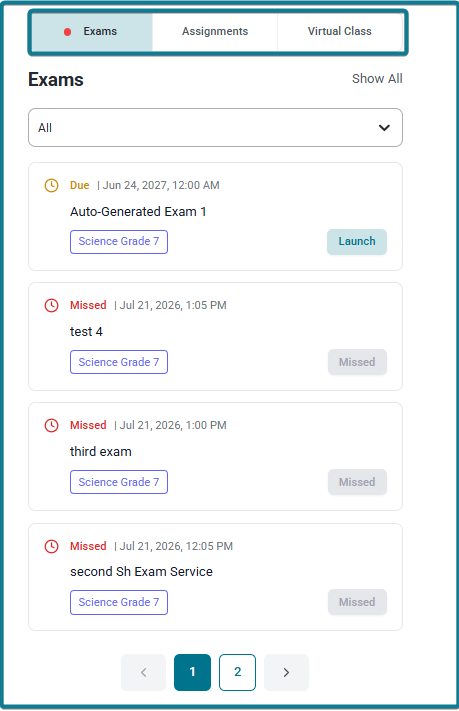
The Exams tab tracks scheduled assessments, quizzes, and tests assigned to the student.
1. Filtering & Navigation Options #
- Status Filter Dropdown: Filter your listed exams using the dropdown menu by selecting All, Due, Missed, Graded, or Submitted:
- Due Status: Displays a View link alongside a Start Exam button allowing students to immediately launch and take the active exam.
- Missed Status: Displays a View link alongside a Start Exam button (if late submissions or question views are enabled by the teacher) to review or complete the missed assessment.
- Graded Status: Displays a View Grade button allowing students to inspect their evaluated score and teacher feedback.
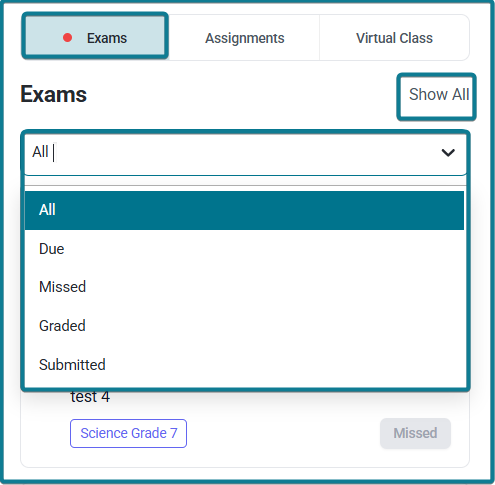
- Submitted Status: Displays the Submitted checkmark badge indicating the exam has been successfully turned in and is awaiting final grade release.
- Status Indicators: Color-coded for quick scanning: Orange (Due), Red (Missed), Green (Graded), and Gray (Submitted).
- Show All Link: Click Show All at the top right of the widget pane to open the full module in context (Home / Courses / Exams).
2. Exam Cards & Statuses #
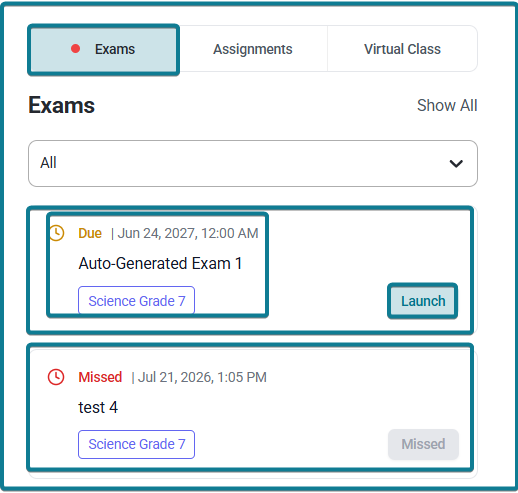
Each exam item is displayed on an individual card featuring:
- Status Tag & Due Date: Indicates pending deadlines (e.g., Due | Jun 24, 2027, 12:00 AM) or missed deadlines (e.g., Missed | Jul 21, 2026, 1:05 PM).
- Title & Subject Tag: Displays the exam name (e.g., Auto-Generated Exam 1, test 4, third exam) alongside its subject label (e.g., Science Grade 7).
- Card Actions & Status Indicators: Assessment cards feature a Launch button to directly open active exams or a disabled Missed badge indicating the submission deadline has passed.
- Pagination Controls: Use the numbered page indicators (1, 2) or directional arrows (< >) at the bottom to navigate through additional exam cards.
3. Full Exams Repository Page (Home / Courses / Exams) #
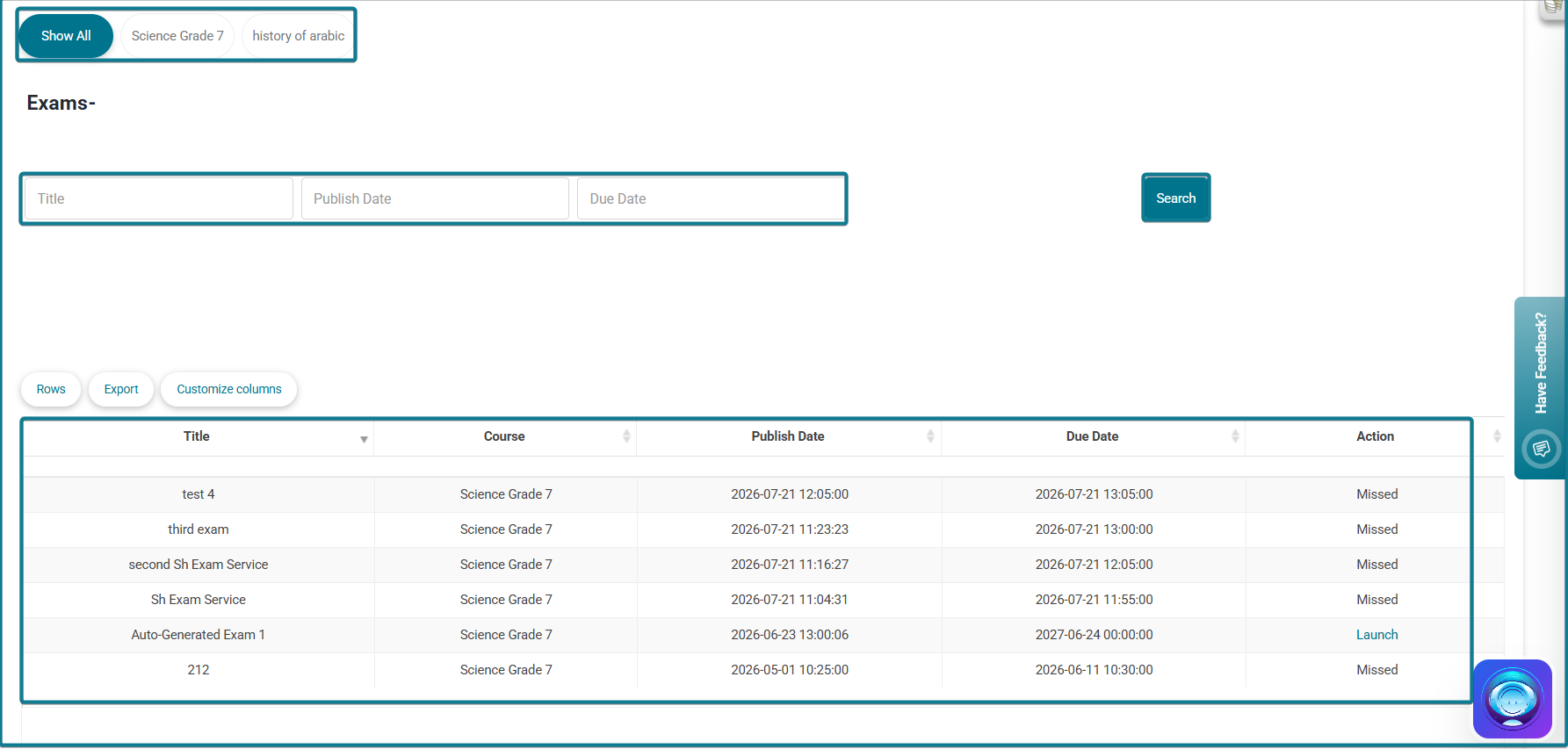
Clicking Show All opens a full-screen tabular workspace:
- Subject Filter Pills: Filter listed exams by specific course pills (e.g., Show All, Science Grade 7, history of arabic).
- Search Filters: Search exams using specific fields: Title, Publish Date, and Due Date, then click Search.
- Data Table & Export: View a structured list displaying Title, Course, Publish Date, Due Date, and Action. Customization options include Rows, Export, and Customize columns.
Tab 2: Assignments #
The Assignments tab allows students to monitor homework submissions, online tasks, and due projects.
1. Filtering & Navigation Options #
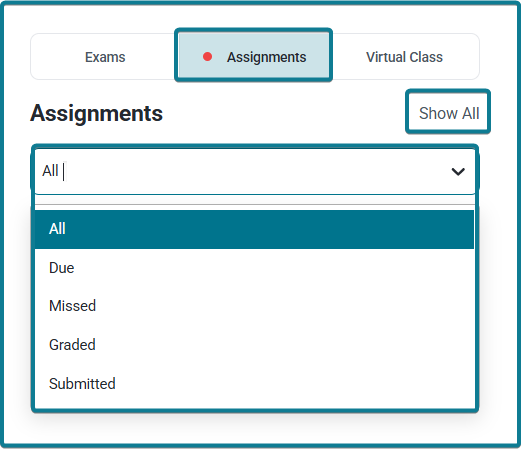
- Status Filter Dropdown: Filter assignment records by selecting All, Due, Missed, Graded, or Submitted:
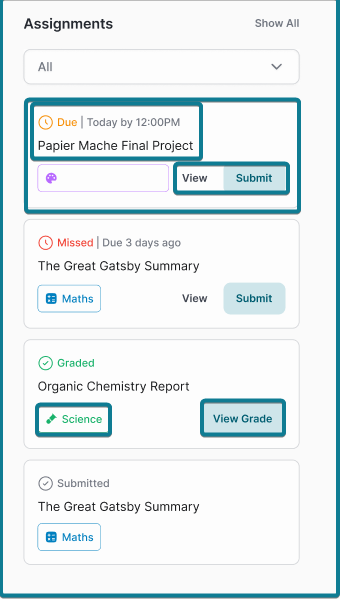
- Due Status: Displays a View link alongside a Submit button to open the assignment submission page.
- Missed Status: Displays a View link alongside a Submit button (if late submissions are enabled by the teacher) to submit overdue work.
- Graded Status: Displays a View Grade button to inspect evaluated marks, rubrics, and feedback.
- Submitted Status: Displays the Submitted checkmark badge confirming successful submission.
- Show All Link: Click Show All to open the dedicated full homework page (Home / Courses / Homework).
2. Empty State & Active Submissions #
- Empty State: When no assignments are pending for the selected filter, a clipboard illustration appears with the message “All Clear! No upcoming assignments at the moment. Stay ahead by checking back later!”.
- Active Assignment Cards: Displays pending assignments with title, linked subject tag, due date, and a Launch button to start submission.
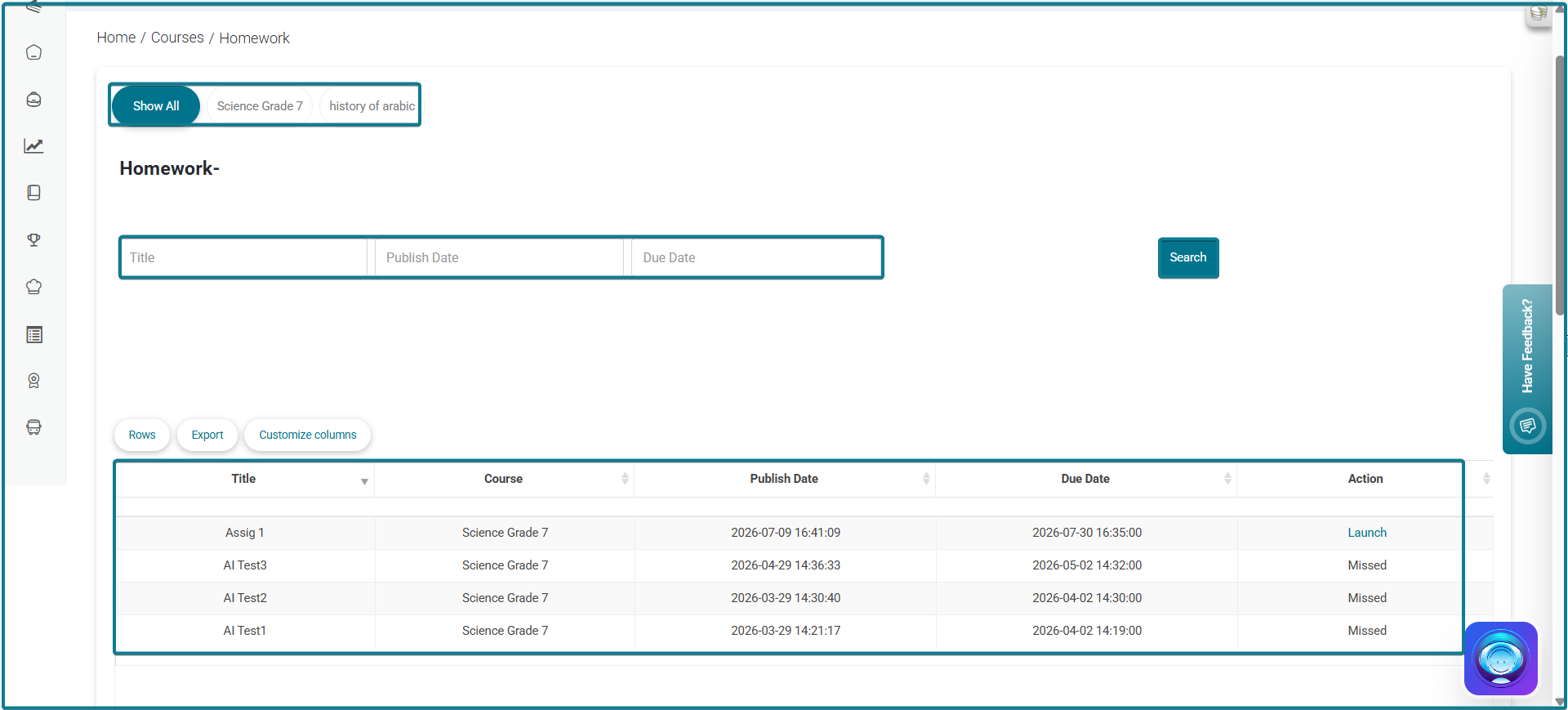
3. Full Homework Repository Page (Home / Courses / Homework) #
- Displays all active and historical homework deliverables in a structured table.
- Features course filter pills, search input fields (Title, Publish Date, Due Date), table export options, and action tags (Launch / Missed).
Tab 3: Virtual Class #
The Virtual Class tab keeps students connected to live online sessions and virtual classroom meetings.
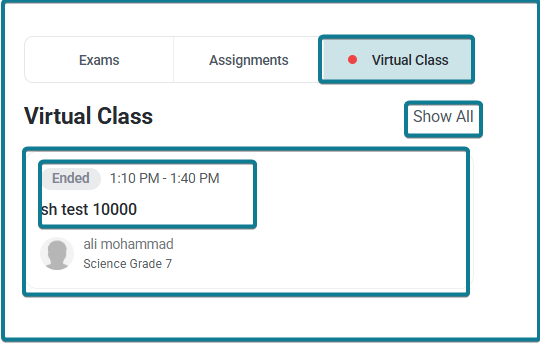
1. Navigation & View #
- Show All Link: Opens the full virtual classroom schedule repository.
- Empty State: When no live sessions are scheduled for the current day, a green clipboard icon appears with the message “No Virtual Classes – No virtual classroom sessions available for today.”.
- Scheduled Sessions: When active sessions are scheduled, the widget displays the session title, subject, scheduled start time, and a Join button to launch the live meeting.


