English
  Arabic
  French
 My Teaching Hub (also referred to as My Learning Hub) serves as the central workspace for teachers to manage course content, units, and individual lessons. It integrates AI tools and quick action triggers directly at both the course header level and the lesson level to streamline lesson preparation, exam creation, assignments, and resource uploads.
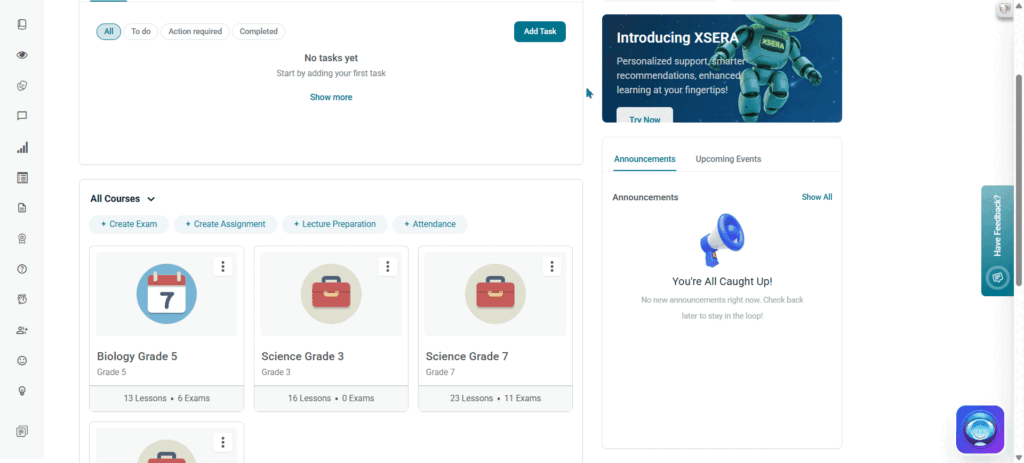
Accessing My Teaching Hub #
- From the Teacher Homepage, navigate to the All Courses widget.
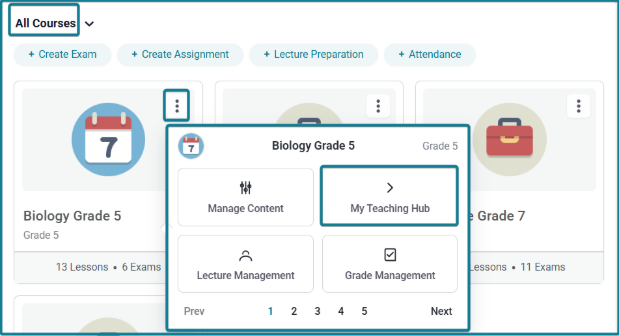
- Click the Three Dots Icon (⋮) on your target course card (e.g., Biology Grade 5).
- Click My Teaching Hub from the pop-up menu options.
- The system opens the My Learning Hub workspace page for that subject.
1. Course Banner Actions #
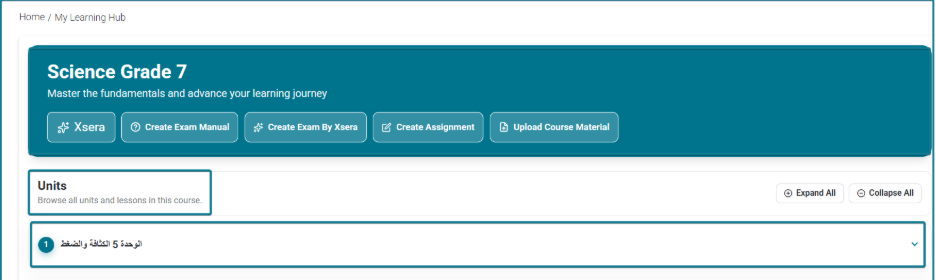
The top header banner prominently displays the Course Name (e.g., Biology Grade 5) alongside subject details and persistent quick action buttons. To perform course-wide actions from the banner:
- Interact with AI Assistant (Xsera):
- Click Xsera.
- The X-SERA AI Assistant side drawer opens on the right.
- Type your prompt or click the Microphone Icon to submit a voice command to ask questions, draft materials, or request teaching ideas.
- Create an Exam Manually:
- Click Create Exam Manual.
- Build your assessment items step-by-step on the manual exam setup page.
- Auto-Generate an Exam with AI:
- Click Create Exam By Xsera.
- On the Auto Generate Exam page, select your Subject, Topic, Area, and Criteria.
- Choose your preferred resources (e.g., Question Banks, Books, or Videos).
- Click Generate.
- Create an Assignment:
- Click Create Assignment.
- Fill out the assignment form by setting the publishing date, due date, grade category, and target student sections.
- Click Create.
- Upload Course Materials:
- Click Upload Course Material.
- Fill out the material details, attach your files, e-books, or AI resources, and set student sharing permissions.
- Click Upload.
2. Units & Lessons Breakdown #
The main workspace lists all structured course units and lessons with expandable accordions:
- Expand All / Collapse All: Buttons at the top right to expand or close all unit accordions simultaneously.
- Unit Accordions: Displays unit numbers and titles (e.g., Unit 1 Food Chains). Click a unit header to reveal its nested lessons.
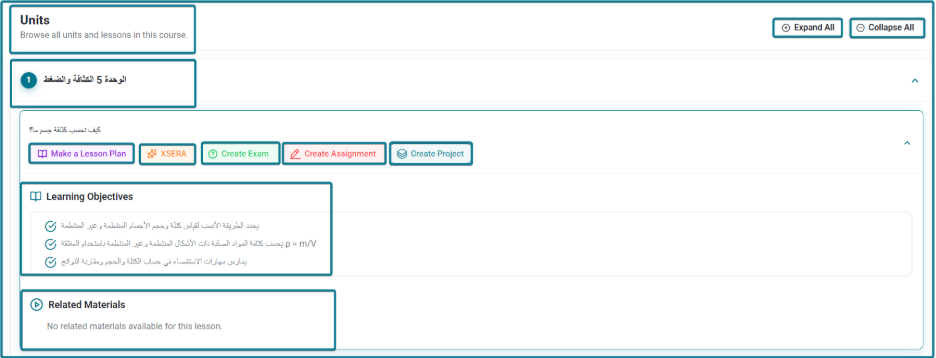
3. Lesson-Level Actions (Unit Breakdown) #
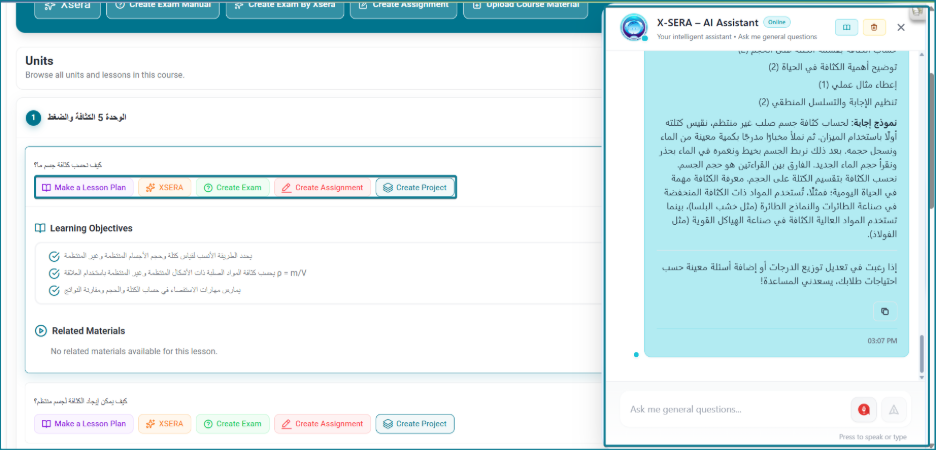
When expanding any lesson row inside a unit accordion, the system clearly showcases the Lesson Objectives and Related Materials, alongside five direct action triggers:
- Generate an AI Lesson Plan:
- Expand the target unit and locate your lesson.
- Click Make a Lesson Plan.
- The XSERA AI Assistant side drawer opens automatically and generates a tailored lesson plan based on that lesson’s topic and learning objectives.
- Consult AI for Lesson Context:
- Click XSERA next to the specific lesson.
- The XSERA AI Assistant side drawer opens automatically and generates a tailored questions pre-loaded with that lesson’s context.
- Create a Lesson-Specific Exam:
- Click Create Exam on the lesson row.
- The XSERA AI Assistant side drawer opens automatically and generates a tailored assessment linked directly to that lesson.
- Assign a Lesson-Specific Assignment:
- Click Create Assignment on the lesson row.
- The XSERA AI Assistant side drawer opens automatically and generates a tailored assignment form tied directly to the selected lesson’s parameters.
- Create a Lesson Project:
- Click Create Project on the lesson row.
- The XSERA AI Assistant side drawer opens automatically and generates a tailored a project task aligned directly with the lesson’s learning outcomes.