English
  Arabic
  French
 The Manage Content workspace allows teachers to create and manage lesson preparations using manual inputs or automated AI generation via Xsera, while also organizing course timelines through structured semester plans.
Accessing Manage Content #
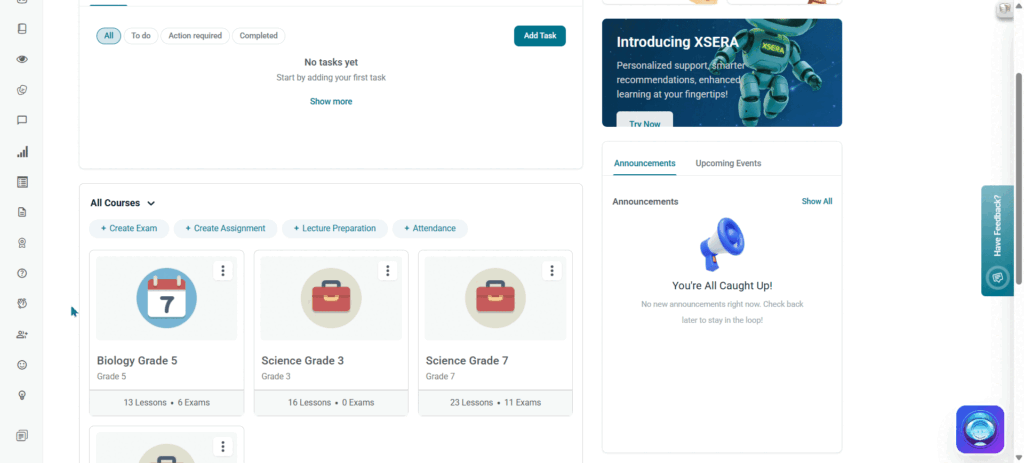
- From the Teacher Homepage, locate the All Courses panel.
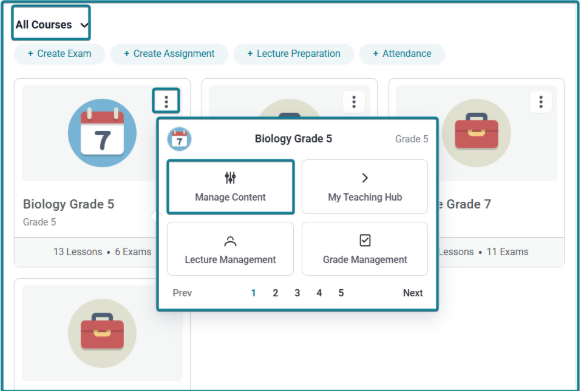
- Click the Three Dots Icon (⋮) on your target course card (e.g., Biology Grade 5 or Science Grade 7).
- Select Manage Content from the pop-up menu.
1. Lesson Preparation Management #
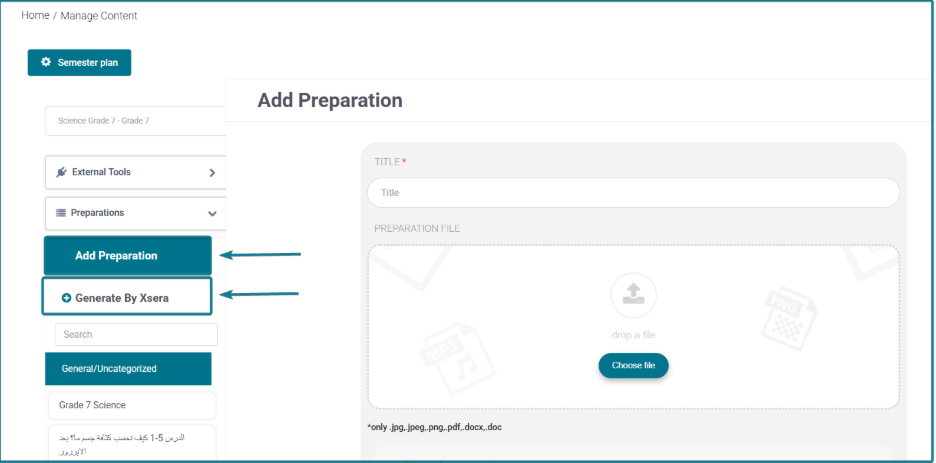
Within the left-hand navigation pane under Preparations, teachers can choose between adding preparations manually or leveraging AI automation.
Option A: Manual Preparation #
- Click + Add Preparation to manually fill out lesson details, title, preparation files, outcomes, warm-up activities, vocabulary, strategies, and teaching aids.
Option B: Generate Preparation by Xsera (AI Automation) #
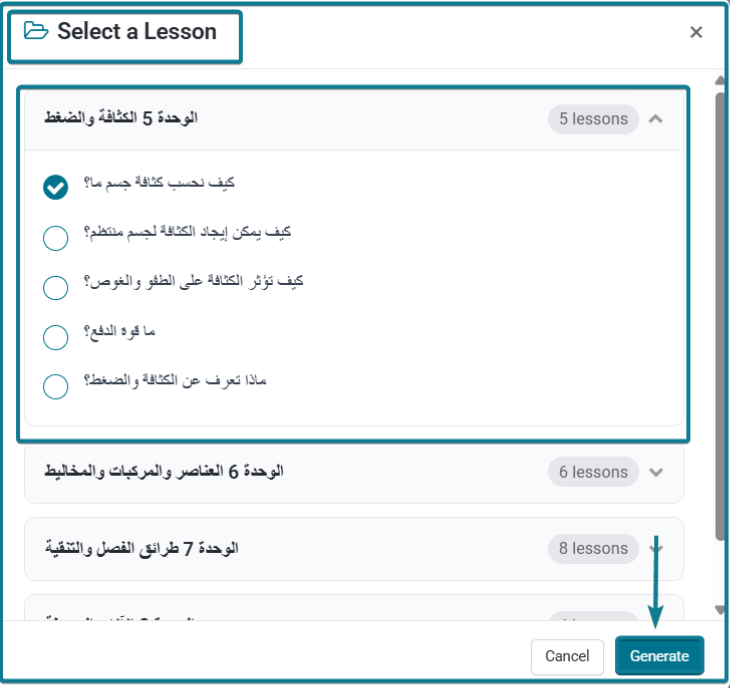
- Click + Generate By Xsera in the left menu.
- A Select a Lesson modal window appears displaying course unit accordions.
- Expand a unit and select your target lesson radio button.
- Click Generate.
- Automated AI Populating: Xsera automatically generates and populates all preparation fields, including:
- Title
- Outcomes
- Warm-up Activity (Actions and Assessment)
- Lesson Vocabulary
- Strategies
- Thinking Skills
- Teaching Aids
- Comments for the weekly study plan
- Teacher Customization: All AI-generated fields remain fully editable, allowing teachers to modify any generated text or output.
- Manual Requirement: The only field required to be entered manually by the teacher is the Publishing Date (under Publishing Settings).
- Click Save to finalize and publish the preparation.
2. Semester Plan Integration #
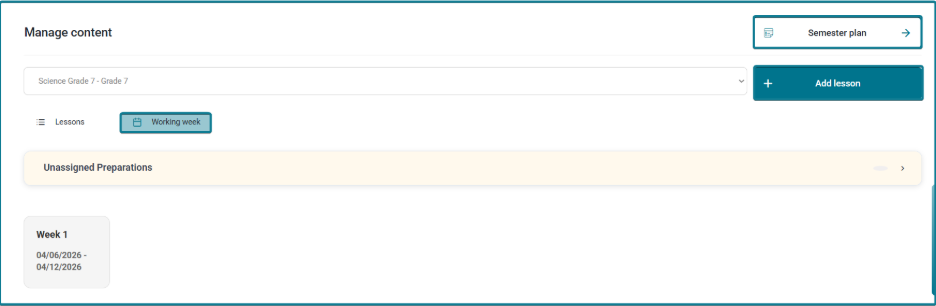
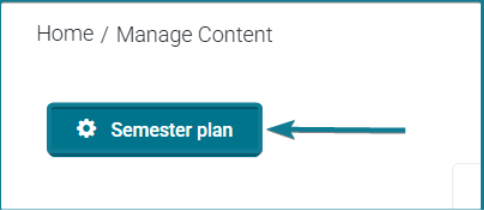
At the top of the Manage Content page, teachers can access the Semester Plan module to structure weekly lesson distributions.
Managing the Semester Plan #
- Click the Semester Plan button at the top header of the page.
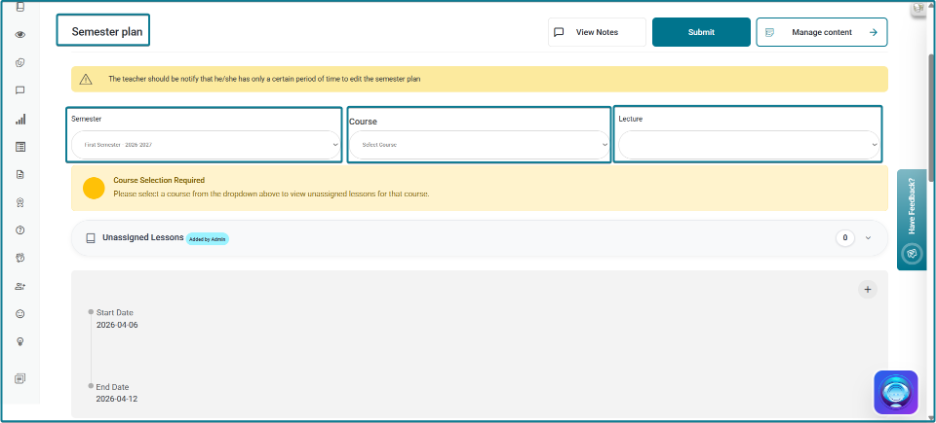
- Weekly Distribution View: The system displays working weeks (e.g., Week 1, Week 2, Week 3, fourth) with their corresponding date ranges.
- Unassigned Preparations / Lessons: Displays preparations or lessons created by the teacher or school admin that have not yet been mapped to a specific calendar week.
- Mapping Lessons to Weeks: Select a course and lecture from the dropdown filters (Semester, Course, Lecture) to view unassigned items, then assign them to target timeline blocks.
- Editing Timelines: Teachers can add lessons (+ Add lesson) or organize content across scheduled working weeks.
- Submitting Plans: Once structured, click Submit at the top right to save the semester distribution.