Skip to content
| User Manuals
| User Manuals

en_US English
en_US English ar Arabic fr_FR French

| User Manuals
| User Manuals
Popular Search reportreport cardBehaviorالمالت

Teacher Account

  • Logging in to the Platform 
  • Professional Development Hub
    • Intel’s Skills for Innovation
  • Motivation
    • The New Way of Learning
    • C-Inspire
    • My Score
  • Important Links
    • Important Links 
  • Home Page
    • Homepage
    • Personal Menu
    • PUBLIC PROFILE 
    • Edit Profile
    • Chat
    • Clubs Courses
  • Show all courses
    • COURSES
      • Charts and Behavior Analysis
      • Tab 1
        • Excel Sheet Grades Import
        • Manage Students Groups
        • Managing Content
        • Lecture Management
        • Grade Management edit –
        • Students List
        • Students’ Report Summary
      • Tab 2
        • Course Materials
        • Video Lectures
      • Tab 3
        • In-Class Activity
        • Assignments, Exams
        • Assignment Actions
        • Assignment Sections
        • Assignment Questions
        • Exams
        • Exam Styles
        • Exam Sections
        • Assignment settings
        • Exam Settings
        • Exam Settings | More options
      • Tab 4
        • Digital Libraries
        • Weekly Study Plan
        • Semester Plan
        • Course Preparations
      • Tab 5
        • Management of Timetable 
  • Books
    • Books
  • Activities
    • Summer Clubs
    • Contests
  • Classroom Attention Indicator
    • Classroom Attention Indicator –
  • Training Courses
    • Adding Trainees
  • Mailbox
    • Sent Messages
    • Draft Messages
    • Archived Messages
    • Compose
    • Trash
  • Appointments
    • Appointment Scheduling
    • Reserve Appointment
    • Appointments 
  • Grade Management
    • Grade Management
  • Discussions
    • Discussion Rooms
    • Discussion Rooms Main Page
    • Adding New Discussion Rooms
    • Adding New Posts
    • Comments Management
  • Central Exam Report
    • Central Exam Report
  • Questions Banks
    • Add Questions from Q-Banks
    • Exam Questions
    • Add Bulk Questions
  • My Schedule
    • Schedule
    • Exams Schedule
    • Calendar
      • Calendar
      • Editing Events
      • Adding Events
  • Virtual Classes
    • Virtual Classrooms
    • MS Teams Classroom
      • Adding Virtual Classrooms Using MS Teams
      • Using MS Teams Web Application
      • Joining the Classroom
      • MS Teams Classroom Main Screen
      • Manage Permissions
      • Classroom Participants
      • Classroom Conversation
      • Share Screen
      • More Actions
      • Meeting Info
    • Zoom Classrooms
      • Zoom Classroom Main Screen
      • Adding New Zoom Meeting Rooms
  • teacher Library
    • PUBLIC LIBRARY
    • VIRTUAL LABS 
    • My Files
  • Absence Report
    • Absence Report
  • E-Portfolios
    • E-Portfolios
    • Adding E-Portfolios
    • Editing E-Portfolios
    • Viewing EPortfolios
    • Reviewing Students E-Portfolios
    • Previewing Your Public Portfolios
  • Certificates | Letters
    • Issued Certificates | Letters
    • Certificates | Letters
    • My Certificates
    • Sign Multiple Certificates
    • My Letters
    • Issue Certificates
  • Parents student's requests
    • Parents students requests
  • Contents Reports
    • Contents Reports
  • Education Partners
    • Education Partners
  • My Behaviors
    • My Behaviors
  • Evaluation Tools
    • Forms
    • Evaluations | Surveys
  • Share Your Ideas
    • Share Your Ideas
  • Intel’s Skills for Innovation
    • Intel’s Skills for Innovation

Parent account

  • Logging in to the Platform
  • C-Inspire Awards
    •  C-Inspire Awards
  • Important Links
    • Important Links –
  • Homepage
    • Student Accounts
    • Edit Profile
    • Personal Menu
    • Personal Profile
    • Homepage
  • Student Contracts
    • Student Contracts
  • Call Student
    • Call Student
  • Mailbox
    • Trash
    • Archived Messages
    • Compose
    • Sent Messages
  • Appointments
    • Reserve Appointment 
    • Appointments 
  • Public Library
    • Custom Library
    • My Files
    • All
  • C-Pay
    • CPay for Online Payments (KSA)
    • CPay for Online Payments (Egypt)
  • Personal Drivers
    • Personal Driver 
    • Link Drivers With Students
    • Students Drivers List
  • Share Your Ideas
    • Share Your Ideas
  • Canteens
    • Delivered Orders
    • Canteens
  • Events
    • Events
  • Contests & Activities
    • Contests & Activities
  • Virtual Meetings
    • Virtual Meetings
  • Training Courses
    • Training Courses
  • School Clinic
    • Medical Records
    • Clinic Transfer Requests/ Diagnosis
  • Education Partners
    • Education Partners
  • Bus Trips 
    • Bus Trips 
  • Evaluations | Surveys
    • Forms
    • Evaluations | Surveys
  • Admission Exams Schedules
    • Admission Exams Schedules

Student account

  • Logging in to the Platform
  •  Awards and Scores
    • The New Way of Learning
    • C-Inspire
    • My Score
    • My Awards
  • Important Links
    • Important Links
  • Home Page
    • Homepage
    • Personal Menu
    • Personal Profile
    • Edit Profile
    • Chat
  • Courses
    • Clubs Courses
    • Courses—
    • Course Materials
    • Video Lectures
    • Discussion Rooms
    • Online Assignments 
    • Exams
    • Training Courses 
  • Previous Course Contents
    • Previous Course Contents
  • Book
    • books
  • My Schedule
    • Elective Subject
    • Schedule Journal
    • Schedule
    • Weekly Study Plan
    • Exam Schedule 
    • Calendar
      • Calendar
      • Adding Events
      • Editing Events
  • Digital Library
    • Digital Library 
    • Courses Library
    • Public Library
    • Custom Libraries
    • Virtual Labs 
    • My files
  • Evaluation Tools
    • Evaluation
    • form
  • Virtual Classes
    • Virtual Classrooms
    • MS Teams Classroom
      • Background Effects
      • Joining Classrooms Using MS Teams Desktop Application
      • Joining Classrooms Using MS Teams Web Application
      • Viewing Old Smart Classrooms (Recorded)
      • MS Teams Classroom Main Screen
      • MS Teams Classroom Main Screen
      • Choosing Your Video and Audio Options
      • Classroom Participants
      • Share Screen
      • Background Effects
      • Meeting Info
      • Classroom Conversation
      • More Actions
      • Meeting Notes
    • Zoom Meeting
      • Joining Zoom Virtual Classrooms
      • Joining Classrooms Using Zoom Application
      • Zoom Classroom Main Screen
  • Education Partners
    • Education Partners
  • Contests
    • Contests
  • canteens
    • School Canteen/Restaurant 
  • Mailbox
    • Draft Messages
    • Mailbox
    • Compose
    • Inbox
    • Sent Messages
    • Archived Messages
    • Trash
  • Attendance
    • Daily Lateness
    • Course Absences
    • Daily Absences
    • Course Absences Summary
    • Course Lateness
    • Absences Summary
  • Certificates | Letters
    • Certificates | Letters
  • My Profile
    • E-Portfolios
    • Adding E-Portfolios
    • Editing E-Portfolios
    • Viewing E-Portfolios
    • Previewing Your Public Portfolios
  • Bus Trips
    • Bus Trips
  • Other Services
    • Share Your Ideas 
  • Canteens
    •  Canteens
  • Contents Reports
    • Contents Reports

School Accountant

  • Add Expiry Date to a Financial Claim
  • Claims Report
  • Logging in to the Platform 
  • CPay Installment Plans Facility
  • CPay Finance Requests

Teacher Supervisor Account

  • Logging in to the Platform
  • Homepage
    • Homepage
    • Personal Menu
    • Edit profile
    • PUBLIC PROFILE 
  • Contents Reports
    • Contents Reports
  • Appointments
    • Reserve Appointment
    • Appointments 
  • Behaviors Report
    • Behaviors Report
  • Calendar
    • Calendar
    • Editing Events
    • Adding Events
  • Certificates | Letters
    • Issue Certificates
    • Certificates | Letters
    • My Letters
    • My Certificates
    • Issued Certificates | Letters
  • Class Visits
    • Copy from Template
    • Adding New Class Visits
    • Class Visits
  • Contests
    • Contests
  • Education Partners
    • Education Partners
  • EPortfolios
    • Previewing Your Public Portfolios
    • Viewing EPortfolios
    • Editing EPortfolios
    • Adding E-Portfolios
    • EPortfolios
  • Evaluations | Surveys
    • Forms
    • Evaluation | Surveys
  • Grade Management
    • Insertions Report
    • Combined Reports
    • Analysis
    • Grade Management
  • Mailbox
    • Compose
    • Trash
    • Archived Messages
    • Mailbox
    • Sent Messages
  • Management Reports
    • Management Reports
  • Public Library
    • Public Library/Digital Content
  • Questions Banks
    • Questions Banks
  • Share Your Ideas
    • Share Your Ideas
  • SMS
    • SMS
  • Teachers list
    • Exams/Homework Without Questions
    • Teachers’ List
  • Training Courses
    • Training Courses
  • Virtual Classrooms
    • Adding Users to Meetings
    • Joining Zoom Virtual Meeting Rooms
    • Adding New Zoom Meeting Rooms
    • Zoom Meeting Room Main Screen
    • Virtual Meetings
    • Upcoming Smart Classes
    • MS Teams Meeting Room Main Screen
    • Joining MS Teams Meeting Rooms
    • Adding Virtual Meetings Using MS Teams
    • All Smart Classes
    • Recorded Smart Classes
    • Virtual Classrooms
  • Weekly Plan
    • Weekly Plan
  • C-Inspire Awards
    • C-Inspire Awards
  • chat
    • Chat
  • Question Banks
    • Question Banks
  • Teachers' Statistics
    • Teachers’ Statistics
  • Teachers' Attendance Report
    • Teachers’ Attendance Report
  • Central Exams Comprehensive Report
    • Central Exams Comprehensive Report

Administrator Account

  • LOGGING IN TO platform
  • Dashboard/Realtime Overview
    • Teachers Attendance Report
    • Teachers’ Preparations Report
    • Students’ Scores
    • Most Active Teachers in the Group
    • Online Users
    • Dashboard/Realtime Overview
  • C-Inspire Awards
    •  C-Inspire Awards
  • important links
    • IMPORTANT LINKS 
  • Homepage
    • Edit Profile
    • Personal Menu
    • Homepage
    • Public Profile 
  • Support / Request
    • Transfer All School Guardians
    • Activation Ticket Resolution Report
    • Transfer Student
    • Fix Score
    • User Information
    • Guardian Transfer
    • New Feature Requests
    • Contents Reports
    • LMS Support
    • Activation Ticket Resolution 
    • Internal Support
    • FAQs
  • Users
    • Manage Badge
    • Enhancements to User Management Filters
    • Users / Students
    • Student’s /Adding
    • Students Without Sections
    • Excel Import- Bulk Students
    • Update Student’s Status
    • Student / Action
    • More Actions
    • Guardians
    • Teachers
    • Teacher’s Statistics
    • Supervisors
    • Management
    • Management / Option
    • Kagan Coaches
  • Weekly Plan
    • Weekly Plan /Dynamic weekly
    • weekly plan / Static
  • Courses Management
    • Questions Banks
    • Schedule Journal
    • Courses Management
    • Courses
    • Adding Courses
    • Course Templates
    • Trees
    • Areas
    • Areas – Adding Criteria
    • Exams Schedule
    • Exams Mark Comparison
    • Full Schedule
    • lectures
      • Lectures/ Schedules 
      • Lectures – Students List
      • Adding Lectures
      • Lectures/Manage Halls and Manage Medals 
      • Alternative Teacher
      • Lectures
      • Managing Timeslots
      • Adding Bulk Lectures
  • Settings
    • Enable PDF Conversion
    • Closure Management
    • Approval Flows
    • System Settings
    • Settings /part one
    • System Settings – part Two
    • System Settings / part three
    • System Settings—Part Four
    • Stages
    • Years
    • Years/Adding a Semester Plan
    • Years – Copy to Semester
    • Review Students E-Portfolios
    • E-Portfolios
  • Registration
    • Registration Settings
    • Registration Forms
  • Behaviors & Advising
    • Behaviors Report
    • Behavior Degree
    • Advising Programs
    • Behavior Actions
    • Behavior Groups
    • Behaviors
  • Calendar
    • Adding Tasks to Calendar
    • Editing Events
    • Adding Events
    • Calendar
  • Mailbox
    • Archived Messages
    • Inbox
    • Trash
    • Sent Messages
    • Compose
  • Appointments
    • Reserve Appointment
    • Appointments 
  • Announcements
    • Announcements
  • Report
    • Training Courses Report
    • EduMall Products Report
    • EduMall Purchases Report
    • Custom Reports
    • Reports
    • Management Reports
    • Admissions Request Report
    • C-Inspire Reports
    • Redemption Statistics
    • Schools: C-Inspire Report
    • Students Badge Report
    • Medals Report
    • Files Log
    • School Group Absences
    • Full Day Absences Detailed Report
    • Lectures Absences Detailed Report
    • Export User Accounts
    • Activity Log
    • Messages Log
    • Score Drop
    • Staff Behavior Report
    • VCR Activation Report
    • Modules Activation Report
    • Financial Claims Report
    • Students Accounts Log
  • Grade Management
    • Mark Scheme Analysis
    • Lectures/ Schedules 
    • Grade Report Comparison 
    • Equations
    • Central Exam Report
    • More Action
    • Show student grade
    • Report card / Action
    • Grade Management
  • Training Courses
    • Courses Status
    • Training Courses Schedule
    • Training Courses
    • School Locations
    • Training Courses Definition
    • My Training Courses
  • SMS
    • Send SMS from Excel
    • SMS Templates
    • Sending SMS
    • SMS
  • Certificates | Letters
    • Certificates | Letters
  • Forms and Assessments
    • Forms and Assessments
    • Forms
    • Evaluations
    • Assessments
  • Virtual Classrooms
    • Manage Users
    • Adding Virtual Meetings Using MS Teams
    • Adding New Zoom Meeting Rooms
    • Virtual Classrooms
  • Education Partners
    • Education Partners
  • Education Partners Setup
    • Customize Schools Education Partners
    • Education Partners Setup
  • Activities
    • contests
    • Summer Clubs
  • Students requests settings
    • Requests log
    • Active requests
    • Students requests settings
  • School Clinics
    • School Clinic
    • Medical Records
    • Clinics Officers
    • Clinics
    • Diseases
    • Diagnoses List
    • Medication
    • Inoculations
  • Canteens
    • Creating Canteens
    • Assign Users /Restaurant Report  
  • SHARE YOUR IDEAS
    • Share Your Ideas
  • Bus Tracking 
    • Export Bus Cards
    • Bus Supervisors
    • Trips
    • Bus Tracking 
  • Public library
    • Custom Libraries

Manager Account

  • Logging in To platform
  • C-Inspire Awards
    • C-Inspire Awards 
  • Important Links
    • Important Links 
  • Homepage
    • Homepage
    • Personal Menu
    • Personal Profile
    • Edit Profile
    • Realtime Overview
    • Students’ Scores
    • Teachers’ Attendance Report
    • Teachers’ Preparations Report
  • Students
    • Daily Lateness
    • Daily Absences
    • Students’ Numbers Report
    • Registration Approval
    • Absences and Behaviors Reports
    • Students
  • Teachers
    • Daily Absences
    • Conditional Course Absences Summary
    • Course Absences Summary
    • Course Absences
    • Lectures Absences
    • School Schedule
    • Teachers Timeslots
    • Workload Report
    • Teachers
  • Guardians
    • Parents/Guardians
  • Messages Log
    • Messages Log
  • Class Visits
    • Class Visits
    • Adding New Class Visits
    • Copy from Template
  • Advising Programs
    • Advising Programs
  • Absences
    • Full Day Absences Detailed Report
    • Lectures Absences Detailed Report
  • Announcements
    • Announcement
    • Add Announcements
  • Stages
    • Stages
  • Report Cards
    • Report Cards
  • Mailbox
    • Archived Messages
    • Trash
    • Sent Messages
    • Mailbox –
    • Inbox –
    • Compose
    • Draft Messages
  • Calendar
    • Select Calendar Owner
    • Adding Tasks to Calendar
    • Editing Events
    • Adding Events
    • Calendar
  • Appointments
    • Reserve Appointment
    • My Appointments
  • SMS
    • Recharge Balance
    • Send SMS from Excel
    • Send SMS
    • SMS Report
  • Management Reports
    • Management Reports
  • VCR Activation Report
    • VCR Activation Report
  • My Schedule
    • Weekly Plan
    • Exams Schedule
  • Public Library
    • My Files
    • Custom Libraries
    • Public Library (All)
  • Evaluations | Surveys
    • Evaluation stages report
    • Adding Surveys
    • Evaluations and Surveys
  • Forms
    • Forms
  • Certificates | Letters
    • Create New Templates
    • Manage Layouts
    • Create New Layout
    • My Signature
    • My Letters
    • My Certificates
    • Manage Templates
    • Issue Certificates | Letters
    • Certificates | Letters
  • E-portfolios 
    • Adding E-Portfolios
    • E-portfolios 
  • Virtual Classrooms
    • Virtual Meetings
      • Virtual Meetings
      • Virtual Meetings
        • MS Teams
          • MS Teams Meeting Room Main Screen
          • Joining MS Teams Meeting Rooms
          • Adding Virtual Meetings Using MS Teams
        • Zoom Meeting
          • Zoom Meeting Room Main Screen
          • Adding New Zoom Meeting Rooms
          • Joining Zoom Virtual Meeting Room
  • School Clinic
    • Medical Records
    • Clinic Transfer Requests
    • School Clinic
  • Contents Reports
    • Contents Reports
  • Education Partners
    • Education Partners
  • Contests
    • Contests
  • School Clubs
    • School Clubs
  • parents students requests
    • Parents student’s requests
  • Behavior Degree
    • Behavior Degree
  • Staff Behaviors
    • Staff Behaviors
  • staff Behavior report
    • Staff Behavior Report
  • Human Resources
    • Human Resources
  • School Invoices
    • School Invoices
  • Share Your Ideas
    • Share Your Ideas
  • Behaviors Report
    • Behaviors Report
  • Statistics
    • Communication Statistics
  • Activation Reports
    • Activation Reports
  • Stats
    • General Statistics
    • Stats
    • Statistics with Interaction
  • Training Courses
    • Training Courses
  • Accr. Evidences pool
    • Accr. Evidence Pool
  • Full Schedule
    • Full Schedule
  • My Approvals
    • Approval Review
    • My Approvals

Adviser Account

  • Logging in to the Platform 
  • Main Menu
    • Main screen
    • Edit profile
    • Personal Profile
  • HOME
    • Preview your public portfolios
    • EPortfolios
    • Chat
  • C-Inspire Awards
    • C-Inspire
  • Important Links
    • Important Links
  • Students List
    • Conditional Courses Absences
    • VCR Activation Report
    • Behaviors Report
    • Student Affairs Summary
    • Full day Absences Detailed Report
    • Student list
    • Course Absences Summary
    • Absences Summary
    • Course Absences
    • Daily Absences
    • Students List
  • Parents List
    • Parents List
  • Calendar
    • Edit Event
    • Adding Event
    • Calendar
  • Advising Programs
    • Advising Programs
  • Full Schedule
    • Full Schedule
  • Schedule Journal Requests
    • Schedule Journal Requests
  • Mailbox
    • Inbox
    • Draft Messages
    • compose
    • Trash
    •  Sent Messages
  • Appointments
    • Appointments 
    • Reserve Appointment
  • Send SMS
    • Send SMS from Excel
    • SMS Report
    • Send SMS
  • Announcements
    • Add Announcements
    • Announcements
  • Public Library
    • Public Library (All)
    • Custom Libraries
  • Training Courses
    • Training Courses
  • Certificates | Letters
    • Issue Certificates
    • My Letters
    • My Certificates
    • Certificates | Letters
  • School Clinic
    • Medical Records
    • Diagnosis
    • Clinic Transfer Requests
    • School Clinic
  • Virtual Meetings
    • Virtual meetings control
    • Add new Zoom meeting room
    • Select virtual meeting vendor
    • Virtual Meetings
  • Virtual Classrooms
    • Add users to the meeting
    • Manage users
    • Teams vendor
    • Choose vendor
    • Add new Teams meeting room
    • Zoom vendor
  • Management Reports
    • Management Reports
  • Contents Reports
    • Contents Reports
  • Education Partners
    • Education Partners
  • Evaluations | Surveys
    • Evaluations | Surveys
  • Forms
    • Forms
  • Contests
    • Contests
  • Summer CLUBS
    • School Clubs
  • Parents student's requests
    • Parents students requests
  • Behavior Degree
    • Behavior Degree
  • Human Resources
    • Human Resources
  • Share Your Ideas
    • Share Your Ideas

Activity Officer

  • Logging in to the Platform 
  • Announcements
    • Announcements
  • Appointments
    • Appointments
  • C-Inspire Awards
    • C-Inspire Awards
  • Calendar
    • Select Calendar Owner
    • Adding Tasks to Calendar
    • Add Events
    • Calendar
  • Contests & Activities
    • Contests & Activities
  • Discussions
    • Discussions
  • Full Schedule
    • Full Schedule
  • Human Resources
    • Human Resources
  • Important Links
    • Important Links
  • Mailbox
    •  Sent Messages
    • Inbox Options:
    • Trash
    • Archived Messages
    • Draft Messages
    • Compose
    • Mailbox
  • My Card
    • My Card
  • Public Library
    • Public Library (All)
  • Share Your Ideas
    • Share Your Ideas
  • SMS
    • SMS Report
    • Send SMS
  • Students List
    • Students List
  • Summer Clubs
    • Summer Clubs
  • Virtual Meetings
    • Adding a New Zoom Meeting Room
    • Adding MS Teams Virtual Meeting
    • Virtual Meetings

floor supervisor

  • Logging in to the Platform 
  • Absences
    • Teachers Attendance Report
    • Full Day Absences Detailed Report
  • C-Inspire Awards
    •  C-Inspire Awards
  • Google Drive
    • Google Drive
  • Important Links
    • Important Links
  • Public Library
    • Public Library
  • Students List
    • Students List
  • Training Courses
    • Training Courses
  • Announcements
    • Announcements
  • Send SMS
    • SMS Report
    • Send SMS
  • Evaluations | Surveys
    • Evaluations | Surveys
  • Mailbox
    • Inbox
    • Trash
    • Sent Messages
    • Archived Messages
    • Draft Messages
    • Compose
    • Mailbox
  • My Card
    • My Card
  • My Schedule
    • My Schedule
  • School Clinic
    • School Clinic
  • Share Your Ideas
    • Share Your Ideas
  • Virtual Classrooms
    • Virtual Classrooms
  • Virtual Meetings
    • Virtual Meetings
  • Contests
    • Contests
  • Education Partners
    • Education Partners
  • Human Resources
    • Human Resources
  • Students requests
    • Students requests

Exam supervisor

  • Logging in to the Platform 
  • Central Exams
    • Central Exams
  • Education Partners
    •  Education Partners
  • Mailbox
    • Compose
    • Inbox
    • Trash
    • Sent Messages
    • Archived Messages
    • Draft Messages
    • Mailbox
  • Questions Banks
    • Questions Banks
  • Share Your Ideas
    • Share Your Ideas

Bus Supervisor

  • Logging in to the Platform 
  • Home
    • Home
  • Important Links
    • Important Links
  • Mailbox
    • Inbox
    • Trash
    • Sent Messages
    • Archived Messages
    • Draft Messages
    • Mailbox
    • Compose
  • Share Your Ideas
    • Share Your Ideas
  • Trips
    • Today Trips
    • Trips

Canteen Officer

  • Logging in to the Platform 
  • Canteen Settings
    • Canteen Settings
  • Mailbox
    •  Sent Messages
    • Compose
    • Inbox
    • Trash
    • Archived Messages
    • Draft Messages
    • Mailbox
  • Purchase at Canteen
    • Orders
    • Purchase at Canteen
  • Appointments
    • Reserve Appointment
    • Appointments
  • Share Your Ideas
    • Share Your Ideas

Clinic Officer

  • Update Chronic Diseases
  • Logging in to the Platform 
  • Important Links
    • Important Links
  • Home
    • Home
  • Diagnosis
    • Diagnosis Types List
    • Emergency cases
    • Diagnosis
  • Diseases and Medications
    • Inoculations
    • Medications
    • Diseases
  • Appointments
    • Reserve Appointments
    • Appointments
  • Mailbox
    • Compose
    • Inbox
    • Trash
    • Sent Messages
    • Archived Messages
    • Draft Messages
    • Mailbox
  • Medical Records
    • Medical Records
  • Share Your Ideas
    • Share Your Ideas
  • SMS Report
    • SMS Report
  • Students
    • Creating a New Medical Record
    • Students
  • Purchase Report
    • Purchase Report

Control Admin

  • Logging in to the Platform 
  • Committees Management
    • Committees Summary
    • Committee Management
  • Important Links
    • Important Links
  • Mailbox
    • Compose
    • Inbox
    • Trash
    • Archived Messages
    • Draft Messages
    • Sent Messages
    • Mailbox

admission Account

  • Students ePortfolios
  • Logging in to the Platform 
  • Registration Approval
    • Registration Approval
  • Admissions Request Reports
    • Admissions Request Reports
  • Students List
    • Students List
  • Student Contracts
    • Student Contracts
  • Messages
    • Mailbox
    • Draft Messages
    • Trash
    • Archived Messages
    • Compose
    • Inbox
    • Sent Messages
  • SMS
    • send SMS
    • SMS Report
    • Send SMS from Excel
  • Appointments
    • Reserve Appointment
    • Appointments
  • Admission Exams
    • Admission Exams
  • Registration Events
    • Registration Events
  • Registration
    • Registration Settings / More options
    • Registration Status Change Logs
    • Registration Settings
    • Registration Forms
  • My Card
    • My Card
  • Forms
    • Forms
  • Support / Request
    • Support / Request
  • Human Resources
    • Human Resources
  • Share Your Ideas
    • Share Your Ideas
  • Important Links 
    • Important Links 

system Updates

  • Classera V15 AI Updates 
  • Classera-15 Overview
  • system Updates September 2024
  • Classera Updates | Feb – Apr 2025
    • Various Reports
    • Account Clinic officer
    • Account Admission officer
    • Account Parent / student
    • Account Admin
    • Account Teacher
  • System Update| September 2025
    • Guardian
    • Bus Supervisor
    • Clinic Officer
    • supervisor Account
    • Accountant Account
    • Manger Account
    • Admission Officer
    • Teacher Account
    • Admin Account
  • System Update December -2025
    • Exam Supervisor.
    • Clinic Officer Account.
    • Bus Supervisor Account.
    • Teacher Account.
    • Admission Officer Account.
    • Guardian Account.
    • Accountant Account.
    • Teacher Supervisor Account.
    • Manager Account
    • Floor Supervisor Account
    • Admin Account
  • System Updates | Jan– Mar 2026
    • Admin Account
    • Teacher Account
    • Teacher Supervisor Account
    • Floor Supervisor Account
    • Admission Officer Account

School Owner

  • E-Portfolios
    •  E-portfolios 
  • important links
    • Important Links 
  • Calendar
    • Calendar
  • Homepage
    • chat
    • Edit Profile
    • Public Profile 
    • Personal Menu
  • Support / Request
    • Classera Support
    • New Feature Requests
    • FAQs
  • Mailbox
    • Trash
    • Archived Messages
    • Draft Messages
    •  Sent Messages
    • Compose
  • Users
    • Management
    • Supervisors
    • Guardians
    • Teachers
    • Students
  • SMS
    • SMS Report
    • Send SMS from Excel
    • Send SMS
  • Report
    • EduMall Products Report
    • EduMall Purchases Report
    • VCR Activation Report
    • Files Log
    • Messages Log
    • Activity Log
    • Lectures absences detailed report
    • Absences detailed report
    • Activation Reports (Beta)
    • Management Reports
    • Approvals
      • Approval Request
      • My Approvals
  • Survey and Forms
    • Forms
    • My Evaluation
    • Evaluations
  • Virtual Classrooms
    • All Smart Classes
    • Recorded Smart Classes
    • Upcoming Smart Classes
    • Virtual Meetings
  • Education Partners
    • Education Partners
  • Success Partners
    •  Success Partners
  • Appointment
    • My Appointments
    • Reserve Appointment
View Categories
  • Home
  • Docs
  • Administrator Account
  • Settings
  • System Settings—Part Four

System Settings—Part Four

System Settings–Central Exams #

Main Menu >> Settings >> System Settings >>Central Exams

  • Toggle the switch labeled Show Central exams to teachers and students to enable or disable the visibility of central exams for teachers and students. Setting the toggle to ON will make the exams visible, while setting it to OFF will hide them.
  • Confirm your changes using the provided save functionality or navigation controls, if applicable.
System Settings: User’s Permissions Settings #

Main Menu >> Settings >> System Settings >> Users Permissions Settings

One of the system administrator’s most important tasks is assigning a responsible person or supervisor for the examination and granting the necessary permissions. This screen allows administrators to manage permissions for students and parents, preventing them from updating specific personal information through toggles.

To use this screen effectively, follow these steps:

  1. Toggle the switches under the Students and Parent columns to allow or restrict users from changing specific information. Each field corresponds to a particular category of data, such as Password, Login Name, Profile Picture, Phone Number, Email, and Address.
  2. Switching a toggle to ON enables users to modify the corresponding information, while setting it to OFF restricts changes.
  3. Scroll horizontally if needed to view additional fields or categories.
System Settings: Manage Privileges and Permissions #

Main Menu >> Settings >> System Settings >> Manage Priviages and Permissions

This screen allows users to assign roles, such as Exam Supervisor, to specific schools or categories by selecting them from the list and saving the configuration.
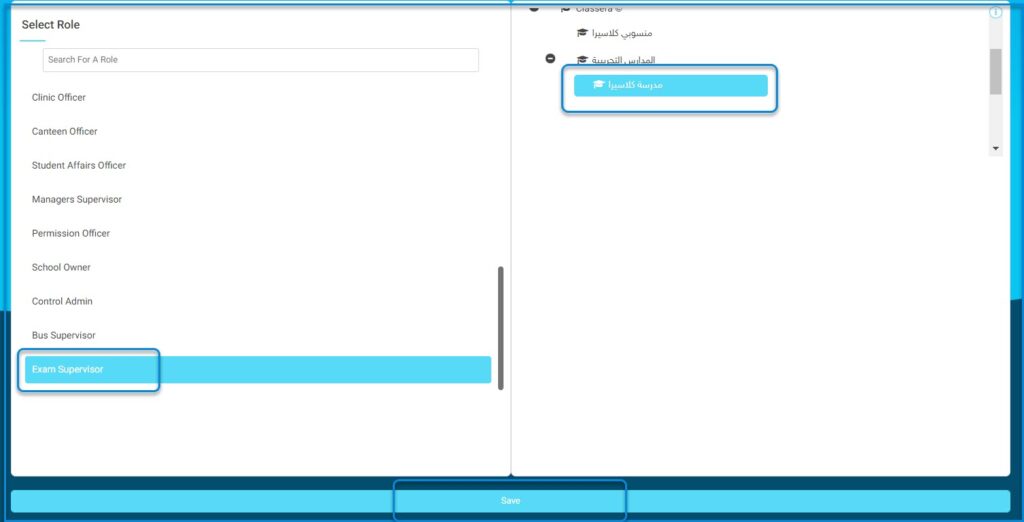
To use this screen effectively, follow these steps:

  1. On the initial screen, toggle the Manage Privileges and Permissions switch to ON to activate privilege and permission management. Once activated, click the Manage Privileges and Permissions button to proceed to the dashboard.
  2. In the Manage Privileges Dashboard, you will see options to select schools, roles, and functions. Start by choosing a school from the Select Schools section by either using the search bar or scrolling through the list. Selecting a school will display its associated roles and functions.
  3. After selecting a school, move to the Select Role section to choose a specific role, such as Teacher, Student, or Accountant. Selecting a role will filter the functions and privileges specific to that role.
  4. In the Main Functions List, choose a function such as Assessments, Assignments, or Behaviors. Selecting a function will display the associated permissions in the Functions List panel on the far right.
  5. In the Functions List, enable or disable specific permissions by checking or unchecking the boxes under Functions Allowed, such as Survey Evaluatees, Edit Evaluation, or Result.
  6. To apply the changes, click the Save button at the bottom of the screen.

Allow Unit Planning for IB #

Main Menu >> Settings >> System Settings >> Allow Unit Planning for IB

This setting screen allows administrators to enable or disable unit planning for IB programs. When enabled, it provides an additional field for entering the IB code to finalize the configuration.

To use this screen effectively, follow these steps:

  1. Toggle the Allow Unit Planning for IB switch to enable or disable unit planning for International Baccalaureate (IB).
  2. When the toggle is set to OFF, the option to allow unit planning for IB is disabled, and no additional fields are displayed.
  3. When the toggle is switched to ON, the feature is enabled, and an additional field labeled IB Code appears. Enter the appropriate IB code in the provided field to complete the setup.
  4. Ensure to save your changes using the provided Save button if applicable.
Tracking Tags #

Main Menu >> Settings >> System Settings >> Tracking Tags

This screen provides administrators with the option to enable or disable the ability for students to link tracking tags through a toggle switch.

To use this screen effectively, follow these steps:

  1. Toggle the Allow Students to Link Tracking Tags switch to enable or disable the functionality. When the toggle is set to OFF, students are not permitted to link tracking tags. Switching it to ON activates the feature, allowing students to link tracking tags.
  2. Ensure to save your changes using the save functionality if applicable

Main Menu >> Settings >> System Settings >> Summer Period

This screen enables administrators to activate or deactivate the summer period settings through a simple toggle switch, providing flexibility in configuring seasonal settings.

To use this screen effectively, follow these steps:

  1. Toggle the Summer Period switch to enable or disable the summer period settings. If the toggle is set to ON, the summer period functionality will be activated, allowing any related configurations to take effect. If the toggle is set to OFF, the summer period settings will be deactivated, and the associated features will not apply.
  2. Ensure that any changes made are saved by clicking the save functionality if available.

Integration with Education Partners Settings #

Main Menu >> Settings >> System Settings >> Integration with Education Partners

This screen allows administrators to manage the synchronization of student data with education partners by enabling or disabling the feature through a toggle switch.

To use this screen effectively, follow these steps:

  1. Toggle the Sync Students Data for Integration with Education Partners switch to enable or disable the synchronization of student data. When the toggle is set to ON, the system will sync student data with education partners, facilitating integration. If the toggle is set to OFF, this synchronization will be disabled, and no data will be shared with education partners.
  2. Ensure any changes made are saved by clicking the save functionality if available.

Allow Payment #

Main Menu >> Settings >> System Settings >> Allow Payment

This screen allows administrators to enable or disable the payment functionality for students and configure specific permissions. By enabling the Allow Payment toggle, administrators grant students access to payment features, such as viewing or interacting with financial data.
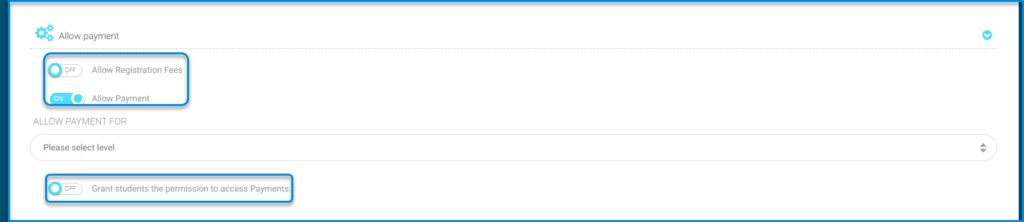
To use this screen effectively, follow these steps:

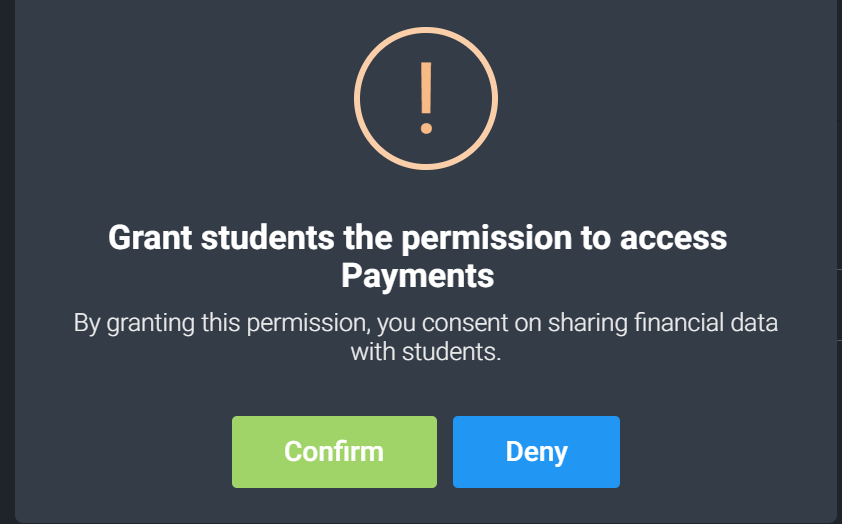
  1. When the Allow Payment toggle is switched to ON, a confirmation message will appear stating “Grant students the permission to access Payments.” The message explains that enabling this feature consents to sharing financial data with students. To proceed, click Confirm, or click Deny to cancel.
  2. To further customize the functionality, use the School group dropdown to specify which group of schools the payment feature applies to.
  3. If the Allow Payment toggle is turned OFF, students will no longer have access to payment-related features, and no confirmation dialog will appear.
  4. Once the settings are configured as required, click the Save button to apply the changes.
Payment Gateway Settings (Optional) #

Main Menu >> Settings >> System Settings >>

This screen is used to configure the Payment Gateway Settings, which is an optional feature that integrates with Moyasar for payment processing. To set up this feature, you need to input the Moyasar API Publishable Key in the designated field.

To use this screen effectively:

  1. If the payment functionality is enabled for students, a confirmation message may appear, reminding you of the implications of sharing financial data with students. Upon enabling this feature, students will have access to payment functionalities as configured by the administrator.
  2. After entering the required key and making any necessary adjustments, click the Save button to apply the changes. Disabling the payment functionality will restrict students from accessing payment-related features.

Add Partners Products Data #

Main Menu >> Settings >> System Settings >> Add Partners Products Data

This screen is used to manage and add data related to partner products. Clicking the Add Partners Products Data button will open a form or interface where you can input details about partner products. Once the data is added, the system may process and integrate it into the platform’s partner product database.

Register Veative School #

Main Menu >> Settings >> System Settings >> Register Veative School

This screen allows you to register a Veative School by entering the required details and submitting them for processing.

To register a school effectively:

  1. Click the Register Veative School button. This will open a dialog box where you can input school details.
  2. Fill in the School Name, Country PIN, Admin First Name, Admin Last Name, Admin Email, School Address, School Phone Number, and select the Curriculum Type from the dropdown menu.
  3. After entering all the required information, click the Submit button to complete the registration process. The information will be saved, and the registration process will proceed.
  4. Ensure that all mandatory fields are filled out to avoid errors during submission. The screen dynamically adjusts based on the curriculum selection to allow tailored registration.
Restrict Login Message #

Main Menu >> Settings >> System Settings >> Restrict Login Message

This screen allows you to edit the Restrict Login Message for a school in both primary and secondary languages.

To use this screen effectively:

  1. Click the Edit Restrict Login Message button to open the edit dialog box.
  2. In the dialog box, you can enter the message to be displayed when login is restricted. Use the Primary Language Restrict Message field for the primary language message and the Secondary Language Restrict Message field for the secondary language message.
  3. After entering the messages, click the Save button to apply the changes or the Close button to cancel.
  4. Changes made here will take effect immediately for the selected school, ensuring the login restriction message is updated accordingly.
Enable Education Partners Settings #

Main Menu >> Settings >> System Settings >> Enable Education Partners Settings

This screen allows managing the Enable Education Partners Settings for ERP partnerships. Each row corresponds to a specific ERP partner.

To use this screen effectively, follow these steps:

  1. To enable or disable an ERP partner, toggle the Enable switch. Turning it ON activates the partner’s features, while turning it OFF disables them.
  2. To set an expiry date for a partner, click the Expiry Date field and input the desired date. Use the Clear button to remove an existing expiry date.
  3. After making changes, ensure all settings are saved by confirming or applying updates. Enabled partners with expiry dates will have their services available until the specified date.
Email & Mobile Number Popup #

Main Menu >> Settings >> System Settings >> Email & Mobile Number Popup

This screen manages the Email & Mobile Number Popup settings.

Toggle the first option to ON to display an email and mobile number confirmation popup to users after they log in. Toggle it OFF to disable the popup.

To use this screen effectively, follow these steps:

  1. Toggle the second option to ON to allow users to skip the email and mobile number confirmation popup.
  2. If set to OFF, users will be required to complete the confirmation process.
  3. Make sure to save any changes after adjusting the settings. When both options are OFF, the confirmation popup is disabled, and users cannot skip the process if the first option is later enabled.

AI settings #

Main Menu >> Settings >> System Settings >>

This screen allows you to configure AI settings, including enabling and customizing the sharing of data with the X.Sera AI service for various categories like Books, Announcements, and Course Content.
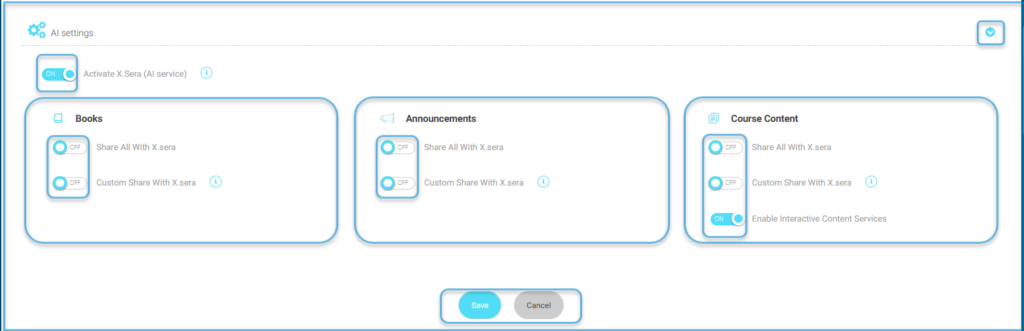
To use this screen effectively, follow these steps:

  1. To activate the AI service, toggle the Activate X.Sera (AI service) button to the ON position. This enables the AI features on the platform.
  2. For Books, toggle Share All With X.Sera to ON to share all book data with the AI service. Alternatively, toggle Custom Share With X.Sera to ON to customize the book data being shared. A confirmation dialog may appear to confirm your selection.
  3. For Announcements, toggle Share All With X.Sera to ON to share all announcements with the AI service. You can also select Custom Share With X.Sera to specify which announcements are shared. The settings can be customized further by clicking additional configuration options, if available.
  4. For Course Content, toggle Share All With X.Sera to ON to share all course-related data with the AI service. To enable specific features like interactive content services, toggle Enable Interactive Content Services to ON.
  5. Custom settings can also be activated by toggling Custom Share With X.Sera.
  6. Changes from the OFF mode mean no data is shared with the AI service, while switching to ON initiates sharing based on the toggled options.
  7. Click the Save button to apply all selected settings. Ensure you verify the toggles to confirm which data is shared or restricted.
What are your Feelings

Share This Article :

  • Facebook
  • X
  • LinkedIn
  • Pinterest
System Settings / part threeStages
Table of Contents
  • System Settings-Central Exams
  • System Settings: User's Permissions Settings
  • System Settings: Manage Privileges and Permissions
  • Allow Unit Planning for IB
  • Tracking Tags
  • Integration with Education Partners Settings
  • Allow Payment
  • Payment Gateway Settings (Optional)
  • Add Partners Products Data
  • Register Veative School
  • Restrict Login Message
  • Enable Education Partners Settings
  • Email & Mobile Number Popup
  • AI settings