
 English
  Arabic
  French
 The Xsera AI Academic Planner automates the distribution of lessons across working school weeks. By analyzing curriculum depth and lesson complexity, Xsera AI balances period workloads to ensure an optimal distribution without overloading weeks.
Note: Prerequisite for AI Generation
To ensure Xsera AI can generate an accurate academic plan, please ensure your Course Template is fully populated with structured Units and Lessons. The AI relies on this data from the Course Templates module to correctly distribute content across your school’s working days.
Accessing Academic Planner Records & Quick View #
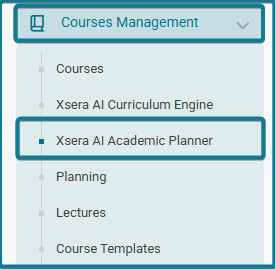
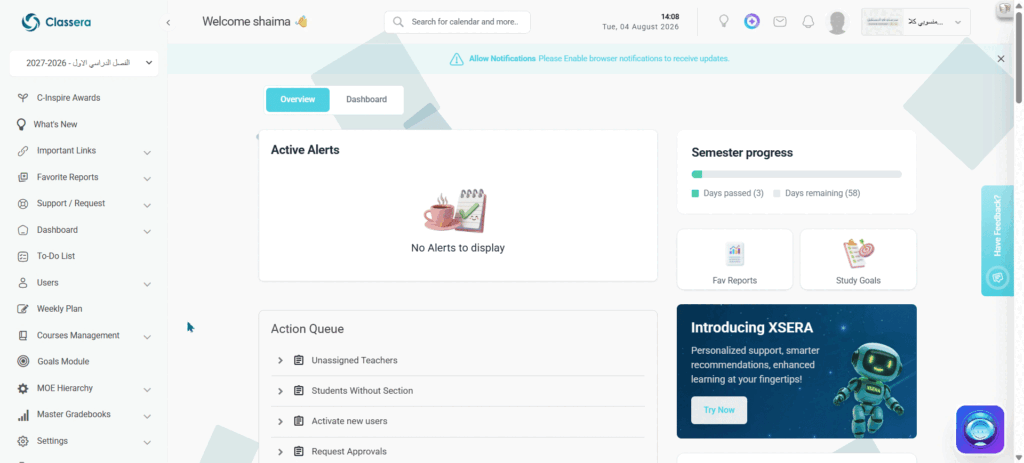
- Expand Courses Management from the left navigation sidebar.
- Select Xsera AI Academic Planner.
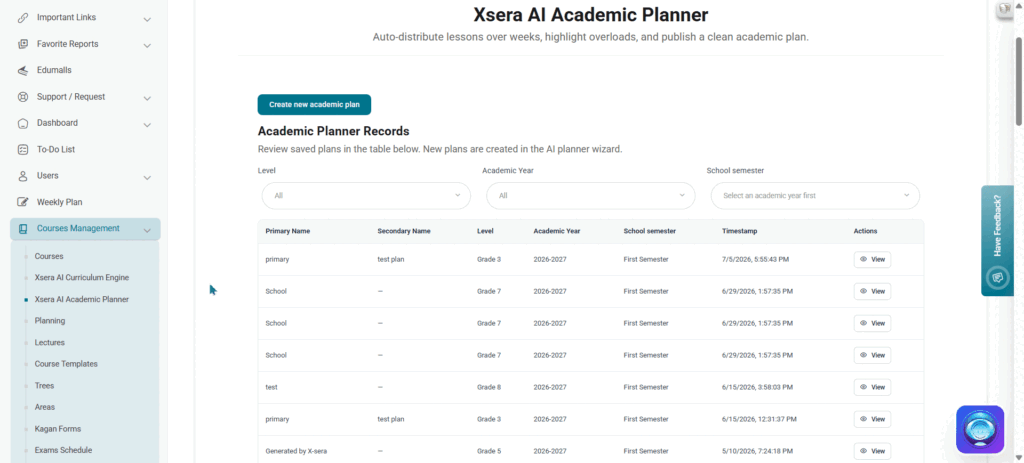
- The Academic Planner Records repository page opens, displaying previously created plans.
Academic Planner Records Table #
The main repository table displays saved academic plans with the following columns:
- Primary Name: Displays the main title or identifier assigned to the plan (e.g., primary, Test Plan).
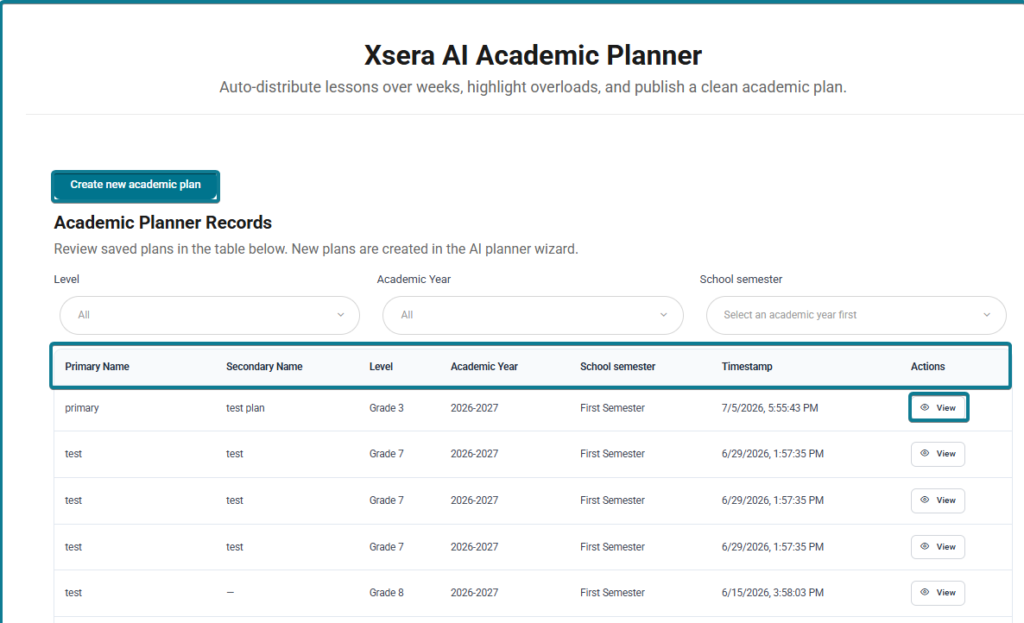
- Secondary Name: Shows the alternative or localized name for the plan (if applicable).
- Level: Displays the target grade level associated with the plan (e.g., Grade 3, Grade 7, Grade 8).
- Academic Year: Specifies the school year duration (e.g., 2026-2027).
- School Semester: Indicates the specific academic term (e.g., First Semester).
- Timestamp: Displays the exact creation date and time stamp (MM/DD/YYYY, HH:MM:SS AM/PM).
- Actions: Contains the View button to launch the summary pop-up modal and inspect weekly lesson distributions.
Inspecting Saved Plans #
To quickly review a saved distribution plan:
- Locate your plan row in the records table.
- Under the Actions column, click the View button.
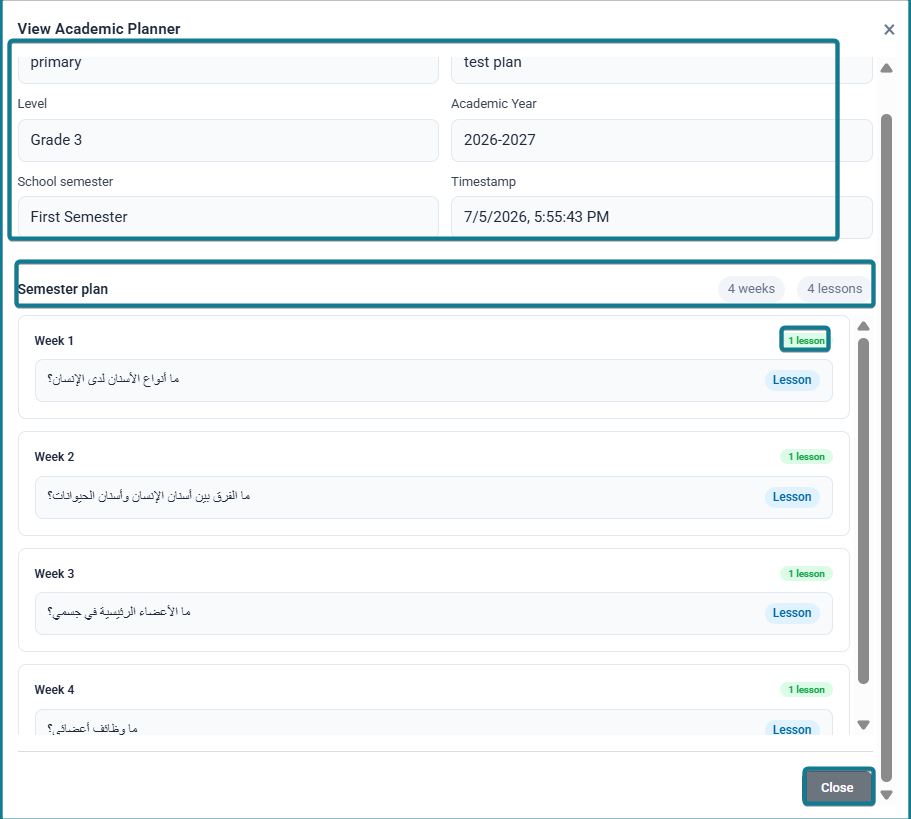
- The View Academic Planner pop-up modal opens, presenting:
- Plan Header Info: Displays Primary Name, Secondary Name, Level (Grade), Academic Year, School Semester, and Timestamp.
- Semester Plan Timeline: Summarizes total weeks (e.g., 4 weeks) and scheduled lessons (e.g., 48 lessons).
- Weekly Distribution List: Groups lessons by week (e.g., Week 1, Week 2). Each row displays the lesson title alongside a blue Lesson badge.
Creating a New Academic Plan (4-Step Wizard) #
Click Create new academic plan above the records table to launch the AI distribution wizard:
Step 1: Context & Calendar #
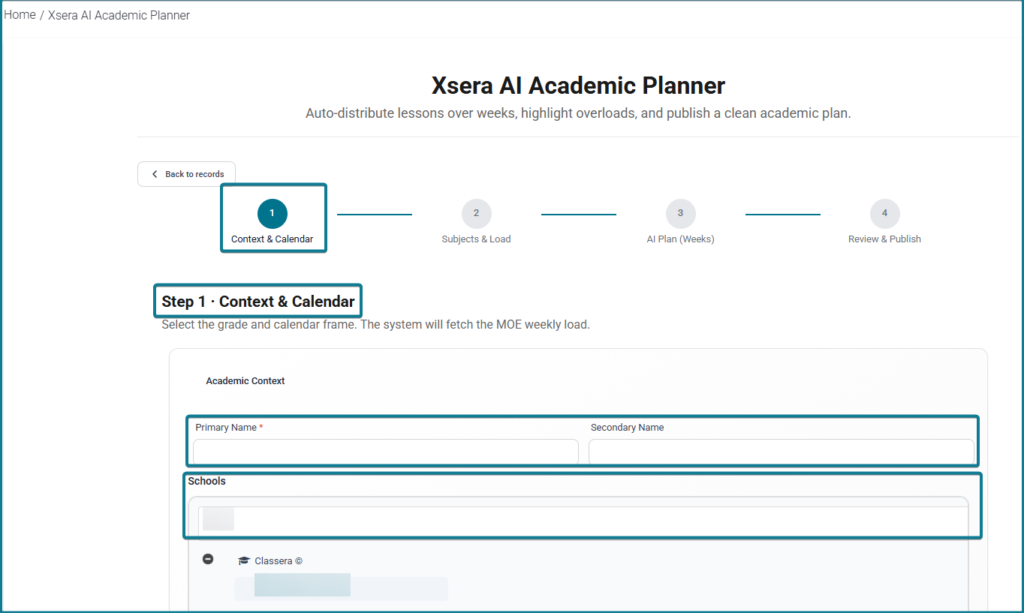
- Enter the Primary Name and Secondary Name for the plan.
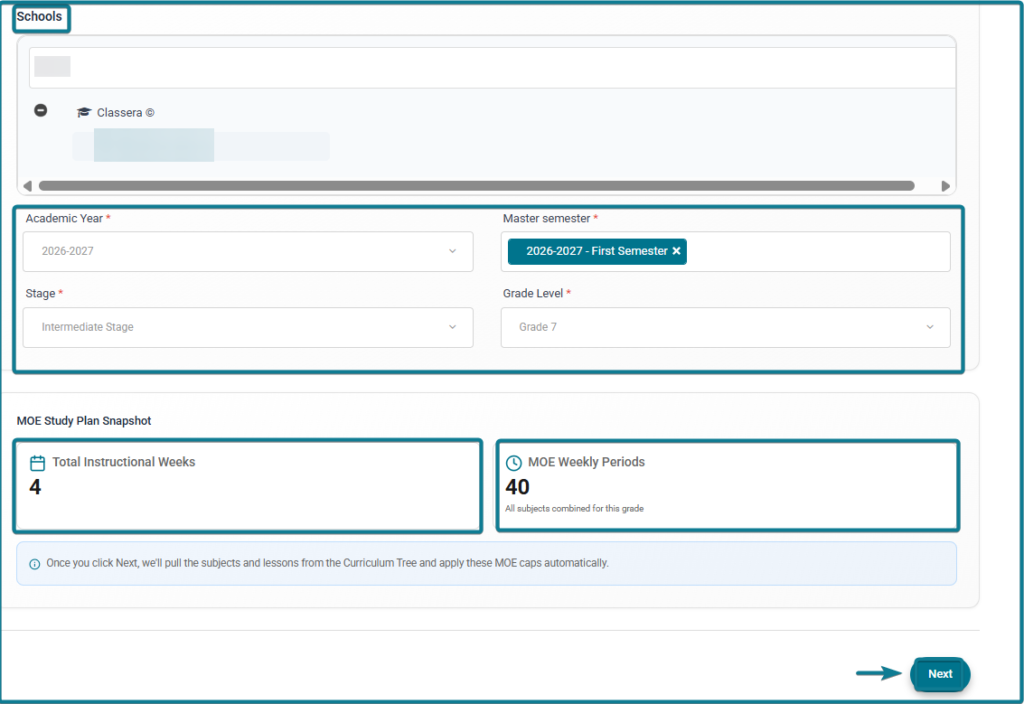
- Select target Schools, Academic Year (e.g., 2026-2027), Master Semester, Stage, and Grade Level (e.g., Grade 7).
- The MOE Study Plan Snapshot automatically calculates the Total Instructional Weeks (e.g., 4 Weeks) and MOE Weekly Periods (e.g., 40 Periods).
- Click Next.
Step 2: Subjects & Unit Load #
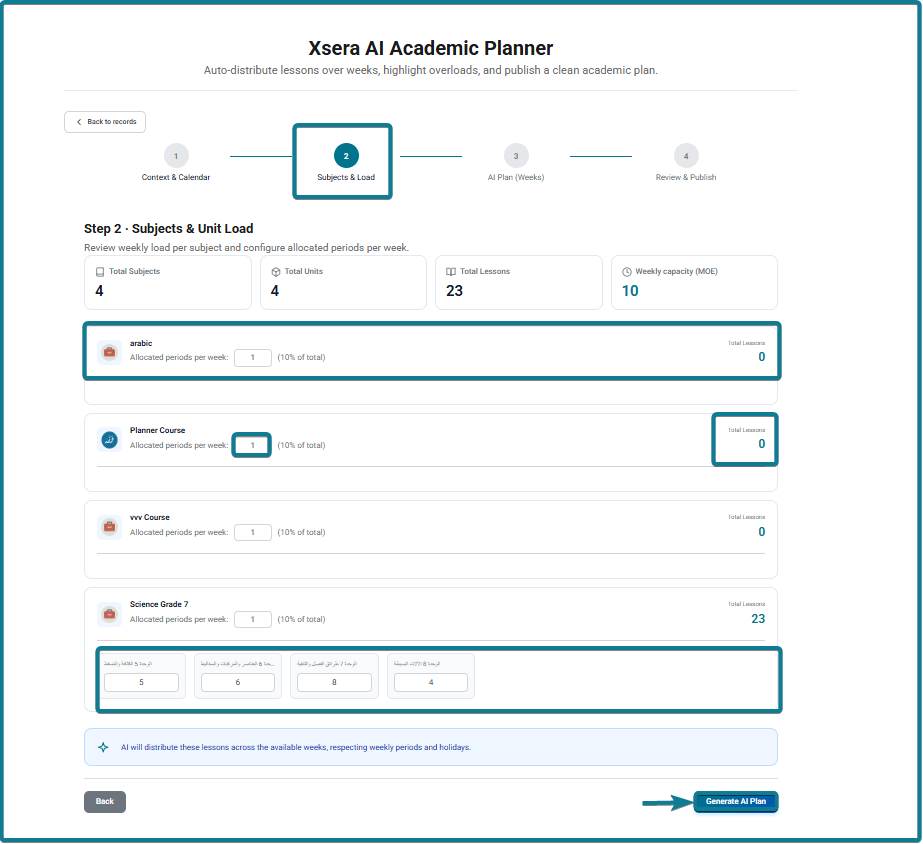
- Review the aggregated totals (Total Subjects, Total Units, Total Lessons, and Weekly Capacity).
- View allocated periods per subject across the academic timeframe.
- Click Generate AI Plan.
Step 3: Xsera Recommended Academic Plan (AI Auto-Distribution) #
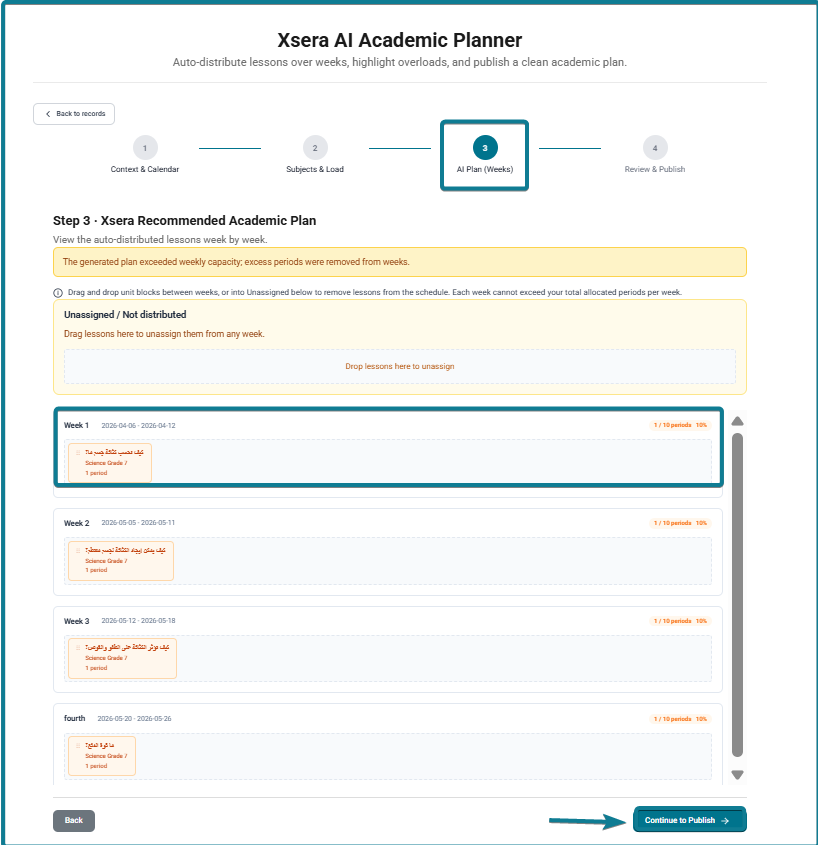
Xsera AI evaluates the complexity and cognitive weight of each lesson to spread them across available periods and weeks:
- Unassigned / Not Distributed Panel: Holds any lessons that exceed weekly period capacity for manual adjustment or drag-and-drop allocation.
- Weekly Allocation Blocks: Displays the AI-generated weekly plan (e.g., Week 1, Week 2, Week 3), showing lesson cards color-coded by subject with assigned period counts.
- Administrators can drag and drop lesson blocks between weeks or adjust allocated periods.
- Click Continue to Publish.
Step 4: Final Plan & Publishing #
- Review the Plan Summary metrics:
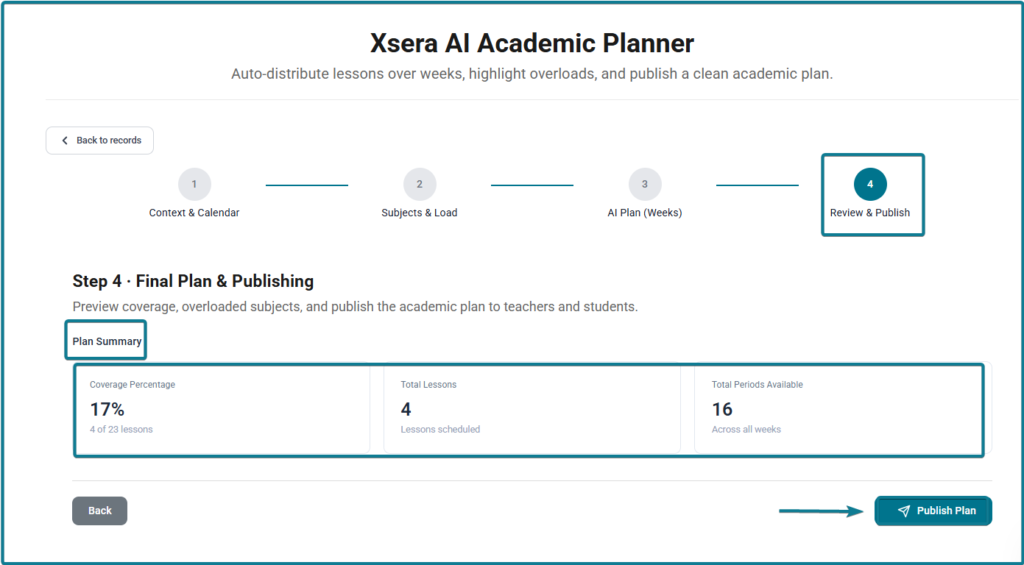
- Coverage Percentage: (e.g., 96% of total lessons scheduled).
- Total Lessons: Count of scheduled lessons versus total curriculum lessons.
- Total Periods Available: Total capacity across all working weeks.
- Click Publish Plan to publish the finalized academic plan to teachers and students.


