
 English
  Arabic
  French
 This dual-tab widget functions as an advanced personal productivity manager and informational hub, allowing you to track tasks and stay updated on institutional announcements.
Accessing the To Do / Announcements Widget
To locate this widget, follow these steps:
- Log into your account.
- Select the Overview tab from the top panel layout.
- Scroll to the lower section of the main dashboard area to find the dual-tab widget.
To Do Tab #
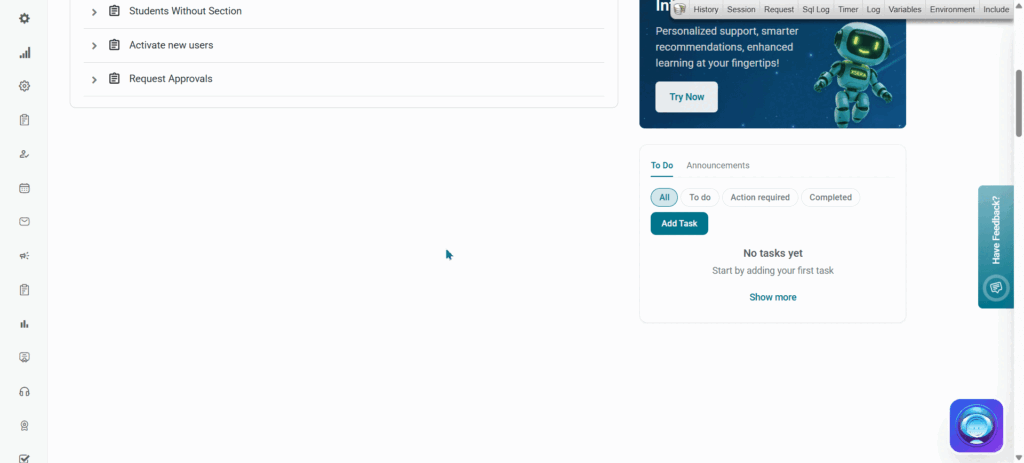
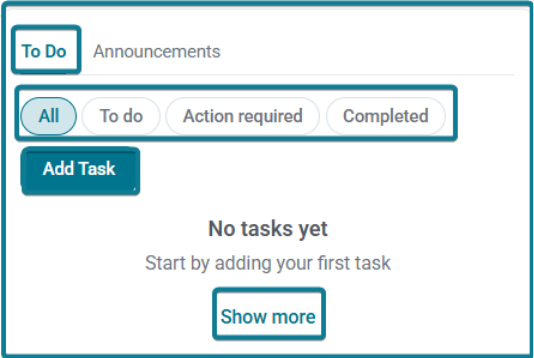
You can access the To-Do List through two methods:
- Via Sidebar: Click To-Do List from the main left navigation sidebar.
- Via Overview Widget: From the Overview page, scroll to the To Do widget and click Show more at the bottom to open the full dedicated To-Do List page.
Manage your personal workflow and task status variations directly from this panel:
- Status Filters: Quickly toggle between categories to filter your task entries:
- All: Displays your full list of tasks.
- To do: Surfaces pending items awaiting attention.
- Action required: Highlighting tasks needing immediate administrative execution.
- Completed: Houses records of resolved tasks.
- Show More: Click this option at the bottom to expand the view pane and review historical entries.
- Select the task you need, click on the dropdown arrow next to a task status to perform further actions:
- Edit: Opens the task configuration pop-up to modify details, due date, or status.
- Delete: Permanently removes the task entry from your list.
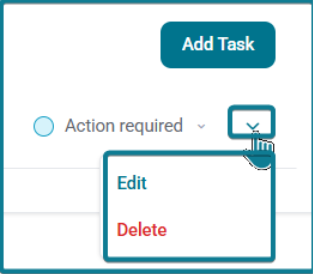
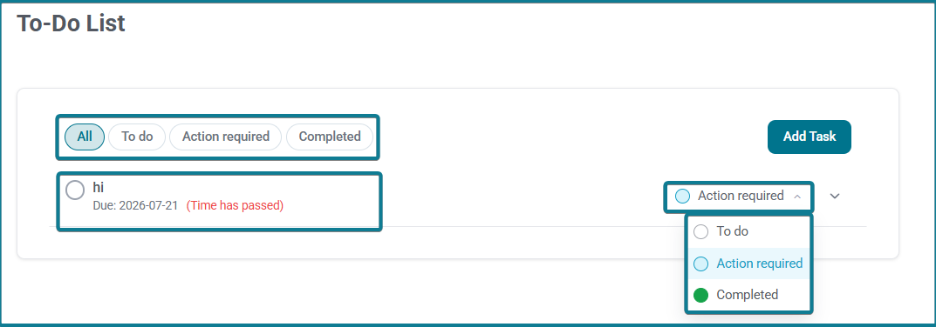
Note: Task statuses do not update automatically. You must manually select and update a task’s status as work progresses.
Creating a New Task (Add Task Modal) #
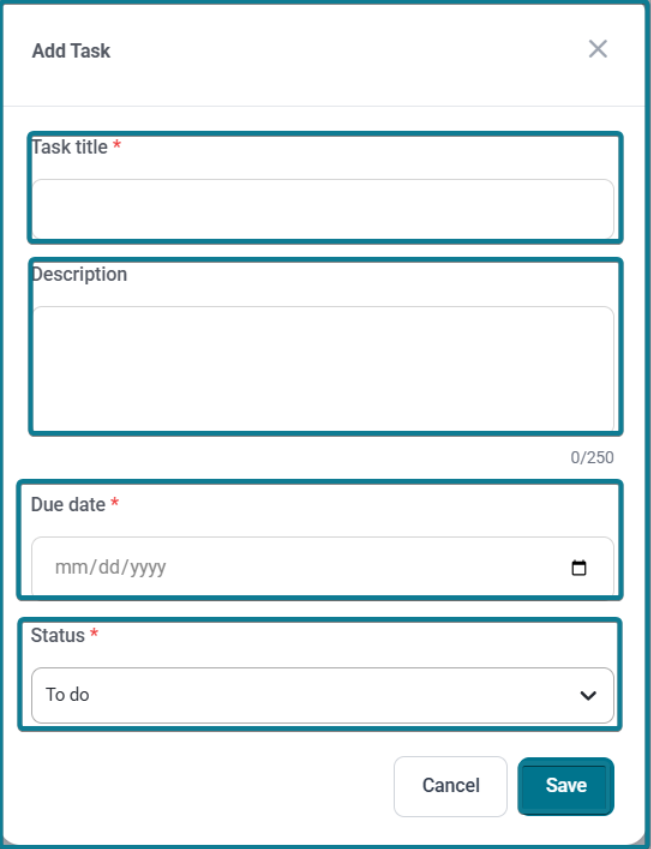
- Click Add Task to launch the creation pop-up window, then configure the following required and optional fields:
- Task Title (Required): Enter a clear, concise name for your task in the text field.
- Description: Add detailed operational context or notes (up to 250 characters).
- Due Date (Required): Click the calendar icon or manually enter the scheduled completion date (mm/dd/yyyy).
- Status (Required): Select the initial task status from the dropdown menu (defaults to To do).
- Click Save to commit the task to your list, or Cancel to discard your entry.
Announcements Tab #
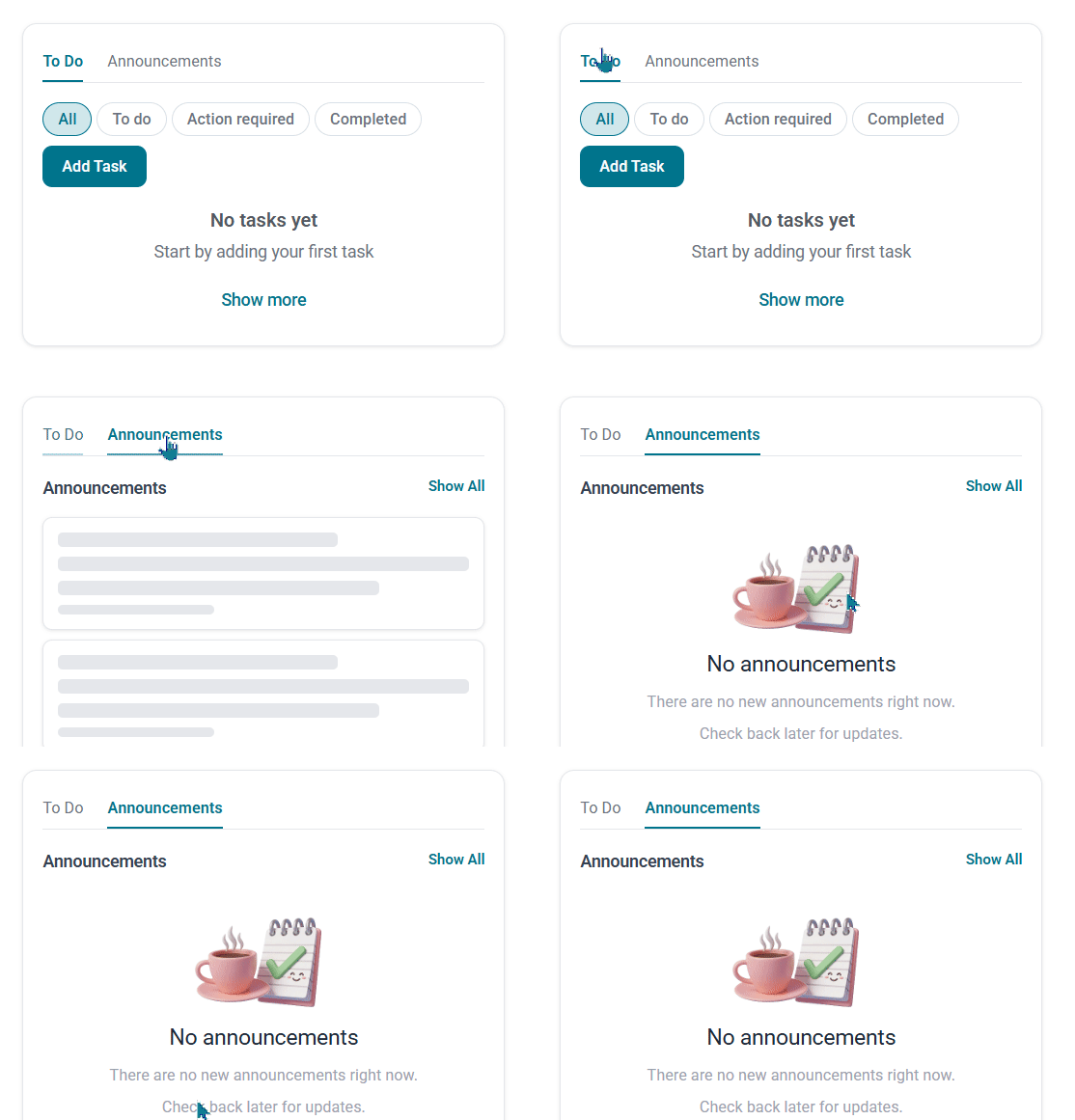
Stay informed on campus broadcasts and institutional news items:
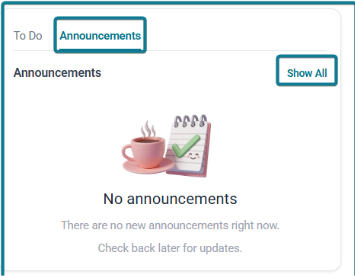
- Announcements Feed: Displays active school-wide announcements, system broadcasts, or administrative memos pinned to the dashboard.
- Show All: Click this button in the top right corner to navigate to the comprehensive announcements repository and view historical logs.


