
 English
  Arabic
  French
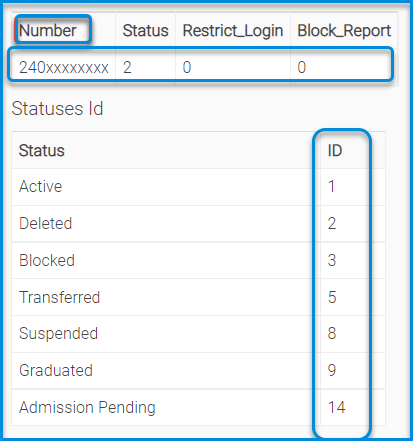
 It allows the system administrator to change the status of many students at once. Download the sample file, fill it with the status ID (Active/Deleted/Transferred/Suspended/…), then re-upload it.
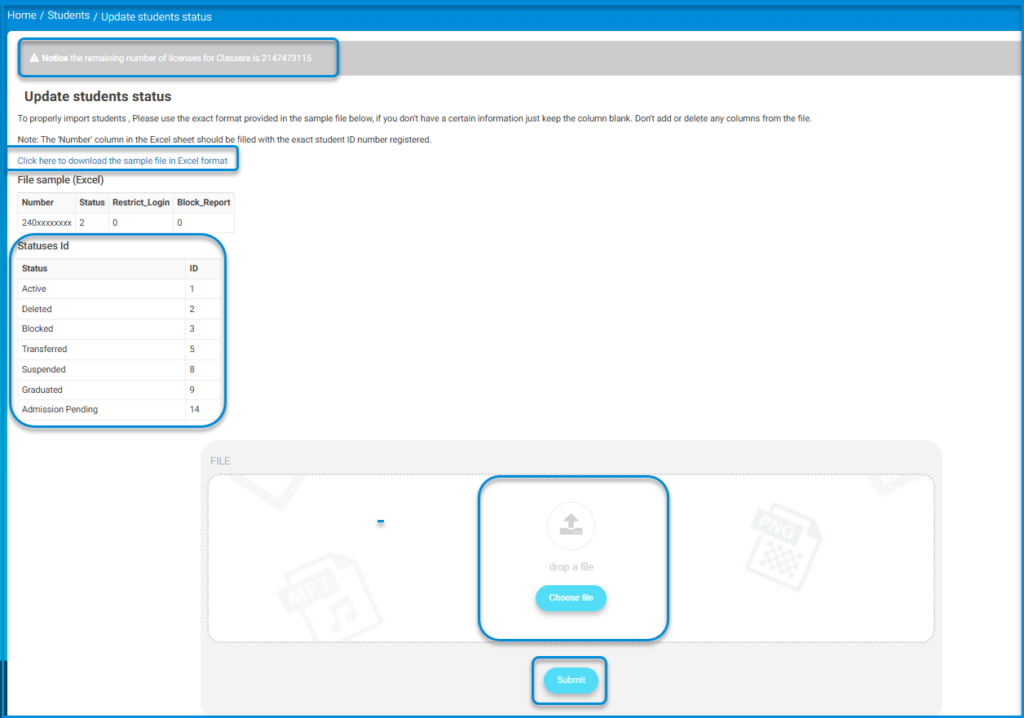
- Fill the Restrict login ID column with the corresponding ID number of statuses to prevent the selected students from logging in.
- Fill the Blocked Report column with 3 to prevent blocked students from viewing all report cards on the system.
Bulk Update of Student Status #
The System Administrator (Admin) can update the status of a group of students in bulk through:
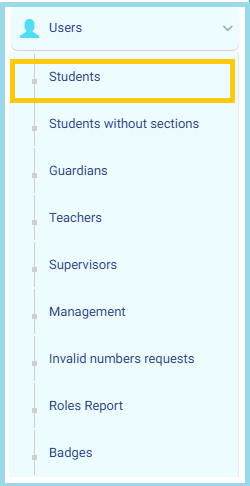
- From the Main Menu, open the Users drop-down list.
- Click on Students to access the full list of student accounts.
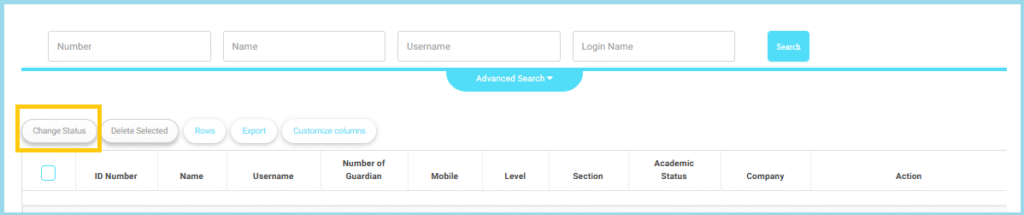
This feature allows the Admin to modify the status of multiple students simultaneously, reducing manual effort and ensuring efficient data management.
Business Validation Rules:
The system applies the following rules before completing the process:
- The selected students must belong to the same academic year.
- The selected students must belong to the same school (in multi-school environments).
- The new status selected must be different from the current student status.
- Students must have valid administrative IDs (Admin ID).
- Students must have valid educational IDs (Student ID).
- The statuses allowed for update are:
- Active
- Deleted
- Blocked
- Transferred
- Suspended
- Graduated
- Admission Pending
Note
- If the selected students exceed 500 students, the system will display a warning message and will not complete the operation.
- If one of the selected students does not meet the criteria (different school, invalid ID, etc.), the system will notify the user and exclude that student from the bulk update.


