English
  Arabic
  French
 Circle to Learn is an interactive, AI-driven reading assistant embedded within Classera’s digital textbook reader. It enables students to select, circle, or highlight text to trigger instant AI assistance, request simplified explanations, summaries, or real-world examples, solve highlighted questions, generate practice mini-quizzes, or save personal study annotations directly on their textbook pages.
How to Access Circle to Learn #
- From the Student Homepage, navigate to the Courses section.
- Click Show All in the top right corner of the Courses panel.

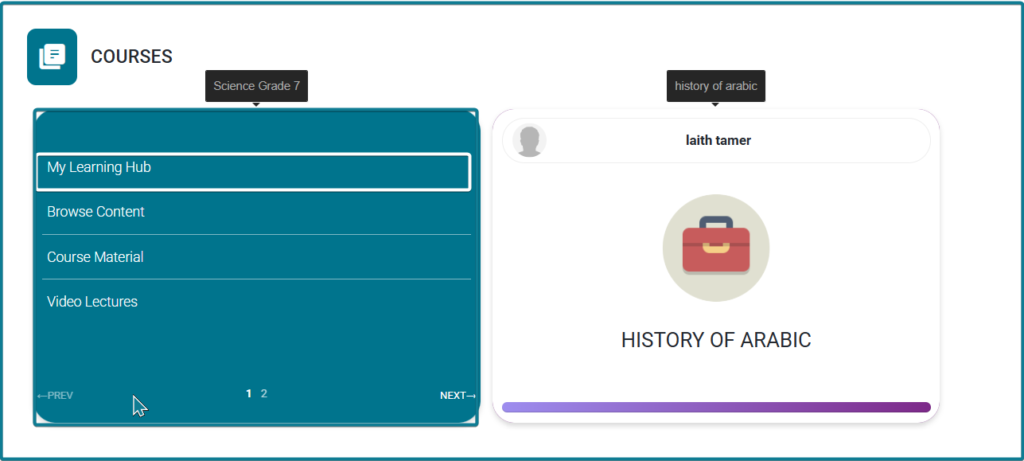
- Hover over your target course card.
- Select My Learning Hub from the pop-up menu options.
- Launch the digital reader using one of the two pathways below:
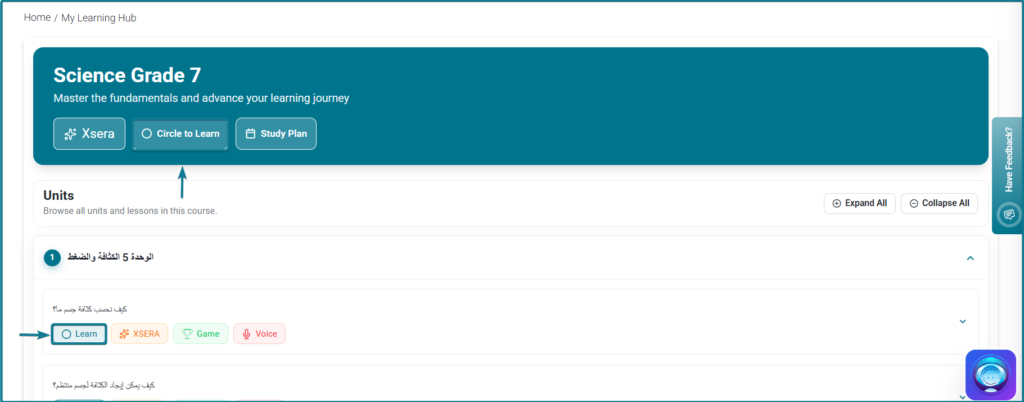
- Accessing via Header Banner (General Resume): Click Circle to Learn in the top header banner of My Learning Hub to open the digital reader and resume reading where you last stopped.
- Accessing via Specific Units/Lessons (Targeted Unit): Expand the target unit accordion inside My Learning Hub, then click Learn or Circle to Learn on a specific lesson row to open the digital reader directly at that exact lesson position.
- Once Clicked the book window will appear.
Step-by-Step Usage & Text Selection Actions #
Step 1: Selecting Content to Display Actions #
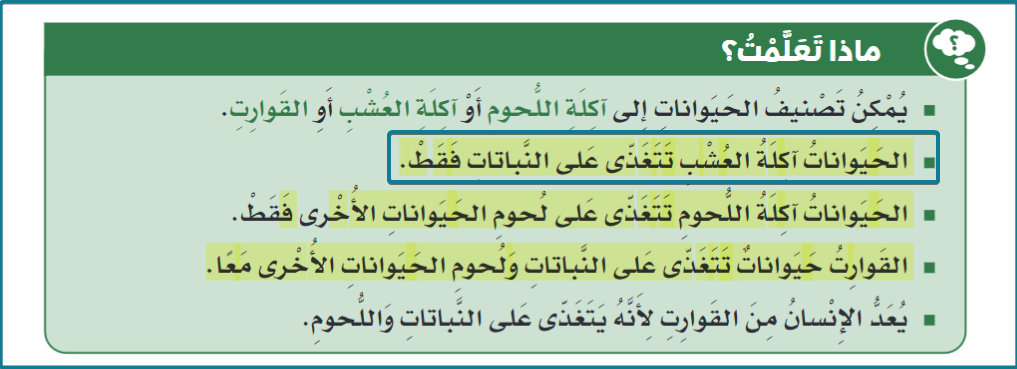
- Text Highlight: When you highlight or select a specific phrase or passage on the page, a floating toolbar appears directly above the text with three options: Circle to Learn, Annotate, and Highlight.
- Circle / Area Selection: When you draw a circle or drag a selection box over an area (such as an image, diagram, or block of content), a single trigger button labeled Circle to Learn appears on screen.
Step 2: Choose Your Desired Action #
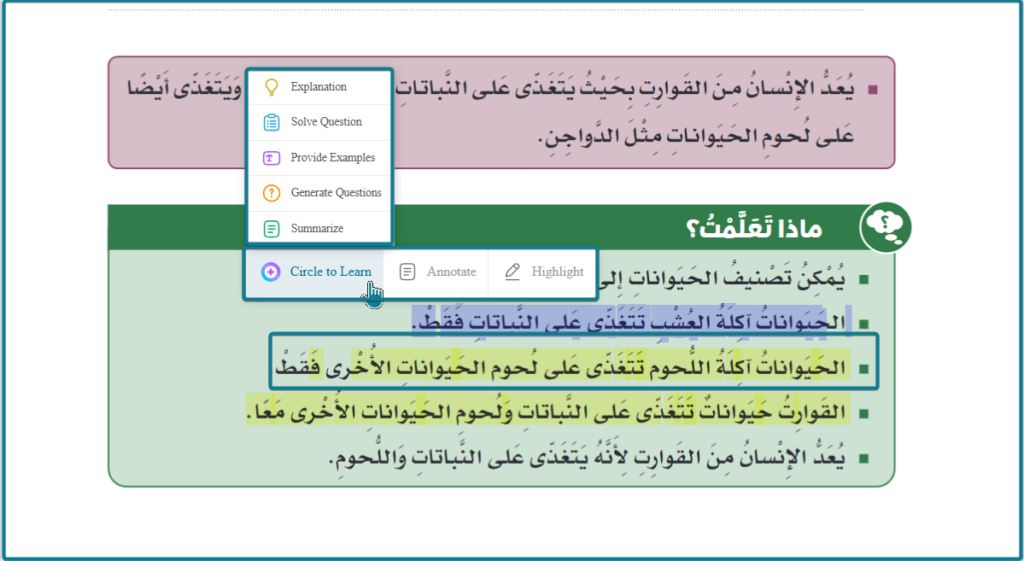
- Option A: AI Assistance (Circle to Learn)
- Click Circle to Learn from the floating action bar.
- The Circle to Learn side drawer opens on the right side of the screen, displaying the Selected text preview box alongside five interactive AI learning options:
- Explanation: Generates a detailed explanation to clarify the selected content.
- Solve Question: Analyzes and solves any question or problem statement within the selection.
- Provide Examples: Offers practical, real-world examples related to the selected topic.
- Generate Questions: Creates interactive practice questions to test understanding.
- Summarize: Delivers a concise summary highlighting the key points.
- Option B: Personal Notes (Annotate)
- Click Annotate from the floating action bar.
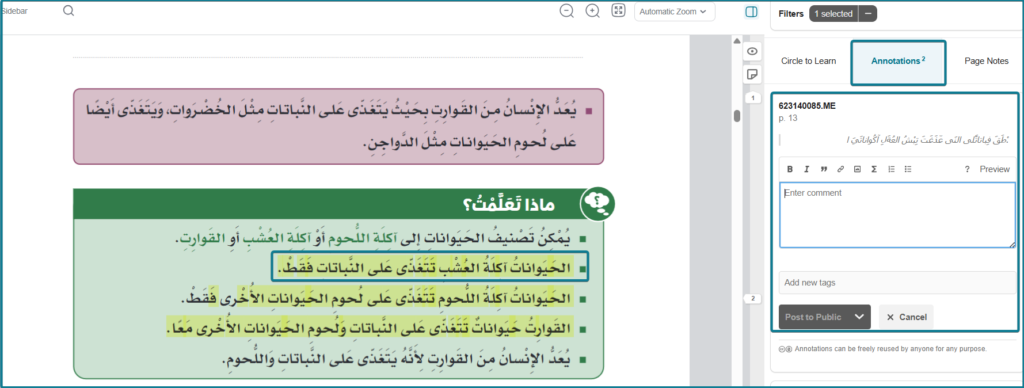
- The side drawer automatically switches to the Annotations tab.
- Use the rich-text editor (formatting text, bullet lists, links, images, or math formulas) to write your notes under the auto-referenced page number (e.g., p. 6).
- Save your note to store it as an interactive card in the Annotations panel for future review, editing, or deletion.
- Option C: Visual Highlighting (Highlight)
- Click Highlight from the floating action bar.
- A permanent color overlay applies over the selected text on the page for visual reference during study sessions.