
 English
  Arabic
  French
 The Favorite Reports module provides administrators with a centralized hub for bookmarking, saving, and quickly launching frequently accessed operational analytics and system reports without reconfiguring search parameters each time.
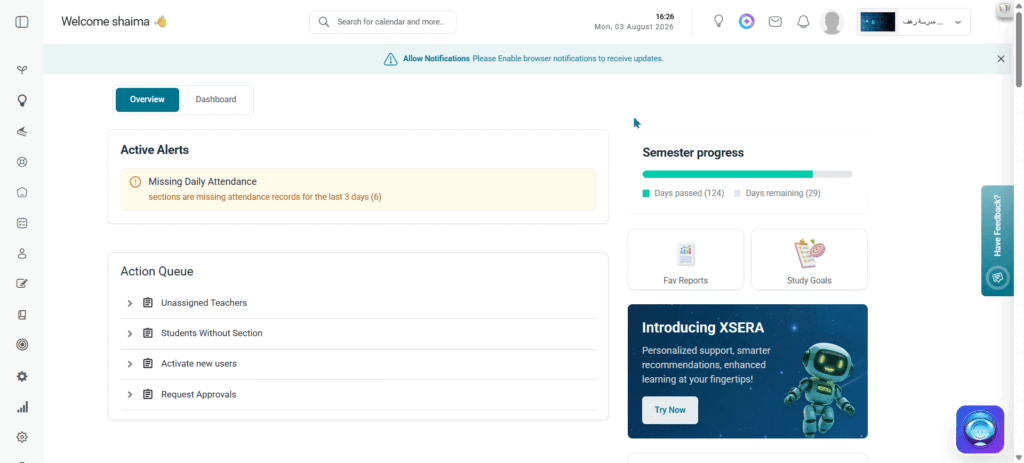
Accessing Favorite Reports
To open your favorite reports repository, follow these steps:
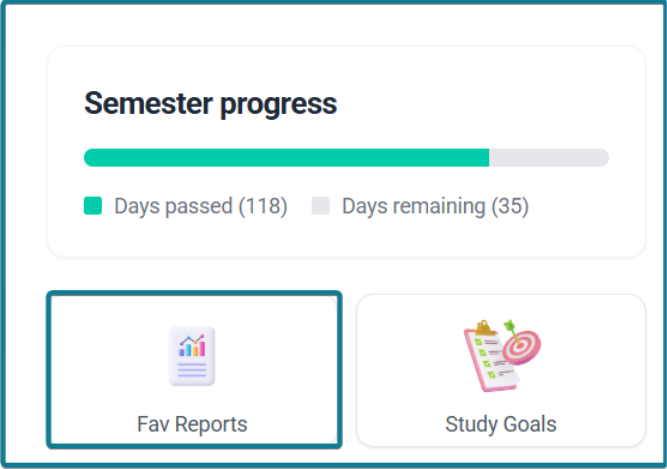
- Log into your account.
- Select the Overview tab from the top panel layout.
- Locate the Fav Reports shortcut tile on the right side of the dashboard layout (below Semester Progress).
- Click Fav Reports to launch the All Favorite Reports management page.
Managing & Viewing Favorite Reports #
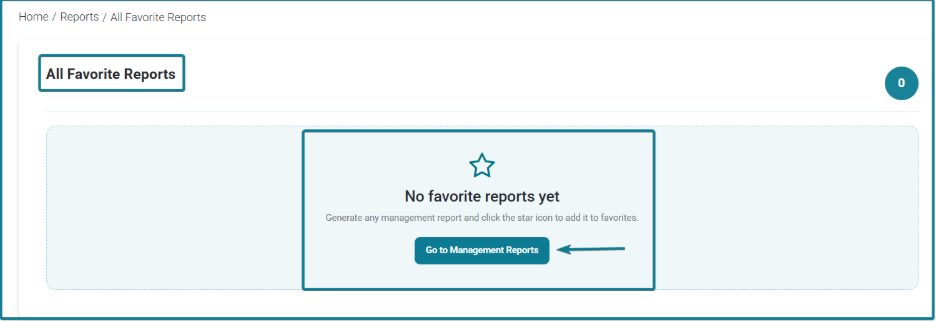
- Empty State: If no reports are bookmarked, the page displays a star graphic with the message “No favorite reports yet”. Click Go to Management Reports to generate and star administrative logs.
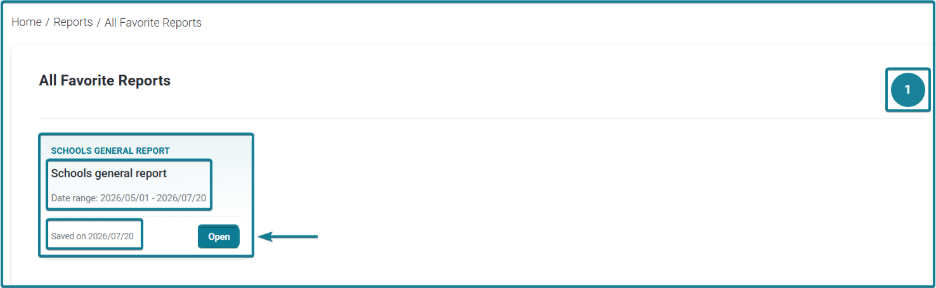
- Saved Report Cards: Each pinned report displays as a quick-access tile containing:
- Report Category & Title: (e.g., Schools General Report, Supervisors Activation Report).
- Active Date Range: Displays the precise filter parameters configured during report generation (e.g., Date range: 2026/05/01 – 2026/07/20).
- Saved Date: Shows the timestamp when the report was added to your favorites.
- Click Open to launch the live analytics table and graphical data breakdown for that specific report.
How to Add a Report to Favorites #
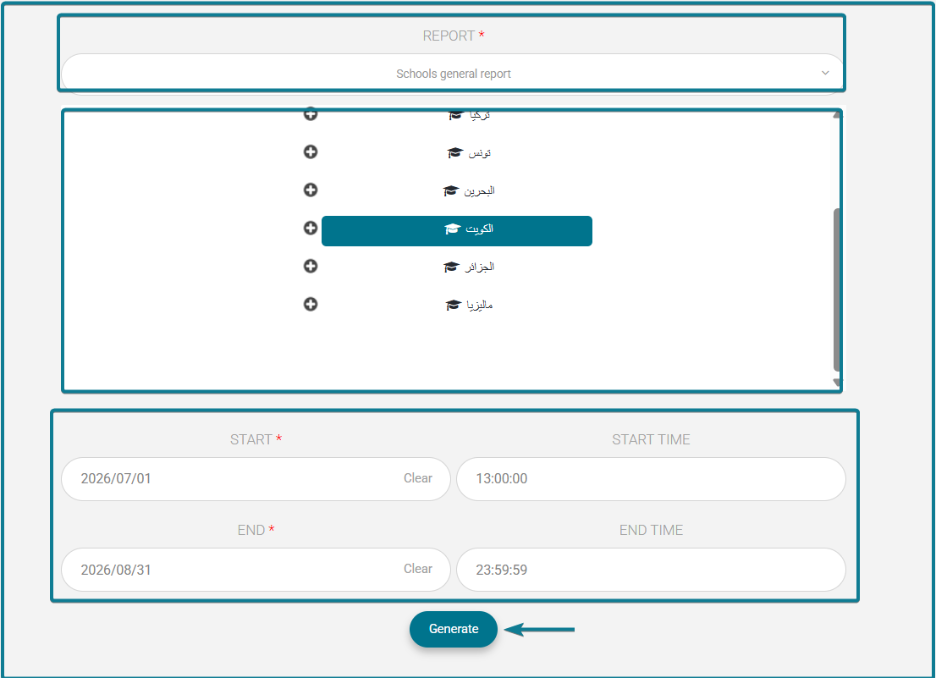
- Navigate to any administrative report page.
- Configure your desired filter parameters (such as date ranges or school branches) and click Generate.
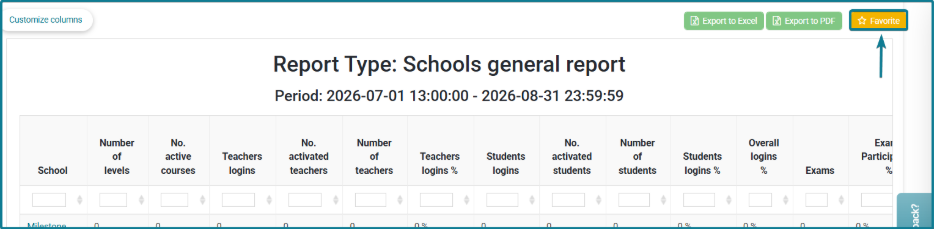
- Click the Star icon next to the generated report header.
- A confirmation pop-up window will appear with a checkmark confirming “The report has been added to favorites.
- Click OK to return to your workspace.
How to Remove a Report from Favorites #
- Open the specific report you want to unpin.

- Click the highlighted Favorite / Star button above the report workspace to toggle it off.
- A confirmation pop-up window will appear with an info icon displaying Removed! and the message “Report removed from favorites.”
- Click OK to confirm and close the confirmation window.


