
 English
  Arabic
  French
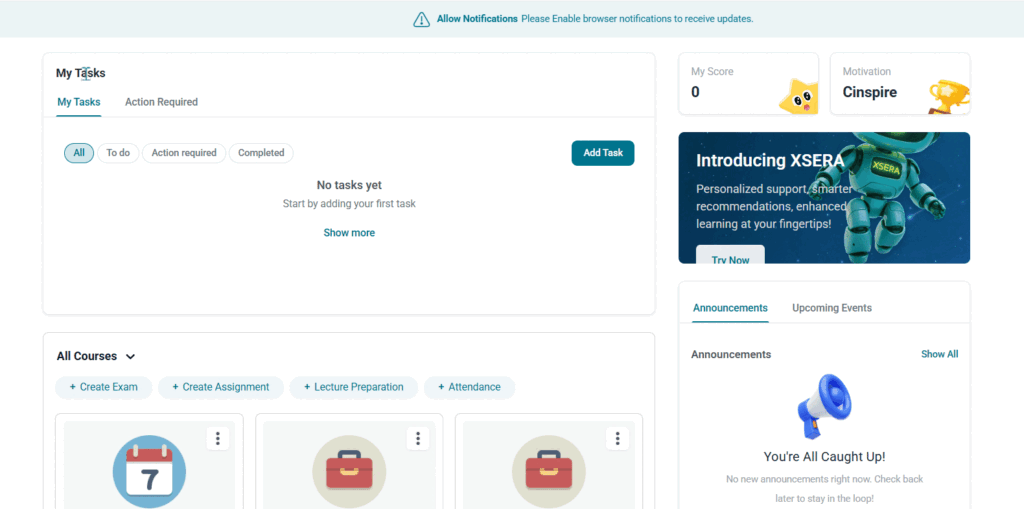
 The My Tasks / Action Required widget serves as a central productivity hub for teachers, combining personal task management with automated system notifications for pending academic actions.
Accessing My Tasks & Action Required #
- Navigate to the Teacher Homepage (Dashboard Overview).
- The widget is located in the top-left section of the main dashboard area.
- Click between the two primary tabs at the top: My Tasks and Action Required.
Tab 1: My Tasks (Personal Productivity) #
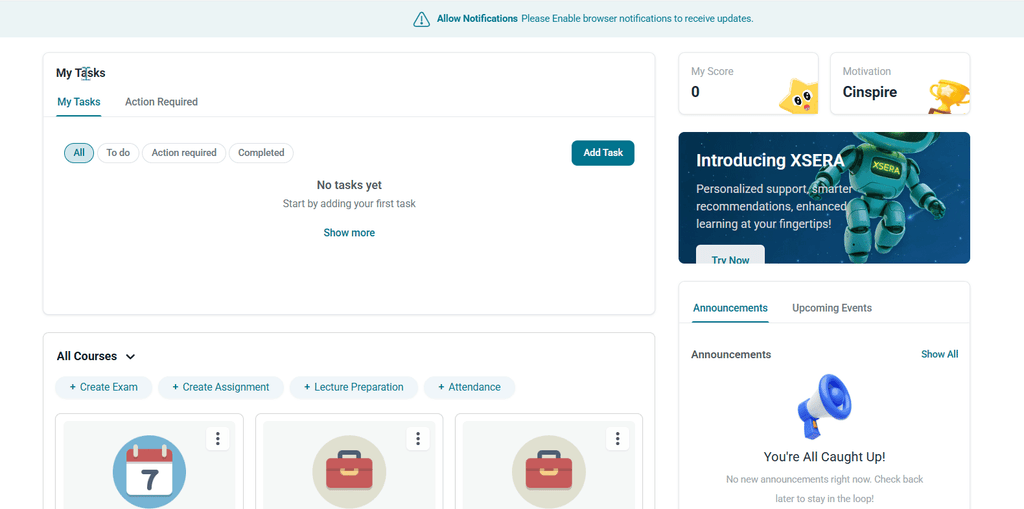
The My Tasks tab allows teachers to create, filter, and track their daily personal workload.
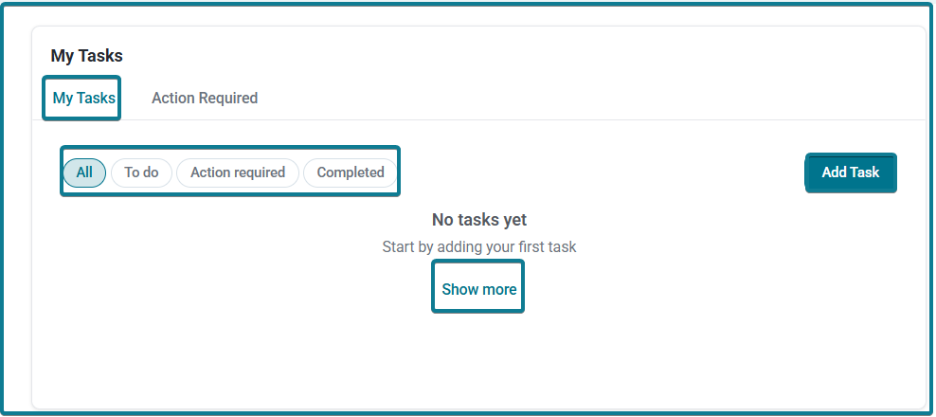
1. Sorting & Filtering Options #
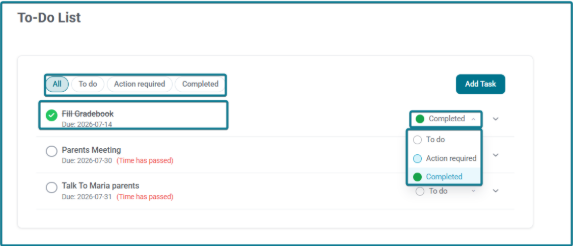
Quickly filter your listed tasks using the pill buttons:
- All: Displays all personal tasks regardless of status.
- To do: Shows pending tasks that need completion.
- Action required: Highlights tasks marked as high priority or needing urgent attention.
- Completed: Shows finished tasks.
2. Creating a Personal Task #
- Click the Add Task button on the right side of the widget.
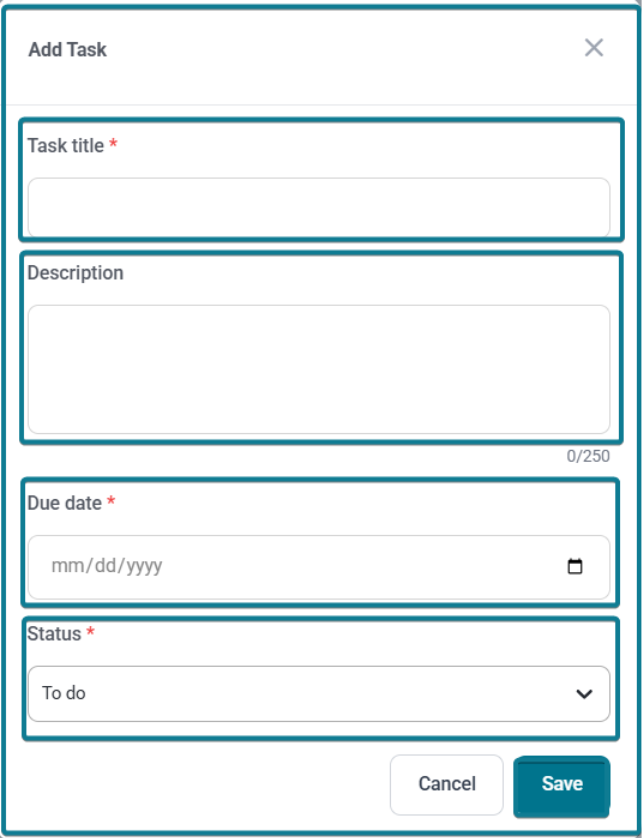
- In the Add Task modal window, fill out the following fields:
- Task title (Required): Enter the name of your task (e.g., Talk to Maria parents or Fill Gradebook).
- Description (Optional): Add detailed notes or instructions (up to 250 characters).
- Due date (Required): Select a target completion date using the date picker calendar (mm/dd/yyyy).
- Status (Required): Choose the initial status from the dropdown menu (To do, Action required, or Completed).
- Click Save to create the task or Cancel to discard.
3. Managing & Expanding Tasks (To-Do List Page) #
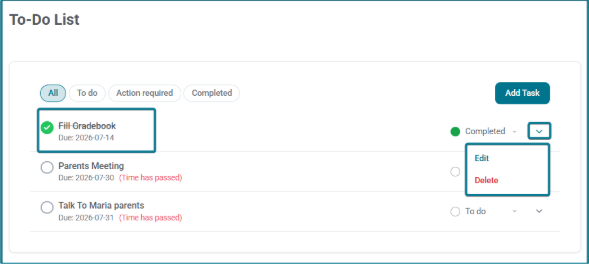
- Click Show more at the bottom of the widget to open the dedicated To-Do List full page (< Back to overview).
- Overdue Alerts: Tasks past their deadline display a red warning tag (Time has passed).
- Inline Status Updating: Use the dropdown menu next to any task to change its status on the fly (e.g., switching from To do to Action required).
- Edit & Delete: Click the down arrow menu (v) on the far right of any task row to select Edit (modify title/date) or Delete (remove task).
Tab 2: Action Required (Automated Operational Alerts) #
The Action Required tab automatically flags operational tasks across your assigned classes that require immediate attention and completion. It tracks pending items across five core areas:
- Lesson Preparation: Flags missing daily or weekly lesson plans for upcoming lectures (e.g., Biology Grade 5 — Lesson Preparation Not Added).
- Attendance: Highlights unrecorded or pending student attendance rosters for scheduled sessions (e.g., Biology Grade 5 — Attendance Not Taken).
- Exams: Identifies completed student exam submissions awaiting teacher evaluation (e.g., Physics Grade 11 — Exams Not Corrected).
- Assignments: Signals submitted homework assignments waiting to be graded (e.g., Physics Grade 11 — Assignments Not Corrected).
- Grades: Points out missing entries in gradebooks or uncompiled report card parameters (e.g., Chemistry Grade 10 — Grades Need to Be Added).
How Alert Cards Display Information #
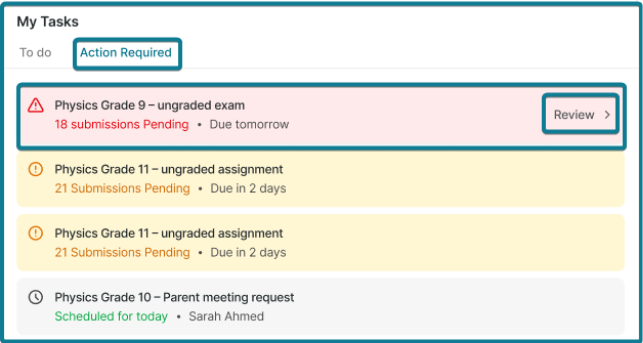
- Card Format: Each pending action appears on a separate card following a clean title format: {Course Name} — {Action Title} (e.g., Physics Grade 11 — Ungraded Exam).
- Due Date & Urgency: Each card clearly displays the deadline proximity or urgency text (e.g., Due tomorrow or Overdue).
- Multi-Course & Multi-Item Cards:
- If multiple courses have pending items of the same type, a separate card appears for each course.
- If a single course has different types of pending tasks (for example, missing attendance AND an ungraded exam), each task appears as its own card.
Color-Coded Alert Statuses:
Each alert card dynamically changes color based on how quickly the action is completed or delayed:
- Green (On Time): The teacher completed the required action (attendance, preparation, or grading) on time.
- Yellow (Same Day / 1 Day Delay): The item is pending for the current day or delayed by 1 day (e.g., missed yesterday).
- Red (2 Days or More Overdue): The required action has been pending for 2 days or more (e.g., missed yesterday and today).


