English
  Arabic
  French
 My Learning Hub serves as the student’s primary course workspace within Classera. It organizes course materials, interactive AI tools, unit breakdowns, and structured study plans into a single, intuitive interface.
Accessing My Learning Hub #
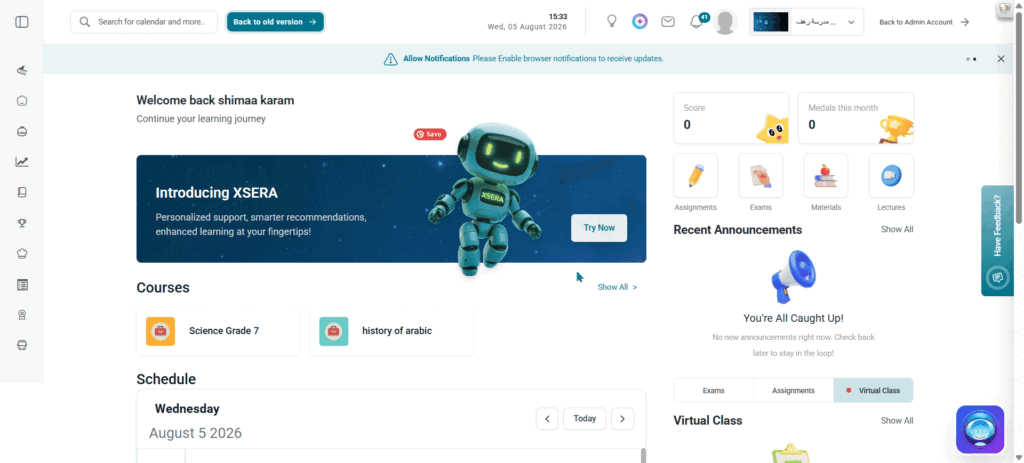
- From the Student Homepage, navigate to the Courses section.
- Click Show All in the top right corner of the Courses panel.
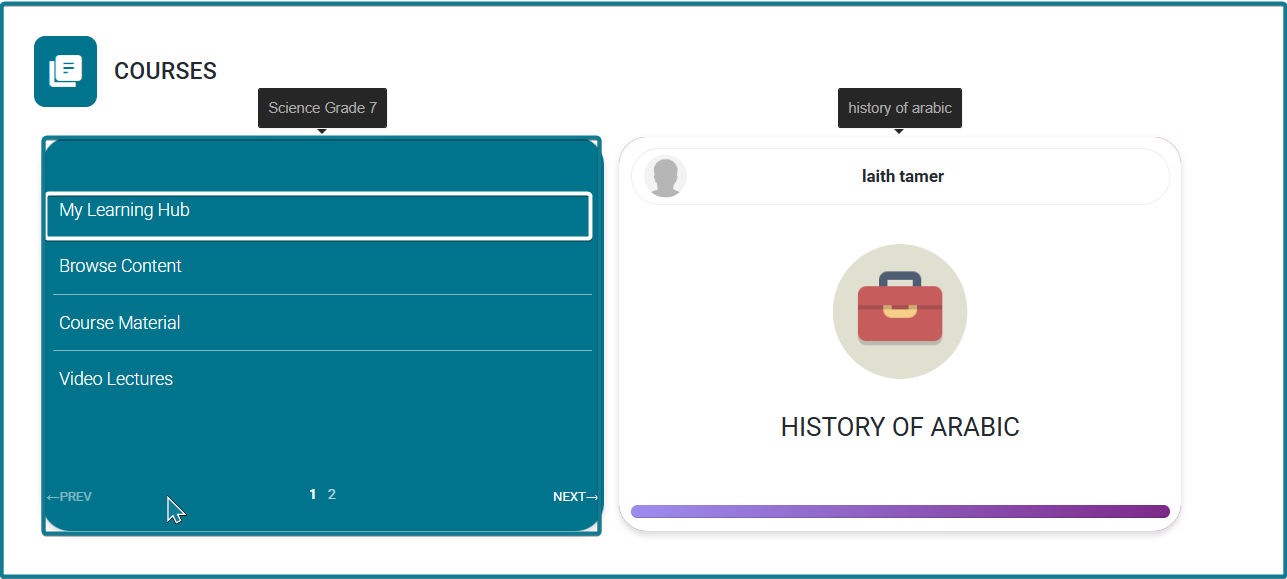
- Hover over your target course card.
- Select My Learning Hub from the pop-up menu options.

1. Header Banner Actions #
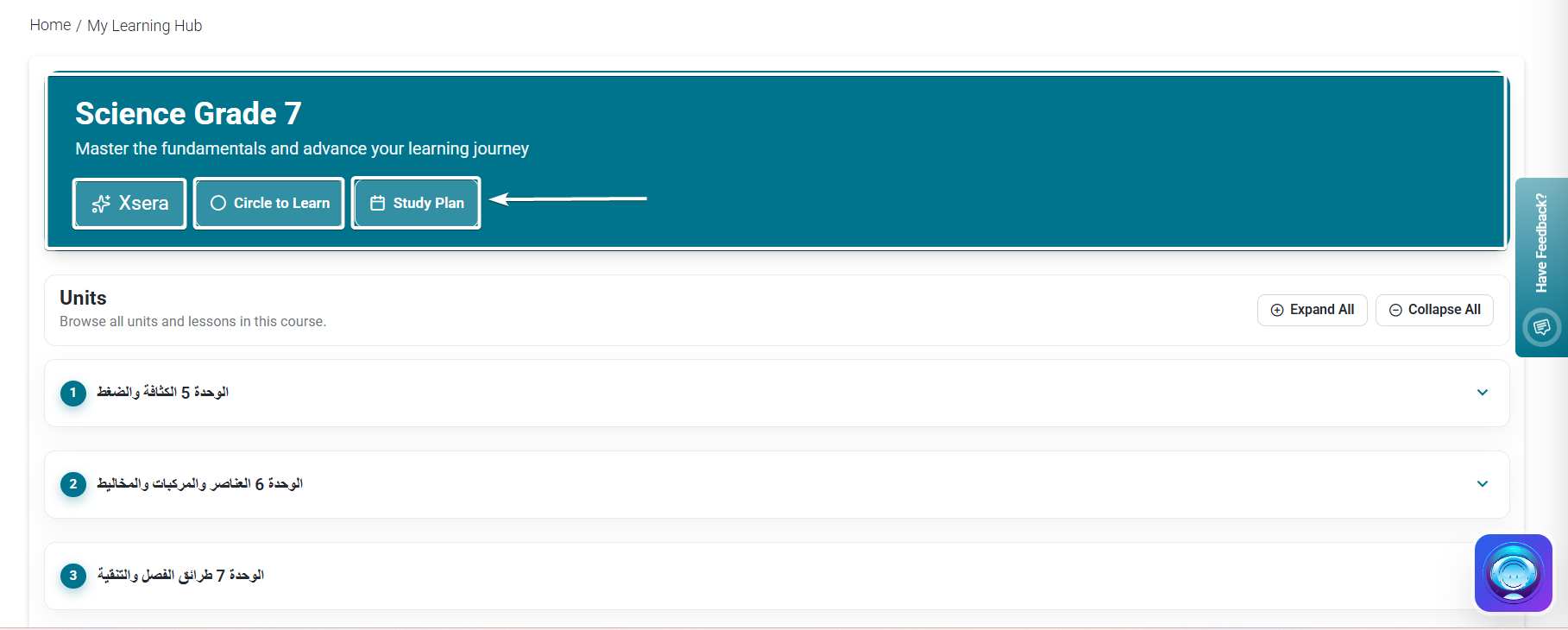
The top banner displays subject details along with persistent quick action triggers designed for general course support:
- Xsera:
- Click Xsera in the top banner.
- The X-SERA AI Assistant side drawer opens on the right side of your screen.
- Type your prompt, ask general questions, or click the digital book icon inside the chat interface to open the textbook directly.
- Circle to Learn:
- Click Circle to Learn in the top banner.
- The system opens the digital reader and automatically loads the book automatically or the page where you last stopped reading.
- Highlight or draw a circle around any textbook content to trigger instant AI explanations, real-world examples, or practice quizzes.
- Study Plan (Brief Overview):
- Click Study Plan in the top banner.
- View the structured weekly roadmap displaying course lessons, learning milestones, assignment deadlines, and study targets across the semester.
2. Unit & Lesson Breakdown #
The main workspace lists course units using expandable accordions (Expand All / Collapse All):
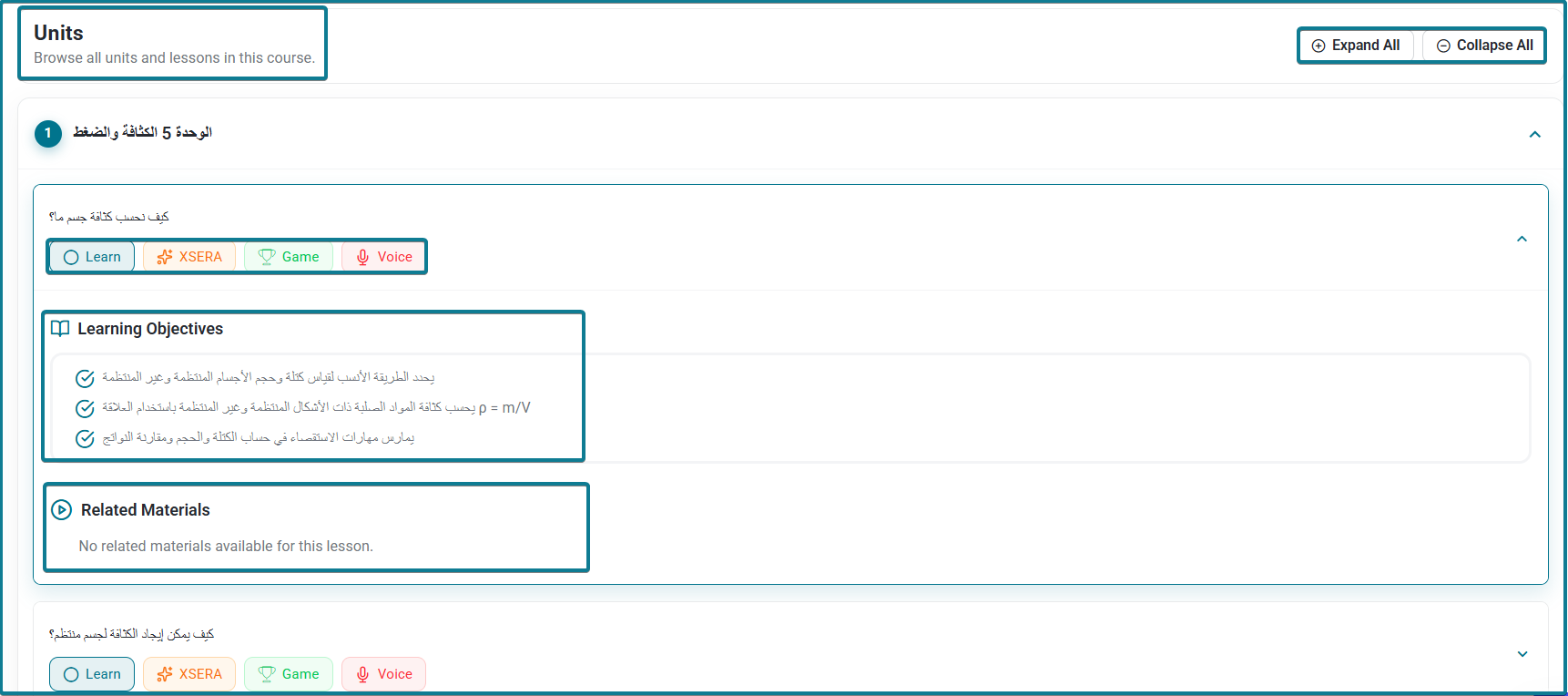
- Learning Objectives: Clearly states the educational goals and expected outcomes for each specific lesson (e.g., measuring density, calculating volume using formulas).
- Related Materials: Provides direct access to supplementary educational resources, e-books, worksheets, and attachments tied directly to the lesson (or indicates when no related materials are currently attached).
- Lesson Quick Action Buttons (Step-by-Step Actions):
- Learn / Circle to Learn:
- Expand the target unit accordion and locate your lesson.
- Click Learn or Circle to Learn.
- The digital reader opens directly at the exact page position of the selected lesson with the Circle to Learn selection overlay automatically enabled.
- XSERA:
- Click XSERA on the lesson row.
- The X-SERA AI Assistant side drawer opens on the right, pre-loaded with the specific context and topics of that lesson.
- Ask targeted questions, clarify lesson formulas, or request customized explanations anchored directly to that lesson.
- Game:
- Click Game on the lesson row.
- The X-SERA AI Assistant side drawer opens configured in interactive game mode.
- Engage in gamified practice rounds, interactive quizzes, and knowledge checks tied to the lesson’s learning objectives.
- Voice:
- Click Voice on the lesson row.
- A standalone Xsera Voice modal pop-up window opens on top of the page.
- Speak your questions aloud to interact hands-free and receive real-time spoken AI responses for conversational learning.