English
  Arabic
  French
 As a teacher, you need to assign your students some homework to do so you can follow up on their levels and outcomes. You will find the steps on the Assignment Settings page.
When a teacher assigns homework or tests to the classes they are responsible for, a message appears indicating that the class has X number of assignments or tests. If there are none, the value shown is zero.
The purpose of this feature is to reduce the burden on students, as they do not need to check for assignments or tests unless there is something actually assigned. It also alerts the teacher and helps coordinate with students when new resources are added, preventing an overload of tasks across different subjects. For example, if a teacher sees that a class already has four assignments, they may refrain from adding more and instead schedule new tasks for the following day. .
To use this screen efficiently, do as follows:
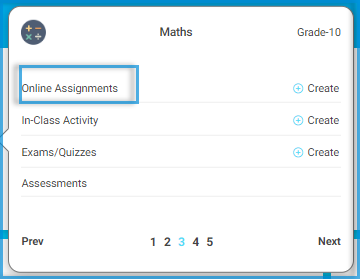
Go to Subjects >> Third Tab >> Add New Assignment.
The teacher will see the number of assignments given to the class by other teachers, allowing them to know how many tasks are already assigned to students on the same day. This facilitates coordination between teachers and avoids putting extra pressure on students.

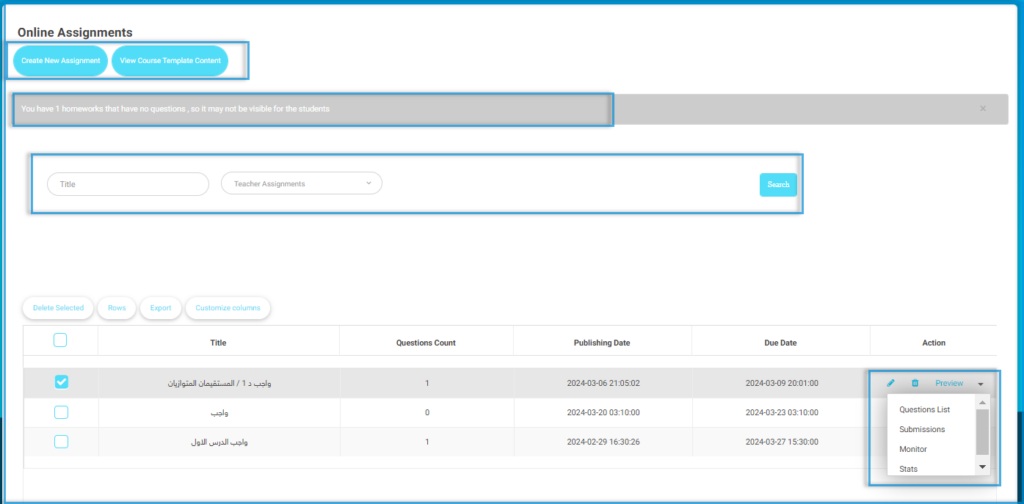
Choose ‘Online Assignments’. The system will display the previous assignments.
Next to each assignment, you will find a brief menu that includes the following options:
List of questions in the assignment.
Submissions organized by date.
Monitoring student progress.
Detailed statistics including the highest and lowest grades.
Additionally, you can edit, delete, or preview the assignments.
After creating the assignment and adding questions, you can do some actions, such as editing and deleting the assignment.