
 English
  Arabic
  French
 After adding your exam and adjusting its settings, it is time to add the questions. LMS offers you several question types to use according to your subject and grade.1
To Add Exam Questions: #
- Choose the type of question and fill in the questions sections.
- See the whole exam as a final preview. You can see it along with correct answers and standards or without.
- Click to find out how to add bulk questions at once.
- Click to find out how to classify the exam questions into different sections.
- Click to find out how to use question banks and add questions from them.
Note: The available types of Q-Banks will differ from school to school according to their curriculum and platform package.
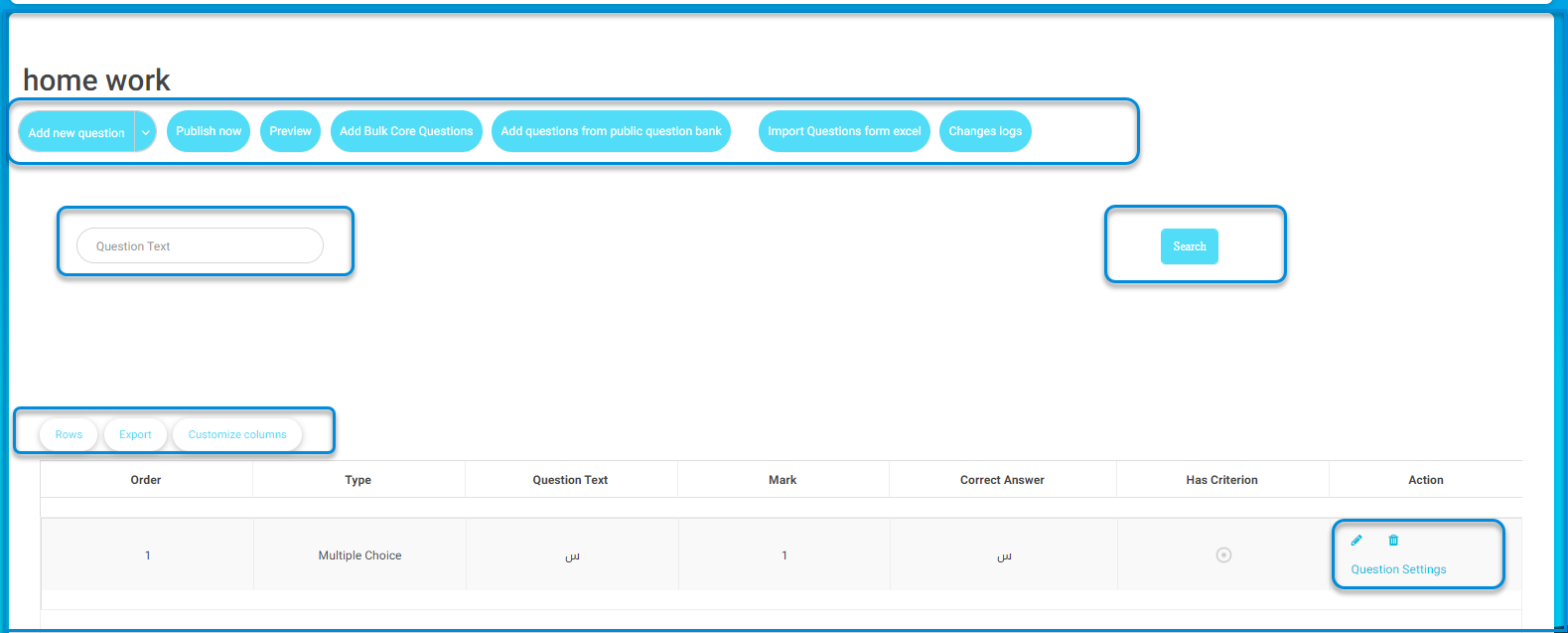
Choose any of the question types, then start to fill its fields as follows:
- Define the question difficulty level.
- The text editor is rich with several tools that allow you to insert Images, Math equations, Chemical equations, Voice messages, etc.
- Define the correct answer carefully (Mandatory). The question will be auto-marked accordingly.
- To attach a file with this question for the students to be able to download, check the Attach a file with the question box.
- Aligning your questions with a certain area and standard is very powerful. It allows the system to generate deep standard analysis and personalized academic progress reports.
Click Add Question.
Modification of the Question Bank Page #
Enhance the Question Bank page by adding advanced filtering and easier navigation options for teachers.
Main Features:
Add a filter for the question bank, including:
- Title
- Subject
- Grade level
- Teacher name
- Date range (from–to)
This allows defining and retrieving the question bank based on subject and type of test.
To access the new feature:
- Navigate to the Home Page and show all subjects.
- Select the required Subject Card, and from the third tab (Tests/Assignments).
- Click Add New Test >> Import from Question Bank → Question Bank
Note: The filter makes it easier for the teacher to navigate through available tests and reach the required set of questions efficiently.
Exporting Questions Using the Import Template
Enable teachers and exam supervisors to export questions using the same file format used for importing questions in Excel.
Main Features:
- Teachers and supervisors can export questions from the question bank in Excel format matching the import template.
- Allows easy reuse or editing of questions for future imports.
The system provides multiple export formats:
Export Options
- Excel
(as shown in the export options menu: Copy – Print – Excel – PDF)
Note: This feature ensures consistency and efficiency when managing large sets of questions, allowing educators to easily move between import and export processes without reformatting data.


