English
  Arabic
  French
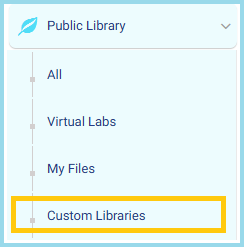
 - From the side menu, go to Public Library.
- Click on Custom Libraries to view or manage your personalized library collections.
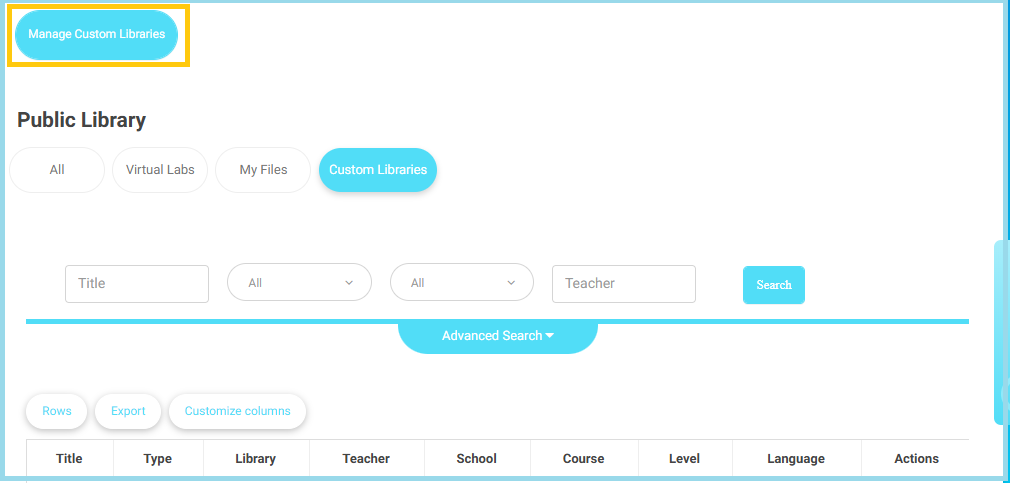
- At the top, select Manage Custom Libraries to open the management dashboard.
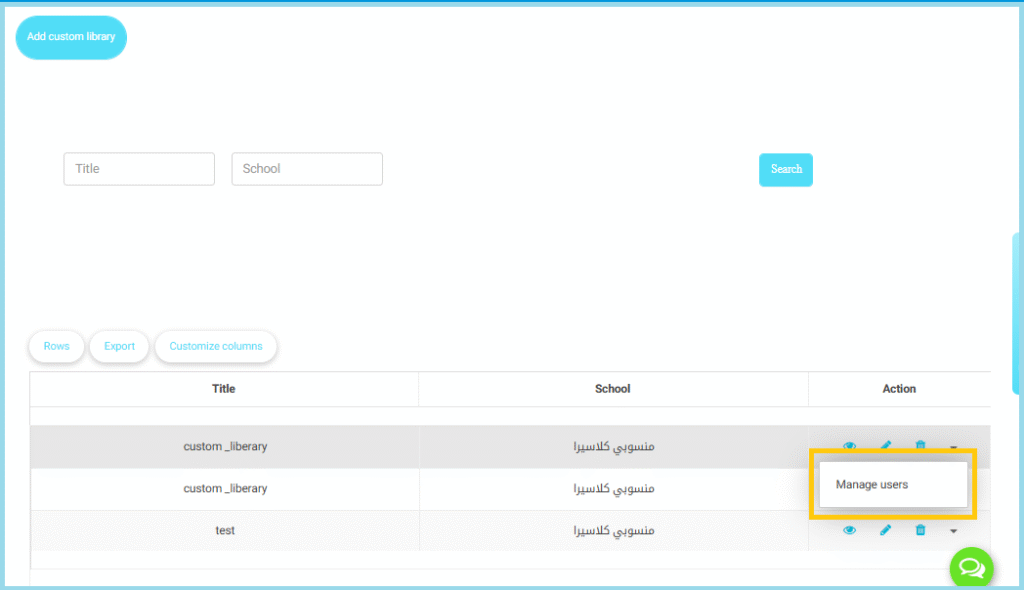
- Under the Action column, from the dropdown list, select Manage Users.
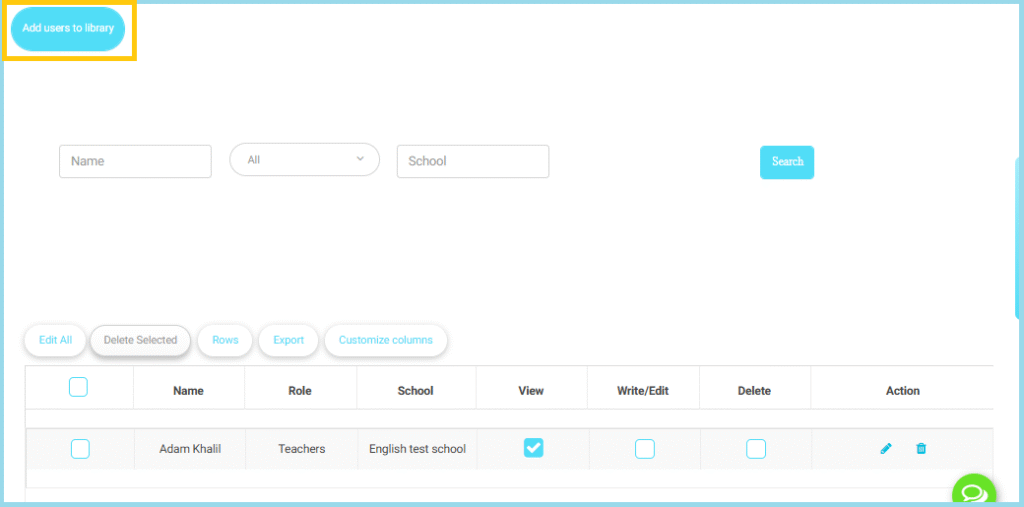
- Click the Add users to library button at the top left of the page.
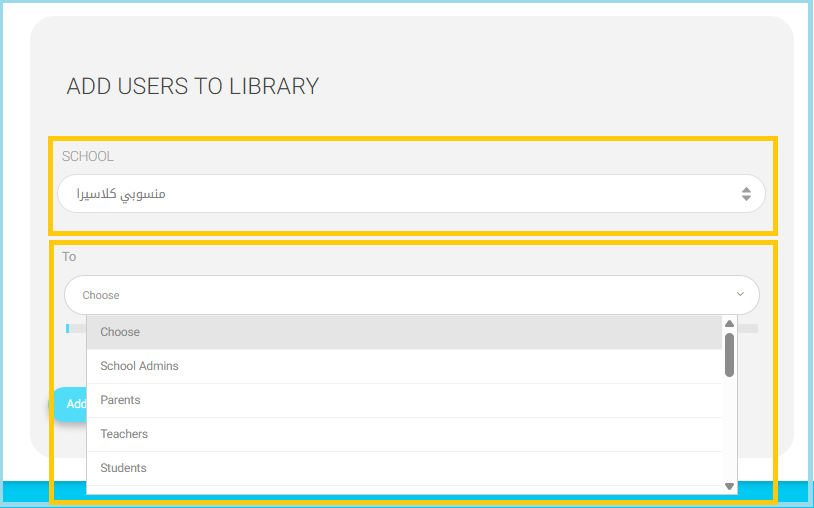
- In the School dropdown, choose the school where the users belong.
- Only users from the selected school will appear in the next step.
Note: If your account has multi-school access, make sure to choose the correct school to avoid adding users from the wrong institution.