English
  Arabic
  French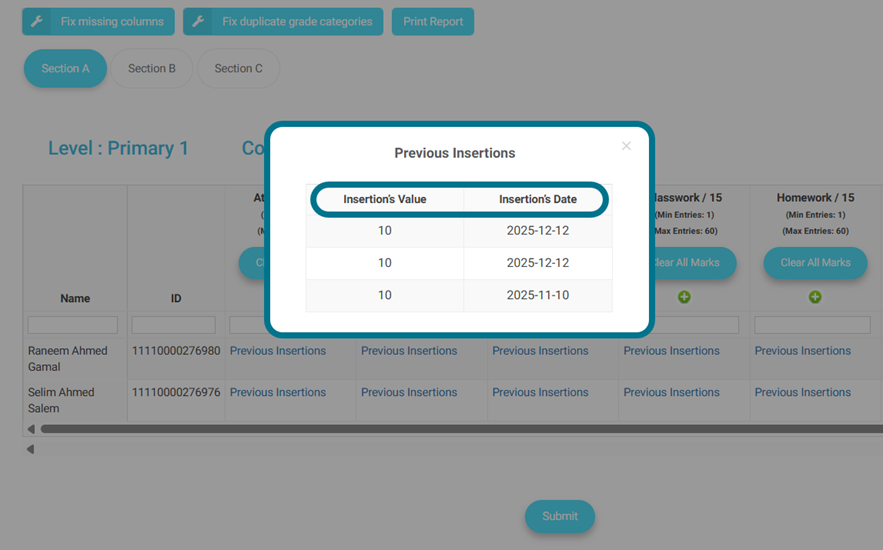
1-Showing previous entries to the teacher
Aim:
Currently, teachers enter grades for students for a specific date.
After that, when they enter this page on another date, the previously entered grades don’t appear.
So, he/she gets confused whether he/she has entered a grade for this student or not and sometimes duplicates the entry because of this.
So, we need to show him/her his/her previous insertions along with their dates.
Access Path:
Teacher’s account — home page — any course’s card — 1st tab — grade management — fill grades.
How to Use:
A new button will be added under the insertion box.
This button will be called “Previous Insertions”.
It will be in the form of a hyperlink and will be clickable.
Once clicked, it will show a pop-up containing a table with the following 2 columns:
Insertion’s Date: will return the date when the insertions was inserted.
Insertion’s Value: will return the insertion’s value. And if the column takes multi-insertions, they will be shown each in a different row, having the same insertion’s date.
The previous insertions button will appear only if the column has previous insertions for the student.
2-Adding Publish Date to The Preparations List
Aim:
Instead of going through inside preparation, now you can know the publish date from outside view.
Access Path:
- On the teacher’s account — home page — any course’s card — 4rth tab — course preparations.
How to Use:
Lecture: returning section and timeslot assigned to the date.
On the teacher’s account — home page — any course’s card — 4rth tab — course preparations.
A new column is to be added before the created date column.
This column will be called “Publish Date”.
This column will return the publish date of the preparation specified while creating the preparation.
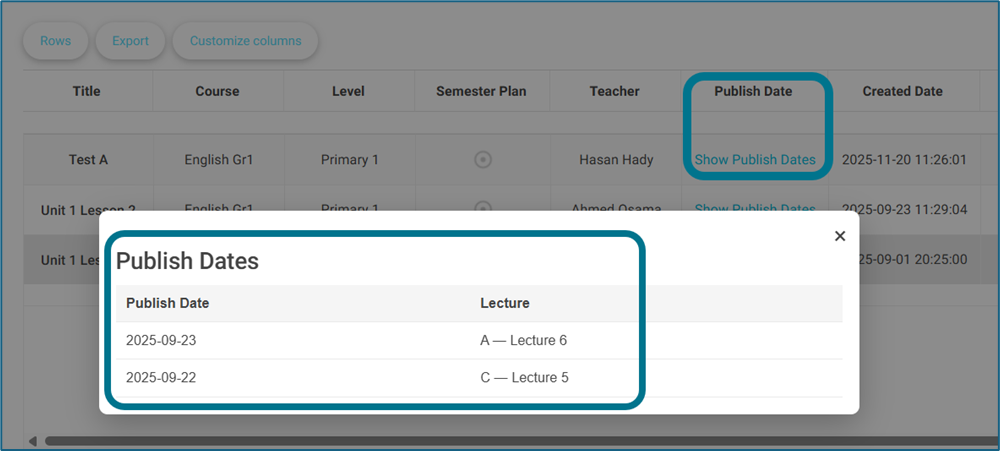
But there might be more than publish date for the same preparation, each for a different section.
So, for this reason, there will be a “Show Publish Dates” button, which when clicked, a popup showing the details for the publish dates will be shown.
This popup will contain the following 2 columns:
Publish Date: returning the publish date.
Changing custom question banks page #
Aim:
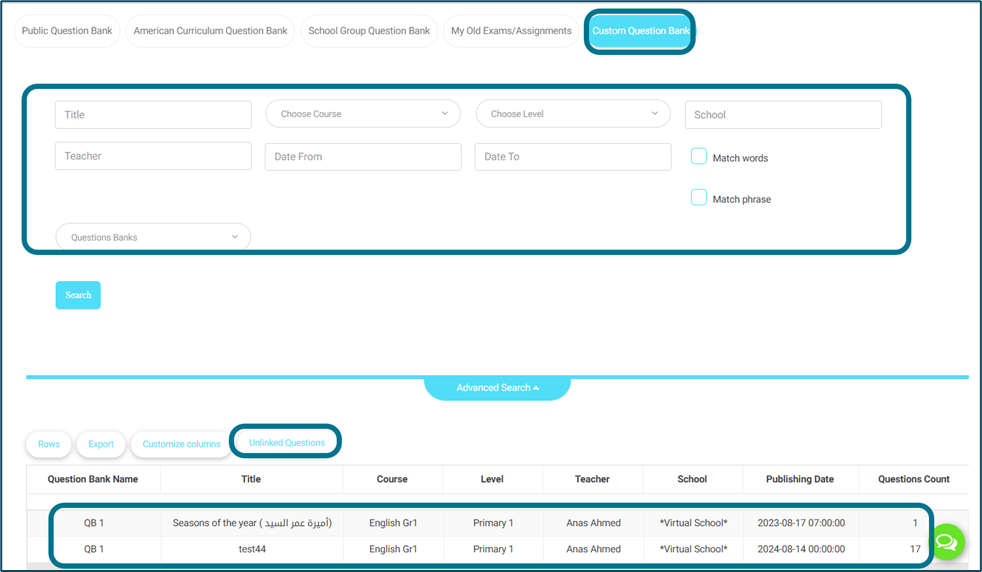
- Previously we couldn’t distinguish to which level, course, and criteria each question bank/question is related to.
- So, in a sequence, this page’s structure is going to be changed to match the school group question bank’s structure.
Access Path:
- So, on the
- Teacher’s account — home page — any course’s card — Exams/assignments — questions — import from question banks — custom question banks.
- Exams supervisor’s account — home page — questions for any exam — import from question banks — custom question banks.
- Then the chosen custom question bank will contain the following columns:
- Exam Title, Course, Level, Teacher, Publish Date & Questions Count.
- Then the chosen custom question bank will contain the following columns:
How to Use:
- Note: Questions not linked to any exam will be returned in the table once clicking an “Unlinked Questions” button that will be added.