English
  Arabic
  French
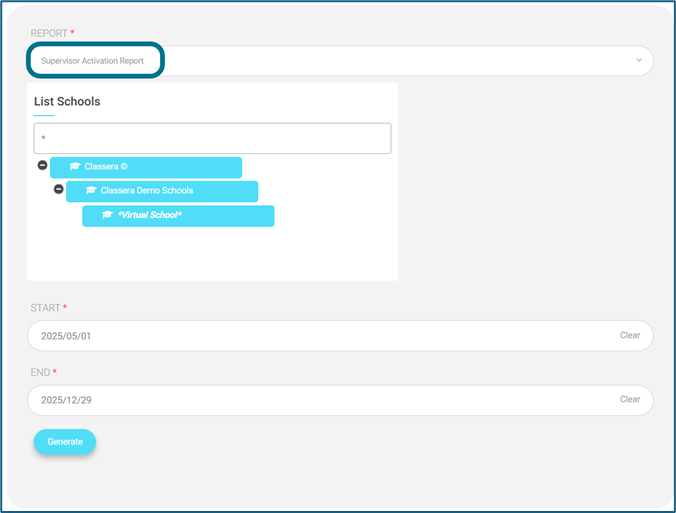
 -Supervisors’ Activation Report (Admin & Supervisor)
Aim:
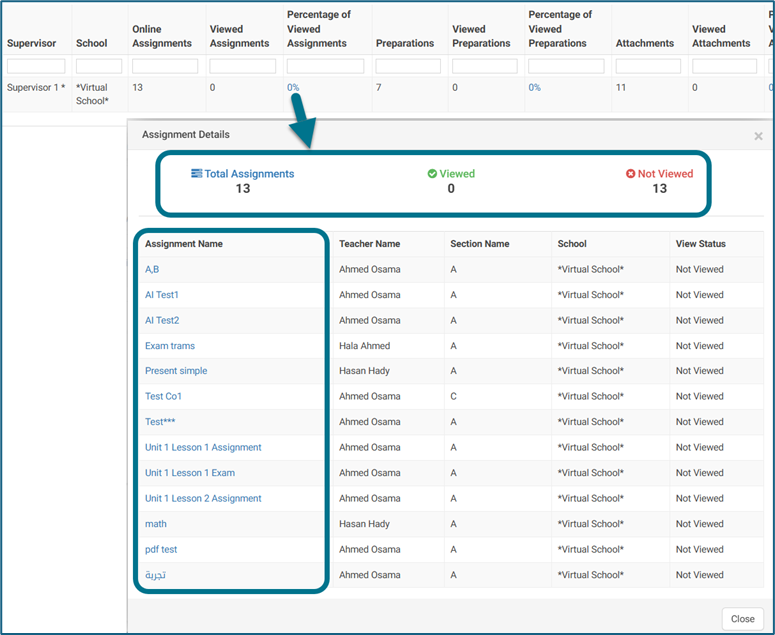
As an Admin and as a Supervisor, I want the Supervisors’ Activation Report to display a clickable percentage of views that opens a sub-report with totals and a detailed table, so that I can track engagement.
- Admin View: Sub-report shows Teacher Name and Section Name, but no clickable links to attachments.
- Supervisor View: Sub-report shows only the supervisor’s scoped data, with clickable links to attachments.
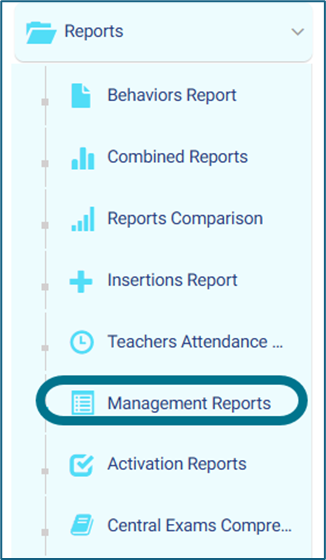
Access Path:
Admin – Reports – Management Reports- Supervisors Activation Report.
Teacher Supervisor – Reports – Management Reports- Supervisors Activation Report.
How to Use:
- User opens Supervisors’ Activation Report from the report side menu, then Management Report, then selects the last report
- Report displays a percentage of views.
- User clicks the percentage — Sub-report opens showing:
- Total uploaded items
- Total viewed items
- Total unviewed items
- Detailed table (structure depends on role):
- Admin: Attachment Name, Teacher Name, Section Name, View Status (no link).
- Supervisor: Attachment Name, Clickable Link, View Status (scoped data only).