English
  Arabic
  French
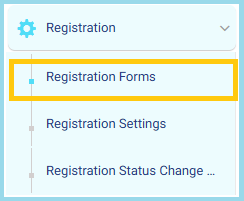
 From the main menu:
- Open the Registration dropdown list in the left-side menu.
- Click on Registration Forms.
1. Page Components
a. Forms List
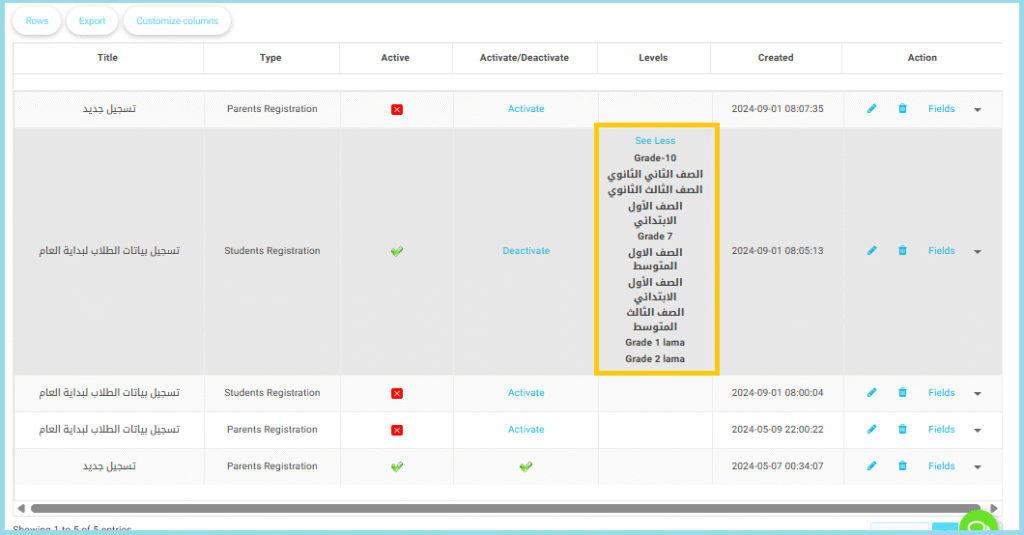
The table displays all existing registration forms with key details:
- Title
- Type
- Active
- Activate/Deactivate
- Levels
- Created
- Action
1. Page Components
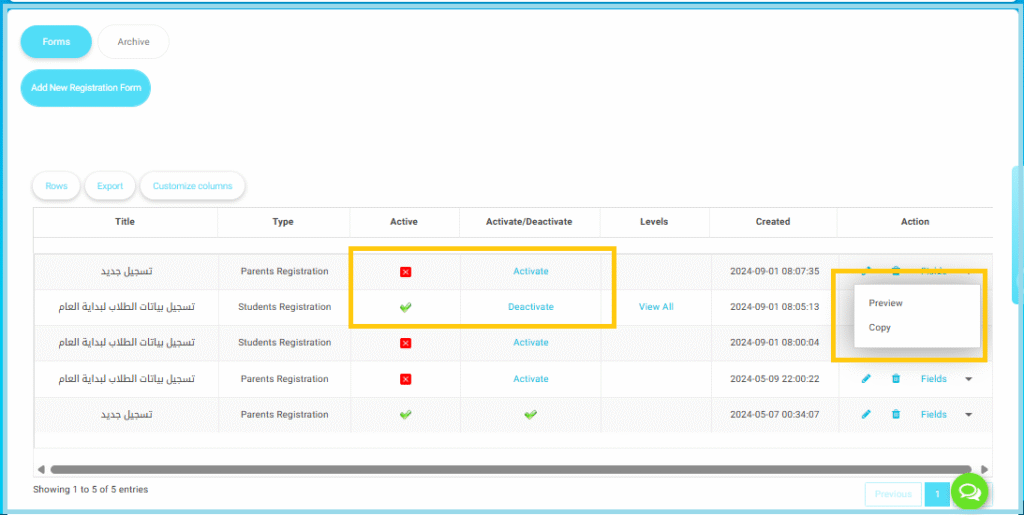
a. Forms List: The table displays all existing registration forms with key details:
- Title
- Type
- Active
- Activate/Deactivate
- Levels
- Created
- Action
2. Activate / Deactivate Forms: Each form can be turned ON or OFF for use by parents.
Activate: Makes the form available for Users.
Deactivate: Hides the form from Users.
3. Action Menu (Preview & Copy)
Click the vertical three-dots icon under Action to access:
Preview: Opens a read-only view of the form.
Copy: Creates a duplicate of the selected form.
Note:
A single class cannot be linked to more than one registration form. Therefore, any class already linked to an existing form will not appear when creating a new form.
This update will allow multiple registration forms to be activated at the same time, with each form linked to different classes.