
 English
  Arabic
  French
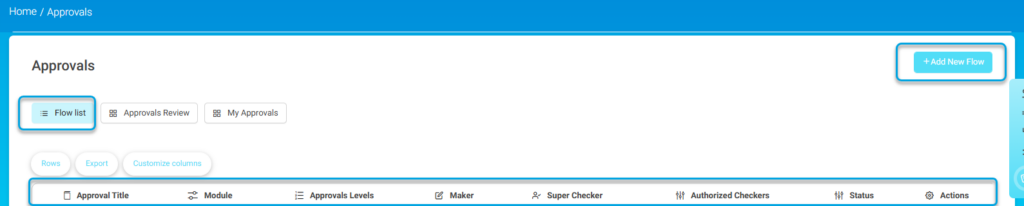
 On the Approvals Flows screen, you can manage approval , including details such as approval title, module, approval levels, maker, super checker, authorized checkers, and current status. You can also add new approval flows, customize displayed columns, filter, review your approvals, and export the data.
To use this screen efficiently, do as follows:
- Click Flow list to view existing approval flows.
- Select Approvals Review to see approvals pending your action.
- Select My Approvals to manage approval tasks assigned specifically to you.
- Click + Add New Flow to create and save a new approval workflow.
- Use Customize columns to select the information displayed in the approval list.
- Click Rows to define how many entries appear per page.
- Select Export to download approval data.
The Approvals section provides a flexible mechanism for creating and tracking approval workflows within the Classera system. It enables system administrators (Admins) to define who can create, review, or approve actions within different modules, such as the Question Bank or Course Content.
Service Features:
1-Approval Flow Management: Add, modify, activate, and deactivate approval workflows.
2-Role Definition: Assign and customize requesters and reviewers.
3-Multi-Level Capability: Support for multiple approval levels with different permissions.
4-Smart Notifications: Alerts when an action is taken or approval is required
5-Attachment of Instructions: Document reasons for rejection or add comments.
6-Reports and Logs: View modification history and the status of each review.
7-Dedicated Interface for Each Role: Customized interfaces for requesters and reviewers.
Users can take on the following roles:
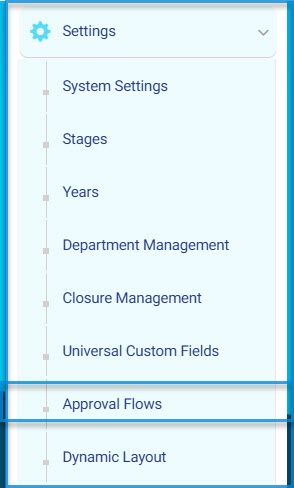
- System Administrator (Admin):
The admin is responsible for setting up and managing approval workflows within the Learning Management System. This includes creating new workflows, assigning users and roles at each level (Maker, Checker, Final Approver), editing or disabling existing workflows, and tracking all related operations. This ensures effective governance of academic and administrative processes on the platform.
- Maker:
The Maker submits content or requests (such as questions or learning materials) for approval, monitors the approval status, and has the option to withdraw the request before final approval. The Maker also receives notifications of any status changes
- Checker (Reviewer):
The Checker reviews submitted requests and decides whether to approve or reject them. In case of rejection, they are required to provide comments. The Maker is notified of the action taken. A Checker can be involved in multiple levels of review.
- Final Approver (Checker Super):
The Final Approver performs the last-level review of the request. They have the authority to either approve the publication at the highest level (e.g., group level) or reject it with feedback. This marks the conclusion of the approval process.


