
 English
  Arabic
  French
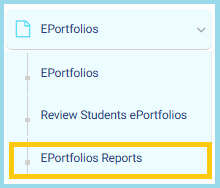
 - From the side menu, select EPortfolios.
- Click EPortfolios Reports.
3. At the top-left, select either:
- Students
- Employees
The page will update according to your selection.
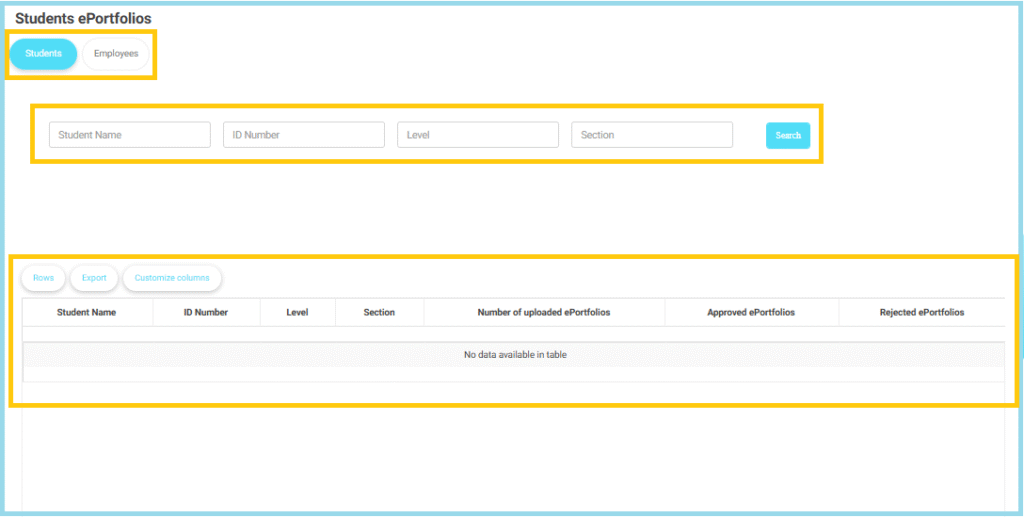
Use Search Filters
- Enter Student Name (optional).
- Enter ID Number (optional).
- Select the Level from the dropdown.
- Select the Section.
- Click Search to display results.
Notes
- If a user has multiple roles, their name will appear separately for each role, and the ePortfolio count is displayed based on the specific role shown.
- During the review process for students or teachers, a Subject filter is available to help refine and manage approval or rejection of ePortfolios more efficiently.


