
 English
  Arabic
  French
 The Edit Profile section allows you to manage your personal account information, login credentials, connected services, facial recognition, and public profile visibility, all from one place. It is divided into multiple tabs, each covering a specific aspect of your profile.
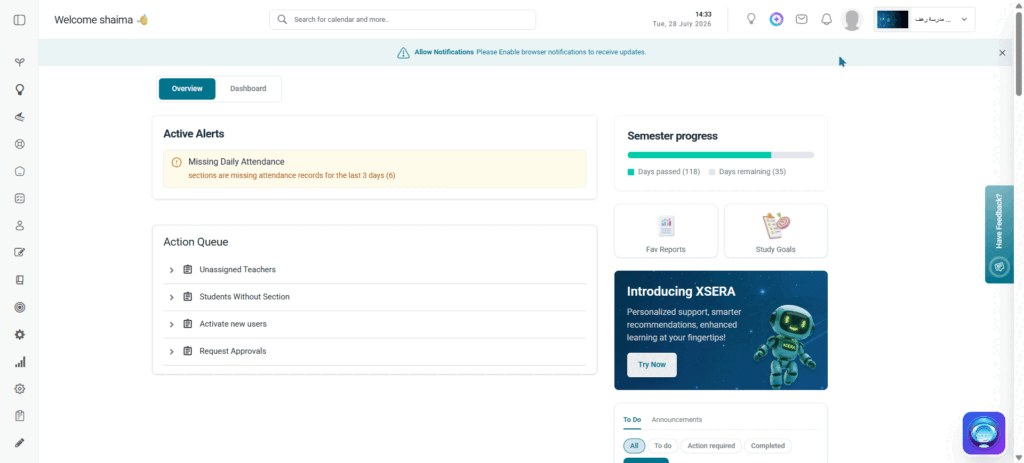
Accessing Edit Profile #
To access Edit Profile, follow these steps:
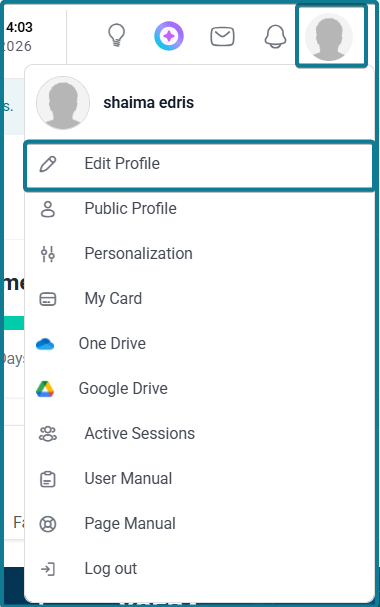
- Click your profile picture in the top right corner of the top navigation bar.
- The Profile Menu opens.
- Click Edit Profile.
- Your profile page opens, displaying your name and role at the top, along with a row of tabs across the page.
Account Settings Tab #
The Account Settings tab is where you manage your login credentials, system preferences, and connected accounts.
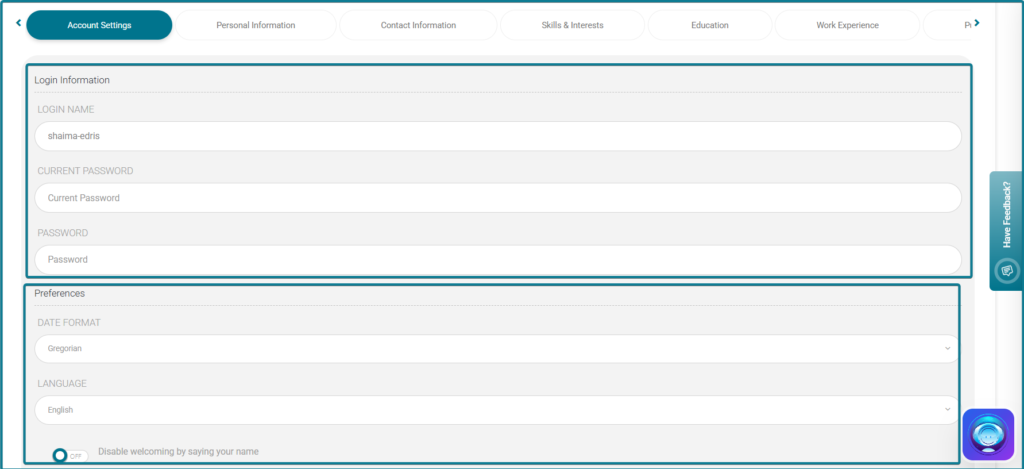
To update your account settings, follow these steps:
- Login Information: Update your Login Name, Current Password (required for validation), and set a new Password.
- Preferences: Adjust your Date Format, System Language, and toggle Disable welcoming by saying your name.
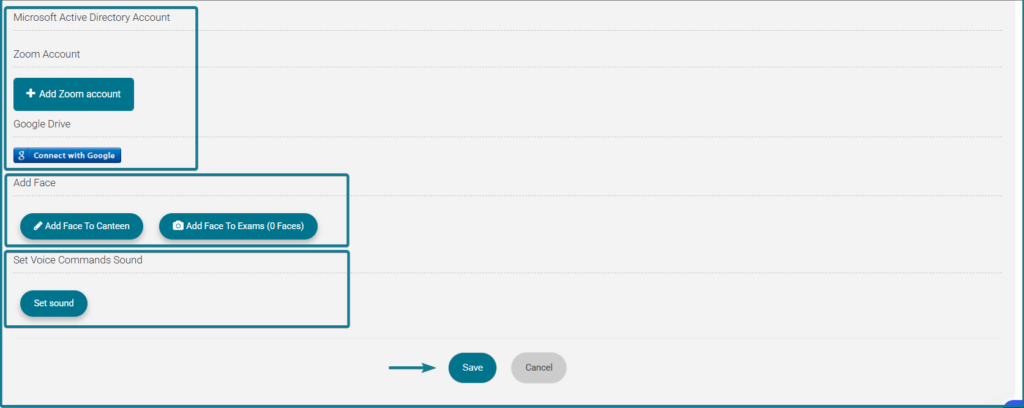
- Integrations: Link third-party institutional networks or tools including Microsoft Active Directory, Zoom, and Google Drive.
- Add Face:
- Add Face to Canteen: Register facial recognition to process fast, cardless payments at the school canteen.
- Add Face to Exams: Register facial recognition to securely verify identity when entering exams.
- Voice Commands: Click Set Sound to configure integrated voice-command audio parameters.
- Click Save to apply all changes, or Cancel to discard them.
Note: Canteen and Exam facial data are registered separately and both require direct device camera access.
Personal Information Tab #
The Personal Information tab contains your basic personal details as stored and displayed in the system.
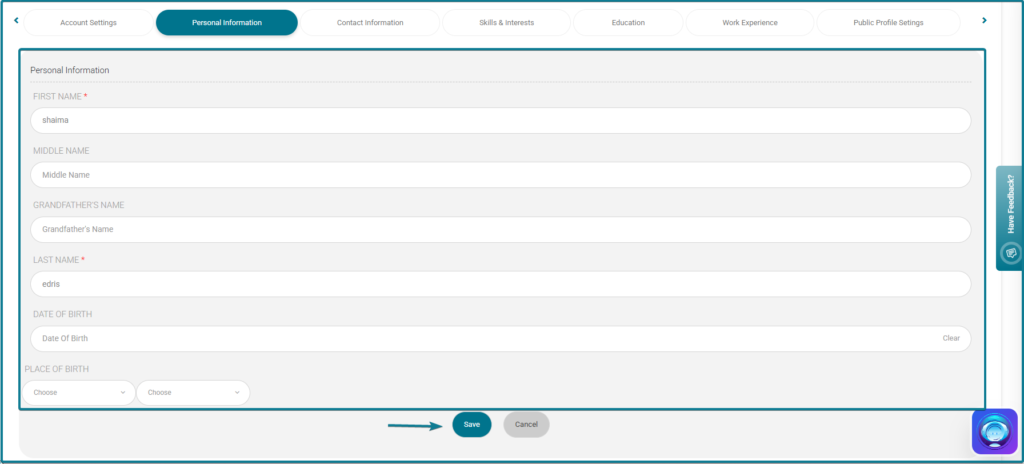
To update your personal information, follow these steps:
- Click the Personal Information tab at the top of your profile page.
- Update your personal details in the available fields.
- Click Save to apply your changes.
Contact Information Tab #
The Contact Information tab stores your contact details within the system.
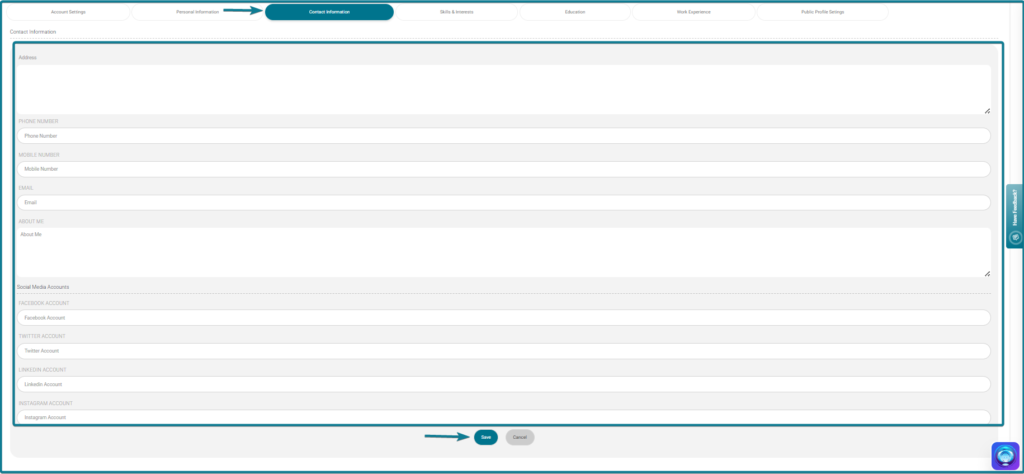
To update your contact information, follow these steps:
- Click the Contact Information tab at the top of your profile page.
- Update your contact details in the available fields.
- Click Save to apply your changes.
Skills & Interests Tab #
The Skills & Interests tab lets you add or update your professional skills and personal interests as shown on your profile.
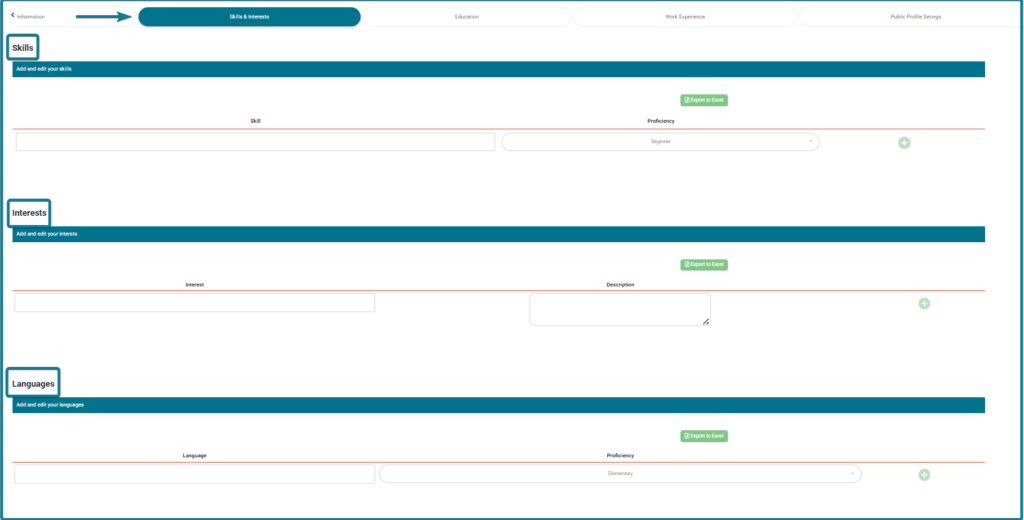
To update your skills and interests, follow these steps:
- Click the Skills & Interests tab at the top of your profile page.
- Add or edit your skills and interests in the available fields.
- Click Save to apply your changes.
Education Tab #
The Education tab stores your academic and educational background.

To update your education details, follow these steps:
- Click the Education tab at the top of your profile page.
- Add or edit your educational background in the available fields.
- Click Save to apply your changes.
Work Experience Tab #
The Work Experience tab stores your professional work history within your profile.

To update your work experience, follow these steps:
- Click the Work Experience tab at the top of your profile page.
- Add or edit your work history in the available fields.
- Click Save to apply your changes.
Public Profile Settings Tab #
The Public Profile Settings tab gives you control over which parts of your profile are visible to other users in the system.
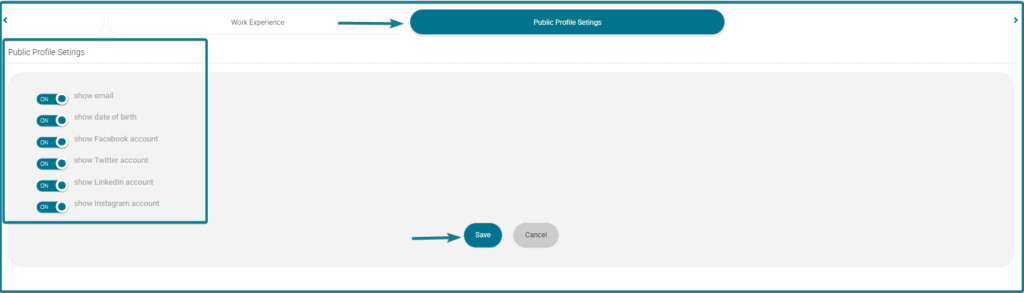
To configure your public profile visibility, follow these steps:
- Click the Public Profile Settings tab at the top of your profile page.
- Review the list of profile sections and toggle each one on or off depending on whether you want it visible to others.
- Click Save to apply your changes.
Note: Changes made in Public Profile Settings affect what other users see when they visit your Public Profile page. Your private account information is never visible to other users regardless of these settings.


