Skip to content
| User Manuals
| User Manuals

en_US English
en_US English ar Arabic fr_FR French

| User Manuals
| User Manuals
Popular Search reportreport cardBehaviorالمالت

Teacher Account

  • Logging in to the Platform 
  • Professional Development Hub
    • Intel’s Skills for Innovation
  • Motivation
    • The New Way of Learning
    • C-Inspire
    • My Score
  • Important Links
    • Important Links 
  • Home Page
    • Homepage
    • Personal Menu
    • PUBLIC PROFILE 
    • Edit Profile
    • Chat
    • Clubs Courses
  • Show all courses
    • COURSES
      • Charts and Behavior Analysis
      • Tab 1
        • Excel Sheet Grades Import
        • Manage Students Groups
        • Managing Content
        • Lecture Management
        • Grade Management edit –
        • Students List
        • Students’ Report Summary
      • Tab 2
        • Course Materials
        • Video Lectures
      • Tab 3
        • In-Class Activity
        • Assignments, Exams
        • Assignment Actions
        • Assignment Sections
        • Assignment Questions
        • Exams
        • Exam Styles
        • Exam Sections
        • Assignment settings
        • Exam Settings
        • Exam Settings | More options
      • Tab 4
        • Digital Libraries
        • Weekly Study Plan
        • Semester Plan
        • Course Preparations
      • Tab 5
        • Management of Timetable 
  • Books
    • Books
  • Activities
    • Summer Clubs
    • Contests
  • Classroom Attention Indicator
    • Classroom Attention Indicator –
  • Training Courses
    • Adding Trainees
  • Mailbox
    • Sent Messages
    • Draft Messages
    • Archived Messages
    • Compose
    • Trash
  • Appointments
    • Appointment Scheduling
    • Reserve Appointment
    • Appointments 
  • Grade Management
    • Grade Management
  • Discussions
    • Discussion Rooms
    • Discussion Rooms Main Page
    • Adding New Discussion Rooms
    • Adding New Posts
    • Comments Management
  • Central Exam Report
    • Central Exam Report
  • Questions Banks
    • Add Questions from Q-Banks
    • Exam Questions
    • Add Bulk Questions
  • My Schedule
    • Schedule
    • Exams Schedule
    • Calendar
      • Calendar
      • Editing Events
      • Adding Events
  • Virtual Classes
    • Virtual Classrooms
    • MS Teams Classroom
      • Adding Virtual Classrooms Using MS Teams
      • Using MS Teams Web Application
      • Joining the Classroom
      • MS Teams Classroom Main Screen
      • Manage Permissions
      • Classroom Participants
      • Classroom Conversation
      • Share Screen
      • More Actions
      • Meeting Info
    • Zoom Classrooms
      • Zoom Classroom Main Screen
      • Adding New Zoom Meeting Rooms
  • teacher Library
    • PUBLIC LIBRARY
    • VIRTUAL LABS 
    • My Files
  • Absence Report
    • Absence Report
  • E-Portfolios
    • E-Portfolios
    • Adding E-Portfolios
    • Editing E-Portfolios
    • Viewing EPortfolios
    • Reviewing Students E-Portfolios
    • Previewing Your Public Portfolios
  • Certificates | Letters
    • Issued Certificates | Letters
    • Certificates | Letters
    • My Certificates
    • Sign Multiple Certificates
    • My Letters
    • Issue Certificates
  • Parents student's requests
    • Parents students requests
  • Contents Reports
    • Contents Reports
  • Education Partners
    • Education Partners
  • My Behaviors
    • My Behaviors
  • Evaluation Tools
    • Forms
    • Evaluations | Surveys
  • Share Your Ideas
    • Share Your Ideas
  • Intel’s Skills for Innovation
    • Intel’s Skills for Innovation

Parent account

  • Logging in to the Platform
  • C-Inspire Awards
    •  C-Inspire Awards
  • Important Links
    • Important Links –
  • Homepage
    • Student Accounts
    • Edit Profile
    • Personal Menu
    • Personal Profile
    • Homepage
  • Student Contracts
    • Student Contracts
  • Call Student
    • Call Student
  • Mailbox
    • Trash
    • Archived Messages
    • Compose
    • Sent Messages
  • Appointments
    • Reserve Appointment 
    • Appointments 
  • Public Library
    • Custom Library
    • My Files
    • All
  • C-Pay
    • CPay for Online Payments (KSA)
    • CPay for Online Payments (Egypt)
  • Personal Drivers
    • Personal Driver 
    • Link Drivers With Students
    • Students Drivers List
  • Share Your Ideas
    • Share Your Ideas
  • Canteens
    • Delivered Orders
    • Canteens
  • Events
    • Events
  • Contests & Activities
    • Contests & Activities
  • Virtual Meetings
    • Virtual Meetings
  • Training Courses
    • Training Courses
  • School Clinic
    • Medical Records
    • Clinic Transfer Requests/ Diagnosis
  • Education Partners
    • Education Partners
  • Bus Trips 
    • Bus Trips 
  • Evaluations | Surveys
    • Forms
    • Evaluations | Surveys
  • Admission Exams Schedules
    • Admission Exams Schedules

Student account

  • Logging in to the Platform
  •  Awards and Scores
    • The New Way of Learning
    • C-Inspire
    • My Score
    • My Awards
  • Important Links
    • Important Links
  • Home Page
    • Homepage
    • Personal Menu
    • Personal Profile
    • Edit Profile
    • Chat
  • Courses
    • Clubs Courses
    • Courses—
    • Course Materials
    • Video Lectures
    • Discussion Rooms
    • Online Assignments 
    • Exams
    • Training Courses 
  • Previous Course Contents
    • Previous Course Contents
  • Book
    • books
  • My Schedule
    • Elective Subject
    • Schedule Journal
    • Schedule
    • Weekly Study Plan
    • Exam Schedule 
    • Calendar
      • Calendar
      • Adding Events
      • Editing Events
  • Digital Library
    • Digital Library 
    • Courses Library
    • Public Library
    • Custom Libraries
    • Virtual Labs 
    • My files
  • Evaluation Tools
    • Evaluation
    • form
  • Virtual Classes
    • Virtual Classrooms
    • MS Teams Classroom
      • Background Effects
      • Joining Classrooms Using MS Teams Desktop Application
      • Joining Classrooms Using MS Teams Web Application
      • Viewing Old Smart Classrooms (Recorded)
      • MS Teams Classroom Main Screen
      • MS Teams Classroom Main Screen
      • Choosing Your Video and Audio Options
      • Classroom Participants
      • Share Screen
      • Background Effects
      • Meeting Info
      • Classroom Conversation
      • More Actions
      • Meeting Notes
    • Zoom Meeting
      • Joining Zoom Virtual Classrooms
      • Joining Classrooms Using Zoom Application
      • Zoom Classroom Main Screen
  • Education Partners
    • Education Partners
  • Contests
    • Contests
  • canteens
    • School Canteen/Restaurant 
  • Mailbox
    • Draft Messages
    • Mailbox
    • Compose
    • Inbox
    • Sent Messages
    • Archived Messages
    • Trash
  • Attendance
    • Daily Lateness
    • Course Absences
    • Daily Absences
    • Course Absences Summary
    • Course Lateness
    • Absences Summary
  • Certificates | Letters
    • Certificates | Letters
  • My Profile
    • E-Portfolios
    • Adding E-Portfolios
    • Editing E-Portfolios
    • Viewing E-Portfolios
    • Previewing Your Public Portfolios
  • Bus Trips
    • Bus Trips
  • Other Services
    • Share Your Ideas 
  • Canteens
    •  Canteens
  • Contents Reports
    • Contents Reports

School Accountant

  • Add Expiry Date to a Financial Claim
  • Claims Report
  • Logging in to the Platform 
  • CPay Installment Plans Facility
  • CPay Finance Requests

Teacher Supervisor Account

  • Logging in to the Platform
  • Homepage
    • Homepage
    • Personal Menu
    • Edit profile
    • PUBLIC PROFILE 
  • Contents Reports
    • Contents Reports
  • Appointments
    • Reserve Appointment
    • Appointments 
  • Behaviors Report
    • Behaviors Report
  • Calendar
    • Calendar
    • Editing Events
    • Adding Events
  • Certificates | Letters
    • Issue Certificates
    • Certificates | Letters
    • My Letters
    • My Certificates
    • Issued Certificates | Letters
  • Class Visits
    • Copy from Template
    • Adding New Class Visits
    • Class Visits
  • Contests
    • Contests
  • Education Partners
    • Education Partners
  • EPortfolios
    • Previewing Your Public Portfolios
    • Viewing EPortfolios
    • Editing EPortfolios
    • Adding E-Portfolios
    • EPortfolios
  • Evaluations | Surveys
    • Forms
    • Evaluation | Surveys
  • Grade Management
    • Insertions Report
    • Combined Reports
    • Analysis
    • Grade Management
  • Mailbox
    • Compose
    • Trash
    • Archived Messages
    • Mailbox
    • Sent Messages
  • Management Reports
    • Management Reports
  • Public Library
    • Public Library/Digital Content
  • Questions Banks
    • Questions Banks
  • Share Your Ideas
    • Share Your Ideas
  • SMS
    • SMS
  • Teachers list
    • Exams/Homework Without Questions
    • Teachers’ List
  • Training Courses
    • Training Courses
  • Virtual Classrooms
    • Adding Users to Meetings
    • Joining Zoom Virtual Meeting Rooms
    • Adding New Zoom Meeting Rooms
    • Zoom Meeting Room Main Screen
    • Virtual Meetings
    • Upcoming Smart Classes
    • MS Teams Meeting Room Main Screen
    • Joining MS Teams Meeting Rooms
    • Adding Virtual Meetings Using MS Teams
    • All Smart Classes
    • Recorded Smart Classes
    • Virtual Classrooms
  • Weekly Plan
    • Weekly Plan
  • C-Inspire Awards
    • C-Inspire Awards
  • chat
    • Chat
  • Question Banks
    • Question Banks
  • Teachers' Statistics
    • Teachers’ Statistics
  • Teachers' Attendance Report
    • Teachers’ Attendance Report
  • Central Exams Comprehensive Report
    • Central Exams Comprehensive Report

Administrator Account

  • LOGGING IN TO platform
  • Dashboard/Realtime Overview
    • Teachers Attendance Report
    • Teachers’ Preparations Report
    • Students’ Scores
    • Most Active Teachers in the Group
    • Online Users
    • Dashboard/Realtime Overview
  • C-Inspire Awards
    •  C-Inspire Awards
  • important links
    • IMPORTANT LINKS 
  • Homepage
    • Edit Profile
    • Personal Menu
    • Homepage
    • Public Profile 
  • Support / Request
    • Transfer All School Guardians
    • Activation Ticket Resolution Report
    • Transfer Student
    • Fix Score
    • User Information
    • Guardian Transfer
    • New Feature Requests
    • Contents Reports
    • LMS Support
    • Activation Ticket Resolution 
    • Internal Support
    • FAQs
  • Users
    • Manage Badge
    • Enhancements to User Management Filters
    • Users / Students
    • Student’s /Adding
    • Students Without Sections
    • Excel Import- Bulk Students
    • Update Student’s Status
    • Student / Action
    • More Actions
    • Guardians
    • Teachers
    • Teacher’s Statistics
    • Supervisors
    • Management
    • Management / Option
    • Kagan Coaches
  • Weekly Plan
    • Weekly Plan /Dynamic weekly
    • weekly plan / Static
  • Courses Management
    • Questions Banks
    • Schedule Journal
    • Courses Management
    • Courses
    • Adding Courses
    • Course Templates
    • Trees
    • Areas
    • Areas – Adding Criteria
    • Exams Schedule
    • Exams Mark Comparison
    • Full Schedule
    • lectures
      • Lectures/ Schedules 
      • Lectures – Students List
      • Adding Lectures
      • Lectures/Manage Halls and Manage Medals 
      • Alternative Teacher
      • Lectures
      • Managing Timeslots
      • Adding Bulk Lectures
  • Settings
    • Enable PDF Conversion
    • Closure Management
    • Approval Flows
    • System Settings
    • Settings /part one
    • System Settings – part Two
    • System Settings / part three
    • System Settings—Part Four
    • Stages
    • Years
    • Years/Adding a Semester Plan
    • Years – Copy to Semester
    • Review Students E-Portfolios
    • E-Portfolios
  • Registration
    • Registration Settings
    • Registration Forms
  • Behaviors & Advising
    • Behaviors Report
    • Behavior Degree
    • Advising Programs
    • Behavior Actions
    • Behavior Groups
    • Behaviors
  • Calendar
    • Adding Tasks to Calendar
    • Editing Events
    • Adding Events
    • Calendar
  • Mailbox
    • Archived Messages
    • Inbox
    • Trash
    • Sent Messages
    • Compose
  • Appointments
    • Reserve Appointment
    • Appointments 
  • Announcements
    • Announcements
  • Report
    • Training Courses Report
    • EduMall Products Report
    • EduMall Purchases Report
    • Custom Reports
    • Reports
    • Management Reports
    • Admissions Request Report
    • C-Inspire Reports
    • Redemption Statistics
    • Schools: C-Inspire Report
    • Students Badge Report
    • Medals Report
    • Files Log
    • School Group Absences
    • Full Day Absences Detailed Report
    • Lectures Absences Detailed Report
    • Export User Accounts
    • Activity Log
    • Messages Log
    • Score Drop
    • Staff Behavior Report
    • VCR Activation Report
    • Modules Activation Report
    • Financial Claims Report
    • Students Accounts Log
  • Grade Management
    • Mark Scheme Analysis
    • Lectures/ Schedules 
    • Grade Report Comparison 
    • Equations
    • Central Exam Report
    • More Action
    • Show student grade
    • Report card / Action
    • Grade Management
  • Training Courses
    • Courses Status
    • Training Courses Schedule
    • Training Courses
    • School Locations
    • Training Courses Definition
    • My Training Courses
  • SMS
    • Send SMS from Excel
    • SMS Templates
    • Sending SMS
    • SMS
  • Certificates | Letters
    • Certificates | Letters
  • Forms and Assessments
    • Forms and Assessments
    • Forms
    • Evaluations
    • Assessments
  • Virtual Classrooms
    • Manage Users
    • Adding Virtual Meetings Using MS Teams
    • Adding New Zoom Meeting Rooms
    • Virtual Classrooms
  • Education Partners
    • Education Partners
  • Education Partners Setup
    • Customize Schools Education Partners
    • Education Partners Setup
  • Activities
    • contests
    • Summer Clubs
  • Students requests settings
    • Requests log
    • Active requests
    • Students requests settings
  • School Clinics
    • School Clinic
    • Medical Records
    • Clinics Officers
    • Clinics
    • Diseases
    • Diagnoses List
    • Medication
    • Inoculations
  • Canteens
    • Creating Canteens
    • Assign Users /Restaurant Report  
  • SHARE YOUR IDEAS
    • Share Your Ideas
  • Bus Tracking 
    • Export Bus Cards
    • Bus Supervisors
    • Trips
    • Bus Tracking 
  • Public library
    • Custom Libraries

Manager Account

  • Logging in To platform
  • C-Inspire Awards
    • C-Inspire Awards 
  • Important Links
    • Important Links 
  • Homepage
    • Homepage
    • Personal Menu
    • Personal Profile
    • Edit Profile
    • Realtime Overview
    • Students’ Scores
    • Teachers’ Attendance Report
    • Teachers’ Preparations Report
  • Students
    • Daily Lateness
    • Daily Absences
    • Students’ Numbers Report
    • Registration Approval
    • Absences and Behaviors Reports
    • Students
  • Teachers
    • Daily Absences
    • Conditional Course Absences Summary
    • Course Absences Summary
    • Course Absences
    • Lectures Absences
    • School Schedule
    • Teachers Timeslots
    • Workload Report
    • Teachers
  • Guardians
    • Parents/Guardians
  • Messages Log
    • Messages Log
  • Class Visits
    • Class Visits
    • Adding New Class Visits
    • Copy from Template
  • Advising Programs
    • Advising Programs
  • Absences
    • Full Day Absences Detailed Report
    • Lectures Absences Detailed Report
  • Announcements
    • Announcement
    • Add Announcements
  • Stages
    • Stages
  • Report Cards
    • Report Cards
  • Mailbox
    • Archived Messages
    • Trash
    • Sent Messages
    • Mailbox –
    • Inbox –
    • Compose
    • Draft Messages
  • Calendar
    • Select Calendar Owner
    • Adding Tasks to Calendar
    • Editing Events
    • Adding Events
    • Calendar
  • Appointments
    • Reserve Appointment
    • My Appointments
  • SMS
    • Recharge Balance
    • Send SMS from Excel
    • Send SMS
    • SMS Report
  • Management Reports
    • Management Reports
  • VCR Activation Report
    • VCR Activation Report
  • My Schedule
    • Weekly Plan
    • Exams Schedule
  • Public Library
    • My Files
    • Custom Libraries
    • Public Library (All)
  • Evaluations | Surveys
    • Evaluation stages report
    • Adding Surveys
    • Evaluations and Surveys
  • Forms
    • Forms
  • Certificates | Letters
    • Create New Templates
    • Manage Layouts
    • Create New Layout
    • My Signature
    • My Letters
    • My Certificates
    • Manage Templates
    • Issue Certificates | Letters
    • Certificates | Letters
  • E-portfolios 
    • Adding E-Portfolios
    • E-portfolios 
  • Virtual Classrooms
    • Virtual Meetings
      • Virtual Meetings
      • Virtual Meetings
        • MS Teams
          • MS Teams Meeting Room Main Screen
          • Joining MS Teams Meeting Rooms
          • Adding Virtual Meetings Using MS Teams
        • Zoom Meeting
          • Zoom Meeting Room Main Screen
          • Adding New Zoom Meeting Rooms
          • Joining Zoom Virtual Meeting Room
  • School Clinic
    • Medical Records
    • Clinic Transfer Requests
    • School Clinic
  • Contents Reports
    • Contents Reports
  • Education Partners
    • Education Partners
  • Contests
    • Contests
  • School Clubs
    • School Clubs
  • parents students requests
    • Parents student’s requests
  • Behavior Degree
    • Behavior Degree
  • Staff Behaviors
    • Staff Behaviors
  • staff Behavior report
    • Staff Behavior Report
  • Human Resources
    • Human Resources
  • School Invoices
    • School Invoices
  • Share Your Ideas
    • Share Your Ideas
  • Behaviors Report
    • Behaviors Report
  • Statistics
    • Communication Statistics
  • Activation Reports
    • Activation Reports
  • Stats
    • General Statistics
    • Stats
    • Statistics with Interaction
  • Training Courses
    • Training Courses
  • Accr. Evidences pool
    • Accr. Evidence Pool
  • Full Schedule
    • Full Schedule
  • My Approvals
    • Approval Review
    • My Approvals

Adviser Account

  • Logging in to the Platform 
  • Main Menu
    • Main screen
    • Edit profile
    • Personal Profile
  • HOME
    • Preview your public portfolios
    • EPortfolios
    • Chat
  • C-Inspire Awards
    • C-Inspire
  • Important Links
    • Important Links
  • Students List
    • Conditional Courses Absences
    • VCR Activation Report
    • Behaviors Report
    • Student Affairs Summary
    • Full day Absences Detailed Report
    • Student list
    • Course Absences Summary
    • Absences Summary
    • Course Absences
    • Daily Absences
    • Students List
  • Parents List
    • Parents List
  • Calendar
    • Edit Event
    • Adding Event
    • Calendar
  • Advising Programs
    • Advising Programs
  • Full Schedule
    • Full Schedule
  • Schedule Journal Requests
    • Schedule Journal Requests
  • Mailbox
    • Inbox
    • Draft Messages
    • compose
    • Trash
    •  Sent Messages
  • Appointments
    • Appointments 
    • Reserve Appointment
  • Send SMS
    • Send SMS from Excel
    • SMS Report
    • Send SMS
  • Announcements
    • Add Announcements
    • Announcements
  • Public Library
    • Public Library (All)
    • Custom Libraries
  • Training Courses
    • Training Courses
  • Certificates | Letters
    • Issue Certificates
    • My Letters
    • My Certificates
    • Certificates | Letters
  • School Clinic
    • Medical Records
    • Diagnosis
    • Clinic Transfer Requests
    • School Clinic
  • Virtual Meetings
    • Virtual meetings control
    • Add new Zoom meeting room
    • Select virtual meeting vendor
    • Virtual Meetings
  • Virtual Classrooms
    • Add users to the meeting
    • Manage users
    • Teams vendor
    • Choose vendor
    • Add new Teams meeting room
    • Zoom vendor
  • Management Reports
    • Management Reports
  • Contents Reports
    • Contents Reports
  • Education Partners
    • Education Partners
  • Evaluations | Surveys
    • Evaluations | Surveys
  • Forms
    • Forms
  • Contests
    • Contests
  • Summer CLUBS
    • School Clubs
  • Parents student's requests
    • Parents students requests
  • Behavior Degree
    • Behavior Degree
  • Human Resources
    • Human Resources
  • Share Your Ideas
    • Share Your Ideas

Activity Officer

  • Logging in to the Platform 
  • Announcements
    • Announcements
  • Appointments
    • Appointments
  • C-Inspire Awards
    • C-Inspire Awards
  • Calendar
    • Select Calendar Owner
    • Adding Tasks to Calendar
    • Add Events
    • Calendar
  • Contests & Activities
    • Contests & Activities
  • Discussions
    • Discussions
  • Full Schedule
    • Full Schedule
  • Human Resources
    • Human Resources
  • Important Links
    • Important Links
  • Mailbox
    •  Sent Messages
    • Inbox Options:
    • Trash
    • Archived Messages
    • Draft Messages
    • Compose
    • Mailbox
  • My Card
    • My Card
  • Public Library
    • Public Library (All)
  • Share Your Ideas
    • Share Your Ideas
  • SMS
    • SMS Report
    • Send SMS
  • Students List
    • Students List
  • Summer Clubs
    • Summer Clubs
  • Virtual Meetings
    • Adding a New Zoom Meeting Room
    • Adding MS Teams Virtual Meeting
    • Virtual Meetings

floor supervisor

  • Logging in to the Platform 
  • Absences
    • Teachers Attendance Report
    • Full Day Absences Detailed Report
  • C-Inspire Awards
    •  C-Inspire Awards
  • Google Drive
    • Google Drive
  • Important Links
    • Important Links
  • Public Library
    • Public Library
  • Students List
    • Students List
  • Training Courses
    • Training Courses
  • Announcements
    • Announcements
  • Send SMS
    • SMS Report
    • Send SMS
  • Evaluations | Surveys
    • Evaluations | Surveys
  • Mailbox
    • Inbox
    • Trash
    • Sent Messages
    • Archived Messages
    • Draft Messages
    • Compose
    • Mailbox
  • My Card
    • My Card
  • My Schedule
    • My Schedule
  • School Clinic
    • School Clinic
  • Share Your Ideas
    • Share Your Ideas
  • Virtual Classrooms
    • Virtual Classrooms
  • Virtual Meetings
    • Virtual Meetings
  • Contests
    • Contests
  • Education Partners
    • Education Partners
  • Human Resources
    • Human Resources
  • Students requests
    • Students requests

Exam supervisor

  • Logging in to the Platform 
  • Central Exams
    • Central Exams
  • Education Partners
    •  Education Partners
  • Mailbox
    • Compose
    • Inbox
    • Trash
    • Sent Messages
    • Archived Messages
    • Draft Messages
    • Mailbox
  • Questions Banks
    • Questions Banks
  • Share Your Ideas
    • Share Your Ideas

Bus Supervisor

  • Logging in to the Platform 
  • Home
    • Home
  • Important Links
    • Important Links
  • Mailbox
    • Inbox
    • Trash
    • Sent Messages
    • Archived Messages
    • Draft Messages
    • Mailbox
    • Compose
  • Share Your Ideas
    • Share Your Ideas
  • Trips
    • Today Trips
    • Trips

Canteen Officer

  • Logging in to the Platform 
  • Canteen Settings
    • Canteen Settings
  • Mailbox
    •  Sent Messages
    • Compose
    • Inbox
    • Trash
    • Archived Messages
    • Draft Messages
    • Mailbox
  • Purchase at Canteen
    • Orders
    • Purchase at Canteen
  • Appointments
    • Reserve Appointment
    • Appointments
  • Share Your Ideas
    • Share Your Ideas

Clinic Officer

  • Update Chronic Diseases
  • Logging in to the Platform 
  • Important Links
    • Important Links
  • Home
    • Home
  • Diagnosis
    • Diagnosis Types List
    • Emergency cases
    • Diagnosis
  • Diseases and Medications
    • Inoculations
    • Medications
    • Diseases
  • Appointments
    • Reserve Appointments
    • Appointments
  • Mailbox
    • Compose
    • Inbox
    • Trash
    • Sent Messages
    • Archived Messages
    • Draft Messages
    • Mailbox
  • Medical Records
    • Medical Records
  • Share Your Ideas
    • Share Your Ideas
  • SMS Report
    • SMS Report
  • Students
    • Creating a New Medical Record
    • Students
  • Purchase Report
    • Purchase Report

Control Admin

  • Logging in to the Platform 
  • Committees Management
    • Committees Summary
    • Committee Management
  • Important Links
    • Important Links
  • Mailbox
    • Compose
    • Inbox
    • Trash
    • Archived Messages
    • Draft Messages
    • Sent Messages
    • Mailbox

admission Account

  • Students ePortfolios
  • Logging in to the Platform 
  • Registration Approval
    • Registration Approval
  • Admissions Request Reports
    • Admissions Request Reports
  • Students List
    • Students List
  • Student Contracts
    • Student Contracts
  • Messages
    • Mailbox
    • Draft Messages
    • Trash
    • Archived Messages
    • Compose
    • Inbox
    • Sent Messages
  • SMS
    • send SMS
    • SMS Report
    • Send SMS from Excel
  • Appointments
    • Reserve Appointment
    • Appointments
  • Admission Exams
    • Admission Exams
  • Registration Events
    • Registration Events
  • Registration
    • Registration Settings / More options
    • Registration Status Change Logs
    • Registration Settings
    • Registration Forms
  • My Card
    • My Card
  • Forms
    • Forms
  • Support / Request
    • Support / Request
  • Human Resources
    • Human Resources
  • Share Your Ideas
    • Share Your Ideas
  • Important Links 
    • Important Links 

system Updates

  • Classera V15 AI Updates 
  • Classera-15 Overview
  • system Updates September 2024
  • Classera Updates | Feb – Apr 2025
    • Various Reports
    • Account Clinic officer
    • Account Admission officer
    • Account Parent / student
    • Account Admin
    • Account Teacher
  • System Update| September 2025
    • Guardian
    • Bus Supervisor
    • Clinic Officer
    • supervisor Account
    • Accountant Account
    • Manger Account
    • Admission Officer
    • Teacher Account
    • Admin Account
  • System Update December -2025
    • Exam Supervisor.
    • Clinic Officer Account.
    • Bus Supervisor Account.
    • Teacher Account.
    • Admission Officer Account.
    • Guardian Account.
    • Accountant Account.
    • Teacher Supervisor Account.
    • Manager Account
    • Floor Supervisor Account
    • Admin Account
  • System Updates | Jan– Mar 2026
    • Admin Account
    • Teacher Account
    • Teacher Supervisor Account
    • Floor Supervisor Account
    • Admission Officer Account

School Owner

  • E-Portfolios
    •  E-portfolios 
  • important links
    • Important Links 
  • Calendar
    • Calendar
  • Homepage
    • chat
    • Edit Profile
    • Public Profile 
    • Personal Menu
  • Support / Request
    • Classera Support
    • New Feature Requests
    • FAQs
  • Mailbox
    • Trash
    • Archived Messages
    • Draft Messages
    •  Sent Messages
    • Compose
  • Users
    • Management
    • Supervisors
    • Guardians
    • Teachers
    • Students
  • SMS
    • SMS Report
    • Send SMS from Excel
    • Send SMS
  • Report
    • EduMall Products Report
    • EduMall Purchases Report
    • VCR Activation Report
    • Files Log
    • Messages Log
    • Activity Log
    • Lectures absences detailed report
    • Absences detailed report
    • Activation Reports (Beta)
    • Management Reports
    • Approvals
      • Approval Request
      • My Approvals
  • Survey and Forms
    • Forms
    • My Evaluation
    • Evaluations
  • Virtual Classrooms
    • All Smart Classes
    • Recorded Smart Classes
    • Upcoming Smart Classes
    • Virtual Meetings
  • Education Partners
    • Education Partners
  • Success Partners
    •  Success Partners
  • Appointment
    • My Appointments
    • Reserve Appointment
View Categories
  • Home
  • Docs
  • system Updates
  • Classera V15 AI Updates 

Classera V15 AI Updates 

AI Overview #

1. General updates #

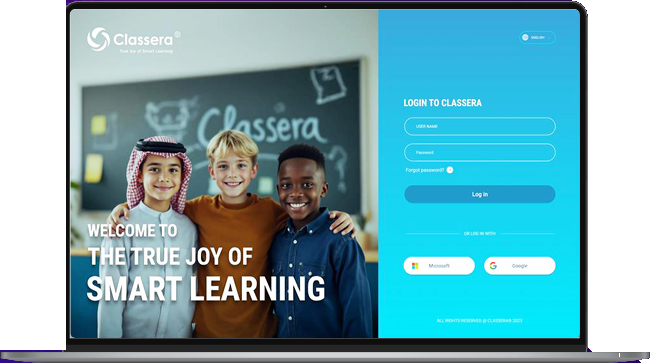
A. Redesigned Login Screen #

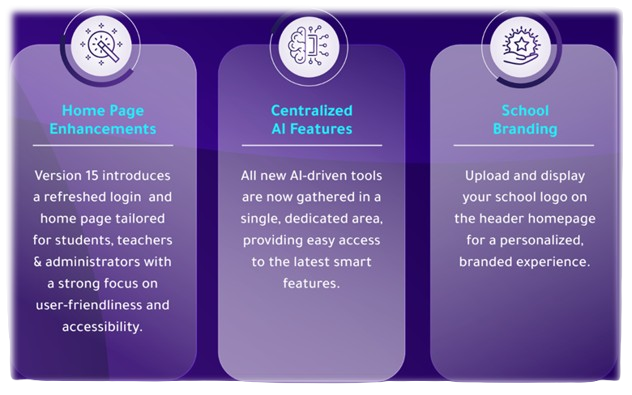
  1. Enhanced User Experience:
    • The login screen is redesigned for a better, more inclusive experience.
B. Innovated Redesigned Homepage #
  1. Diverse User Needs:
    • Tailored to suit all types of Classera users.
  2. Accessibility Standards:
    • Compliant with universal accessibility standards for ease of use.
  3. Smooth Navigation:
    • Simplified interface for seamless access and usability.
Dynamic Dashboard #

Chart Type Customization: Switch between different chart types for each widget.

Resizable Charts: Adjust the size of charts to prioritize the most important data.

Flexible Layout: Move and arrange charts within the dashboard for better organization.

2. System Administrator Updates #

A. AI Settings #

This screen allows administrators to manage AI service settings for books, announcements, and course content, enable or customize sharing options, and activate additional content services.

1. Activating the AI Service #

To open AI Settings:

  1. From the following path: main left-side menu >> Settings >> System Settings, scroll down till you find AI Settings
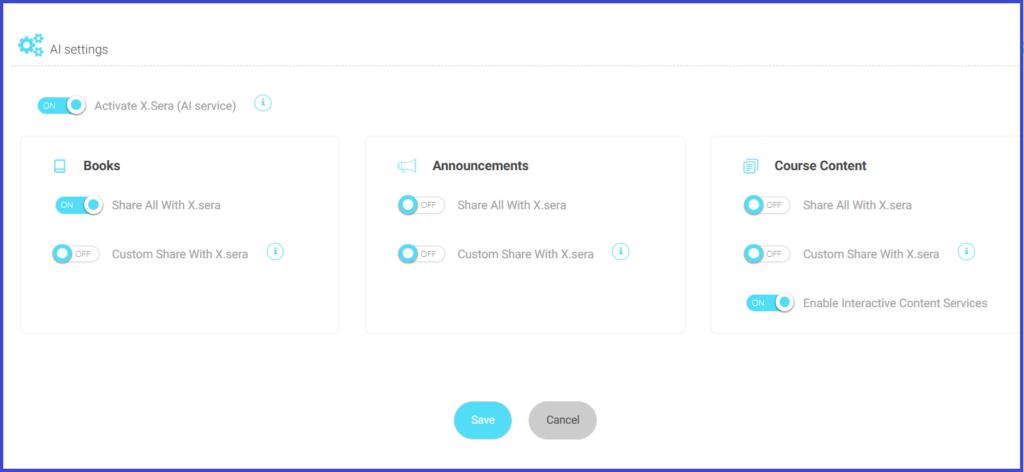


To use the AI Settings screen effectively, follow these steps:

  1. Use the Activate X.Sera (AI service) toggle to enable or disable the AI service across the platform.
  2. In the Books section, toggle Share All With X.Sera to share all books with the AI service. If needed, enable Custom Share With X.Sera to configure specific sharing settings for books.
  3. In the Announcements section, toggle Share All With X.Sera to allow the AI service to access all announcements. Enable Custom Share With X.Sera for more tailored sharing configurations.
  4. In the Course Content section, toggle Share All With X.Sera to grant the AI service access to all course content. Use Custom Share With X.Sera for selective sharing. Enable Interactive Content Services to activate additional content-related AI features.
  5. Once the desired settings are configured, click the Save button to apply the changes. To discard any modifications, click the Cancel button.
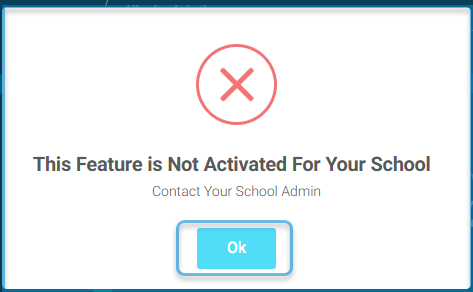
2. Disabling the feature for some users or groups: #

If a user attempts to access a feature that the system administrator has not activated, the following error message will appear:

"This feature is currently unavailable. Please contact your system administrator to activate it."
3. The AI Trial Version Usage Limit #

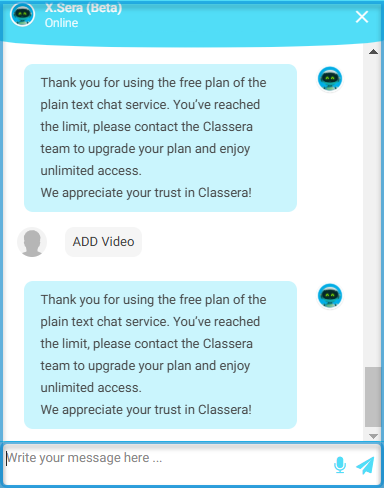
Within the trial version, you have a limited balance usage of the AI features. If your balance reaches the limit, a warning message will appear.

“Thank you for using the free plan of the plain text chat service. You’ve reached the limit, please contact the Classera team to upgrade your plan and enjoy unlimited access.
We appreciate your trust in Classera!”
3. Using the AI Service #

The AI service streamlines educational tasks for teachers, supervisors, students, etc., offering instant assistance, resource management, and automated tools. With features like X.Sera ChatBot, teachers can get real-time guidance, create interactive lessons, and generate exams automatically using uploaded resources such as books, videos, and question banks. The AI ensures a dynamic, user-friendly experience tailored to educational needs, improving efficiency and content quality.
AI: Your Personal Assistant Xsera for Instant Support #

Train Your Assistant to Become Your Companion in Your Educational Journey

“YOUR PERSONALIZED AI ASSISTANT FOR REAL-TIME SUPPORT”

Share video lectures, course materials, and presentations with X.Sera for
targeted assistance.

Upload books, announcements, and resources to keep students informed
and well-resourced.

Features Available to All Users (Teacher, Student, etc.):
Users can interact with the personal assistant Xsera by asking questions related to:

  • Content: Queries about uploaded educational materials.
  • Announcements: School or platform-wide notices.
  • Books: Books uploaded in the library section.

To open the new AI service:

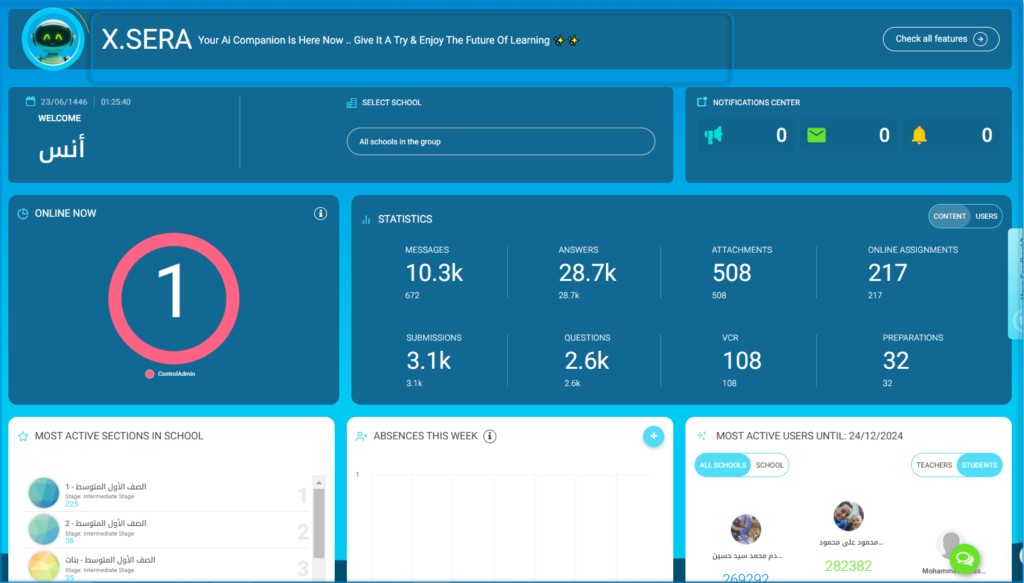
  1. View the banner to learn about X.SERA, the AI companion, and its features designed to enhance the learning experience.
  2. Hover over or click anywhere on the X.SERA banner (highlighted with the red rectangle in the above screen), including the icon, text, or surrounding area, to access and explore X.SERA’s features and tools.
    Alternatively, from the side menu, select the Chat bar >> “Hello, I am Xsera.”
  3. Click the Check All Features button to explore the available tools and functionalities provided by X.SERA. According to your role and access rights, the AI features will change.
  4. Click any of the suggested options, and you will be automatically directed to the the screen related to the suggested feature to work on for amore more user-friendly experience.
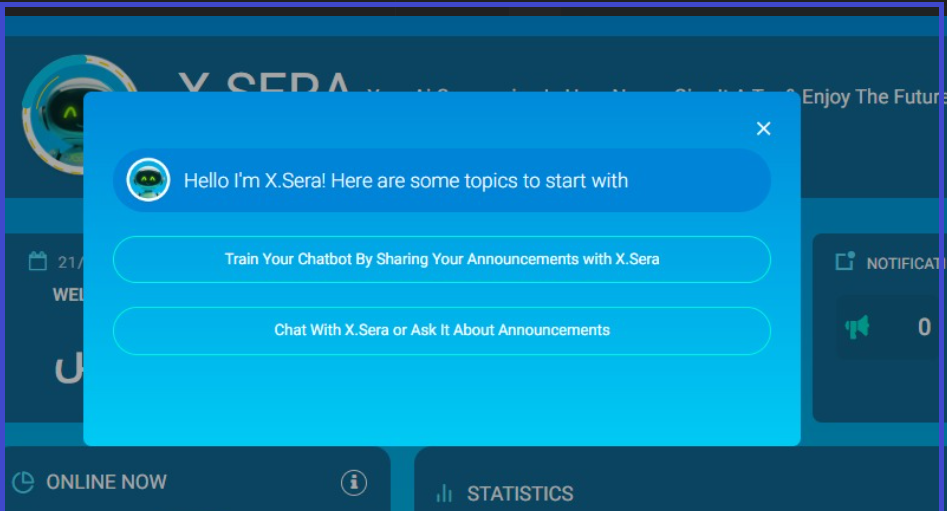
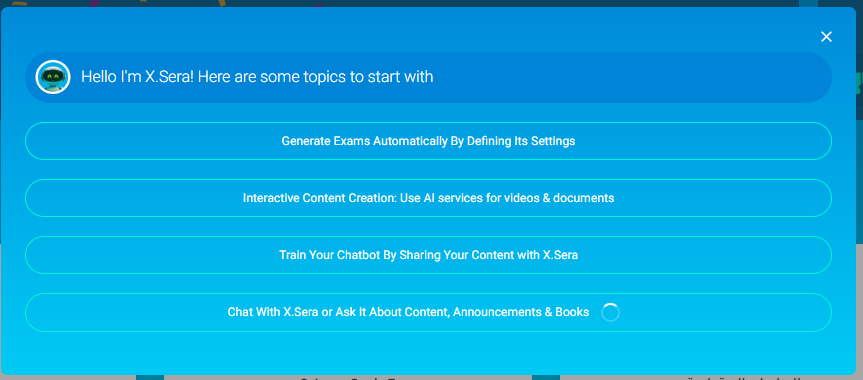
Administrator’s suggested AI Features
Teacher’s suggested AI Features
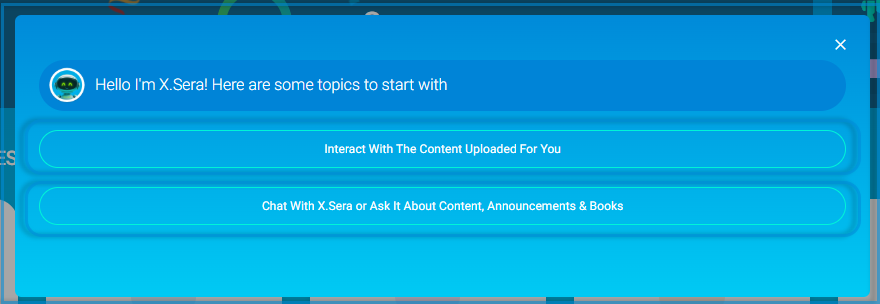
Student’s suggested AI Features

Xsera’s Tool Diversity #

The personal assistant supports all types of content in various formats, ensuring a dynamic and personalized learning experience.

The content upload tool will open, allowing you to upload digital content to the ChatBot. Afterward, you can proceed to ask any related questions.
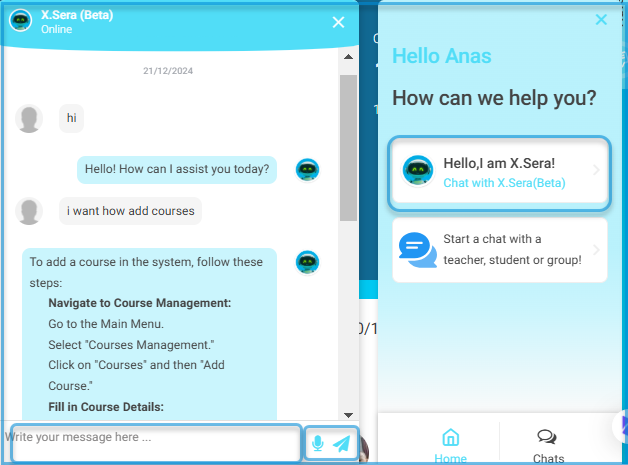
Screen 1

An example for each account demonstrates how AI simplifies their regular daily tasks.

4. Learning & Course Management Enhancements #

  • Customizable & Static Weekly Plans
    – You can adjust the weekly plan table borders according to your preference for a personalized look.
    – Seamlessly add, view, and manage static weekly plans.
  • Enhanced Registration Statuses
    Change registration statuses’ names based on your school’s preferences.
  • Course Icon Uploads
    Easily upload course icons for custom visuals, making course navigation more intuitive.
  • Lesson Preparation Sharing
    Share lesson preparations across multiple sections, even in numerous schools, simplifying lesson planning. ​​
  • Shared Study Plans
    Teachers can share their study plans with their colleagues.
  • Dynamic Student Cards
    Access essential student information at a glance with a customizable design, allowing you to select the details to easily display and print.
  • Transform Data Into Actionable Insights
  • Claims Reports
  • Track and manage claim statuses comprehensively.
  • Progress Report Summary
  • Display average passing and excellence rates across course levels, providing a quick performance overview.

Teacher’ s Account Powered by AI #

The teacher’s account, enhanced by AI, empowers educators to streamline their daily tasks. From creating interactive lessons to auto-generating exams and accessing real-time assistance through X.Sera, the AI tools provide a personalized, efficient, and engaging teaching experience.

Exams Creation Powered by AI #

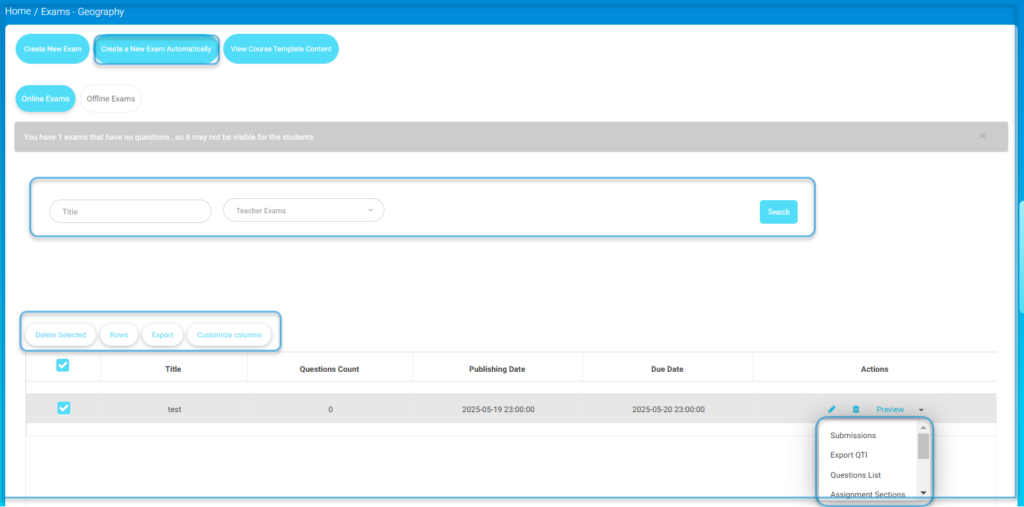
Teachers start by consulting X.Sera for guidance (Screen 1), prepare supporting resources like books (Screen 2), manage and access their exams (Screen 3), and finally use AI tools to generate exams with specified options automatically (Screen 4). This streamlined workflow enhances efficiency and ensures high-quality exam content.

To create exams powered by AI:

  1. From the following path: main left-side menu >> Settings >> System Settings, scroll down till you find AI Settings
  2. Hover over or click anywhere on the X.SERA banner (highlighted with the red rectangle in the above screen), including the icon, text, or surrounding area, to access and explore X.SERA’s features and tools.
    Alternatively, from the side menu, select the Chat bar >> “Hello, I am Xsera.”
  3. Click the Check All Features button to explore the available tools and functionalities provided by X.SERA. According to your role and access rights, the AI features will change.
  4. Select the Generate Exams Automatically by defining its settings option.
  5. Navigate to the “Exams” section and click on Create a New Exam Automatically.
  6. Configure exam settings, including subject, topic, area, and difficulty level, using resources such as question banks, books, and videos.
  7. Click Generate to create the exam automatically, preview the questions, and finalize publishing options.
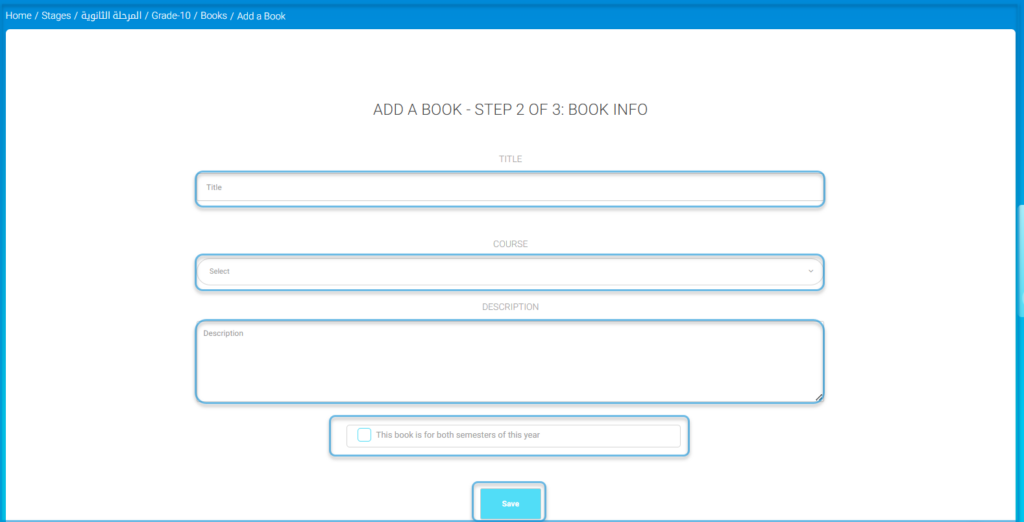
Screen 2

This screen allows teachers to upload relevant resources, such as books, into the system. These uploaded books can later be used to generate exam questions. Teachers provide the title, associate the book with a course, and write a description to ensure accurate categorization and usability.

Step 1:
AI: Auto-Generated Exams #

“CUSTOMIZED AND ADAPTIVE EXAMS FOR SMARTER ASSESSMENTS Personalized Exam Creation: Teachers customize exams by selecting
specific topics, learning objectives, and lessons.

Resource Selection: Choose from books, videos, or public question banks for a rich question base.

Flexible Parameters: Set the number of questions, difficulty levels, and more.
  1. Prepare exams based on specific educational resources and question banks within moments.
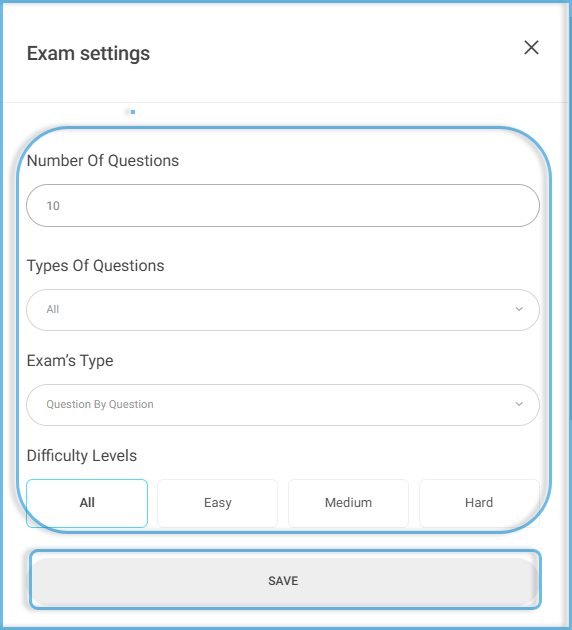
  2. Specify the test options in terms of the number of questions (minimum of 10), their types, the type of test, and the difficulty level.
  3. Specify the videos for which you want to share questions, provided the ‘Share with Xera’ option has been selected.
  4. Based on the books uploaded to the system, specify the book or multiple books.
  5. You can also select specific pages from the book.

Teachers access the exams management section, where they can manage, search, and create exams.

A detailed list appears displaying the available options for creating exams, including:

  • Options include Create New Exam (manual), Create a New Exam Automatically (AI-powered), and viewing previously created exams.
  • The New Exam Screen opens.

Step 2
New Exam Settings #

This screen allows teachers to upload relevant resources, such as books, into the system. These uploaded books can later be used as a basis for generating exam questions. Teachers provide the Title, associate the book with a Course, and write a Description to ensure accurate categorization and usability.
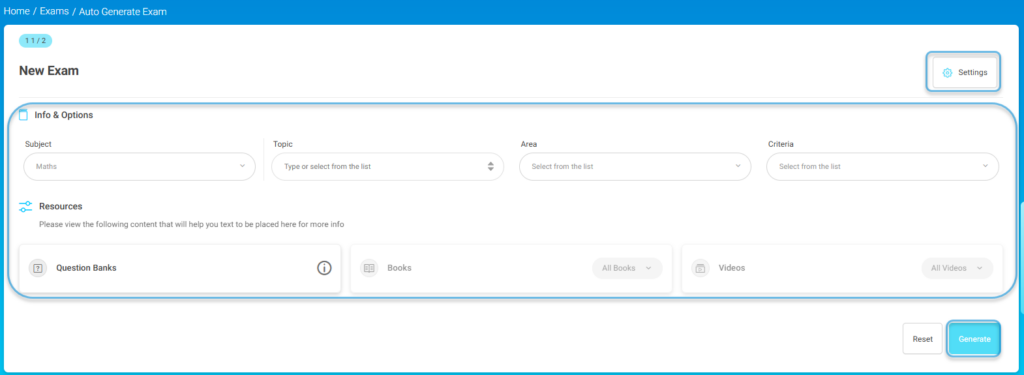
  1. Select the Subject for the exam from the dropdown menu.
  2. Choose the Topic, Area, and Criteria to define the scope and focus of the exam.
  3. Under Resources, select the relevant materials for question generation:
  4. Click on Question Banks to choose from available question sets.
  5. Use the Books dropdown to include content from specific books.
  6. Select Videos if applicable, to generate questions based on multimedia content.
  7. Adjust additional exam settings by clicking the Settings button in the top-right corner.
  8. Specify the test options in terms of the number of questions (minimum of 10), their types, the type of test, and the difficulty level.
  9. Click the Generate button to create the exam based on the selected criteria and resources.
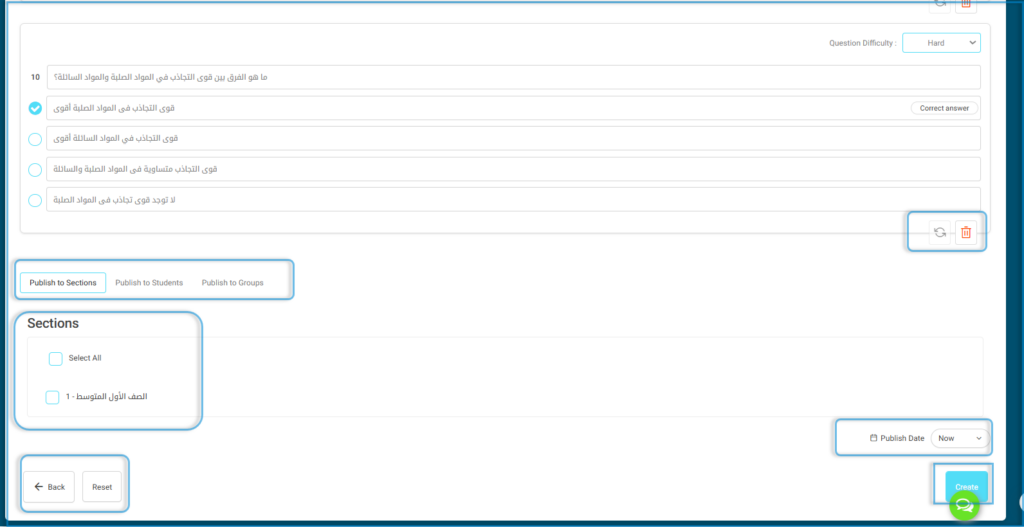
  10. Question generation begins, and the question preview screen is displayed.
  11. Use the Reset button if you need to clear all inputs and start over.
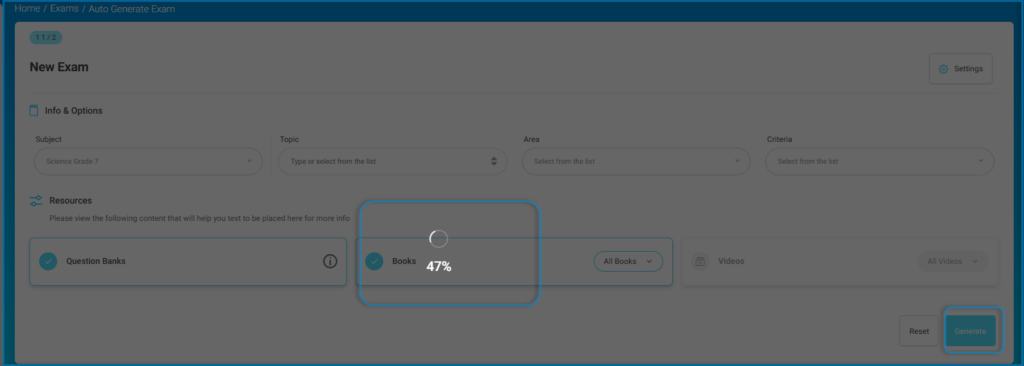
Note: At the end of the questions, publishing options and the publication date can be specified. 
Then, click the “Add” button to add the exam.


AI: Interactive Lesson Creation #


“ENGAGE STUDENTS WITH AI-POWERED, MULTI-FORMAT LESSONS”

AI Content Enhancement: Generate interactive lessons in text, PDF, and video formats.
Interactive Lesson Creation

Automatic Lesson Assets: Instantly generate descriptions, topics,
questions, and learning outcomes.

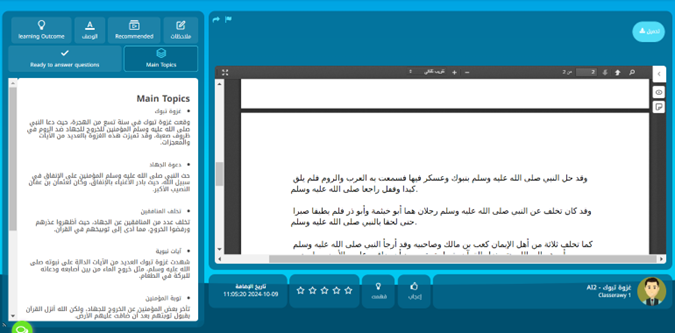
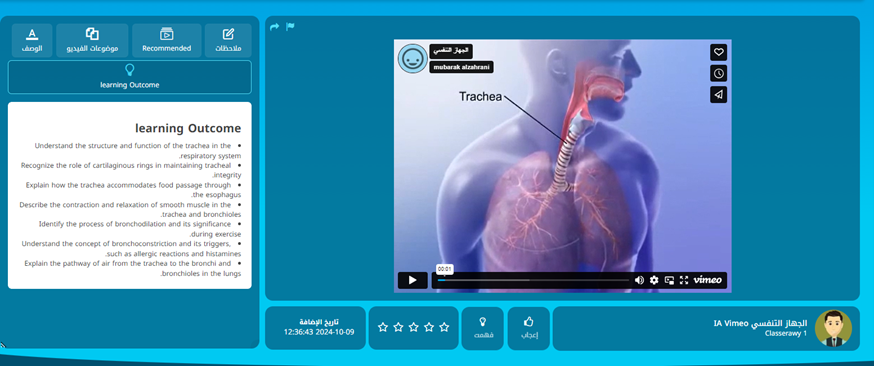
Enhance your teaching experience with AI-powered content creation! Teachers can now transform video lectures hosted on Vimeo into interactive, engaging educational materials. Select any video on Vimeo, and our AI tools will help you generate detailed, dynamic content that goes beyond traditional learning.


Teachers can now create AI-powered content for various types of materials across multiple libraries, including: 

  • Course Attachments 
  • Audio Library 
  • Presentation Library 
  • Documents Library 

The results will appear in the teacher’s account, allowing them to modify AI-related settings as needed. 

Additionally, students can browse the content interactively. They can watch, learn, and interact effortlessly, bringing a new level of engagement to their educational journey!
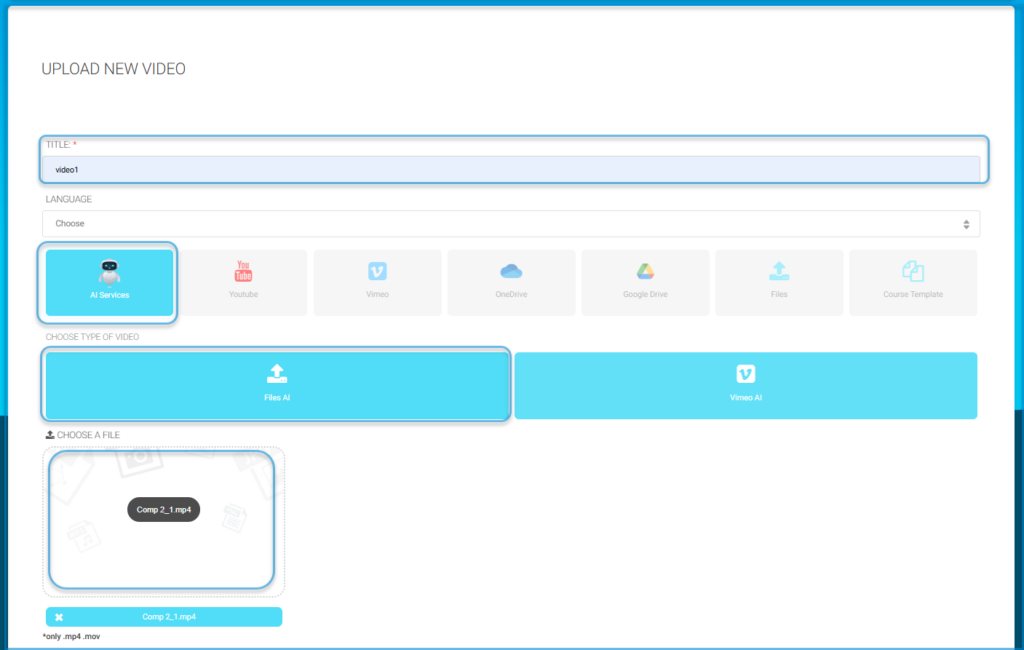
The following steps will guide you in successfully uploading a new video and associating it with AI services or other content sources.

  1. Enter the Title of the video in the provided field. This is a mandatory field.
  2. Select the Language for the video content from the dropdown menu.
  3. Choose the source of the video:
    • Click on AI Services to upload the video for AI-powered processing.
    • Select other options like YouTube, Vimeo, OneDrive, Google Drive, Files, or Course Template based on your preferred source.
  4. Under Choose Type of Video, select the appropriate option:
    • Files AI if you are uploading a file for AI processing.
    • Vimeo AI for AI-based content from Vimeo.
  5. In the Choose a File section, upload your video file by dragging it into the designated area or clicking to browse and select the file from your computer. Ensure the file is in an accepted format like .mp4 or .mov.
  6. Confirm that the file appears in the upload section and proceed as required by the platform.
What are your Feelings

Share This Article :

  • Facebook
  • X
  • LinkedIn
  • Pinterest
system Updates September 2024Classera-15 Overview
Table of Contents
  • AI Overview
  • 1. General updates
    • A. Redesigned Login Screen
    • B. Innovated Redesigned Homepage
    • Dynamic Dashboard
  • 2. System Administrator Updates
    • A. AI Settings
      • 1. Activating the AI Service
      • 2. Disabling the feature for some users or groups:
      • 3. The AI Trial Version Usage Limit
  • 3. Using the AI Service
    • AI: Your Personal Assistant Xsera for Instant Support
    • Xsera’s Tool Diversity
  • 4. Learning & Course Management Enhancements
  • Teacher' s Account Powered by AI
    • Exams Creation Powered by AI
    • Step 1:AI: Auto-Generated Exams
    • Step 2New Exam Settings
    • AI: Interactive Lesson Creation