English
  Arabic
  French
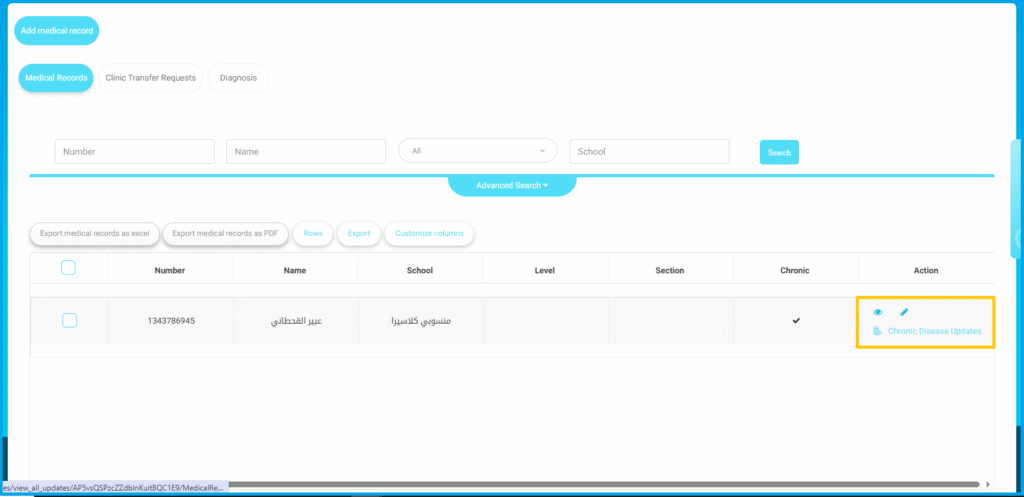
 Update Chronic Diseases #
The Clinic Officer can identify whether a student has a chronic disease, specify the type, and update the related medical status.
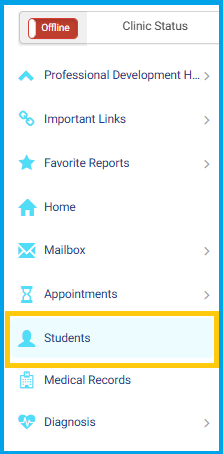
- From the side menu, click the Students button.
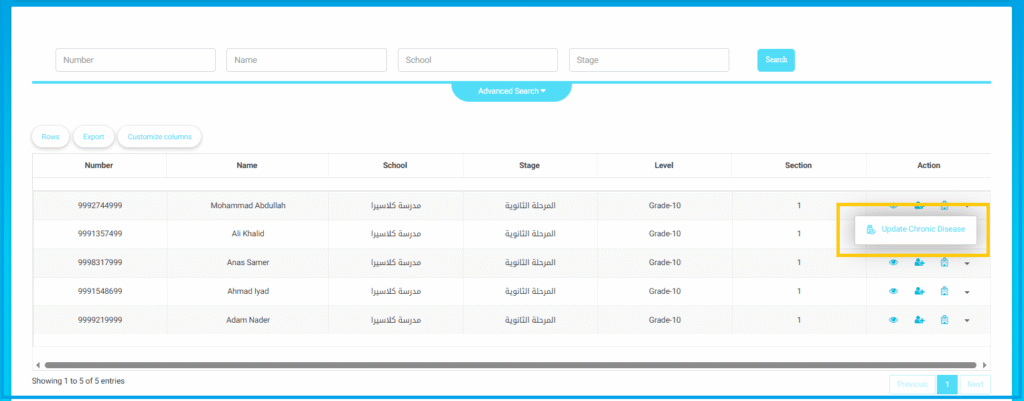
- In the Action column, click the Update Chronic Diseases button.
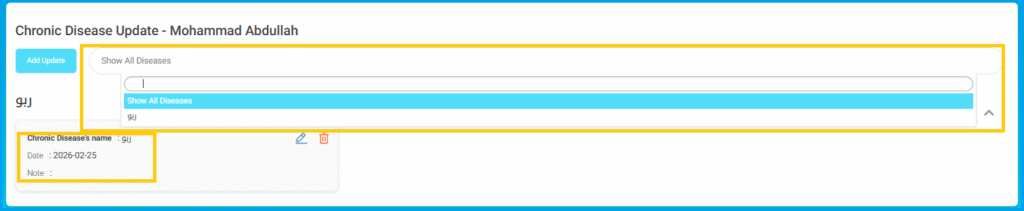
- Click the Add Update button.
- From the dropdown list, select the required disease or click Show All Diseases to view all records.
- The selected disease details will appear (Disease Name, Date, Notes).
- To modify the record, click the Edit icon.
- To remove the record, click the Delete icon.
- After editing, save the changes.
To Update a Chronic Disease Record:
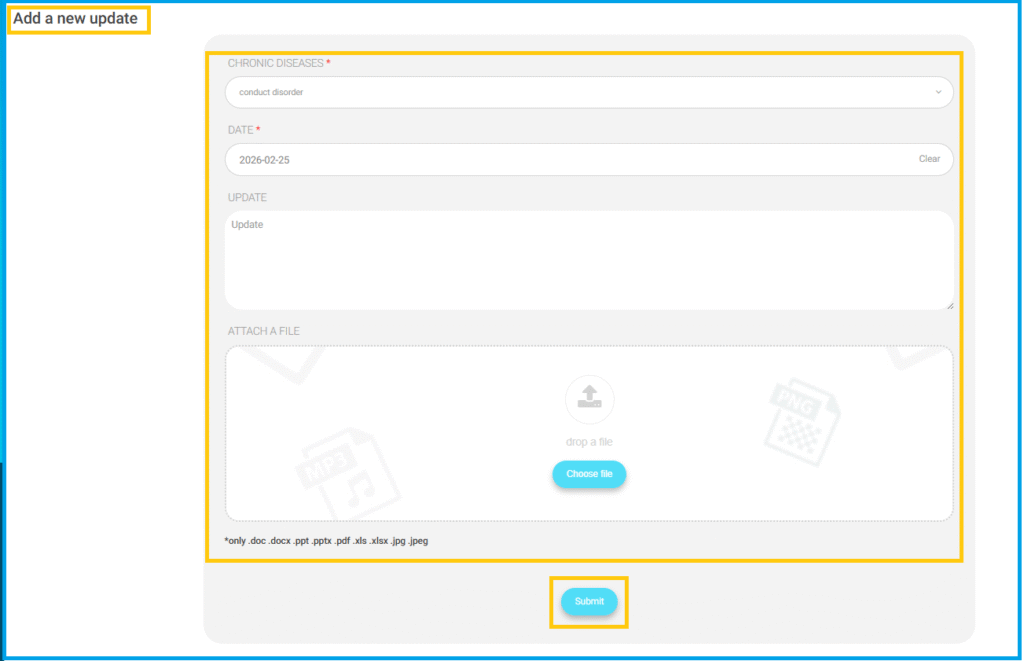
- Click the Add Update button.
- From the Chronic Diseases dropdown list, select the required disease.
- Select the Date.
- Enter the details in the Update field.
- To upload a document, click the Choose File button under Attach a File (allowed formats: PDF, DOC, DOCX, PPT, PPTX, XLS, XLSX, JPG, JPEG).
- Click the Submit button.
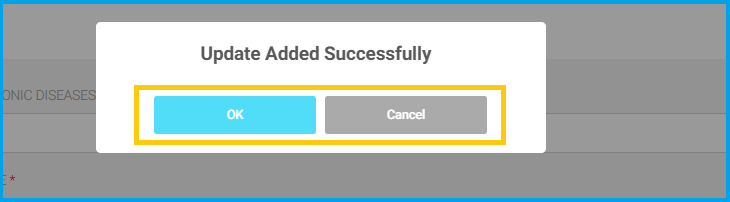
- A confirmation message “Update Added Successfully” will appear.
- Click the OK button to complete the process.
Note: The student’s chronic disease update is view only for the following accounts. Editing or deleting is not allowed.
Teacher Account #
- From the side menu, click All Courses.
- Click on the Course you want to access.
- Click the Lecture Management.
- Click Student Chronic Diseases.
Manager Account #
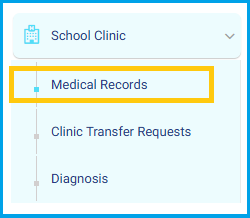
- From the Side Menu, click School Clinics.
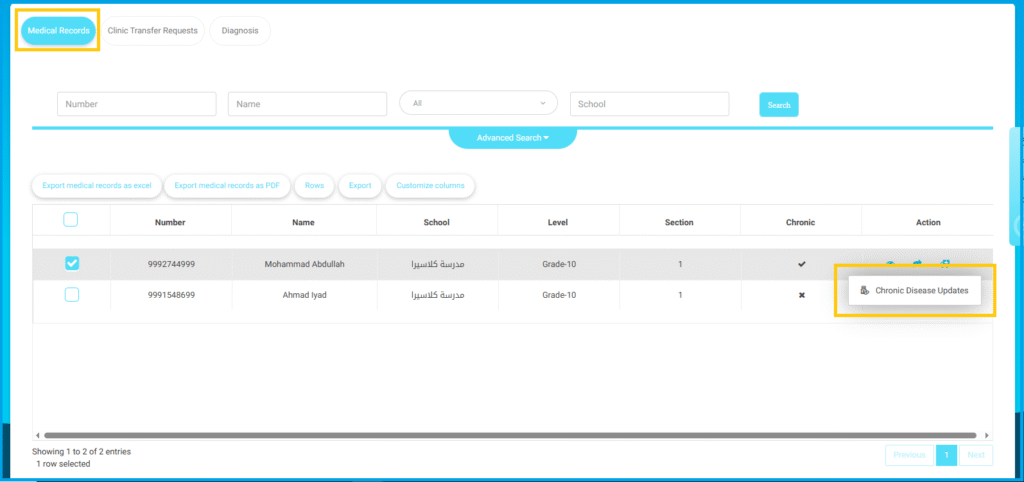
- Click Medical Records.
- Go to the Action column.
- Click Update Chronic Diseases.
Guardian Account #
- From the Side Menu, click School Clinics.
- Click Medical Records.
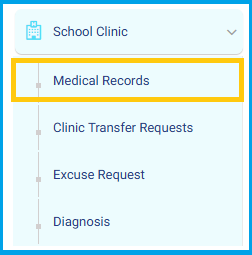
- Go to the Action column.
- Click Update Chronic Diseases.