
 English
  Arabic
  French
 The Courses Widget on the Teacher Homepage acts as a rapid management hub, combining direct universal action shortcuts with interactive course cards. Instead of manually navigating through multiple menus or scrolling through lengthy pages, teachers can create content, record attendance, or access specific subject tools directly from this panel.
Accessing the Courses Widget #
- Log into your Classera Teacher account and navigate to the Dashboard Overview.
- Scroll to the All Courses section.
1. Course Selection Dropdown Menu #
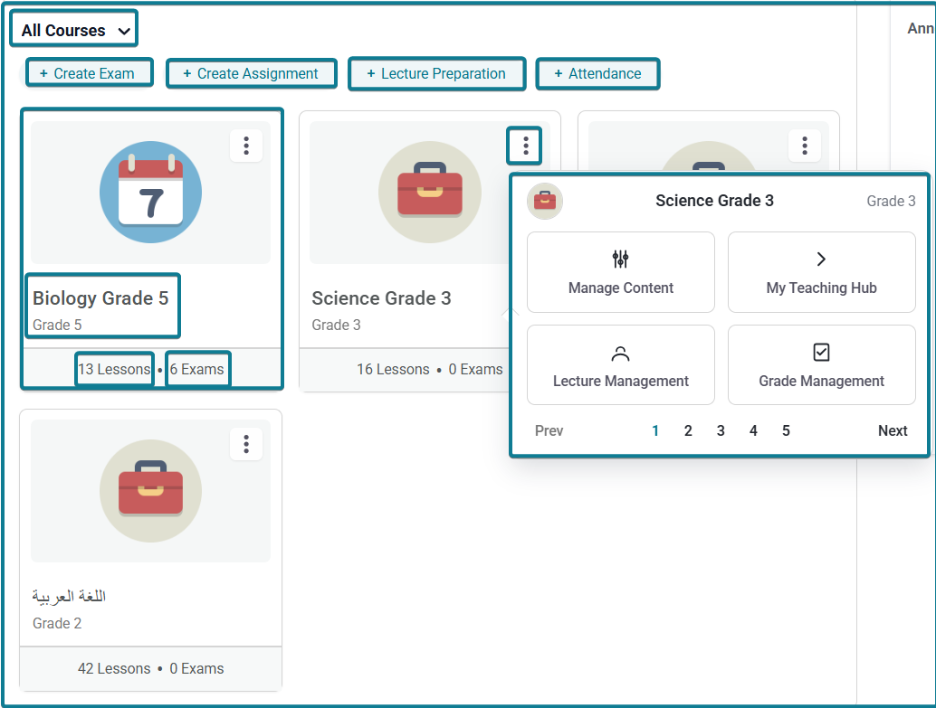
At the top-left of the widget header, click All Courses $\vee$ to filter your view or jump to specific subjects:
- All Courses: Displays cards for all subjects assigned to you across grade levels.
- Specific Course Items: Select a course (e.g., Biology Grade 5 — Grade 5, Science Grade 3 — Grade 3, Science Grade 7 — Grade 7) to filter the dashboard view or focus on a single class.
2. Universal Tools (Quick Action Buttons) #
Located across the top of the All Courses widget, these global shortcut buttons allow teachers to launch core teaching workflows without navigating into a specific course page first:
- + Create Exam: Launches a quick modal window (Create Exam). Select your target course from the Select a course dropdown menu and click Continue to proceed directly to the exam builder.
- + Create Assignment: Opens a quick modal window (Create Assignment). Select your target course from the dropdown list and click Continue to open the assignment creation page.
- + Lecture Preparation: Launches a prompt to select a course and jump directly into creating and publishing daily lesson plans.
- + Attendance: Opens a quick selection menu to pick a class and record daily student check-ins immediately.
3. Course Cards & Interactive Action Menu #
Each subject card displays key metrics and quick navigation shortcuts:
Card Details #
- Subject & Grade Title: Displays the course name and assigned grade level (e.g., Biology Grade 5).
- Summary Metrics: Shows total counts for published Lessons and Exams (e.g., 13 Lessons • 6 Exams).
Three-Dots Menu Options (⋮) #
Clicking the Three Dots Icon (⋮) on any course card opens an interactive pop-up panel providing instant access to course management modules:
- For instant access to course tools like Manage Content, My Teaching Hub, Lecture Management, and Grade Management. If you need access to more tools, navigate through the options using the Next and Prev buttons or the numbered page indicators (1, 2, 3, 4, 5).


